Cabaret and musical show control software: sound, lighting and video on one timeline
Are you looking for control software for a cabaret, a revue or a musical show? DreamShow drives the lighting over DMX, plays the sound and the video, and puts all of it on a timeline for each tableau. The operator moves forward on GO, or lets the numbers follow one another by themselves. DreamShow is developed by Polux (Le Paradise, Alès) and is used every night in its own venues.
A musical show is a sequence of tableaux
A revue or a musical comedy strings together very different moments: an opening on a soundtrack, a sung number where a follow spot tracks the performer, a dance tableau with the moving heads in motion, a video at the back of the stage, the interval, the finale and the bows. The lighting has to land exactly on the music, the video has to start at the same time, and the operator has to stay in control at every moment.
A tableau = a scene, a timeline
In DreamShow, each tableau is a scene. Its timeline is divided into tracks, onto which you drag blocks: the light of a group of fixtures, an effect from the library, a trajectory of moving heads, a sound file, a video, a dynamic effect, a pixel mapping. A red line runs along the timeline and triggers each block when it reaches it; the 2D/3D simulation follows that line.
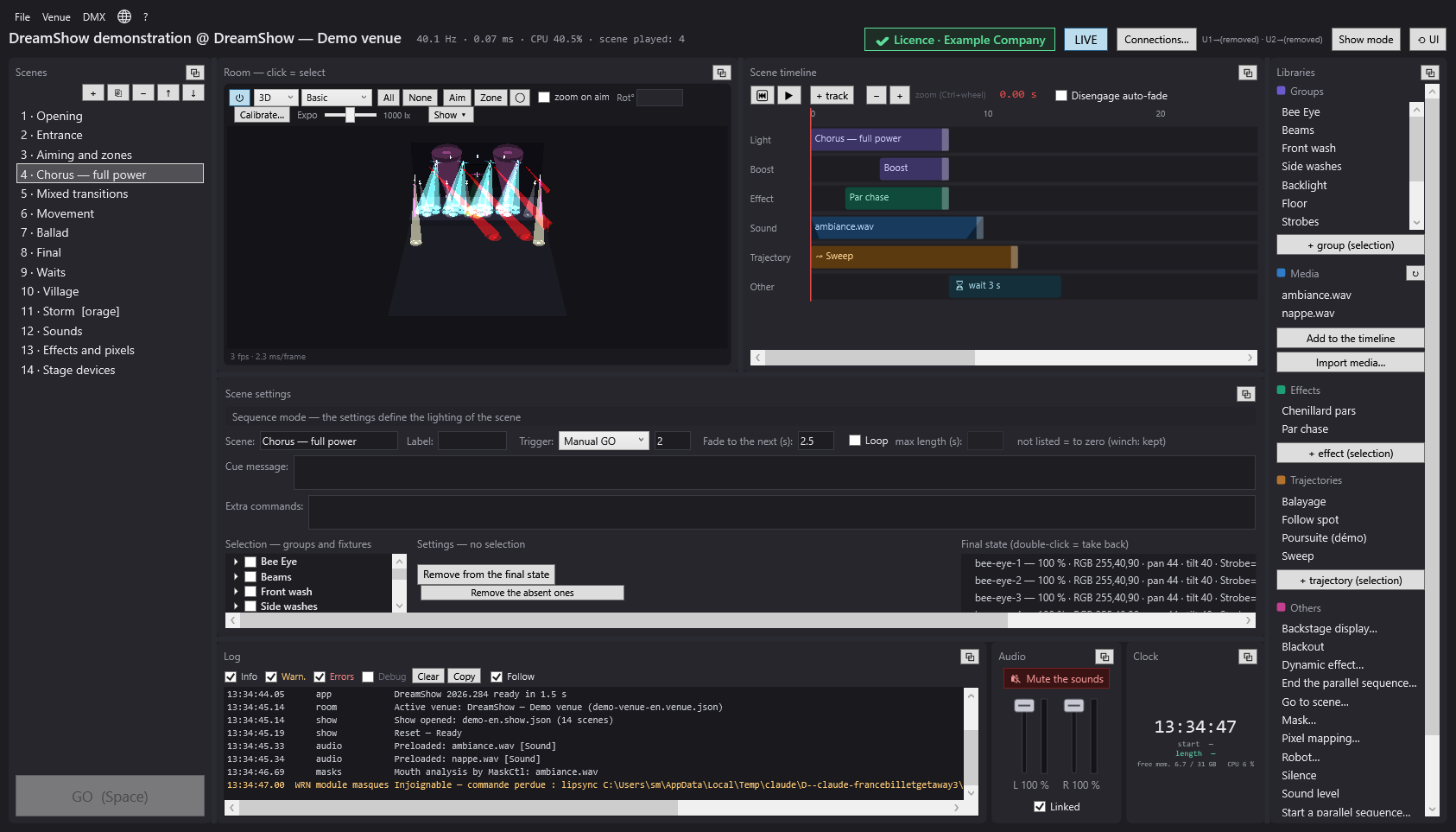
Each scene chooses how it ends: Manual GO (the operator decides), Auto (after a delay) or Chained (at the end of its timeline). A scene can also run on Loop, until the GO or until a maximum length. See The scene timeline.
Locking the lighting to the music
A first draft written by DreamShow. The Create my first show wizard, choosing A musical show, listens to your songs: it picks out the tempo, the beats, the first beats of the bars and the main sections. It writes one scene per song, with colours that change at each 8-bar musical phrase, moving-head movements and pulses locked to the tempo, stronger on the strong passages. Three moods: Calm, Energetic or Party. Strobes are never switched on by the wizard: a flash remains the operator's decision. See Creating your first show and the guide A lighting show set to a piece of music.
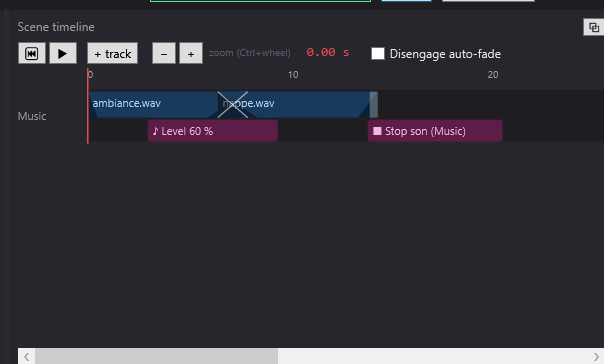
Sound on the timeline. Sound files (mp3, wav, flac, m4a…) are played by DreamShow. Two sounds that overlap on the same track make a crossfade; the Sound level, Stop sound and Silence blocks set the volume or cut a piece of music at the right moment.
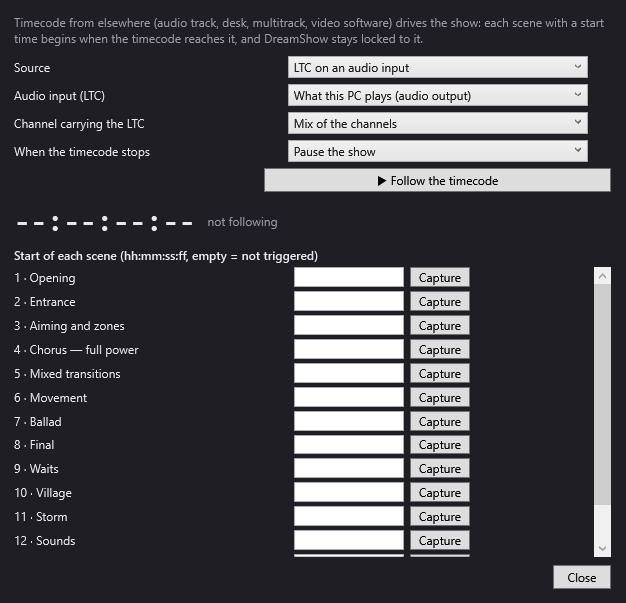
A soundtrack played elsewhere? If the music comes from another system (mixing desk, multitrack, program), DreamShow can follow its timecode, as LTC on an audio input or as MTC through a MIDI interface: each scene starts at its time, and DreamShow stays locked to it. The Capture button reads off a scene's start time while the track runs. See Timecode (LTC / MTC).
Moving heads, palettes and effects
- Palettes keep named colours, moving-head positions and beam settings (“Singer”, “Amber”). Scenes stay linked to the palette: the day the mic stand moves, you update the position once, and all the scenes follow. See Palettes.
- Aim and Zone point the moving heads with a click in the simulation, or make them cover an area of the stage.
- Dynamic effects send a wave travelling from one fixture to the next: intensity wave, chase, scrolling rainbow, circles or figure eights for the moving heads.
- Trajectories animate the moving heads with keyframes: a sweep, a carpet of light that turns.
- The follow spot on a tablet lets a technician follow the performer by finger, on the venue plan.
Video on stage
A video placed on the timeline starts with the lighting. It is played on a screen in the venue: a monitor or a video projector connected to the PC (through the video player installed with DreamShow), or an IP video player on the network. If the screen is placed in the venue, the video also appears in the 3D simulation, in its place.
Backstage
- Backstage displays: a screen in the dressing room shows “On stage”, the name of the current tableau or the length of the show, sent by the timeline.
- Manual controls: a winch, the moving heads' power supply or a relay stay controlled by hand, outside the cue list.
- The OSC remote links DreamShow to TouchOSC, Companion (Stream Deck) or QLab; a MIDI controller or a phone can also give the GO.
- If your show uses them: humanoid robots (Booster K1) and LED masks are controlled from the timeline.
Good to know
- A sound carries on after the GO: if it is still playing at the scene change, it plays to the end. Provide a Stop sound or a Silence where it must stop.
- No volume per block: the volume is global (Audio panel and Sound level blocks).
- The Mute the sounds button only stops the sounds played by DreamShow, not the sound of a video.
- DreamShow runs on Windows 10 and 11 only. A recent graphics card improves the 3D; on a modest PC, Basic quality or the 2D view are enough, and the ⏻ button turns off the rendering without touching the DMX output.
- DreamShow is free, with no feature or time limit: output to real equipment is included, with no universe limit, as are video players, follow-spot tablets, backstage displays, robots and LED masks.
Frequently asked questions
Can I chain several numbers without pressing GO?
Yes. Set the scene's trigger to Chained (it starts at the end of its timeline) or Auto (after a delay). In the first-show wizard, the Play the songs one after the other by themselves box does the same for a sequence of songs. The Disengage auto-fade box suspends all these chainings if you want to take everything back on GO.
Can DreamShow follow a soundtrack started by another program?
Yes, through timecode (LTC or MTC): each scene gets a start time, and DreamShow stays locked to it. Without timecode, the Sound-to-light and tempo window can also listen to what the PC plays and pick the tempo out of it.
How do I change the position of the moving heads in the whole show at once?
With a position palette. Apply it in each scene where the moving heads aim at that point; then a right-click on the palette followed by Update from selection updates all the linked scenes.
How many fixtures and universes can I drive?
DreamShow does not limit the number of DMX universes, and DMX output is free. Each universe carries 512 channels; it goes out through an Art-Net node, an sACN receiver or a USB interface.
Try DreamShow on your own show
DreamShow is free, with no feature or time limit: from 3D preparation to show night.