Create a lighting show set to music
Do you want to create a lighting show set to music, without spending hours placing each change by hand? DreamShow listens to your piece, picks out the tempo, the beats and the main sections, then writes a first lighting design locked to it. You then touch it up in the timeline, like any show. You check everything in 2D and 3D simulation, then play it on the real fixtures: DreamShow is free, with no feature or time limit.
Two ways to follow the music
- A show written in advance: the piece is on the timeline, the lighting is locked to it and replays identically at every performance. That is the subject of steps 1 to 4.
- Live sound-to-light: DreamShow listens to what is playing (microphone, line input or what the PC plays) and makes a group of fixtures beat in rhythm. Useful for a party or a concert with no written cue list. See the last section.
Step 1: choose the venue
The wizard offers ready-made venues to try: Small stage (4 LED PARs, 2 moving heads, 2 floor fixtures) or Bar, club or party hall (6 LED PARs, 4 moving heads, 4 cell washes, 2 strobes). If you have already declared your fixtures, choose My current venue.
Step 2: let DreamShow write the show
- Menu ? > Welcome and first steps…, tile ♫ Create my first show.
- Leave A musical show, give it a name if you wish, then Next →.
- Choose the venue, Next →.
- Click Add songs… (mp3, wav, m4a, aac, wma, flac), or drag the files onto the window. With several songs, put them back in order with ↑ and ↓, and if needed tick Play the songs one after the other by themselves (otherwise Go between songs).
- Choose the mood: Calm, Energetic or Party.
- Click Create the show ✨, wait for Your show is ready!, then Watch and listen to the show ▶: the simulation switches to 3D and the first scene plays.
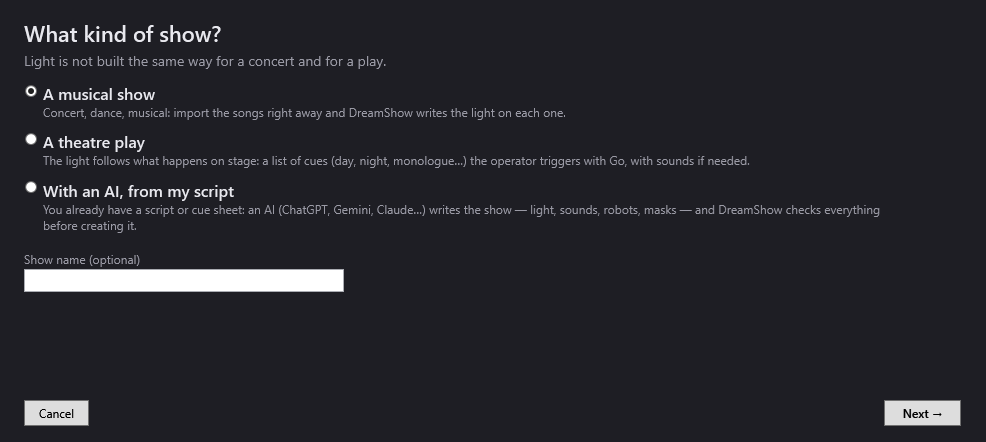
Everything is detailed in the manual: Creating your first show.
What DreamShow wrote
DreamShow cuts each section of the piece into phrases of 8 bars and gives each one an energy level (calm, medium, strong), by comparing it with the rest of the piece. You get one scene per song, triggered by Go, with up to four tracks:
- Sound: the piece, from start to finish;
- Light: one block per phrase, two colours of the mood, an intensity that follows the energy (55%, 80% or 100%);
- Movement (if there are moving heads): a small oscillation, circles or figure eights, locked to the tempo;
- Pulse (if there are colour fixtures): breathing or pulses on the beats.
A last Bows scene, for the applause, puts the colour fixtures in warm white and the moving heads in white towards the centre of the stage. Strobes are never triggered by the wizard: a flash remains the operator's decision.
Step 3: touch it up in the timeline
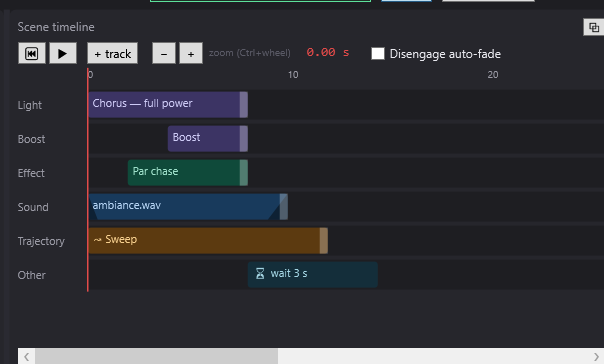
Each scene has its timeline: a red line runs along it and triggers the blocks. To touch it up:
- Select the scene in the Scenes panel.
- Right-click a block > Properties…: change Start (s), Length (s), Fade in (s) and Fade out (s).
- To add a movement, drag Dynamic effect… from the Others list (Libraries panel): intensity wave, chase, rainbow, moving-head circles. See Dynamic effects.
- For a blackout in the middle of the scene, drag Blackout from the Others list.
- Click ⏮ then ▶ to listen again.
Two light blocks that overlap on the same track make a mix; on two different tracks, they are superimposed. See The scene timeline.
Adding or replacing a sound
In the Media list, Import media… copies the file into the show's folder; Add to the timeline places it at 0 s, or drag it wherever you like. Careful: a sound is not cut by the Go. If it must stop in the next scene, place a Stop sound or a Silence there. See Sound and video on the timeline.
The timeline has no undo (Ctrl+Z): save often with Ctrl+S.
Step 4: play the show
Click Show mode at the top right. The cue window opens on blackout, on “Ready”. Press GO (Space): the song and the lighting start together. F11 puts the cue window in full screen, on a second screen if you have one. See Show mode and the cue window.
For the real fixtures to follow, you only need a DMX interface set up in Venue > DMX connections…: see the guide Art-Net, sACN or USB DMX interface.
Live: sound-to-light
No written cue list? Open DMX > Sound-to-light and tempo…:
- Audio source: What this PC plays (audio output) if the music comes out of the PC (DJ software, for example), otherwise a Windows sound input.
- Group whose intensities follow the music: for example your PARs.
- How: Follow the level, Follow the bass or Flash on every beat.
- Set the Depth, then click ▶ Listen and modulate.
The tempo is shown in BPM: detected in the music, tapped with TAP, or received from the MIDI clock. Automatic GO every N beats moves the cue list forward by itself: 32 = every 8 bars of 4 beats.
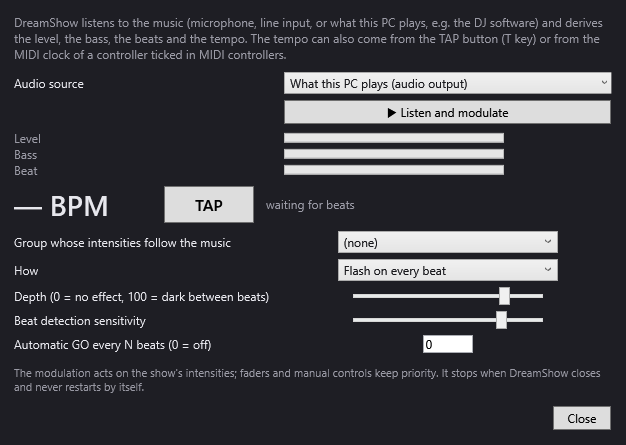
The modulation only lowers the intensities that the scene already gives the group: a fixture that is off in the scene stays off. Listening never restarts by itself at the next launch.
Good to know
- The show written by the wizard is a starting point: listen to it, then correct the blocks that do not suit you.
- A ready-made venue uses specific models from the library. For your own fixtures, declare them first, then run the wizard again on My current venue.
- As long as no DMX interface is set up, you work in simulation; DMX output to the real fixtures is free.
- If the DMX has to be written frame by frame to a piece of music, an AI can do it: see the guide Have an AI write a lighting show.
Frequently asked questions
Which music formats are accepted?
The wizard accepts mp3, wav, m4a, aac, wma and flac. On the timeline, DreamShow also reads .ogg.
Can I do a concert of several songs?
Yes: add all the songs in the wizard. Each one becomes a scene. They wait for a Go, or follow one another by themselves if you tick the box provided.
Do the strobes fire on the choruses?
No. The wizard never triggers strobes. If you want some, place them yourself in the timeline.
The music is played by another machine: how do I stay in sync?
DreamShow can follow an LTC or MTC timecode (DMX > Timecode (LTC / MTC)…): each scene starts at its start time. For the tempo alone, it also accepts the MIDI clock.
Try DreamShow on your own show
DreamShow is free, with no feature or time limit: from 3D preparation to show night.