Manual contents
The scene timeline
Each scene of your show has its own timeline: a strip of time, divided into tracks, on which you drop blocks (light, effects, sounds, videos, waits, jumps…). When the scene starts, a red line runs across the timeline from left to right and triggers each block when it reaches it. When the timeline has finished, the scene settles on its final state (the light setting defined in Scene settings).
To open it: the timeline is the Scene timeline panel of the main screen (at the top, to the right of the simulation). It always shows the scene selected in the Scenes panel.
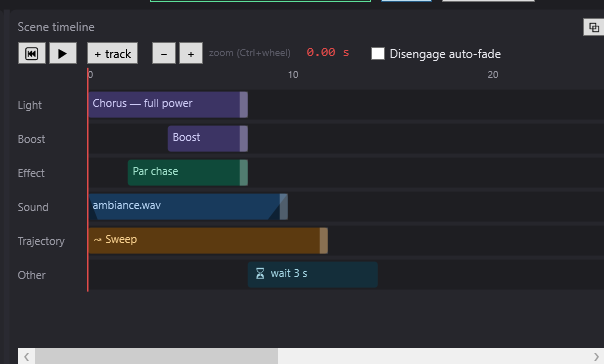
What to understand first
- One timeline per scene. Changing scene in the Scenes panel shows another timeline.
- Time zero of the timeline is the end of the scene's incoming fade. During the fade (set by Fade to the next (s) of the previous scene), nothing is triggered; the timeline starts when the scene has fully arrived. See Fades and mixes.
- A block is a temporary excursion. A light block acts for its duration, over the final state; when it ends, the final state takes over again. See Light and effect blocks.
- The end of the timeline is the end of the last block, all tracks taken together.
- Any change to the timeline is taken into account at once (in less than a second), even during playback.
The toolbar
It stays at the top of the panel; it does not scroll with the timeline.
- ⏮: “Bring the playhead back to zero”. The red line goes back to the start of the selected scene. If the engine was playing another scene, it first jumps to the selected scene. Blocks placed exactly at 0 s are played again (including the scene's extra commands).
- ▶ / ⏸: “Play / pause the timeline (editing: paused by default)”. One click starts playback (the button becomes ⏸); a second click pauses. The button follows the real state of the engine: if a GO restarts playback from the cue window, it switches to ⏸ by itself.
- + track: adds an empty track at the bottom of the scene, named “Track N” (N = number of tracks + 1).
- − and +: zoom the timeline out and in (each click multiplies or divides the scale by 1.25).
- zoom (Ctrl+wheel): a reminder of the shortcut. Ctrl + mouse wheel, anywhere on the timeline, zooms while keeping the moment under the pointer fixed. The wheel alone, over the graduated ruler, also zooms.
- Playhead position (red text, tooltip “Playhead position”): shows the time of the red line, for example “12.35 s” or “1:05.20” beyond one minute. It shows “fade 2.4 s” during the scene's incoming fade, and the text of the current wait when the scene is stopped on a wait block (see Waits). It is empty when the engine is playing a scene other than the one displayed.
- Disengage auto-fade: see below, dedicated section.
The graduated ruler
At the top of the tracks, the ruler shows the seconds (then “1:00”, “1:30”… beyond one minute). The spacing of the marks adapts to the zoom.
- Click in the ruler: “Click = place the playhead”. The red line jumps to that moment. If the engine was playing another scene, it first jumps to the selected scene. Sounds and videos realign to the right position in the file.
- The timeline shows at least 60 seconds, and always 10 seconds more than the end of the last block.
The red line
The red line crosses the ruler and all the tracks. It shows how far playback has got in the scene the engine is playing. It only appears if the scene displayed is the one the engine is playing.
- During playback, the timeline scrolls to keep the red line visible (it moves back to 20 % of the width when it goes off screen).
- The 2D/3D simulation follows the red line: moving the red line with the mouse shows the lighting at that moment.
- When paused, the scene's final state is displayed in full (the incoming fade is considered finished), which lets you make adjustments and move around in the timeline.
The tracks
A track is a horizontal line of the timeline. Each track can take any type of block: there is no track reserved for light or for sound. The track's name is shown on the left.
Tracks are there to organise things, but they also have real effects:
- two light blocks that overlap on the same track make a mix (crossfade from one to the other); on two different tracks, they are layered (see Fades and mixes);
- two sounds that overlap on the same track crossfade;
- the Stop sound block can cut only the sounds started from certain tracks, designated by their name;
- a Blackout block only turns off the fixtures lit by the blocks of its own track (or everything, if its track has no light).
Adding a track
- Click + track.
- Or, if the scene has no track yet, drop an item on the grey strip “Drag an item here to create a track”: DreamShow creates “Track 1” and places the block on it. If you cancel the block's settings window, the track is not created.
- The Add to the timeline button of the Media list creates a “Media” track if needed (or “DMX” for a DMX recording).
The current track
A click on a track's name makes it the current track: its name turns orange, preceded by “▸”. Tooltip: “Click = current track (receives new blocks) · right-click = rename / delete”.
The current track receives the blocks added by the Add to the timeline button (Media list). Blocks dragged with the mouse, on the other hand, go onto the track where you drop them.
A track's menu (right-click on its name)
- Move the track up / Move the track down: changes the order of the tracks (greyed out for the first or the last). The order matters: when two tracks set the same fixture at the same moment, the lower track wins (see Light and effect blocks).
- Duplicate the track: copies the track and all its blocks just below it; the copy gets a unique name (“Light (2)”…).
- Copy the track: puts the track and its blocks in memory.
- Paste the track: adds the last copied track at the bottom of the displayed scene (greyed out as long as nothing has been copied). It works from one scene to another: this is how you reuse a track in another scene. The pasted track becomes the current track.
- Rename the track…: asks for the new name (“Name:”). The scene's Stop sound blocks that targeted the old name are updated.
- Delete the track: deletes the track and its blocks. If the track contains blocks, DreamShow asks for confirmation (“Delete track “…” and its N item(s)?”).
Two-level tracks
When a track contains both Stop sound or Sound level blocks and other blocks, it is displayed on two levels: ordinary blocks at the top, Stop sound and Sound level blocks just below. That way a level setting never hides the sound it goes with.
Blocks
Dropping a block
All blocks come from the Libraries panel (on the right): you drag them with the mouse from a list and drop them on a track, at the moment you want.
- While dragging, a dotted rectangle shows where the block will land.
- The drop point is rounded to the tenth of a second and snaps: if it falls within 8 pixels of the start or end of another block of the scene (on any track), or of 0 s, it sticks to it. A dotted yellow line shows the snapping.
What each list drops:
| List | Block created | Starting duration |
|---|---|---|
| Groups | light block on this group, with the group's setting in the final state | 10 s |
| Effects | library effect block | 10 s |
| Trajectories | trajectory block | the trajectory's duration (10 s if unknown) |
| Media (sound or video) | media block | the real duration of the file (30 s if it is unknown) |
| Media (.DmxStreaming, .bin, .dmx) | DMX recording block | the real duration of the recording (10 s otherwise) |
| Others | depends on the item (see below) | depends on the item |
Some items of the Others list open their settings window straight away (Go to scene…, the two parallel sequences, the two waits, Backstage display…, Robot…, Mask…, Dynamic effect…, Pixel mapping…). If you close this window without confirming, no block is created.
Moving a block
- Drag the block horizontally: its start changes in steps of 0.1 s. During the gesture, the block becomes transparent with a dotted outline.
- The move snaps: the start or the end of the block sticks to the start or end of another block of the scene (all tracks) or to 0 s.
- To change track, drag the block vertically over another track: a dotted rectangle appears on that track; on release, the block is moved there.
Resizing a block
Blocks that have a duration (light, effect, trajectory, media, DMX recording, dynamic effect, pixel mapping, Blackout, Silence) have a light handle on their right edge (the pointer becomes a double arrow). Drag it to change the duration, in steps of 0.1 s (minimum 0.1 s). During the gesture, the block shows its duration (“⟷ 12.5 s”).
The other items of the Others list are instant events: only their start matters, their width is only there so you can read their text. They have no handle.
Double-click
- On an effect block: switches to effect editing mode (orange “EFFECT MODE” banner), see Light and effect blocks.
- On a trajectory block: opens the trajectory editor, see Trajectories.
- On a dynamic effect block: opens the Dynamic effect window, see Dynamic effects.
- On a pixel mapping block: opens the Pixel mapping window, see Pixel mapping.
- On a Robot or Mask block: opens its settings window.
- On all the others: opens the Block properties window (or the event's own window: Go to scene, Wait for a key…).
A block's menu (right-click)
- Properties…: the block's settings window (start, duration, fades, and the settings specific to its type).
- Edit the effect… (effect block only): switches to effect editing mode.
- Edit the trajectory… (trajectory block only): opens the trajectory editor.
- Replace with the current selection + settings (light block only): see Light and effect blocks.
- Delete: removes the block from the timeline, without confirmation.
The Block properties window
For a light, effect, trajectory, dynamic effect or pixel mapping block, a Blackout or a Silence:
- Start (s): start time, in seconds from the start of the timeline.
- Length (s): length of the block.
- Fade in (s) and Fade out (s): gradual rise and fall of the block (see Fades and mixes). If the two fades add up to more than the duration, DreamShow shortens the fade out (and the fade in if on its own it exceeds the duration).
Media blocks have extra settings, described in Sound and video on the timeline. A DMX recording block only has Start (s) and Length (s).
Negative or unreadable values are ignored (the old value is kept). Both full stop and comma are accepted as the decimal separator.
What a block shows
- Its text: the name of the group or effect, of the media file, or a summary of the event (“→ 3 · Final”, “⏳ wait 18:30”, “♪ Level 80 %”…).
- Its fades: a dark triangle in the left corner (fade in) and in the right corner (fade out), to scale.
- A cross (as in video editing software) where two blocks overlap on the same track. Between two light blocks, it signals a mix; between two sounds, a crossfade; between two Sound level blocks, a level transition.
- Its tooltip (on hover): type, start, duration, fades, playback position in the file.
- A red block preceded by ⚠ signals a problem: media missing from the show's media folder (“MEDIA NOT FOUND in the show's media folder”), effect deleted from the library (“EFFECT NOT FOUND in the library”), missing trajectory (“TRAJECTORY NOT FOUND”), jump or parallel sequence whose target scene no longer exists.
The block colours are described in Light and effect blocks.
Block types
| Block | Where it comes from | Page |
|---|---|---|
| Light (group) | Groups list | Light and effect blocks |
| Effect | Effects list | Light and effect blocks |
| Trajectory (↝) | Trajectories list | Trajectories |
| Sound, video | Media list | Sound and video on the timeline |
| DMX recording (▦) | Media list | Sound and video on the timeline, DMX stream by an AI |
| Blackout (⚫) | Others list | Light and effect blocks |
| Stop sound, Sound level, Silence | Others list | Sound and video on the timeline |
| Wait for a key…, Wait for a time, a date, the sun… | Others list | Waits |
| Go to scene… | Others list | Jumps and scene labels |
| Start / End a parallel sequence… | Others list | Parallel sequences |
| Dynamic effect… (∿) | Others list | Dynamic effects |
| Pixel mapping… (⣿) | Others list | Pixel mapping |
| Backstage display… (🖵) | Others list | see below |
| Robot… (🤖), Mask… (🎭) | Others list | see below |
Backstage display…
Sends a message to the information screens in the wings and dressing rooms (backstage displays) at the moment the red line reaches it. Its window (“Afficheur backstage” (Backstage display)) contains the text of the message (Message (empty = clears the screen):), buttons to insert automatic values ({heure}, {durée}, {fin}, {scène}, {suivante}: time, length, end, scene, next) and colours ({rouge}, {vert}, {jaune}, {orange}, {bleu}, {blanc}: red, green, yellow, orange, blue, white; {alerte} for a red background), then the Target displays: list to tick. A block with no target does nothing. Displays are declared in Venue > Backstage displays…. Details: Backstage displays.
Robot… and Mask…
A Robot… block gives an order to a humanoid robot of the venue (gesture, phrase, dance…), a Mask… block controls an LED mask (face, mouth animated on a sound…). Their window (Robot block or Mask block) asks for the target device, the action and its setting. A robot only moves if the operator has armed it. Robots and masks are declared in the Venue menu. Details: Humanoid robots and LED masks.
Disengage auto-fade
The Disengage auto-fade box (on the right of the toolbar) cuts automatic follow-ons. Its tooltip: “Ticked: no scene chains on its own (auto-fade / chained), and a GO arrives on the scene WITHOUT playing its timeline (final state frozen, no sound, no blocks). Everything is advanced and played by hand — useful to edit and test.”
What it does exactly when it is ticked:
- Scenes set to Auto or Chained no longer move on to the next one by themselves, nor does the max length of a Loop scene (the loop itself keeps going round).
- Parallel sequences no longer chain from one scene to another either.
- In the editor, a GO (GO (Space) button or space bar) arrives on the next scene paused, at 0 s: you see its final state, no sound plays; click ▶ to play its timeline.
- In Show mode, a GO still starts the next scene normally: there, the box only blocks automatic follow-ons.
The same box exists in the cue window; the two are linked. It is unticked every time DreamShow starts.
What happens at the end of the timeline (in the editor)
When you play a scene with ▶:
- Scene on “Manual GO”, without Loop: playback stops by itself just after the last block, like a media player at the end of a track. The red line stays parked at the end, ▶ goes back to the play position. To play again, click ⏮ (or in the ruler), then ▶. An empty scene stays at 0 s.
- Scene on Auto or Chained: playback continues and the scene moves on to the next one by itself, with its fade (unless Disengage auto-fade is ticked). The selection in the Scenes panel follows (if the LIVE button is on).
- Scene on Loop: the timeline starts again from the beginning, until GO or until the max length.
Stopping at the end of the timeline pauses the whole engine, parallel sequences included. To watch a parallel sequence run for a long time, switch to Show mode (see Parallel sequences).
The GO (Space) button stays greyed out as long as the timeline of the current scene has not finished (except for a Loop scene, which GO can always leave, and except before the first scene). The same rule applies in the cue window.
Playback in the editor and in Show mode
| In the editor | In Show mode (cue window) | |
|---|---|---|
| Choosing a scene | the engine jumps to it (LIVE button on), without a fade, at 0 s | you move on with GO; ◀ Previous goes back |
| Playback | paused by default; ▶ plays | always playing |
| End of timeline | stops at the end of the timeline (scene on Manual GO) | the red line stays at the end of the last block; the scene holds its final state until GO |
| GO | plays the next scene (fade then timeline), or shows it paused if Disengage auto-fade is ticked | always plays the next scene |
| DMX output | follows the LIVE button | always active |
When the cue window opens, the show starts again from the “Ready” state (black scene), or resumes where you left it if you closed the cue window in the middle of the show. When it closes, the editor goes back to the selected scene, paused. See Show mode and the cue window.
Step by step
Building a first timeline
- In the Scenes panel, select the scene.
- In Scene settings, set the lighting of a group (for example “Front” at 80 % in amber): this is its final state.
- Drag the “Front” group from the Groups list onto the strip “Drag an item here to create a track”, around 2 s. DreamShow creates “Track 1” and a 10-second block that takes the group's setting.
- Right-click the block > Properties…: set Fade in (s) to 2 and Fade out (s) to 3, then OK.
- Drag a sound from the Media list onto the same track or onto a new one (+ track), at 0 s.
- Click ⏮ then ▶: the red line moves, the sound starts, the light rises and falls in the simulation. Playback stops after the last block.
Reorganising a timeline
- Rename the tracks (right-click on the name > Rename the track…): “Front”, “Backlights”, “Music”.
- Drag a block to another track to move it.
- Butt the blocks end to end with the help of snapping (yellow line).
- Zoom with Ctrl + wheel to place a short block precisely.
Reusing a track in another scene
- Right-click the track's name > Copy the track.
- Select the other scene in the Scenes panel.
- Right-click the name of any track > Paste the track (if the scene has no track, first add one with + track).
Good to know
- There is no undo (Ctrl+Z) in the timeline. Delete removes a block without confirmation. Save often (Ctrl+S).
- The Delete key does not delete a block: use right-click > Delete.
- + track numbers tracks according to the number of tracks: after a deletion, two tracks can end up with the same name. Rename them, especially if you use Stop sound per track.
- With the LIVE button off, choosing a scene in the Scenes panel no longer makes the engine jump to it; ⏮ or a click in the ruler still do.
- A trajectory block is stretched over the length of the block: a longer block plays the trajectory more slowly. The last movement of a track keeps its final position until the end of the scene. See Trajectories.
- The panel can be detached into a floating window (⧉ button in its header), see Main screen overview.