Manual contents
Video screens
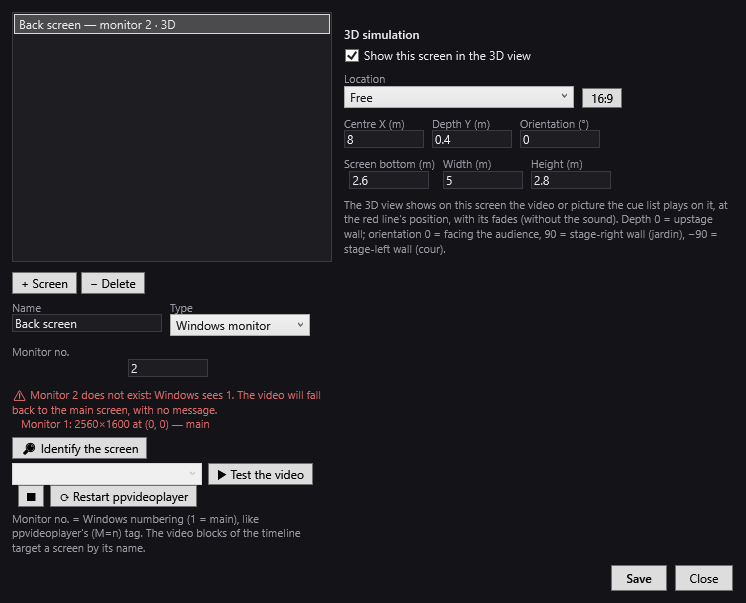
Screens are the surfaces on which the show plays its videos and pictures: a monitor or video projector plugged into the PC, or an IP video player (a box on the network). Each screen has a name: the timeline's video blocks target a screen by that name. A screen can also be placed in the venue so that the 3D simulation shows the video in its place.
To open it: menu Venue > Screens…. The window is titled “DreamShow (version) — Screens: (venue name)”. It does not block the main screen; if it is already open, the menu brings it to the front.
Two kinds of screen
- Windows monitor: a screen plugged into the PC (monitor, video projector, LED wall through its graphics card). The video is played by the ppvideoplayer player installed with DreamShow, which starts minimised.
- IP video player: a player box on the network (smallvp box). It connects to the show control PC and plays content stored on itself, filed by “slot” (A to P): you associate a file with each slot, then upload it to the box from this window.
The list and the screen's properties (on the left)
- The list: one line per screen: “name — monitor N” or “name — IP: identifier”, followed by “· 3D” if the screen is placed in the venue.
- + Screen: adds a “Screen N” screen, of monitor type, on monitor N.
- − Delete: deletes the selected screen (without confirmation; nothing is saved before Save).
- Name: the screen's name, the one the timeline's video blocks choose. If you change it, blocks already placed that targeted the old name no longer find it.
- Type: Windows monitor or IP video player.
- Monitor no. (Windows monitor only): the monitor's number, in Windows numbering (1 = main), the same as ppvideoplayer's.
A note reminds you: “Monitor no. = Windows numbering (1 = main), like ppvideoplayer's (M=n) tag. The timeline's video blocks target a screen by its name.”
Tools for a Windows monitor
- The list of monitors: “Windows sees N monitor(s) — same numbering as ppvideoplayer:”, then one line per monitor: “Monitor N: width×height at (x, y)”, with “— main” for the main screen. If the chosen number does not exist, the text turns red: “⚠ Monitor N does not exist: Windows sees M. The video will fall back to the main screen, with no message.”
- 🔎 Identify the screen: shows for 8 seconds, on this monitor, a full-screen card with its big number, “MONITEUR N” (MONITOR N), the screen's name, its resolution (and “main screen” where applicable). A click or a key closes it sooner. This is the sure way to know which physical screen carries which number.
- The list of the show's videos and ▶ Test the video: plays the chosen video on this monitor through ppvideoplayer, that is, through the show's real path. The test stops by itself after 10 seconds. Careful: a video that starts on black will show nothing; use Identify the screen first. If the show has no video, the list is empty (“This show has no video: add one to test.”).
- ■: stops the test.
- ⟳ Restart ppvideoplayer: restarts the player. ppvideoplayer only discovers monitors when it starts: do this after plugging in or enabling a screen.
The IP video player (on the right)
This panel only appears for a screen of type IP video player.
- ID or IP address: designate the box by its identifier (set on the box) or by its IP address. Next to it, the live status: “● connected” or “○ not connected”.
- A note reminds you that the box connects to the show control PC (port 5555) and plays local content by slot.
- The list of connected boxes: “Connected boxes: identifier (IP address), …” or “No box connected yet.” It tells you what to type in ID or IP address.
- + Slot: adds a slot (the first free letter from A to P).
- Upload everything: uploads all the slots, one after the other.
The videos the show already plays on this screen (video blocks that target its name) are added automatically to the list of slots, each on a free letter: you only have to check and upload. If there are none: “No video of the show targets this screen. Add a video block on the timeline (screen = this name), or “+ Slot” to prepare content.”
Each slot has its own line:
- Video: the associated file (typed, or chosen with File…: videos .mp4, .mov, .avi, .mkv, .webm or images .png, .jpg, .jpeg, .bmp, .gif). A file taken from the show's media folder is saved by its relative name.
- Slot: the letter, from A to P.
- Type: Video or Image.
- Upload: sends the file to the box, then waits for its confirmation. The status is shown under the line: “⏳ Upload in progress…”, then ✔ (confirmed), ⚠ (sent but not confirmed in time) or ✖ (failed, with the reason: server unavailable, ID or IP missing, no file associated…). The window stays usable during a large transfer.
- ▶: test, plays this slot on the box.
- ■: stops playback on the box.
- ✕: removes this slot.
The 3D simulation section (on the right)
It places the screen in the venue, so that the simulation shows it.
- Show this screen in the 3D view: when ticked, the screen is placed. On the first tick, it is put in the middle of the back wall, its bottom 1 m above the stage, as wide as half the venue (6 m at most) and in 16:9 format. When unticked, the screen is no longer drawn.
- Location: Upstage wall (facing the audience), Stage-right wall (jardin), Stage-left wall (cour), Back of the hall (facing the stage) or Free. Choosing a wall sets the orientation and puts the screen against that wall (keeping its position along the wall when possible). Free is shown when the values match no wall.
- 16:9: sets the height to width × 9/16.
- Centre X (m): position of the screen's middle across the width, from the stage-right wall.
- Depth Y (m): position in depth; 0 = the upstage wall.
- Orientation (°): 0 = facing the audience, 90 = on the stage-right wall, −90 = on the stage-left wall, 180 = facing the stage.
- Screen bottom (m): height of the lower edge, from the venue floor.
- Width (m) and Height (m): size of the picture.
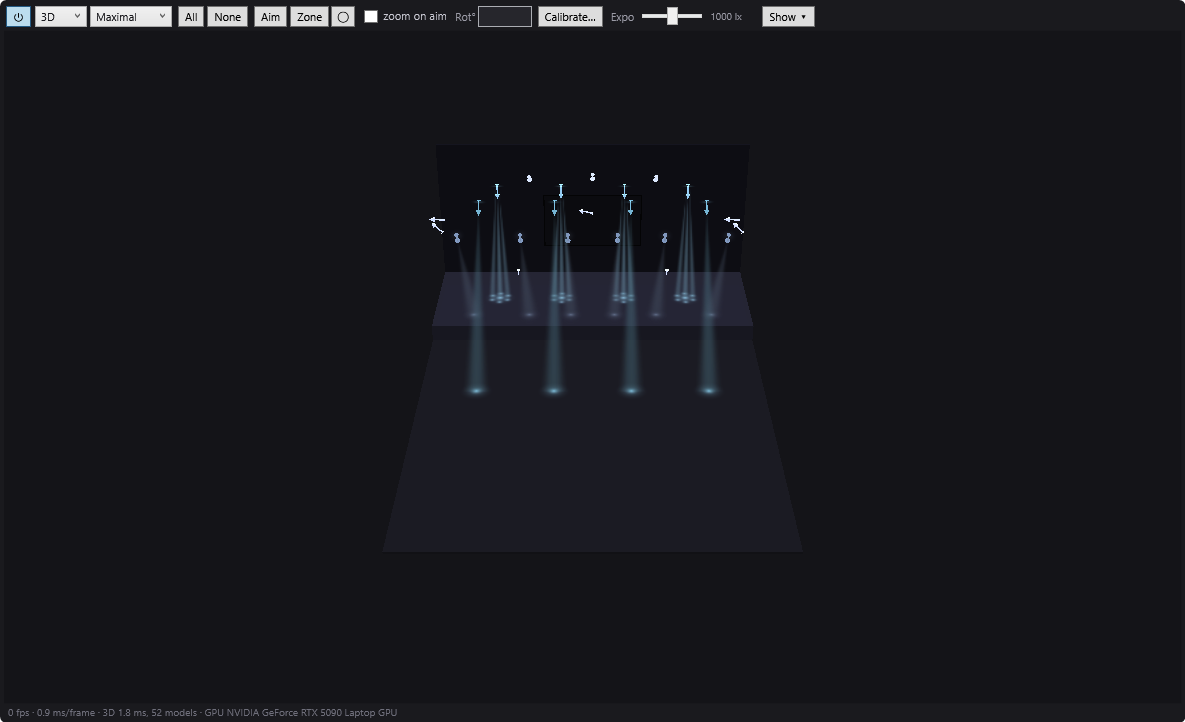
In the 3D view, the screen shows the video or picture the cue list plays on it, at the position of the timeline's red line, with its fades, without the sound. On the 2D plan, the screen is a thick line with a small mark on the side it faces and its name; the line lights up in blue when the screen is playing.
Saving
- Save: applies the screens to the current venue and saves its file. Only the screens are concerned: the venue's other settings are not touched. As long as this has not been done, an asterisk “*” ends the window's title.
- Close: closes the window. If changes remain: “Screen changes not saved. Save?” (Yes, No, Cancel). A video test in progress is stopped.
Step by step
Declaring a video projector plugged into the PC
- Plug in and switch on the video projector, set Windows to “Extend” mode.
- Venue > Screens…, then + Screen.
- Give it a meaningful Name (for example “Back screen”), Type = Windows monitor.
- Type a Monitor no., then 🔎 Identify the screen: the card should appear on the video projector. If not, try another number.
- If the video projector was plugged in after launch, click ⟳ Restart ppvideoplayer.
- ▶ Test the video to check the whole chain.
- Save. The timeline's video blocks can now target “Back screen”.
Preparing an IP video player
- Plug the box into the same network as the show control PC.
- Venue > Screens…, + Screen, Type = IP video player.
- In ID or IP address, type the identifier or address shown in “Connected boxes”. The status should change to “● connected”.
- Place your video blocks on the timeline with this screen: reopen the window, and their files appear in the slots.
- Upload everything, then wait for the ✔.
- Test a slot with ▶.
- Save.
Seeing the video in the 3D simulation
- Select the screen, tick Show this screen in the 3D view.
- Choose the Location (for example Upstage wall (facing the audience)), adjust Width (m), 16:9, Screen bottom (m).
- Save.
- Switch the simulation to 3D and move the red line onto a video block: the picture appears on the screen.
Good to know
- A screen declared on a monitor that does not exist plays with no message on the main screen: check the list of monitors and use Identify the screen.
- ppvideoplayer only sees monitors when it starts: after plugging in a screen, ⟳ Restart ppvideoplayer.
- An IP video player does not read a file by its name across the network: it plays what has been uploaded to its slot. After changing a video, upload it again.
- Renaming a screen does not update the video blocks already placed.
- The show's media are stored in its media folder (File > Open the show's media folder).