Manual contents
Palettes
A palette is a named setting that you reuse in every scene: a colour (“Amber”, “Midnight blue”), a set of moving-head positions (“Front”, “Singer”) or a beam setting (zoom, focus, gobo, prism…). One click applies the palette to the selected fixtures. Above all, scenes keep the link with the palette: if you update it (a moving head has been moved, the tint no longer suits), every scene that uses it changes in one go.
To open it: the Palettes… button below the colour palette, in the Scene settings panel. This button only appears if the selection contains a fixture that can do colour. The Palettes window is not modal: it can stay open while you program the scenes.
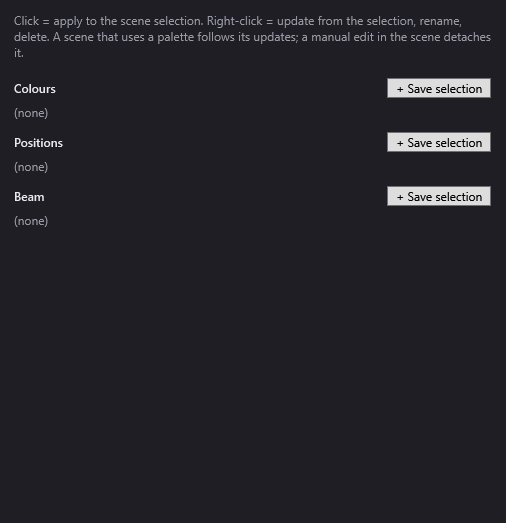
The Palettes window
At the top, a reminder: “Click = apply to the scene selection. Right-click = update from the selection, rename, delete. A scene that uses a palette follows its updates; a manual edit in the scene detaches it.”
At the bottom, a status line shows the result of the last action (palette applied, saved, error…).
In the middle, three sections. Each has a + Save selection button to the right of its heading, and the list of its palettes as buttons (“(none)” when the section is empty).
Colours
- What is saved: the colour (R, G, B) of the selection. Button tooltip: “The colour of the selection (R, G, B sliders or palette).”
- DreamShow takes the colour the first selected fixture has in the scene; failing that, the colour shown by the R, G, B sliders.
- The palette's button shows a strip of the colour, then the name.
Positions
- What is saved: the pan and tilt of each selected moving head, as it is in the scene. Tooltip: “The pan/tilt of each selected fixture: each one returns to its own position.”
- Applied later, the palette sends each moving head back to its saved position. A moving head that was not in the selection when the palette was saved gets the average of the saved positions.
- The button shows the number of fixtures (“4 fixture(s)”), then the name.
- If no selected moving head has a position in the scene: “None of the selected fixtures has a position (pan/tilt) in this scene.”
Beam
- What is saved: the beam channels of the selection, as they are set in the scene: zoom, focus, iris, frost, gobo, prism. Tooltip: “Zoom, focus, iris, frost, gobo and prism set in “Specific settings”.”
- The button shows the names of the first three channels, then the name of the palette.
- If the selection has none of these channels set in the scene: “No beam settings (zoom, focus, gobo, prism, frost, iris) on the selection in this scene: set them first in “Specific settings”.”
The actions
Saving a palette
- Select the fixtures and set them in the scene.
- Click + Save selection in the right section.
- A small window suggests a name (“Colour 3”, “Position 2”, “Beam 1”…). Change it if you like, then OK.
- The palette appears in the section. Message: “Palette “…” saved. Apply it to the selection so that the scene follows it.”
Caution: saving a palette does not yet link the scene to it. Then click the palette to apply it, if you want the scene to follow its updates.
If a palette of the same type already has this name, it is replaced.
Applying a palette (click)
A click on a palette applies it to the ticked targets of the scene (or of the effect, or of the keyframe being edited):
- the target takes the palette's values, and keeps a reference to the palette;
- a target with no setting in the scene is created, with the intensity of the Dim slider;
- a position palette only applies to targets that have pan/tilt;
- applying a colour clears the individual colours of the cells;
- when you apply a palette to a group, the fixtures of that group that had their own setting for the same attribute get the palette too.
Message: ““…” applied to the selection.” With no selection: “First select fixtures or a group in the scene.”
The palettes used by a target are recalled in square brackets at the end of its line in Final state.
A palette's tooltip says how many settings use it: “Used N time(s) in this show and the effects”.
Updating a palette (right-click)
Right-click the palette, then Update from selection:
- the palette takes the current values of the selection (same rule as when saving it);
- every scene of the open show and every effect that uses this palette takes the new values at once;
- message: ““…” updated: N scene setting(s) follow.”
Renaming a palette (right-click)
Rename…: give the new name. The references in the open show and in the effects follow the new name. A name already used in the same section is refused (“A palette with this name already exists.”).
Deleting a palette (right-click)
Delete: after confirmation, the palette disappears. The scene settings that used it keep their current values, but no longer follow anything (“The N scene setting(s) that use it keep their current values.”).
Detaching a scene from its palette
A setting made by hand in the scene detaches the target from the palette concerned, and only from that one:
- moving R, G, B or clicking in the Palette picture detaches the colour palette;
- moving Pan or Tilt, using Aim, drawing a Zone or the Calibrate… wizard detaches the position palette;
- changing, in Specific settings, a channel that the beam palette sets detaches the beam palette.
The target keeps its values; it simply no longer follows the palette's updates. To attach it again, apply the palette again.
Step by step
A “Singer” position for four moving heads, reused everywhere
- Select a scene, tick the four moving heads.
- Aim at the singer (the simulation's Aim button, or the Pan/Tilt sliders).
- Palettes… then, in Positions, + Save selection; name it “Singer”.
- Click Singer to link this scene to the palette.
- In every other scene where the moving heads must aim at the singer: select the scene, tick the moving heads, click Singer.
- The day the mic stand moves: aim at the new spot in any scene, then right-click Singer > Update from selection. All the linked scenes follow.
Correcting a tint throughout the show
- Tick a fixture that uses the “Amber” palette in a scene.
- Adjust R, G, B (this setting temporarily detaches the target).
- Right-click Amber > Update from selection: the palette takes the new tint, and so do all the linked scenes.
- Click Amber again to reattach the target you have just adjusted.
Good to know
- Palettes are saved in the
palettes.jsonfile in the data folder: they are shared by all the venues and all the shows in that folder. - A position palette saves positions per fixture: it makes sense in the venue where it was made.
- A scene always keeps the concrete values of its palettes: if a palette is missing (deleted, or file absent on another PC), the scene plays as before.
- Rename… only updates the open show and the effects. In the other saved shows, the settings that pointed to the old name keep their values but no longer follow the palette.
- Updating a palette also changes the library effects that use it; the effects file is then saved again.
- The Palettes… button is hidden when no fixture in the selection can do colour (for example a selection of moving heads without colour): select at least one colour fixture to open it, then keep the window open.