Manual contents
Trajectories
A trajectory animates moving heads (or other fixtures) over time: you place key frames, each with a state of the fixtures (position, colour, intensity, zoom…), and DreamShow calculates everything that happens between two keys. Placed on the timeline as a block, the trajectory makes the stage sweep, a carpet of light rotate or a colour glide during a scene, for example.
The key frames are set with the usual tools of the main screen (Aim, Zone, sliders, palettes, calibration): while editing, these tools write into the selected key.
To get to it: Libraries panel, Trajectories section: + trajectory (selection) button, list of trajectories (double-click to open the editor). On the timeline, double-clicking a trajectory block also opens its editor.
The trajectory library
Trajectories are separate files (the trajectoires folder of the data, one name.traj.json file per trajectory). They are shared by all shows: the same trajectory can be placed in several scenes and several shows.
In the Libraries panel, Trajectories section:
- The list: the trajectories in alphabetical order. Double-click = open the editor; drag a trajectory onto a timeline track = insert it there; Del key = delete.
- Right-click on the list:
- Open the editor;
- Duplicate…: copies the trajectory under a new name (“Name of the copy of “…”:”, suggested “name (copy)”). The original and the blocks that use it do not change: this is the safe way to make a variant;
- Delete…: after confirmation, the file is erased for good. Blocks already placed on a timeline stay, but no longer play anything.
- + trajectory (selection): creates a trajectory for the ticked fixtures or groups. Their current state becomes the first key frame (at 0 s), then the editor opens.
Creating a trajectory
- Tick the moving heads (or groups) that are going to move, and place them where the trajectory should start (Aim, Zone, sliders…).
- Click + trajectory (selection). With no selection, DreamShow reminds you: “Tick the moving heads (or groups) of the trajectory first and place them: their state becomes the first key frame.”
- Type the Trajectory name:. A name already taken is refused (“A trajectory already has that name.”).
- The editor opens in trajectory mode.
The fixtures targeted (the “targets”) are fixed at creation; they are listed at the top of the editor.
Trajectory mode
As long as the editor is open, the main screen is in trajectory mode:
- the banner of the Scene settings panel is orange: “TRAJECTORY MODE — “name”: the settings change the selected key frame”;
- the final state list becomes “Key frame of “name””;
- the selection is replaced by the trajectory's targets;
- Aim, Zone, the sliders, the palettes and the calibration write into the selected key frame, and the simulation shows it.
When a key is selected, the banner says “… — key at t = 2.00 s” (followed by “(zone)” if it is a zone key). During a preview between two keys, it says “… — preview at t = … s (not a key)”: what you set at that moment is not kept. Select a key (or create one) before adjusting.
The mode ends when you close the editor (Close button, or the banner's ✔ Finish editing the effect button, which closes the editor in this mode).
The Trajectory window
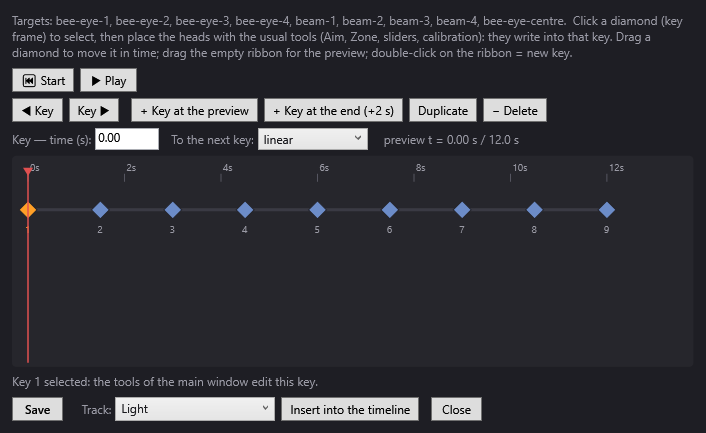
The title is “Trajectory — name”. At the top, a reminder of the targets and gestures.
Playback
- ⏮ Start: brings the preview marker back to 0 s.
- ▶ Play / ⏸ Pause: plays the interpolated trajectory in the simulation: the moving heads move and change colour. Playback stops at the end, on the last pose. At least two keys at different times are needed (“Add at least two keys at different times.”).
The keys
- ◀ Key / Key ▶: selects the previous / next key.
- + Key at the preview: new key frame at the time of the preview marker, with the state interpolated at that moment (and the interpolated zone, on a section driven by a zone).
- + Key at the end (+2 s): new key 2 s after the last one, a copy of the state at the end.
- Duplicate: copies the selected key 1 s further on.
- − Delete: deletes the selected key. A trajectory keeps at least one key.
A key is never placed exactly on another: if the time is already taken, it is shifted to just after.
The properties of the selected key
- Key — time (s): the key's time, in seconds from the start of the trajectory. Confirm with Enter or by leaving the field; the keys reorder themselves.
- To the next key: the way of going from this key to the next:
- linear (default): at constant speed;
- eased: starts and arrives gently;
- hold: stays on this key until the next one, then jumps. On the strip, the segment is dotted.
- On the right, “preview t = … s / … s”: the marker's time and the total length.
The key strip
- A seconds ruler at the top; each key is a numbered diamond; the selected key is orange; the preview marker is the red line.
- Clicking a diamond: selects the key. Its settings then follow the main window's tools.
- Dragging a diamond: moves the key in time (to the hundredth of a second). The simulation follows.
- Clicking or dragging on an empty area: moves the preview marker; the simulation shows the interpolated state.
- Double-clicking on an empty area: new key at that spot.
The bottom of the window
- Save: saves the trajectory. If it is already placed on timelines, DreamShow asks what to do: Yes replaces the trajectory everywhere (all those blocks change), No saves it under a new name (the original stays intact, and the editor carries on with the copy), Cancel saves nothing.
- Track: the track of the selected scene where the block is to be inserted.
- Insert into the timeline: saves the trajectory if needed, then adds a trajectory block on the chosen track, at the red line's time if the selected scene is the one playing (otherwise at 0 s). The block lasts the length of the trajectory (rounded up to the next tenth of a second, 0.5 s at least). A scene must be selected.
- Close: closes the editor and leaves trajectory mode. If changes remain: “Save the trajectory before closing?” (Yes, No, Cancel).
- A help line confirms the actions (“Trajectory saved.”, “Block inserted into the timeline.”, “Key N selected: …”).
What is interpolated
Between two neighbouring keys, DreamShow blends each setting of each target: intensity, pan, tilt, colour, and the channels set by hand (zoom, cells…).
- A setting present in only one of the two keys keeps its value over the whole section. Exception: the colour of a cell (Red 1, Green 2…) set on a single key fades from the other key's general colour.
- Before the first key, the first key applies; after the last, the last.
Zone keys
If you use the Zone tool on a key, the zone is saved in the key: it is a zone key. Between two zone keys, it is the zone itself that is interpolated (centre, size, rotation) and the moving heads are distributed over it again at each instant: a rotation makes the spots turn around the zone's centre, instead of each moving head taking the shortest path. Colour and intensity keep interpolating normally. A section in which only one key has a zone keeps that zone from one end to the other.
A zone's angle is interpolated as it is: from Rot° 0 to Rot° 720, the zone makes two complete turns. For zone movements, DreamShow chooses for each moving head the pan direction that stays in the middle of its travel throughout the movement, to avoid it hitting its end stop and going back a full turn.
During preview and playback, the interpolated zone is drawn on the plan and in the 3D view.
The trajectory block on the timeline
- Insertion: Insert into the timeline in the editor, or drag the trajectory from the Trajectories list onto a track (the block takes the length of the trajectory, or 10 s if it has no length).
- Length: the whole trajectory is stretched over the block's length. A block longer than the trajectory plays it more slowly, a shorter block faster.
- End: if the block is the last to finish on its track, the fixtures keep the last pose after the end of the block.
- Fades: the block has, like the others, a fade in and a fade out (see Fades and mixes).
- Double-click on the block, or right-click > Edit the trajectory…: opens the editor on that trajectory. If the file no longer exists: “Trajectory “…” not found or unreadable.”
- Modifying then saving a trajectory updates all the blocks that use it (unless you choose to save it under another name).
See Light and effect blocks and The scene timeline.
Step by step
A left-to-right sweep in 6 seconds
- Select the scene, tick the moving heads.
- With Aim, point them at the stage-right side of the stage.
- + trajectory (selection), name it “Sweep”.
- In the editor, + Key at the end (+2 s): a key 2 appears at 2 s. Type 6 in Key — time (s): then Enter.
- With key 2 selected, aim at the stage-left side with Aim.
- Select key 1 and choose eased in To the next key:.
- ▶ Play to check in the simulation.
- Choose the Track:, place the red line, Insert into the timeline, then Close.
A rotating carpet of light
- Tick the moving heads, turn on Zone and draw a rectangle on the stage.
- + trajectory (selection), name it “Rotating carpet”.
- Select key 1, then touch the zone (move it slightly, or confirm Rot° at 0): the key becomes a zone key.
- + Key at the end (+2 s), set its time (for example 20 s), then type 360 in Rot° and Enter.
- ▶ Play: the spots turn around the zone's centre.
- Insert the block into the timeline.
Changing colour at an exact moment with no fade
- Create two keys at the same position, one red, the other blue.
- On the first, choose hold: the red holds until the time of the second key, then the blue arrives all at once.
Good to know
- Always adjust a selected key: settings made during a preview between two keys are lost.
- A trajectory is a file shared by all shows. To modify a trajectory already in use without changing the other scenes, Duplicate… first, or answer No to the save question.
- Deleting a trajectory leaves its blocks on the timelines, but they no longer play anything: delete them too.
- The block's length controls the speed: lengthening the block slows the whole movement.
- A trajectory only plays on the targets chosen when it was created.
- Selecting a key counts as a modification: on closing, DreamShow almost always offers to save. Answer No if you have changed nothing.