Manual contents
Architectural lighting
A facade, a hall, a shop window or a garden is lit every evening, with nobody at the control desk: switching on at sunset, looping animations, moving to fixed lighting, switching off at a set time, then everything starts again the next day. This page explains how to build this programme with DreamShow's wait blocks, loops and jumps.
To open it: there is no dedicated window: it is an ordinary show, built in the Scenes panel and in the Scene timeline with the items of the Others list (Wait for a time, a date, the sun…, Go to scene…). It then runs in Show mode.
The principle
The show goes round in a circle, over four scenes:
| No. | Scene | Label | Contents | Trigger |
|---|---|---|---|---|
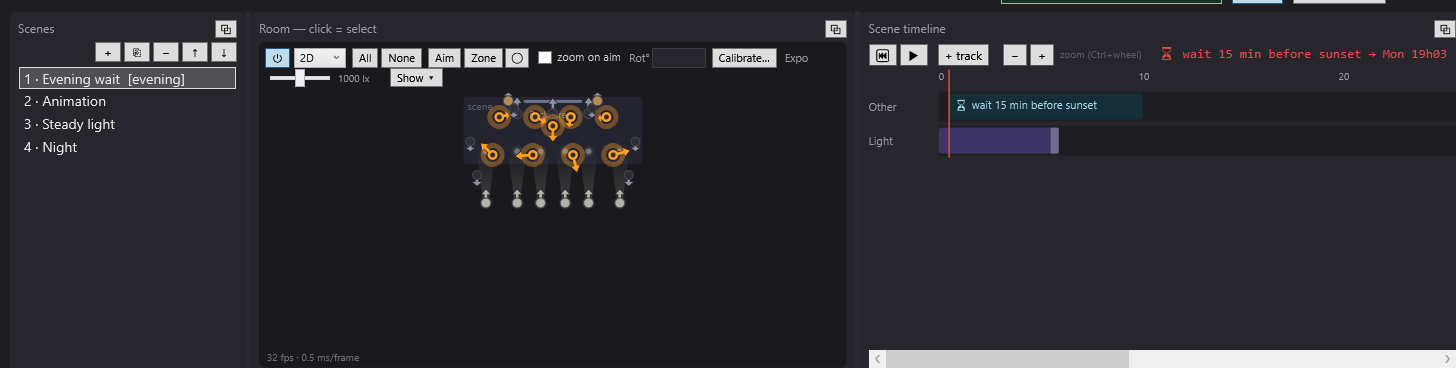
| 1 | Evening wait | evening | blackout; “sunset” wait block at 0 s | Auto, 2 s |
| 2 | Animation | lighting animations | Loop with max length | |
| 3 | Fixed lighting | fixed lighting; “23:30” wait block at 0 s | Auto, 2 s | |
| 4 | Night | blackout; Go to scene… block to “evening” | manual GO |
- Scene 1 waits for the next sunset, then moves on to scene 2 with a fade.
- Scene 2 loops its animations for the chosen length, then moves on to scene 3.
- Scene 3 holds fixed lighting until 23:30, then moves on to scene 4 with a fade (the switch-off).
- Scene 4 jumps to scene 1, which waits for the next day's sunset (a wait always aims at the next occurrence).
These mechanisms are detailed in Waits and Jumps and scene labels.
Before you start
- The venue's location: set Location (°) — latitude and longitude in Venue > Fixtures, addresses, positions… (north and east positive). Without it, sunset is computed for other coordinates. See Fixtures, addresses, positions.
- DMX output to the fixtures: see DMX connections.
- The computer must stay on, with no sleep mode, with DreamShow open on the show in Show mode. To do without a computer, see the section on the standalone player below.
Step by step
1. The evening wait scene
- Create scene 1, name it “Evening wait”, Label: “evening”.
- Leave its final state empty: everything is off.
- Drag Wait for a time, a date, the sun… onto a track, at 0 s.
- In the window: “Attendre” (Wait for) = sunrise / sunset, sunset, offset -15 (a quarter of an hour before). Leave all the “Jours” (Days) ticked (or untick those on which the facade must stay off). Check the preview (“next occurrence …”), then OK.
- In Scene settings: Trigger: = Auto, delay 2; Fade to the next (s): = 20 (switching on will take 20 s).
The Auto delay must be greater than the position of the wait block: the scene waits, then restarts 2 s after the deadline. Do not set this scene to Chained: with the wait as its only element, it would leave without waiting.
2. The animation scene
- Create scene 2 “Animation”. Set its final state (the facade's basic lighting).
- Build an animated timeline, for example:
- a “Colours” track with three overlapping light blocks (mix) to cycle the colours over 2 minutes (see Fades and mixes);
- a slow Dynamic effect… on the cornice fixtures (see Dynamic effects);
- or a Pixel mapping… on LED bars (see Pixel mapping).
- Tick Loop. In max length (s):, enter the total length of the animation, for example 5400 (1 h 30).
- Fade to the next (s): = 10.
Choose the max length so that the animation ends before the switch-off time, even on the longest day of the year: if scene 3 is reached after 23:30, its wait would aim at 23:30 the next day, and the facade would stay lit all night and all day. Example: sunset around 21:55 at the end of June, switch-on 15 min before, that is around 21:40 → the animation must last less than 1 h 50.
3. The fixed lighting scene
- Create scene 3 “Fixed lighting”, with the final state you want for the end of the evening.
- Drag Wait for a time, a date, the sun… to 0 s: a time of day, 23:30. OK.
- Trigger: = Auto, delay 2; Fade to the next (s): = 60 (slow switch-off over one minute).
During a wait, the picture is frozen: this is why this scene's lighting is fixed, and the animations are in scene 2.
4. The night scene and the return to the start
- Create scene 4 “Night”, empty final state (blackout).
- Drag Go to scene… to 5 s, target “1 · Evening wait [evening]”.
- Leave the trigger on Manual GO.
On the jump, scene 1 starts again and computes the next sunset: the next day's.
5. Starting it up
- Check that Disengage auto-fade is unticked (otherwise nothing chains).
- Save the show (Ctrl+S).
- Click Show mode, then GO: the cue list enters scene 1 and waits.
- Check in the editor the red line's position (“⏳ wait 15 min before sunset → Mon 18:47 (in 2 h 05)”) or in the Log (“Waiting: … → resumes …”). The cue window does not show this countdown.
If you start one evening after the switch-on time, scene 1 would wait for the next day: press GO a second time, and the cue list goes straight to scene 2. Likewise, a GO on scene 3 switches off without waiting for 23:30.
Variants
- Weekdays only: in scene 1's wait block, untick S and D. On Friday evening, after the switch-off, scene 1 waits for Monday's sunset.
- No animation: delete scene 2; scene 1 leads directly to scene 3's fixed lighting.
- Switching off at sunrise: in scene 3, set the wait to sunrise / sunset, sunrise, offset 0 (or negative to switch off earlier).
- Switching on at a fixed time rather than at sunset: in scene 1, set the wait to a time of day.
- An illumination on a specific date (a dedicated show): the wait a date (every year), for example “24/12 17:00”.
Testing without waiting for the evening
- In the editor, select a scene: it is displayed with its final state; ▶ plays its timeline. On reaching a wait, playback stops: another click on ▶ makes it continue without waiting for the deadline.
- For the duration of the tests, replace the wait's rule with a short length of time (“30 s”) and watch the whole cycle run in Show mode. Remember to put the real rule back afterwards.
- The wait window's preview always shows the next occurrence: it is the surest way to check a rule with excluded days.
With the standalone player
The standalone player replays the show without a computer, on a small module: File > Export for a standalone player…. The export computes the show in advance as a DMX stream; time-of-day waits are ignored there, and a looping scene is not repeated endlessly.
For an architectural installation, export only the animation scene (fields Scenes from … to …), and leave the schedule to the player, which has its own weekly programme and a sunset trigger. See The standalone player. The programme is set in the player's player.ini file, which its web page lets you edit. Each line of the [schedule] section describes a slot: the days (seven digits, Monday to Sunday, 1 = yes), the start, the end, the clip to play, then loop (repeating) or once (one time). The start and end can be a time, or sunset / sunrise with an offset in minutes; a slot may run past midnight. Example: every evening, from sunset minus 15 minutes to 23:30, the “soir” clip in a loop:
soiree = 1111111 sunset-15 23:30 soir loop
Outside the slots, the player blacks out (idle = black) or keeps the last picture (idle = hold). The location's latitude and longitude are set in the [player] section of the same file.
Good to know
- After a power cut, DreamShow asks at restart whether to resume at the same scene: someone has to answer. If the cut happened during a wait, the resume replays that wait; if its time went by during the cut, the show carries on directly. See Recovering after a crash or power cut.
- Daylight saving time is handled by the Windows clock: check that the computer has the right time and the right time zone.
- A wait whose rule is impossible (badly written time) is ignored when reached: always check the preview before confirming.
- Parallel sequences freeze during the main show's waits: do not use them to animate a waiting scene.