Manual contents
The fixture library
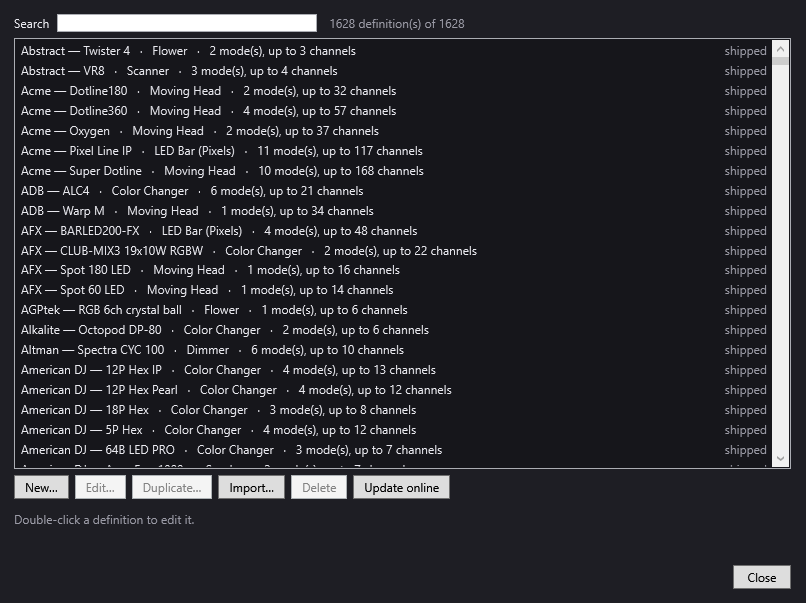
The library contains the fixture definitions: for each model, its DMX channels, their functions, its modes, its cells and some physical data. When you add a fixture to the venue, you choose its definition here. DreamShow comes with more than 1,600 definitions in QLC+ format; you can import, create, edit and update them online.
To open it: menu Venue > Fixture library…, or the Library… button in the Venue > Fixtures, addresses, positions… window.
Where the definitions come from
The library is a folder (by default the fixtures folder next to the venue files), shared by all the venues that use it. Each definition has an origin, shown on the right of its line:
| Origin shown | Where it comes from |
|---|---|
| shipped | installed with DreamShow |
| online | downloaded with Update online (“online” folder) |
| imported | imported from a GDTF, QLC+ or DJworld file (“imported” folder) |
| created / edited | created or edited in the DreamShow editor (“custom” folder) |
When two definitions have the same manufacturer and the same model, the most “personal” one wins, in this order: created / edited, then imported, then online, then shipped. The definition that is overridden is not erased: it is only hidden, and it comes back if you delete the one that replaces it.
A shipped or online definition is never modified: its edited version is saved separately, in the “custom” folder, and replaces it.
The Fixture library window
- Search: filters the list. Type one or more words; a definition is kept if each word appears in its manufacturer / model or in its type (for example “Moving Head”). On the right, the counter “N definition(s) of M”. The list shows at most 2,000 lines: narrow down the search if necessary.
- The list: one line per definition: “Manufacturer — Model · Type · N mode(s), up to M channels”, with the origin on the right (in colour if it is not “shipped”). A double-click opens the definition in the editor.
- The information line (below the buttons): for the selected definition, its modes with their number of channels (and cells), the file, and “Replaces another definition with the same name (deleting this one brings it back).” where applicable. With nothing selected: “Double-click a definition to edit it.”
Buttons:
- New…: creates a definition from scratch in the editor.
- Edit…: opens the selected definition in the editor. For a shipped or online definition, the edited version is saved separately and replaces it.
- Duplicate…: opens a copy of the selected definition (model followed by “(copy)”), to make another one from it: another model, another mode.
- Import…: imports one or more profiles (multiple selection possible): GDTF (.gdtf), QLC+ (.qxf) or DJworld (.fxt). A report lists each file: ✓ with the number of modes and the remarks, or ✗ with the reason for the failure.
- Delete: only active for an imported or created / edited definition. After confirmation, the file is erased. If it replaced a definition with the same name, that one takes its place again; otherwise, the fixtures that used it have no definition until another one is chosen.
- Update online: downloads the new or corrected definitions published for DreamShow (Internet connection required). Progress is shown in the information line, then a summary: number of definitions published, new, updated, already up to date, withdrawn, and any problems. Each downloaded file is checked (fingerprint and reading) before anything is replaced. A definition withdrawn from the published list is deleted from the “online” folder only; your imported or created definitions are never touched.
- Close.
Any change (creation, edit, import, deletion, update) is taken into account immediately: the venue, the simulation and the show are recalculated with the new definitions.
Importing
- GDTF (.gdtf): the manufacturers' format (manufacturers' websites, GDTF Share). Each DMX mode is converted; 16- or 24-bit channels become a main channel followed by “fine” channels; wheel colours are taken over; the shutter channel is named “Shutter” with its “open” range. Only the first DMX break is imported: anything left out is reported in the remarks.
- QLC+ (.qxf): the file is checked, then copied into the “imported” folder.
- DJworld (.fxt): converted into a QLC+ definition. The .ssl2 file that sometimes comes with these profiles cannot be read: use the .fxt.
Imports are stored in the library's “imported” folder, by manufacturer. Then check the definition in the editor: channels that are not recognised (macros, modes) are imported as they are, with no particular function.
The definition editor
It opens with New…, Edit…, Duplicate… or a double-click. Its title is “New fixture definition”, “Definition “model”” or “Copy of “model””.
A new definition starts from an example: manufacturer “My brand”, model “New fixture”, type “Color Changer”, one mode “4 channels” (Dimmer, Red, Green, Blue).
The header
- Manufacturer and Model: required. Together, they form the name of the definition (“Manufacturer/Model”) that venues use. Do not change this name lightly: the fixtures in your venues refer to it.
- Type: editable list: Moving Head, Color Changer, LED Bar (Pixels), LED Bar (Beams), Dimmer, Strobe, Scanner, Smoke, Hazer, Effect, Laser, Flower, Other. Empty = Other. The type puts the fixture into a simulation category (Moving Head = “Lyres” (moving heads), Color Changer = “LEDs couleur” (colour LEDs), Dimmer = Dimmers, Scanner = Scanners, Smoke = Smoke, the rest = Others).
- Max pan (°) and Max tilt (°): the total travel of pan and tilt, in degrees (for example 540 and 270), taken from the fixture's manual. A Max pan greater than 0 makes the definition a moving head for DreamShow: this is what makes it usable by Aim, Zone, trajectories and calibration. Wrong values throw off all the aiming.
- Beam (°) from … to …: the beam angles at both ends of the zoom. With a zoom channel, they let the Zone tool (and zoom on aim) set the beam width; they are also used by the simulation.
- Power (W) and Luminous flux (lm): data from the data sheet, used by the simulation to estimate the illuminance. The real flux of a particular fixture can also be entered in the venue.
Modes
On the left, DMX modes lists the modes with their number of channels. Click a mode to show its channels.
- Mode name: renames the selected mode. This is the name you will choose in the venue's Mode field; give it a meaningful name (for example “14 channels”). Two modes cannot have the same name.
- + Mode: adds an empty mode (“Mode N”).
- Duplicate: copies the selected mode (name followed by “(2)”), handy for an extended mode close to another one.
- Delete: deletes the selected mode (the last mode cannot be deleted).
The channels of the mode
On the right, a table with one line per channel, in DMX order (the # column gives the channel number within the mode, starting from 1).
- Channel name: the name of the channel. It matters: DreamShow recognises certain names (see “Naming rules”). Two channels in the same mode cannot have the same name.
- Function: what the channel does. This is what tells DreamShow how to drive it. Possible choices:
| Function | Use |
|---|---|
| Master dimmer | intensity of the whole fixture |
| Dimmer (cell) | intensity of one cell |
| Red, Green, Blue, White, Amber, UV, Lime, Cyan, Magenta, Yellow | colour components |
| Pan, Tilt | moving-head movements |
| Pan/tilt speed | motor speed |
| Shutter / strobe | shutter, strobe |
| Colour wheel | colour wheel |
| Colour macros | preprogrammed colours |
| CTO correction | colour temperature |
| Gobo, Gobo rotation | gobos |
| Prism | prism |
| Zoom, Focus, Iris, Frost | beam |
| Effect / other | everything else |
| Maintenance (reset, lamp) | maintenance commands |
| Fine byte of the previous channel | precision byte (16-bit) of the channel just above |
| Reserved | unused channel |
An imported definition may contain a QLC function that the list does not know: it is shown as “QLC preset “…”” and kept as it is. Changing the function also changes the channel name as long as you have not typed one yourself. Choosing Shutter / strobe always names the channel “Shutter”.
- Cell: the number of the cell (pixel, lens) the channel belongs to; empty = the whole fixture. Channels with the same number form a cell. If only one number is used, the fixture is treated as having no cells.
- Ranges (N)…: opens the value ranges of the channel (see below). Inactive for a fine byte.
- ↑ / ↓: moves the channel up or down one step in DMX order.
- ✕: deletes the channel.
Below the table:
- + Channel: adds an “Effect” channel at the end of the mode.
- + Cells…: adds a series of cells in one go (“Add cells” window):
- Number of cells (8 by default);
- Composition: RGB, RGBW, RGBA, RGBWA, RGBWAUV, W or RGB + Dimmer;
- 16-bit colours (fine byte after each colour).
The channels are created and numbered after the existing cells: “Red 1”, “Green 1”, “Blue 1”, “Red 2”…, each in its own cell.
For a fine byte, the name is set automatically (“previous channel name” followed by “fine”) and it takes the cell of the previous channel. A fine byte must directly follow its channel.
Value ranges
The “Value ranges — channel name” window describes what each slice of values (0 to 255) of the channel does.
- From and To: the limits of the range (0 to 255).
- Label: description (empty = the channel name).
- Type:
- Normal;
- Shutter open: the range DreamShow sends when light must come out;
- Shutter closed;
- Strobe;
- Colour: for a colour wheel or a macro; the Colour box becomes active.
- Colour: the colour of the range in hexadecimal (
#FF8800; the#is added if you forget it), with a preview. It is used by the simulation. - ✕: deletes the range.
- + Range: adds a range that starts just after the last one.
- OK confirms, Cancel discards. Ranges are sorted by start value.
Values that are not covered are read as “no function”.
Saving
At the bottom of the editor, a line recalls where the definition will be saved. Save checks the definition and then writes it; Cancel closes without writing anything.
Saving is refused, with the list of problems, if:
- the manufacturer or the model is empty;
- a mode has no name, two modes have the same name, or a mode has no channel;
- two channels in a mode have the same name (the message suggests numbering them: “Red 1”, “Red 2”);
- a channel name ends in “fine” without being a fine byte;
- a fine byte does not follow its channel;
- a range starts after its end;
- a mode has a Shutter / strobe channel but no channel named “Shutter”.
The definition is saved in the library's “custom” folder (custom\Fabricant\Modèle.qxf). It appears in all the venues that use this library. If you rename a definition that you created, the old file is deleted to avoid a duplicate.
Naming rules
DreamShow recognises certain channels by their name; follow these rules so that a fixture lights up and takes its colour correctly:
- Shutter: the shutter channel must be called exactly “Shutter”. Otherwise DreamShow does not know how to open it and the fixture may stay dark. For a fixture without a “Shutter” channel, DreamShow tries to open a channel whose name starts with “Strobe”; declare its Shutter open range so that it finds the right value.
- Cells: the colour channels of each cell are numbered: “Red 1”, “Green 1”, “Blue 1”, “White 1”, then “Red 2”… (“Red1” and “Red 1 Dimmer” are also recognised). This is what lets you set cells one by one in the scene and animate them in trajectories. + Cells… applies this rule by itself.
- Fine bytes: their name ends in “fine”, and that ending is reserved for them.
- For a hoist driven by the manual controls, the “Position” and “Speed” channels (and “Position fine”) make the hoist controls appear.
Step by step
Creating the definition of a fixture missing from the library
- Open the fixture's manual at the page with its DMX table.
- Venue > Fixture library…, then New….
- Fill in Manufacturer, Model and Type. For a moving head, fill in Max pan (°) and Max tilt (°); if it has a zoom, Beam (°) from … to ….
- Rename the “4 channels” mode after the mode set on the unit (for example “9 channels”).
- For each channel in the table, in order: + Channel if needed, choose the Function, correct the Channel name. For a 16-bit channel, add a channel with the function Fine byte of the previous channel just after it.
- For the shutter: function Shutter / strobe (the name becomes “Shutter”), then Ranges…: declare the Shutter open range (for example from 0 to 7 if the table says so), the Strobe ranges, and so on.
- For a colour wheel: Ranges…, one range of type Colour per colour, with its hexadecimal colour.
- For another mode of the unit: Duplicate the mode, rename it, add or remove channels.
- Save. The model is now offered by + Add in the venue.
Describing an LED bar with 8 RGBW cells
- New…, manufacturer, model, type “LED Bar (Pixels)”.
- In the mode, keep a Master dimmer channel if needed, and delete the example Red / Green / Blue channels (✕).
- + Cells…: Number of cells 8, Composition RGBW, OK.
- Check that the channels are called “Red 1” … “White 8” with cell numbers 1 to 8, then Save.
Correcting a shipped definition
- Search for it, select it, Edit….
- The bottom line indicates that your changes will be saved separately: the original stays intact.
- Make the correction (for example, name the shutter channel “Shutter”), Save. The definition's line now shows “created / edited”.
- To go back to the original: select it, Delete.
Importing a manufacturer's GDTF profile
- Download the fixture's .gdtf file.
- Import…, choose the file.
- Read the report (modes, remarks about what was not imported).
- Open the imported definition with Edit… to check the channel functions and the shutter.
Good to know
- The library is common to all the venues that share it: an edited definition changes all those venues.
- A definition deleted while fixtures use it makes those fixtures “unknown definition” in the venue window (saving the venue is then blocked until you choose another definition).
- Update online never replaces your imported or created definitions: they keep priority.
- Changing the manufacturer or model of a definition changes its name: fixtures that used the old name no longer find it.
- The editor cannot undo changes one at a time: if you make a mistake, Cancel closes without saving anything.