Manual contents
2D and 3D simulation
The Venue panel shows the venue and its fixtures, seen from above (2D) or in volume (3D), with their beams, their colours and the video screens. It lets you see the show without the equipment, select fixtures with a click and point moving heads with the mouse. You can write and rehearse the whole show without any fixture connected.
To open it: the panel, titled Room — click = select, is at the top centre of the main screen, to the left of the timeline (default layout). It can be detached into a floating window with ⧉, for example to show it large on a second screen.
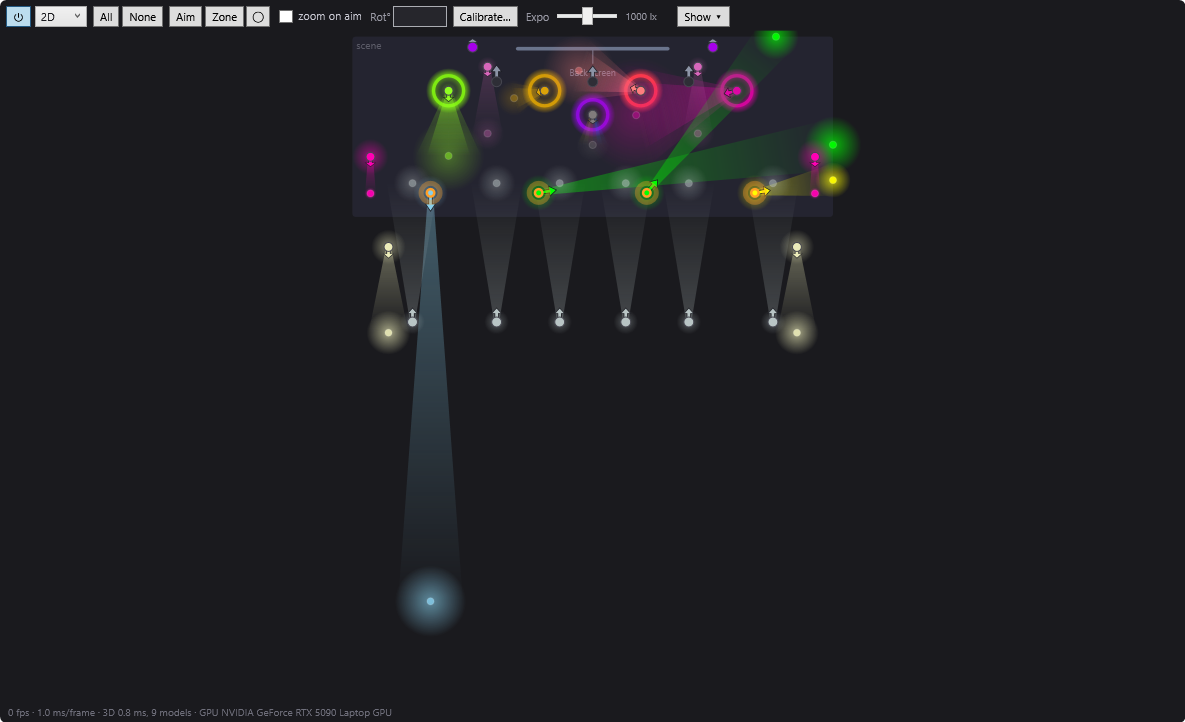
The toolbar
From left to right:
| Item | Role |
|---|---|
| ⏻ | turns the simulation rendering on or off |
| 2D / 3D | chooses the view |
| Basic / Standard / Maximal | quality of the beams in 3D (visible in 3D only) |
| All / None | selects all the fixtures / none |
| Aim | a click in the venue points the selected moving heads |
| Zone | draws a zone that the selected moving heads share between them |
| ◯ | elliptical zone (unticked = rectangle) |
| zoom on aim | Aim also sets the zoom for a spot about 1 m wide |
| Rot° | rotation of the zone, in degrees |
| Calibrate… | 4-point calibration of the selected moving head |
| Expo | exposure of the simulation, in lux |
| Show ▾ | visible fixture categories, background plan |
⏻ — simulation rendering
Button on by default. Tooltip: “Simulation rendering. Off: the room is no longer computed or drawn (2D and 3D), which relieves the processor and the graphics card during a show. The DMX output is not affected.”
- Off: the panel shows “Simulation off — the ⏻ button turns it back on. The DMX output carries on normally.” The videos on the simulation's screens are paused. The log notes “Simulation off (the DMX output carries on)”.
- Back on: the venue is redrawn at once (in 3D, the view is reframed on the whole venue).
- This choice is remembered: if you quit DreamShow with the simulation off, it stays off the next time DreamShow starts.
2D / 3D
- 2D: the plan of the venue seen from above. This is the view at startup.
- 3D: the venue in volume (floor, stage, back wall), the fixtures, the beams in the air and their patches on the surfaces. Each time you switch to 3D, the view is reframed: you look at the stage from the audience, with the whole venue in the field of view.
The 2D / 3D choice is not remembered from one session to the next.
Basic / Standard / Maximal — 3D quality
Visible only in 3D. Tooltip: “3D beam rendering quality: Basic (flat cones), Standard (gradient core and halo, soft impact patches), Maximal (GPU shader rendering, volumetric beams with a continuous gradient).”
- Basic: the lightest; choose it on a modest PC.
- Standard: more realistic beams, at a moderate cost.
- Maximal: the beams are drawn directly by the graphics card. If the graphics card does not allow it, DreamShow goes back to Standard and the log says so (“GPU rendering unavailable (…) — Standard quality used.”).
The choice is remembered.
All / None
- All: ticks all groups and all fixtures outside groups.
- None: unticks everything.
Aim, Zone, ◯, zoom on aim, Rot°
These tools point the selected moving heads from the venue view. Aim and Zone are mutually exclusive: turning one on turns the other off.
- Aim (tooltip “Click in the room = aim the selected heads”): a click, or a drag with the button held down, points all the selected moving heads at this point; they converge. In 3D, the aimed point is the surface under the pointer: floor, stage or a wall (height included).
- Zone: draw a zone on the plan; the selected moving heads share it between them. The zone stays displayed and can be moved, resized and rotated with the mouse. In 2D, the plan then shows the walls unfolded around the floor (strips “back wall”, “front wall”, “stage right”, “stage left”): a zone pushed against a wall gradually climbs up it.
- ◯: elliptical zone; unticked, the zone is a rectangle.
- zoom on aim: unticked (default), Aim only sets pan and tilt, and your zoom is kept; ticked, aiming also tightens the beam for a spot about 1 m wide on the target. The Zone tool, for its part, always sizes the beam. This choice is remembered.
- Rot°: the rotation of the zone in degrees; type a value then Enter. Values beyond 360 are allowed (720 = two turns), which is useful for trajectories.
All the details are in Aiming and covering a zone with moving heads.
Calibrate…
Tooltip: “4-point calibration of the selected head: put the beam on each stage corner (Pan/Tilt sliders), capture; the geometric model pre-fills”. Only one moving head must be selected; otherwise the status line shows “Calibrate: select a moving head” or “Calibrate: one head at a time”. See Moving-head calibration.
Expo — exposure
A slider followed by the value in lux (1000 lx by default, in the middle of the slider). Tooltip: “Simulation exposure: the illuminance (lux) that reads as “well lit””.
- The slider goes from 100 lx (left) to 10,000 lx (right), on a logarithmic scale.
- The lower the value, the brighter the venue looks: a weak beam already looks strong. The higher it is, the more light is needed for a surface to look well lit.
- Exposure only acts on fixtures whose light output is known (flux given in their definition or in the venue); the others are shown according to their colour and intensity alone.
- The value is remembered.
Show ▾
A button that opens a small list (tooltip “Fixture categories visible in the venue”):
- All / None: shows all the categories / hides them all;
- one box per fixture category present in the venue, in the colour of the category: “Lyres” (moving heads), “LEDs couleur” (colour LEDs), Dimmers, Scanners, Smoke, “Relais” (relays), Others;
- Background plan: shows under the venue the plan picture defined for the venue (box greyed out if the venue has no plan picture).
When categories are hidden, the button becomes “Show (N hidden) ▾”. Hiding a category only changes the display: the fixtures keep receiving their DMX. These choices are remembered.
What the 2D view shows
- The venue to scale, fitted to the size of the panel. The stage is a darker rectangle marked “scene”. Upstage is at the top, the auditorium (the audience) at the bottom.
- The background plan, if there is one and if Background plan is ticked.
- Each fixture is a dot in the colour it emits (grey if it is off). Hover over it: its name is shown.
- Selected fixtures have an orange halo.
- The arrows: each moving head, and each oriented fixed fixture, carries an arrow that shows the direction of its beam, whether it is on or not. The arrow turns with the beam, and gets shorter when the beam becomes vertical (a moving head aiming straight down below itself has a short arrow). It takes the colour of the light when the fixture is lit, orange when it is selected, grey otherwise.
- The beams: a graded cone from the source to the impact patch, on the floor or on a wall. Its width follows the real zoom when the fixture definition gives its optics. A multi-cell fixture has a cone striped with its colours. Colour LEDs and dimmers (fixed fixtures) also show their beam as soon as they are lit.
- The light rings of some moving heads are shown as a coloured circle around the dot.
- The strobe is animated, even with the timeline paused, just as the DMX output does.
- The video screens placed in the venue are a thick line with a small dash on the side they face, and their name. The line lights up in light blue when a video or a picture is played on it. See Video screens.
Fixtures marked “out of order” or “invisible” in the venue, and those without a position, do not appear.
The mouse in 2D
- Click on a fixture: ticks or unticks it (without Aim or Zone).
- Drag on empty space: draws a rectangle; on release, the fixtures inside it are selected and the others deselected. Ctrl held down on release: the rectangle adds to the selection.
- Right-click: menu Select all, Select nothing, + select / - deselect each group, Import the ppshow calibration (lyrescal.ini)….
- With Aim: click or drag = point. With Zone: draw, move, resize, rotate the zone.
The 2D view has no zoom or panning: it always frames the whole venue in the panel. Enlarge the panel (or detach it) to see it bigger.
What the 3D view shows
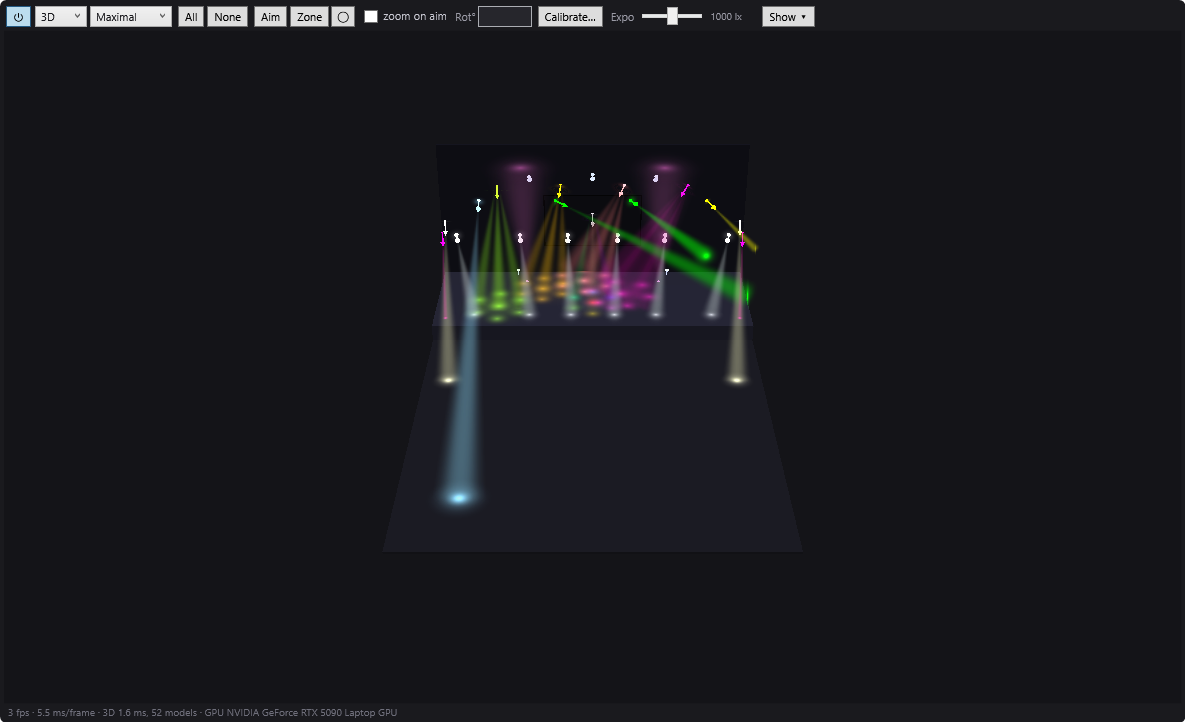
- The floor, the stage, the back wall.
- Each moving head and each oriented fixture is a 3D arrow, along the axis of its beam, visible even when off; a fixture with no direction stays a cube. Colour of an arrow: that of the light when the fixture is lit, orange if it is selected (and off), grey otherwise. A cube takes the colour of its light, and an orange halo when it is selected.
- The beams in the air and their patches on the floor and walls, according to the chosen quality.
- The video screens placed in the venue show the video or picture playing at the position of the red line, with the block's fades, without the sound (the sound belongs to the real playback chain). When paused, the picture follows the red line as you move it. See Video screens.
The mouse in 3D
| Gesture | Effect |
|---|---|
| drag with the left button (without Aim or Zone) | orbit around the venue |
| drag with the right button | orbit around the venue, always (even with Aim or Zone) |
| wheel | move closer / further away |
| drag with the middle button, or Shift + drag | pan the view parallel to the screen |
| left click without moving on a fixture | ticks or unticks it |
| left click or drag with Aim | point the selected moving heads at the surface aimed at |
| left click or drag with Zone | draw or change the zone on the surface under the pointer |
- The camera always stays above the floor: you cannot go underneath.
- Zooming with the wheel is limited (between about 4 m and 400 m from the centre of the view).
- Switching to 2D then back to 3D, or turning ⏻ back on, reframes the view on the whole venue.
The information line
Below the venue, a line in small grey type gives the smoothness of the simulation (tooltip: “Refresh rate of the room view and cost of one frame on the UI thread (3D: off-thread beam rebuild + apply, model count, GPU used at Maximal quality)”):
18 i/s · 6.2 ms/image · 3D 4.1 ms, 212 modèles · GPU …
- i/s: the number of frames of the venue drawn per second;
- ms/image: the longest time spent preparing a frame, over the last second;
- in 3D: the time taken to build the beams and the number of 3D models;
- in Maximal: the name of the graphics card used.
The venue is only redrawn when something changes (playback running, adjustment, strobe…): a low frame rate when nothing is happening is normal.
What the simulation shows depending on the situation
- The selected scene is the one the engine is playing (normal case with LIVE on, in editing as well as in performance): the simulation reads the real DMX output, frame by frame. It follows the red line: fades, blocks, trajectories, dynamic effects, strobes. During playback, moving heads move at a realistic speed (limited, and slower if their pan/tilt speed channel is set slow), like the real equipment; when paused or when you move the red line, they are shown directly at their position.
- The selected scene is not being played (LIVE off, for example): the simulation shows the final state of the selected scene, computed as the DMX output would.
- Effect mode or trajectory mode: the simulation shows the effect (or the keyframe) over the scene's final state, even when paused or with LIVE off.
- Visualiser mode: the simulation shows the DMX sent on the network by another program or another device, and DreamShow no longer sends anything. See Visualiser mode.
- Follow spot on a tablet: moving heads driven by finger are tracked live, even with the timeline paused. See Follow spot on a tablet.
- In Show mode, the main screen's simulation follows the scene played by the cue list.
Step by step
Seeing the show in 3D
- Choose 3D in the list at the top of the panel.
- Choose Standard (or Maximal if the PC can handle it).
- Press the space bar (Go) or start timeline playback ▶.
- Orbit around the venue by dragging with the right button; move closer with the wheel.
Selecting all the moving heads on the stage-left side
- Switch to 2D.
- Draw a rectangle around the moving heads you want: they are selected (orange halo) and ticked in the selection tree.
- To add others, draw a second rectangle while holding Ctrl.
Relieving a slow PC during the performance
- Set the 3D quality to Basic, or switch to 2D.
- If that is not enough, turn ⏻ off: the venue is no longer drawn, the DMX output carries on normally.
Showing only the moving heads
- Click Show ▾.
- Click None, then tick “Lyres”.
- The button reads “Show (N hidden) ▾”. To show everything again: Show ▾ then All.
Good to know
- The simulation is a working tool: it approximates the real result (colours, zoom, output if known), but does not replace a test on stage.
- While you are drawing a selection rectangle or orbiting the 3D view, the simulation no longer follows playback: it resumes as soon as you release.
- Fixture categories come from the type declared in their definition (moving head, colour LED, dimmer, scanner, smoke); a model whose name starts with “Relais” is classed as “Relais”.
- A recent graphics card noticeably improves the 3D. On first launch, DreamShow asks Windows to use the most powerful graphics card in the PC (the “high performance” setting in the Windows graphics settings), then restarts by itself to take advantage of it.