Manual contents
Backstage displays
Backstage displays are information screens placed in the wings, in the dressing rooms or at the front of house: “5 minutes to curtain up”, “Interval — resuming at 9:15 pm”, “Current scene: Act II”, the time, the length of the show… DreamShow itself serves the page to display; any screen with a browser (tablet, TV with an HDMI stick, mini-PC, phone) shows it full screen. Messages are sent from the timeline, at the right moment of the show, by the Backstage display… blocks.
To open it: menu Venue > Backstage displays… (tooltip: “Information monitors (wings, dressing rooms): a web page served by DreamShow (port 8091). An “Display…” block of the timeline sends messages to it.”).
The principle
- Each display has a name (also called a “zone”): “Dressing rooms”, “Wings stage right”, “Front of house”…
- Each screen opens the address of its own display:
http://<address of the control PC>:8091/?zone=<name>. - A Backstage display… block on the timeline sends a message to one or several displays. The message stays on screen until the next block aimed at the same display. An empty message clears the screen.
The display server starts when the venue declares at least one display, or when this window is opened. The log then says “Display server started: http://…:8091”.
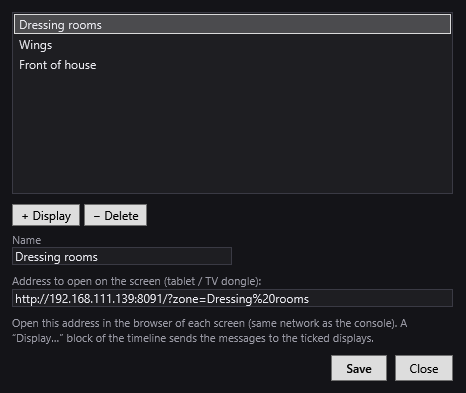
The Backstage displays window
The title recalls the venue: “Backstage displays: <venue>”. An asterisk * is added to the title as long as changes have not been saved.
- The list of the venue's displays.
- + Display: adds a display named “Display” (then “Display 2”, “Display 3”…) and selects it.
- − Delete: removes the selected display.
- Name: the name of the selected display. This is the name the Backstage display… blocks offer, and the one used in the address. Prefer short names with no special characters.
- Address to open on the screen (tablet / TV dongle): the full address of this display, to be copied into the screen's browser. It updates when you change the name. As the window reminds you: “Open this address in the browser of each screen (same network as the console). A “Display…” block of the timeline sends the messages to the ticked displays.”
- Save: saves the list in the venue. Displays without a name are removed.
- Close: closes the window. If changes remain, DreamShow asks “Display changes not saved. Save?” (Yes / No / Cancel).
The address shown uses the PC's first network address (IPv4). If the PC has several network cards, replace it if needed with its address on the screens' network.
A display's screen
The page appears on a black background, with nothing to set up:
- in the centre, the message, in very large characters, with its line breaks; it fades when it is empty;
- at the bottom, a bar with the display's name on the left (● Dressing rooms), “duration” followed by the length of the show in the middle, and the time on the right, to the second.
The page updates by itself. If the link is cut (PC switched off, Wi-Fi lost), it reconnects by itself about every second and a half. A screen that connects immediately receives the last message sent to its display.
Put the screen's browser in full-screen mode (F11 on a PC, kiosk mode on a tablet).
LED screen and teleprompter
A display can also be an LED wall or panel: a TV dongle (Xiaomi TV Stick, Fire TV…) running a borderless browser, plugged into the HDMI input of the panel's sending card, opens the display's address. The control PC gives up no video output: everything goes over the network.
A sending card (Novastar MCTRL…) does not rescale the picture: it shows, pixel for pixel, the part of the HDMI picture that matches the size of the panel, often the top-left corner. For a small 192 × 96 panel, only that corner of a 1920 × 1080 picture is visible. Set it in the Backstage displays window, under LED screen or partial area, for the selected display:
- Dongle HDMI picture: the resolution the dongle sends (for example 1920 × 1080).
- Visible part: X, Y, Width, Height: the part of that picture the panel shows, in pixels (empty = up to the edge).
- Mirror (glass teleprompter): flips the text left to right.
- Hide the bar (zone, duration, time): keeps only the message, useful on a small panel.
- Show the alignment pattern on this screen: a red frame, its diagonals and its size replace the message. The frame must fall exactly on the edges of the panel. The pattern is not saved; it disappears when the window is closed.
As soon as a visible part is set, the message is written in bold, as large as the area allows, without breaking words, and the rest of the picture is black. Changes appear on the screen at once, without reloading it. Under the address, the window tells whether a screen is connected to this display.
The setting is in pixels of the HDMI picture, whatever the scale of the dongle's browser. If the text looks shifted, check that the dongle applies no zoom, overscan or screen-position setting.
The Backstage display… block
In the Libraries panel, the Others list contains Backstage display…. Drag it onto a track of the timeline, at the point where the message must be sent: the “Backstage display” (Afficheur backstage) window opens at once. If you cancel it, no block is created. To edit an existing block: double-click it, or right-click > Properties….
On the timeline, the block shows 🖵, the beginning of the message and its recipients, for example “🖵 Interval → Dressing rooms, Front of house”. A block with no message shows “(clear)”; with no recipient, “→ (none)”.
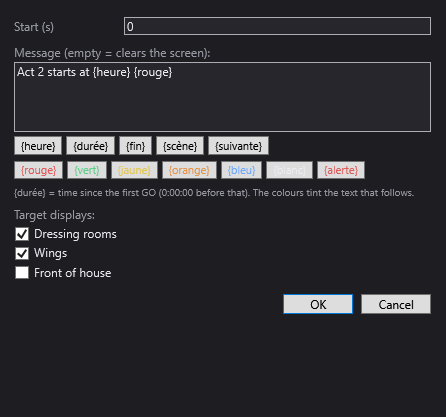
The block's settings
- Start (s): the moment, counted from the start of the scene, when the message is sent.
- Message (empty = clears the screen): the text, over several lines if you wish (Enter key for a new line).
- The token buttons, which insert a keyword at the cursor; on the screen, each token is replaced by its value and kept up to date:
| Token | Replaced by |
|---|---|
| {heure} | the time, to the second (the screen's clock) |
| {durée} | the time elapsed since the show's first GO, in the form 0:00:00 (0:00:00 before the first GO) |
| {fin} | the time (hh:mm) at which the show reached its last scene, “—” before that |
| {scène} | the current scene, with its number (“4 · Act II”) |
| {suivante} | the next scene, with its number |
- The colour buttons: {rouge} (red), {vert} (green), {jaune} (yellow), {orange} (orange), {bleu} (blue), {blanc} (white) colour all the text that follows them (up to the next colour token). {alerte} (alert) turns the whole screen background red (the word itself is not displayed).
- The reminder: “{durée} = time since the first GO (0:00:00 before that). The colours tint the text that follows.”
- Target displays: one box per display of the venue; tick those that must receive this message. If the venue has none: “No display declared (Venue → Backstage displays…).”.
- OK saves the block, Cancel abandons it.
A block with no display ticked sends nothing.
Example messages
Curtain up in 5 minutes→ Dressing rooms, Wings.{rouge}SILENCE{blanc}then, on a new line,Scene: {scène}→ Wings.{alerte}SHOW STOPPED→ all displays.Start at 8:30 pm — duration {durée}→ Front of house.- Empty message → clears the ticked screens.
Step by step
- Open Venue > Backstage displays….
- Click + Display and name it “Dressing rooms”. Repeat for “Wings”. Click Save.
- On each screen, connected to the same network as the control PC, open its address (shown under the name when you select it) and switch the browser to full screen. The bottom bar shows “● Dressing rooms” (or “● Wings”).
- In the pre-show scene, drag Backstage display… from Others onto a track, at 0 s. Write
Doors open — start in 15 min, tick “Dressing rooms” and “Wings”, OK. - In the first scene of the show, add a block
{vert}ON STAGE{blanc}then, on a new line,{scène} — {durée}, for “Wings”. - Switch to show mode and press GO: the screens follow the show.
Good to know
- {heure} and {durée} are computed by the screen using its own clock: set the screens' time if it is wrong.
- {durée} keeps running on the displays even after the last scene has been reached, whereas the cue window stops on the final duration.
- On the page, {duree} and {scene} (without accents) work as well; two colours with no button exist: {cyan} and {gris} (grey).
- Messages are sent when the red line passes over the block, in performance as well as during playback in the editor.
- The server listens on port 8091; at first start-up, the Windows firewall may ask you to allow DreamShow on the network: accept.
- The page has no password: the screens must be on a trusted network.