Manual contents
Show mode and the cue window
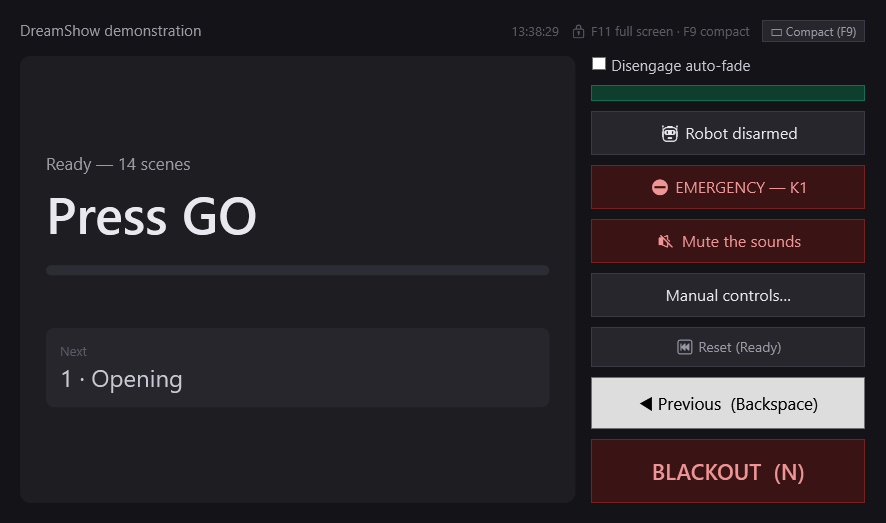
Show mode is the way you play the show. It opens the cue window: a clean screen, readable from a distance, that shows the current scene, its progress, the next scene and the message for the stage manager, with big GO, ◀ Previous and BLACKOUT buttons. This window never modifies the show: it only sends orders to the playback engine. It can go onto a second screen, or shrink into a small strip (Compact) to keep the editor visible.
To open it: Show mode button at the top right of the main screen (tooltip: “Opens the cue window (a second screen is possible)”).
Opening show mode
On clicking Show mode:
- Clean start (the usual case): the cue list goes back to the “Ready” state: blackout, media stopped, no scene in progress. The first Go will start scene 1 from the beginning. Careful: if a scene was lit in the editor, the venue goes to blackout as soon as it opens.
- Resume: if the cue window had been closed in the middle of a show, reopening it resumes exactly where the show was: same scene, same position in its timeline, playing.
The window opens in front of the editor and stays there (a click on the editor does not hide it). If you left it compact last time, it opens compact.
During show mode, the DMX output is always active, even if the editor's LIVE button is off: a stray click on LIVE cannot plunge the show into darkness. Only visualiser mode cuts the output, even in show mode.
The cue window
The top banner
- On the left, the show's name.
- On the right, an information line:
- before the first Go: the time;
- after: “21:04:12 · start 20:31:05 · length 0:33:07”, that is, the time, the time of the first Go and the length elapsed since;
- at the end of the show, the length freezes and “· END 22:15:40” is added (see below);
- then the reminder “🔒 F11 full screen · F9 compact”;
- when parallel sequences are running: “⇉ in parallel: …” with their names (see Parallel sequences).
- ▭ Compact (F9): shrinks the cue window into a small strip (see below).
The current scene
- The counter: “Ready — 12 scenes” before the first Go, then “In progress — 3/12”.
- The scene's name, in very large type. Before the first Go: “Press GO”.
- The progress bar:
- during an incoming fade, it shows the fade's progress, and the time shows “fade 2.4 s” (the remaining time);
- afterwards, it shows progress through the scene's timeline, and the time shows “1:12 / 3:40” (position / length of the timeline);
- if the scene has nothing to play (empty timeline, or only instantaneous items), the bar stays empty and the time only shows how long you have been on the scene.
- After the time may be added:
- “↻ loop 2” for a scene that loops (the pass number), with “(max 300 s)” if the loop has a maximum length;
- “→ fade 3 s”: the fade that will be used to leave this scene for the next.
- The cue message, in yellow: the text entered in the Cue message: field of the scene settings (“what to expect before pressing GO”). See Scene settings. When a Wait for a key block is waiting, this message is replaced by the block's instruction: “⌨ Press “Space””, or the block's message followed by “⌨ “Space””. See Waits.
- Next: the number and name of the next scene, with “(auto)” if it starts by itself after a delay, or “(chained)” if it chains at the end of the current scene. On the last scene: “— END OF SHOW — last scene reached at 22:15:40”, or “— end of show —”.
The buttons
- Disengage auto-fade (tick box): “Ticked: no scene chains on its own (auto-fade / chained) — you advance everything with GO.” Automatic triggers (after a delay, chained) are ignored; each scene change is made with Go. The box is the same as the editor timeline's: ticking one ticks the other.
- GO (Space): starts the next scene. The first Go from “Ready” starts scene 1 and marks the start of the show. The button is greyed out (and Go has no effect, by click or by keyboard):
- on the last scene;
- as long as the current scene's timeline has not finished (incoming fade in progress, or the red line has not yet reached the end of the last item). Exception: a scene on loop accepts Go at any time (this is how you get out of a loop). Go starts with the fade of the scene being left; the new scene's timeline starts once this fade has finished. See Fades and mixes.
- 🤖 Robot disarmed / 🤖 Robot ARMED: visible only if the venue declares robots. Arms or disarms the robots: when disarmed, the timeline's Robot blocks are ignored. The button turns red once armed, and shows the first robot's state (mode, battery, “⚠ AU SOL” (ON THE FLOOR), “hors ligne” (offline)…).
- ⛔ EMERGENCY — robot name: one red button per declared robot, and ⛔ EMERGENCY — ALL first if there are several. “Emergency stop: immediate stop then motors off (the robot slumps). Goes through even when disarmed.” See Humanoid robots.
- 🔇 Mute the sounds: “Immediately stops all playing sounds.” Same action as the button of the editor's Audio panel. This button only stops the sounds played by DreamShow: a video's sound carries on as long as the video plays.
- Manual controls…: opens the manual controls (winch, power supply, shutters), identical to the editor's. See Manual controls.
- ⏮ Reset (Ready): “Back to the pre-show state: blackout, media stopped. The next GO starts scene 1.” Parallel sequences stop, waits in progress are cancelled, and the start and end of the show are cleared. Fixtures set to hold (for example a winch) keep their value. There is no confirmation.
- ◀ Previous (Backspace): goes back instantly (without a fade) to the start of the previous scene, and plays it. No effect on scene 1 or before the first Go.
- BLACKOUT (N): toggles the general blackout. The button turns bright red as long as the blackout is active; another press lights up again. During the blackout, the cue list keeps running behind the scenes (timeline, sounds), only the fixtures are at zero, with the exception of:
- fixtures set to hold in the venue (field “If not mentioned in a scene”), so that a blackout never moves a winch;
- the manual controls, the follow spot on a tablet and the channels taken by the DMX faders, which go in front of the blackout.
The keys in brackets are those set in File > Remote (GO keys)… (see The remote (GO keys)).
Keyboard keys
When the cue window has focus:
| Key | Effect |
|---|---|
| Space, Enter (by default) | GO |
| Backspace (by default) | ◀ Previous |
| N (by default) | BLACKOUT |
| F9 | Compact / full window |
| F11 | Full screen / normal window |
If a Wait for a key block is waiting, its key is used first to release it.
The compact strip (F9)
▭ Compact (F9) (“Shrinks the conductor to a small always-on-top strip: the rest of the screen is visible again. F9 to come back.”) folds the cue window into a narrow strip, always in front. Useful on a single screen, to keep the timeline or the simulation visible. The strip shows:
- “3/12 scene name”, and the time on the right;
- a thin progress bar;
- the cue message (in yellow) if there is one;
- “▸” followed by the next scene;
- three buttons: ◀ (Previous scene), GO and BLACKOUT, which do exactly the same as in the full window;
- ⤢ (Full window (F9)) to return to the full window.
The first time, the strip is placed at the top right of the screen. Afterwards, each presentation (full or compact) returns to where you left it, as long as the cue window stays open. The full / compact choice is remembered for the next opening of show mode. Going to full screen (F11) leaves the compact strip.
On a second screen
The cue window is a separate window: drag it by its title bar onto the second screen (the stage manager's), then press F11 so that it fills that whole screen. F11 again puts it back in a normal window. The editor stays on the main screen.
What stays active in the editor during the show
The editor is not locked during show mode. What you need to know:
- The scene list follows the show: the current scene is selected automatically at each change, and the timeline's red line advances with it.
- Clicking another scene in the list, with the LIVE button on, makes the show jump to that scene (and play it). Avoid clicking in the list during a performance.
- A change to the current scene applies at once on stage (colours, intensities, blocks…), without restarting the red line.
- The editor's space bar does a Go, with the same rules as the cue window's GO button.
- Still usable: the 🔇 Mute the sounds button of the Audio panel, the robot arming button, Venue > Manual controls…, the DMX menu (values, faders, sound-to-light, timecode…), the web, OSC and MIDI remotes.
- The LIVE button has no effect on the output during show mode (it stays active).
- The editor's Disengage auto-fade box and the cue window's are the same.
The length and the end of the show
- Start: the first Go given from the “Ready” state. The time is shown in the banner (“start 20:31:05”), and the length runs from then on.
- End of the show: arriving on the last scene, by a Go or by automatic chaining. At that moment:
- the length freezes and the banner adds “· END 22:15:40”;
- the Next frame shows “— END OF SHOW — last scene reached at 22:15:40”;
- the log notes “END OF SHOW: last scene reached — length 1:44:35”;
- the GO button is greyed out. The last scene plays its timeline normally to the end.
- Arriving on the last scene by a jump (◀ Previous, a click on a scene, a jump programmed in the timeline, a “go to scene” remote command, timecode) does not mark the end: Next then simply shows “— end of show —”.
- ⏮ Reset (Ready) clears the start and end: the length will start again at the next first Go.
Closing the cue window
Close the window (cross in the title bar). There is no confirmation.
- DreamShow remembers where the show had got to: reopening Show mode resumes it exactly at that scene and that position.
- The editor takes over again: the selected scene is displayed, transport stopped (its final state stays visible).
- If the editor's LIVE button is off, the DMX output stops as soon as the cue window is closed.
To start from zero on reopening, click ⏮ Reset (Ready) before closing the cue window.
Quitting DreamShow during show mode asks for confirmation: “A show is RUNNING. Quit DreamShow anyway?”. In case of a crash or a power cut, see Recovering after a crash or power cut.
Step by step
Playing a performance
- Before the audience comes in, open the show and check that LIVE is on.
- Click Show mode. The cue window shows “Ready — N scenes” and the venue is in blackout.
- Drag the cue window onto the second screen and press F11.
- On the cue, press GO (or Space, or the remote's button): scene 1 starts and the length begins.
- Follow the cue message (in yellow) and the next scene; when GO becomes bright again, the next Go is possible.
- In case of trouble: BLACKOUT, 🔇 Mute the sounds, or ◀ Previous to replay the previous scene.
- On the last scene, the cue window shows “— END OF SHOW —” and the total length. Close the cue window.
Preparing the next performance
- Reopen Show mode: the cue window resumes where it was.
- Click ⏮ Reset (Ready): blackout, media stopped, the cue window shows “Ready”.
- The next GO will restart scene 1 and a new length.
Keeping the editor visible on a single screen
- In the cue window, press F9: it becomes a strip at the top right.
- Place the strip where it does not get in the way; it stays in front.
- The ◀, GO and BLACKOUT buttons and the keys stay active. F9 or ⤢ to return to the full window.
Good to know
- A slow PC can be relieved by switching off the simulation rendering (⏻ button of the simulation panel): the DMX output is not affected. See 2D and 3D simulation.
- The cue window never changes the show; but the editor, for its part, stays editable during the show (see above).
- The cue window's keys only work if it has focus. After a click in the editor, click on the cue window again.
- The remotes (web, OSC, MIDI) follow the same Go rules as the cue window. Careful: their Pause and Ready commands also act during the show.