Manual contents
Creating a show with an AI
You already have the script of a play, a cue sheet or a running order: a conversational AI (ChatGPT, Gemini, Claude, Le Chat…) writes the show from that document, with the light, the sounds, and, if the venue has any, the robots and LED masks. DreamShow gives it everything it needs to know about your venue, then checks its answer line by line before creating the show. The AI never writes DMX or addresses: it chooses moods, zones, groups and files, and DreamShow builds the rest with your real fixtures.
To open it: menu File > Create a show with an AI…, or, in the first-show wizard, the choice With an AI, from my script.
The window stays open while you work in your browser: you can switch between the two as many times as necessary. A venue must be loaded; otherwise DreamShow displays “No venue loaded.”.
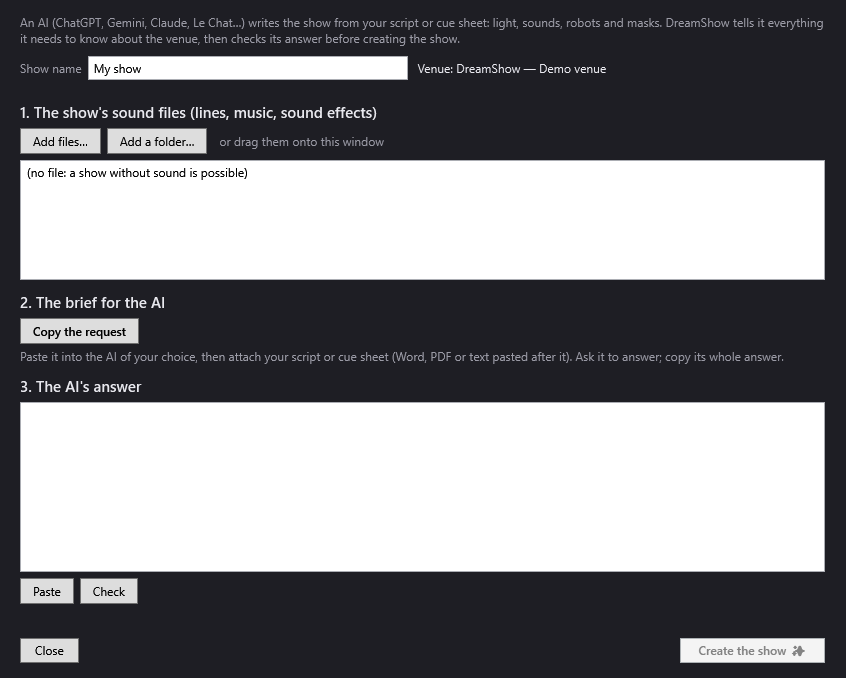
The window header
- Show name: the name of the show to create. Suggested value: “My show”. This name is also used to name the show's file and its media folder (see below). As soon as the media folder is created (first file added, first request copied or first check), the box becomes read-only; its tooltip then says “Set by the show's media folder: …” followed by the folder's path.
- Venue: …: reminds you of the active venue. This is the one DreamShow describes to the AI and the one the show will use. To work with another venue, change venue (menu Venue > Change venue) before opening this window.
1. The show's sound files (lines, music, sound effects)
Here you give DreamShow all the sounds the AI may place in the show. A show without sound is possible: the list then displays “(no file: a show without sound is possible)”.
- Add files…: opens a file chooser (several at a time). Formats offered: wav, mp3, m4a, aac, wma, flac.
- Add a folder…: adds all the sound files of a folder.
- or drag them onto this window: you can also drag files from Windows Explorer onto the window.
Files that are not sounds are ignored. The sounds kept are copied into the show's media folder (medias\<show name> in DreamShow's data folder); a file of the same name already there is replaced. The log notes “… sound file(s) added to …”.
The list shows each file preceded by ♪, with its length in seconds when DreamShow can read it, for example ♪ acte1-scene2.mp3 (12.4 s). These lengths are passed to the AI: it uses them to chain the lines.
2. The request for the AI
- Copy the request: places in the clipboard a complete text intended for the AI. The message “Copied! Paste it into your AI, with your script.” is displayed next to the button.
Then, as the window says: “Paste it into the AI of your choice, then attach your script or cue sheet (Word, PDF or text pasted after it). Ask it to answer; copy its whole answer.”
What the request contains
The request is written in DreamShow's language (French if the interface is in French, English otherwise). It includes:
- The role: the AI is a lighting and sound operator writing the show's technical cue list, and must answer only with a JSON object, with no text around it.
- The venue: its name, the width and depth of the stage, and the reminder that “jardin” is the left side seen from the audience and “cour” the right side.
- The fixture groups of the venue, with their exact name, the number and model of the fixtures, their role and their location:
- role: “moving heads (movement, colour)”, “colour fixtures”, “white, intensity only”, “strobes”, or “SPECIAL DEVICE (smoke, fan, UV, machine…)”;
- location: “on the floor”, “front of house”, “upstage / backlight”, “over the stage” or “position unknown”. Empty groups are not listed.
- The robots of the venue (if it declares any) with all their actions, their usual length, the dances, kicks and gestures available, and the reminder that the robot must be prepared before moving.
- The LED masks of the venue (if it declares any) with their actions and their faces, and how to make a character speak.
- The sound files available, with their exact name and length.
- The lighting vocabulary: moods, zones, group settings, effects (detailed below).
- The sentence “NEVER use the strobes unless the script explicitly asks for it.”
- The answer format, with a template to fill in.
- A last section “My script / cue sheet:” where you attach or paste your document.
3. The AI's answer
- The large text area receives the AI's answer. You can paste it by hand (Ctrl+V) or with the button below.
- Paste: replaces the content of the area with the clipboard text, then starts the check at once.
- Check: analyses the answer and displays the report under the buttons.
DreamShow tolerates the text the AI sometimes adds around its answer (introductory sentences, ``json tags): it takes everything between the first brace { and the last }`.
Any change to the answer disables the Create the show ✨ button: you have to check again.
The check report
The report lists, in order:
- the errors, in red, preceded by ✕: they prevent the show from being created;
- the warnings, preceded by •: DreamShow has corrected or ignored something, and tells you;
- a summary: “… scenes, … sounds, … robot actions, … mask actions, … effects.”;
- then either “Everything is understood: you can create the show.”, or “Fix the errors (or ask the AI to fix them by pasting these lines back to it), then check again.”
Each line starts with the scene concerned, in the form “Scene 3 “The living room”: …”.
Errors (creation impossible):
| Message | Meaning |
|---|---|
| No JSON object in the answer. | The pasted text contains no block between braces. |
| Unreadable JSON: … | The answer is malformed (often cut off: ask the AI to send it again in full). |
| No scene in the answer. | The list of scenes is empty. |
| …: missing file. | A sound, a robot line or a mask speech names no file. |
| …: file “…” is not in the show's media. | The file was not added in part 1. |
| …: robot “…” is not in the venue. | The name matches no robot declared in Venue > Robots…. |
| …: unknown robot action “…”. | The action does not exist. |
| …: unknown dance “…”. / unknown move “…”. / unknown gesture “…”. | The choice does not exist for this robot. |
| …: mask “…” is not in the venue. | The name matches no mask declared in Venue > LED masks…. |
| …: unknown mask action “…”. | The action does not exist. |
| …: unknown face “…”. | The face is not in the catalogue. |
Warnings (the show can be created):
| Message | What DreamShow does |
|---|---|
| Format “…” instead of “dreamshow-show-plan”: read anyway. | It reads the answer regardless. |
| …: “file” understood as “other file”. | The name given by the AI only matches apart from the extension (for example scene1.wav for scene1.mp3): the real file is used. |
| …: unknown mood “…”, “day” used. | The Day mood is applied. |
| …: unknown zone “…”, “all” used. | The whole stage is lit. |
| …: unknown trigger “…”, Go used. | The scene will wait for the Go. |
| …: unknown group “…”, ignored. / …: unknown group “…”, effect ignored. | The setting or the effect is not created. |
| …: unreadable colour “…”. | The colour is not applied (the expected format is #RRGGBB). |
| …: the special device “…” is switched on (smoke, fan, UV…): check that this is intended. | The setting is applied, but check it. |
| …: no effect on the special device “…”, ignored. | No effect is placed on a special device. |
| …: “circle” needs moving heads, the group “…” has none. | The circle and eight effects only apply to moving heads. |
| …: unknown effect “…”, ignored. | The effect is not created. |
| Strobes (“…”) are never fired from an AI plan: set them by hand if the show calls for it. | Any lighting or effect requested on a strobe group is removed. |
Creating the show
- Create the show ✨: only active after a check with no errors. DreamShow saves the show in the data folder under the name
<show name>.show.json(if that name is already taken, it adds “(2)”, “(3)”…), associates it with the active venue, then opens it. If the show open until then has unsaved changes, DreamShow first offers to save it. The show created joins File > Recent shows, the simulation switches to 3D and the window closes. The log notes “Show “…” created from the AI's answer: … scenes”. - Close: closes the window without creating anything. Files already copied stay in the media folder.
What is created
For each scene of the answer, DreamShow creates a scene of the show, in the same order.
The final state (the light). DreamShow builds the light as for a theatre cue list:
- each colour fixture receives the colour and level of the requested mood; the fixtures at the back (backlights, floor devices) have their own tint;
- white fixtures with intensity only cannot change colour: for Night, Mystery and Evening, they simply drop in intensity;
- with a zone other than “whole stage”, the fixtures whose beam falls outside the zone drop to 12 % of their level;
- the moving heads really aim at the zone (with their calibration if they have one, otherwise by calculation from their position), and for “whole stage” they spread across the width;
- in a blackout or house-open scene, the moving heads stay off but already turn towards the zone of the next lit scene (they preset in the dark);
- fixtures marked out of service in the venue are left aside;
- special devices (role “other”: smoke, fans, UV, relays, devices marked “no direction”, “invisible” or manual) are never switched on by a mood;
- then, if the AI gave group settings, they apply on top of the mood; with “only”, all the fixtures outside the groups named are set to 0.
The scene settings.
- Trigger: “go” gives Manual GO, “auto:N” gives Auto with a delay of N seconds, “chain” gives Chained.
- Fade to the next (s): in DreamShow, the fade belongs to the scene being left. The “fade” the AI gives a scene (fade in) is therefore placed on the scene that precedes it. The “fade” of the first scene is not used; the last scene has a fade of 0 s. Values are limited to 0–600 s.
- Cue message: receives the AI's “note”, that is what the operator waits for before pressing Go for the next scene.
The timeline tracks, created only if they have content:
- Sound: one block per file, at its start, with its real length (3 s if the length is unknown);
- Robot: one “Robot…” block per action, with the action's default length, or the file's length for “Say” (at least 0.5 s);
- Mask: one “Mask…” block per action (2 s by default, or the file's length for a speech);
- Effects: one dynamic-effect block per effect, with a fade in and fade out of 0.5 s. With no length given, the effect lasts until the end of the last sound, robot or mask of the scene (30 s if the scene has none).
The six possible effects become these dynamic effects:
| Effect requested | Dynamic effect created |
|---|---|
| rainbow | rainbow on the group, 6 s cycle |
| chase | intensity chase, 1.2 s cycle |
| pulse | intensity pulse (square, 15 % floor), 1 s cycle |
| wave | intensity wave (sine, 30 % floor), 3 s cycle |
| circle | circle of the moving heads, 4 s cycle (moving heads only) |
| eight | figure of eight of the moving heads, 4 s cycle (moving heads only) |
These cycle lengths correspond to speed 1; the requested speed (“speed”) divides them, between 0.2 and 5. A colour is only taken into account for chase, pulse and wave. Each block created can then be modified by double-clicking, like any dynamic effect (see Dynamic effects).
The masks' mouths. The lip-sync of an LED mask is calculated from a WAV file. When the AI makes a mask speak on an m4a, mp3 or other file, DreamShow makes, as soon as the check is done, a WAV of the same name in the media folder (it makes it again if the original file is more recent), and the Mask block uses that WAV. The Sound block keeps the original file. See LED masks.
The vocabulary the AI uses
You do not have to write this format yourself, but knowing it helps you to read an answer or to ask for a precise correction.
- Moods (
ambience):full(full light),day,evening,night,warm(warm interior),cold(cold exterior),mystery(tight moving heads),audience(house light),black,party(party: full light, to be completed with effects). With no lighting setting, a scene is in the Day mood over the whole stage. - Zones (
zone):all(whole stage),jardin(stage right),centre(orcenter),cour(stage left),front(downstage),back(upstage). - only: list of the only groups used by the mood.
- groups: exact setting of a group:
group,dimmerfrom 0 to 1,colorin the format#RRGGBB. - effects:
type,group,start,duration,speed(1 = normal, 2 = fast),color. - sounds:
fileandstart(in seconds from the start of the scene). - robot:
robot(name),action,paramorvaluedepending on the action,filefor “say”,start. See Humanoid robots. - mask:
mask(name),action,param,valueorfile,start. To make a character speak, the AI puts the file insounds(it goes through the PA) and asaymask action with the same file and the same start. - trigger:
go,auto:N,chain. fade: fade in, in seconds. note: message for the operator.
Example of a minimal answer:
{
  "format": "dreamshow-show-plan", "version": 1, "name": "Le Petit Prince",
  "scenes": [
    { "name": "Accueil", "trigger": "go", "fade": 3, "note": "Go quand la salle est pleine",
      "light": { "ambience": "audience" } },
    { "name": "Le désert", "trigger": "go", "fade": 4, "note": "Go sur « Dessine-moi un mouton »",
      "light": { "ambience": "day", "zone": "centre" },
      "sounds": [ { "file": "vent.mp3", "start": 0 } ] }
  ]
}
Safety rules
- The AI only describes intentions (mood, zone, group, file, action): it never writes a DMX value or an address, and cannot drive anything the venue does not contain.
- Strobes are never fired from an AI answer, even if it asks: DreamShow removes the lighting and effects planned on them, and warns you. Set them yourself if the show requires it.
- Special devices (smoke, fans, UV, machines…) are never switched on by a mood; if the AI switches them on explicitly, a warning asks you to check.
- Nothing is created as long as an error remains.
- The Robot blocks created only make the robot move if it is armed by the control PC (see Humanoid robots).
Step by step
Creating the show for a play
- Check that the right venue is active and that its groups have meaningful names (“Fronts”, “Backlights”, “Moving heads”…): the AI uses them.
- Open File > Create a show with an AI….
- Type the Show name.
- Add the sounds: Add a folder… and choose the folder of lines and music, or drag the files onto the window. Check that their lengths are displayed.
- Click Copy the request.
- In your browser, open a conversation with the AI of your choice, paste the request, then attach your script (Word or PDF file) or paste it after it. Send.
- When the AI has answered, copy all of its answer (many AIs offer a “Copy” button under the code block).
- Go back to DreamShow and click Paste: the check starts.
- If there are errors, copy the red lines, paste them back into the conversation asking the AI to correct them and send the complete answer again, then start again at step 8.
- When the report says “Everything is understood: you can create the show.”, click Create the show ✨.
- Go through the show scene by scene: adjust the levels, the fades and the cue messages, add what the AI could not know. Save (Ctrl+S).
Adding sounds afterwards
If the AI asks for a file you had forgotten: add it in part 1 (the show name is already fixed, the file joins the same folder), then click Check again. There is no need to copy the request again, unless you want the AI to know the length of the new file.
Good to know
- The more precise the script is about lighting changes (“night falls”, “a spot on the king at stage left”), the more accurate the show. You can add your own instructions after DreamShow's request.
- The show name is frozen as soon as the media folder exists. To change the name, close the window and reopen it: a new folder will be created.
- The request describes the venue as it is at the moment of copying. If you modify the venue (groups, robots, masks), copy a new request.
- The show created is a complete but simple starting point: one mood per scene. Moving-head movements, trajectories, videos and other blocks are then added in the timeline.