Manual contents
Aiming and covering a zone with moving heads
Two tools in the Venue panel set the pan and tilt of moving heads without touching the sliders: Aim points all the selected moving heads at the same spot, Zone spreads the selected moving heads over a surface that you draw (rectangle or ellipse), on the floor, on the stage or on a wall. DreamShow calculates the angles from each moving head's position, its hanging and its pan / tilt travel, or from its calibration if it has one.
To get to it: the Aim and Zone buttons in the toolbar of the Venue panel (the simulation), on the main screen.

What these tools modify
Aim and Zone write the pan and tilt into what you are currently editing:
- normally, the final state of the scene selected (the show is then marked as modified);
- when editing an effect, that effect;
- in trajectory mode, the selected key frame (see Trajectories).
For each moving head aimed, DreamShow also adds, if it does not already have them in that state: intensity at 100 %, shutter open and the fastest pan / tilt speed. A position coming from a palette is detached from the palette (see Palettes).
If LIVE is on and the scene being edited is the one playing, the real moving heads move at once.
Only moving heads are concerned: fixtures whose definition has a Max pan (°) greater than 0, and which are placed in the venue. The other fixtures selected are ignored.
Selecting the moving heads
Before aiming, select the moving heads to point. Several ways:
- the Selection — groups and fixtures tree in the Scene settings panel: tick fixtures or whole groups;
- a click on a fixture's dot in the Venue panel ticks or unticks that fixture;
- in 2D, a drag on an empty area (Aim and Zone tools off) draws a selection rectangle; hold Ctrl to add to the selection instead of replacing it;
- in 3D, a click (without dragging) on a fixture ticks or unticks it;
- All selects all the groups and the fixtures outside groups, None empties the selection.
See also Selecting fixtures and adjusting the light.
Aim
- Aim: toggle button. When on, a click in the venue points all the selected moving heads at the point clicked: their beams converge. Hold the mouse button down and move it: the point follows the mouse.
- In 2D, the point aimed at is on the floor, under the mouse.
- In 3D, the point aimed at is the surface under the mouse: the stage, the venue floor or a wall. In 3D, the left click aims; the right-click drag always rotates the view, which lets you aim and orbit around the venue without changing tool.
- If no moving head is selected, the information line at the top of the main screen displays “Aim: select one or more moving heads first”.
- Turning Aim on turns Zone off.
zoom on aim (check box, unticked by default, remembered from one session to the next):
- unticked, Aim only sets pan and tilt: your zoom is kept;
- ticked, aiming also tightens the beam to make a spot about 1 m wide on the target. This only works for a moving head whose definition declares its beam angles (Beam (°) from … to …) and whose mode has a zoom (or focus) channel.
When a moving head has a calibration and the point aimed at is on the stage, DreamShow uses the calibration, which is more exact than the geometric calculation. See Moving-head calibration.
Zone
Zone: toggle button. When on, you draw a zone on the venue and the selected moving heads spread themselves over it.
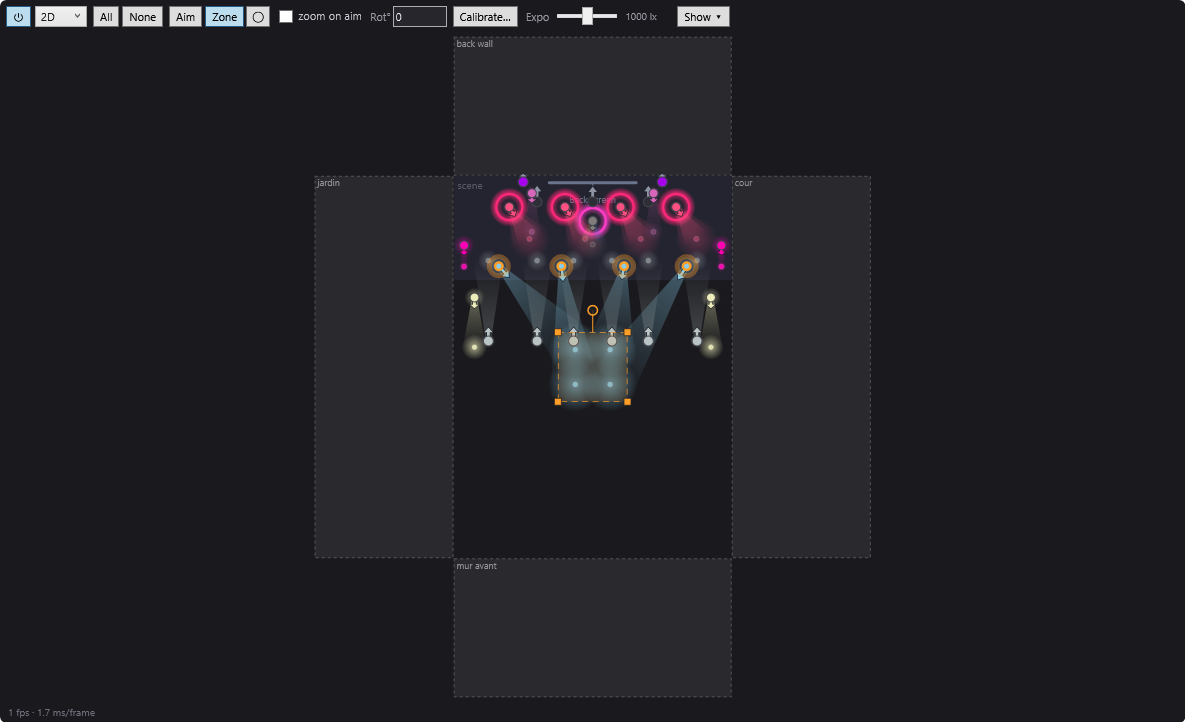
The plan with unfolded walls
In Zone mode, the 2D plan gets larger: around the venue floor, the four walls are “unfolded” flat, like an open box (each strip has the height of the venue). A zone drawn in the back-wall strip is on that wall; a zone pushed from the floor against a wall climbs it gradually instead of jumping. Along the stage, the climb starts at stage-floor level.
In 3D, the zone is drawn directly on the surface under the mouse (stage, floor or wall).
Drawing and modifying the zone
- Draw: press and drag on an empty spot: the zone is the rectangle (or ellipse) between the starting point and the end point. A simple click without dragging creates nothing.
- Move: drag inside the zone. The moving heads follow live.
- Resize: drag one of the four corner handles (small orange squares). The zone grows or shrinks symmetrically around its centre; its centre and its angle do not move.
- Rotate: drag the circle placed above the zone. Turns add up: turning twice makes 720°.
- ◯: the zone's shape. Pressed = ellipse, released = rectangle (default). Changing the shape also applies to the zone already drawn.
- Rot°: the zone's angle in degrees, typed on the keyboard. Values beyond one turn are allowed (360 = 1 turn, 720 = 2 turns, 1080 = 3 turns). Confirm with Enter or by leaving the field. The field shows the current angle when you rotate with the mouse. In a trajectory, between two key frames, the angle is interpolated as it is: from 0 to 720, the zone makes two turns.
The zone stays displayed as long as Zone is on: it is the handle that drives the moving heads. Turning Zone off erases the zone; the moving heads keep their aim.
How the moving heads are distributed
- The zone is cut into a grid of rows that are as square as possible, and the moving heads are shared equally between the rows (for example 13 moving heads on 3 rows: 5 + 4 + 4, the fullest row in the middle).
- The moving heads are assigned to the cells in the order of their position (from stage right to stage left, then front to back), so that the beams do not cross. This assignment stays the same when the zone rotates or moves: each moving head keeps its place in the zone.
- If the moving head's definition declares its beam angles and its mode has a zoom (or focus) channel, the beam opening is set to cover its cell (the cell's diagonal). Zone mode always sets the zoom this way: that is its job, unlike Aim.
- Moving heads marked Out of order in the venue are ignored.
- The information line at the top of the main screen summarises the result, for example “Zone (floor, rectangle): 6 head(s) over 4.0 × 2.0 m (3×2)” (surfaces touched, shape, number of moving heads, size, cells). With no moving head selected: “Zone: select one or more moving heads first”.
Other buttons in the bar
- Calibrate…: 4-point calibration of the selected moving head. See Moving-head calibration.
- The bar's other settings (⏻, 2D / 3D, quality, Expo, Show ▾) are described in 2D and 3D simulation.
Step by step
Making 4 moving heads converge on an actor at the centre of the stage
- Select the scene in the Scenes panel.
- Select the 4 moving heads (tick the “Moving heads” group, for example).
- Set their intensity and colour in Scene settings if needed.
- Turn Aim on.
- Click at the centre of the stage (avoid clicking right on a fixture's dot: that click ticks or unticks the fixture). Hold and adjust by moving the mouse.
- For a tight spot, tick zoom on aim before clicking.
- Turn Aim off and save the show.
Covering the whole downstage area with a carpet of light
- Select the scene, then the moving heads to use.
- Turn Zone on (the plan gets larger with the walls unfolded).
- Draw a rectangle on the downstage area, from one edge to the other.
- Adjust with the corner handles until the spots touch without overlapping too much.
- Turn Zone off and save.
Dressing the back wall
- Select the moving heads, turn Zone on.
- Draw the zone in the back-wall strip (above the floor on the 2D plan), or switch to 3D and draw directly on the wall.
- To make it rotate slowly during the scene, create a trajectory with two zone key frames, one at Rot° 0 and the other at 360 (see Trajectories).
Good to know
- Exact positions are essential: aiming is calculated from the moving heads' X, Y, Z positions, their orientation, Head up (standing on the floor) and the Max pan (°) / Max tilt (°) travel of the definition. A moving head badly placed in the venue will aim beside the target. For centimetre accuracy on the stage, calibrate.
- A click on a fixture's dot selects that fixture instead of aiming: start your gestures in an empty area.
- Aim and Zone are never on together.
- What you aim at is saved in the scene (or effect, or key frame) being edited: check in Scenes that it is the right one before aiming.
- The zoom is only set if the definition declares its beam angles and has a zoom or focus channel.
- A calibration is used by Aim and Zone for any point located on the stage, even raised.