Manual contents
Fixtures, addresses, positions
This window describes the venue: its dimensions, its stage, its location on Earth and above all the list of its fixtures with their model, their DMX mode, their address and their place in the venue. This is where you “patch” the venue, that is, where you tell DreamShow which fixture responds to which DMX address, and where it is rigged. Everything else (scenes, simulation, moving-head aiming) relies on this patch.
To open it: menu Venue > Fixtures, addresses, positions….
The window is titled “DreamShow (version) — Venue: (venue name)”. It does not block the main screen: the simulation stays visible alongside while you work. If the window is already open, the menu simply brings it to the front.
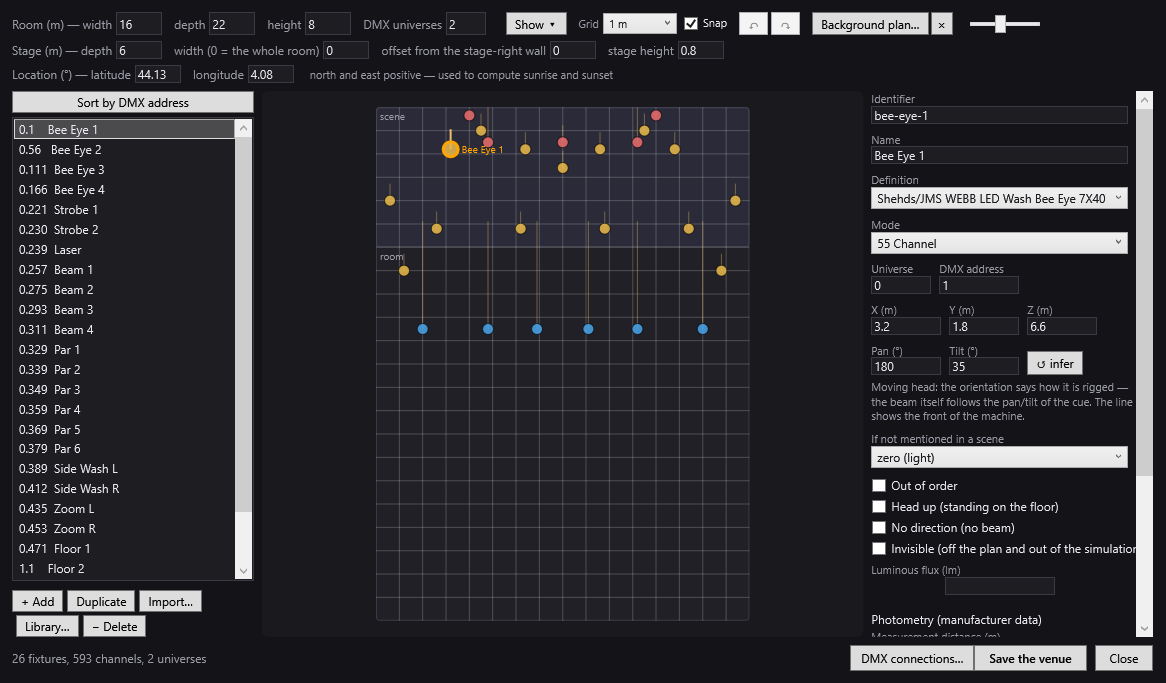
The window has four areas:
- at the top, the venue bar (dimensions, stage, location, universes, display, background plan, grid, undo / redo);
- on the left, the fixture list and its buttons;
- in the centre, the venue plan seen from above;
- on the right, the sheet of the selected fixture;
- at the bottom, the status line and the DMX connections…, Save the venue and Close buttons.
Important: the window works on a copy
Your changes are only applied to the venue (file, simulation, DMX output) when you click Save the venue. As long as you have not saved, the status line shows “— modified”. If you close the window with changes pending, DreamShow asks “Venue changes not saved. Save?”: Yes saves, No discards the changes, Cancel leaves the window open.
The copy is taken when the window opens. See “Good to know” below: whatever you change elsewhere in the venue while this window is open (a group created, a calibration, manual controls, connections set through the menu) is overwritten if you then save from this window.
The venue bar (at the top)
First line
- Room (m) — width, depth, height: the inside dimensions of the venue, in metres. The width runs from the stage-right wall (on the left as seen from the audience) to the stage-left wall; the depth runs from the upstage wall to the back wall of the house; the height is the ceiling height. Values must be greater than 0. A new venue measures 12 × 18 × 6 m. The plan is redrawn immediately. Both comma and point are accepted as the decimal separator.
- DMX universes: the number of DMX universes in the venue (one universe = 512 channels). This number goes up by itself if you put a fixture on a higher universe: a fixture outside the declared universes would output nothing. A new venue has 1 universe.
- Show ▾: display filter by fixture category. It opens as a list of check boxes, one per category present in the venue, with two buttons, All (show everything) and None (hide everything, so you can tick back only what you want to see). The filter acts on the plan and on the list on the left. When categories are hidden, the button becomes “Show (N hidden) ▾”. The selected fixture is always shown. Initially, the filter takes over the one from the main screen simulation. The categories are derived from the type of the definition: “Lyres” (moving heads), “LEDs couleur” (colour LEDs), Dimmers, Scanners, Smoke, “Relais” (relays: definitions whose model starts with “Relais”) and Others. Each category has its own dot colour on the plan.
- Grid: the spacing of the grid drawn on the plan: 0.1 m, 0.25 m, 0.5 m, 1 m (default), 2 m or 5 m. The lines for each metre are bolder. This setting is not saved in the venue: it is kept as long as DreamShow stays open.
- Snap (ticked by default): fixtures you drag on the plan snap to the grid. When unticked, they move in free steps of 10 cm.
- ↶ (Undo, Ctrl+Z) and ↷ (Redo, Ctrl+Y): undo or redo your latest changes in this window, up to 100 steps. A burst of changes close together (a drag on the plan, typing on the keyboard) counts as a single step.
- Background plan…: chooses an image (plan, photo: .png, .jpg, .jpeg, .bmp, .gif) stretched over the whole venue rectangle, under the fixtures. It also appears in the main screen simulation. The image path is shown to the right of the button; if the image is in the venue's folder or one of its subfolders, the path is saved as a relative path.
- × (to the right of Background plan…): removes the background plan.
- Slider to the right of the path: Background plan opacity, from 10 % to 100 % (50 % by default).
With a background plan, the stage is no longer painted solid on the plan: it is only tinted, so the image shows through.
Second line: the stage
- Stage (m) — depth: the depth of the stage, measured from the upstage wall (4.5 m for a new venue). Must be greater than 0.
- width (0 = the whole room): the width of the stage. 0 = the whole width of the venue.
- offset from the stage-right wall: the distance between the stage-right wall and the stage-right edge of the stage (0 = stage against the stage-right wall).
- stage height: the height of the stage floor above the floor of the house (0.6 m for a new venue). It is used by the 3D view and by the aiming calculations: a moving head aiming at a point on the stage aims at the top of the stage floor, not at the floor of the house.
On the plan, the stage is the rectangle marked “scene”, at the top; the rest is marked “room”.
Third line: the location
- Location (°) — latitude and longitude: the position of the venue on Earth, in decimal degrees, north and east positive (west and south negative). These two values are used only to calculate sunrise and sunset for the “sun” wait blocks in the timeline (see Waits and Architectural lighting). A new venue has the values 44.126 and 4.082.
The fixture list (on the left)
Each line shows: status symbols, then universe.address, then the name. Example: 0.17 Lyre 3.
Symbols at the start of the line:
| Symbol | Meaning |
|---|---|
| ⛔ | fixture marked Out of order |
| ∅ | fixture marked Invisible |
| ◌ | fixture marked No direction |
| ⚠ | DMX range clashing with another fixture (the line is then orange, with the tooltip “DMX range clashing with another fixture”) |
“(not placed)” is added to the name of a fixture that does not yet have a position.
Selection:
- a click selects a fixture and shows its sheet on the right;
- Ctrl+click and Shift+click select several fixtures; the sheet shows the last one clicked. A multiple selection moves as one block on the plan and is deleted in one go.
Buttons:
- Sort by DMX address (above the list): reorders the fixtures by universe, then by address. This order is saved with the venue.
- + Add: opens the “Add a fixture — QLC+ library” picker. Type in the search field (manufacturer, model or type; several words allowed, all of them must be present); the up / down arrows move through the list without leaving the field, Enter or a double-click confirms. Below the list, a line recalls the type and the modes of the chosen model with their number of channels. The fixture created gets:
- the model name;
- an identifier taken from the model name (lower case, hyphens) followed by
-1,-2…; - the first mode of the definition;
- the first free address in universe 0 wide enough for all its channels;
- a position in the centre of the venue, 3 m high.
If its category was hidden by Show ▾, it is shown again.
- Duplicate: duplicates the selected fixture in series (see below).
- Import…: imports a GDTF (.gdtf), QLC+ (.qxf) or DJworld (.fxt) fixture profile. It is converted into a QLC+ definition and joins the venue's library (see The fixture library). A message sums up the import: number of channels (including fine channels), maximum pan / tilt, modes, remarks, and the folder it was saved to. The model then appears in the Definition list and in the + Add picker. Channels that are not recognised (macros, modes) are imported as they are, with no particular function: check them. A .ssl2 file cannot be read: use the .fxt that comes with it.
- Library…: opens the fixture library. When it closes, the definition lists in this window are refreshed.
- − Delete: removes the selected fixture (or all those in the multiple selection) from the venue, after the confirmation “Delete … from the venue?”. Deleted fixtures are also removed from the groups. (Like everything else, the deletion only becomes final when the venue is saved; ↶ undoes it.)
Duplicating in series
The Duplicate button opens the small “Duplicate in series” window. It is the quick way to patch a row of identical fixtures on a bar.
- “Model: name (identifier)” recalls the fixture being copied.
- Number of copies: 5 by default.
- Step X (m), Step Y (m), Step Z (m): the position offset between two copies (1 m in X by default). Positions stay inside the venue.
- Chained DMX addresses (ticked by default): each copy takes the address that follows the previous one (the tooltip gives the number of channels per fixture). When unticked, or if there is no more room in the universe, each copy takes the first free address found.
- Increment the index in the name (ticked by default): the number at the end of the name is increased (“Lyre1” gives “Lyre2”, “Lyre3”…; leading zeros are kept: “PAR 01” gives “PAR 02”); a name without a number gets an index (“Wash” gives “Wash 2”, “Wash 3”…). When unticked, each copy is called “name (copy)”.
- A preview line shows the first names and the start address.
- Duplicate creates the copies; Cancel closes without doing anything.
The copies each get a free identifier (same root as the original, followed by -n). They do not take over the calibration of the original: a moving head is calibrated from its own position.
The venue plan (in the centre)
The plan shows the venue seen from above, with the upstage wall at the top. X runs from left (stage right) to right (stage left), Y from upstage (at the top) towards the back of the house (at the bottom).
- Each fixture is a dot in the colour of its category. A dotted dot is a fixture that has not been placed yet (it is drawn in the centre). The selection is circled in orange and its name is shown; the names of all fixtures appear when the plan is zoomed in far enough.
- A fixture that is Out of order or Invisible is drawn semi-transparent. An Invisible fixture does not appear on the plan at all, except when it is selected (as a “ghost”), so that you can find it.
- A dotted orange ring around a dot signals a DMX address clash.
- A tooltip on each dot gives the name, the definition, the address and any special states.
Gestures:
- Drag a dot: moves the fixture (X and Y). The position fields are updated. With Snap, the position snaps to the grid.
- Drag a dot that is part of a multiple selection: moves the whole group as one block, keeping the spacing; the group stops as a block against the walls.
- Drag in an empty area: draws a selection rectangle; all the fixtures (visible through the filter) whose dot is inside are selected.
- Drag the ◇ handle: points a fixture (see “Orientation” below).
Orientation lines
- For a static fixture, a line goes from the dot to the exact spot that the simulation lights. Solid: the orientation has been set; dotted: it is “inferred”: nobody has set it yet and the simulation assumes that the fixture is pointed at the stage (or, for a house COB, that it washes its wall). Inferred lines are only drawn for the selection, so as not to clutter the plan.
- For the selected fixture, a ◇ diamond ends the line. Drag it: the fixture turns towards that point (tooltip “Pull to aim: the fixture turns towards this point”). If the point is on the stage, the target is the top of the stage floor; otherwise, the floor of the house.
- For a moving head (definition with a pan), only a short stroke is drawn: it shows the front of the unit, that is, how it is rigged. The beam of a moving head follows the pan / tilt of the cue list, not how it is rigged; so there is no handle.
- Nothing is drawn for a fixture that is No direction, Invisible or Out of order.
The fixture sheet (on the right)
The column scrolls if it does not fit vertically. All fields apply to the selected fixture.
- Identifier: the unique technical name of the fixture in the venue (for example
lyre-3). It is the lasting key: scenes, groups and calibrations refer to it. An identifier that is already in use is refused (“⚠ identifier “…” already in use — not applied”); the fixture keeps the old one until the text is unique again. When you change an identifier, the venue's groups follow, but not the shows: scene settings that targeted the old identifier no longer find the fixture. - Name: the name shown everywhere (list, simulation, selection). Unlike the identifier, it can be repeated.
- Definition: the fixture model, in the form “Manufacturer/Model”, chosen from the library. Changing the definition resets the mode to the first mode of the new model.
- Mode: the DMX mode (number and order of channels) set on the fixture itself. It must be the same as on the unit, otherwise the channels will be shifted.
- Universe: the fixture's DMX universe, counted from 0: 0 is the first universe, which is called U1 in the DMX connections window; 1 corresponds to U2, and so on. If you enter a universe beyond the declared number, the DMX universes field at the top goes up by itself.
- DMX address: the first channel of the fixture in its universe, from 1 to 512, as on the fixture's display. A value outside 1–512 is ignored.
- X (m), Y (m), Z (m): the position of the fixture in metres. X = across from the stage-right wall, Y = depth from the upstage wall, Z = height from the floor of the house. Dragging on the plan fills in X and Y; Z is typed in (3 m for a fixture that has just been added).
Orientation
- Pan (°): rotation around the vertical axis, in degrees. 0 = the front of the fixture facing the audience, 180 = facing upstage. The line on the plan shows the result.
- Tilt (°): tilt of the beam. 0 = horizontal, 90 = straight down, negative = upwards.
- ↺ infer: clears the set orientation. The simulation goes back to its assumption (fixture pointed at the stage, house COB washing its wall). The button is only active if an orientation has been set.
When the orientation is not set, both fields show the angles of the assumption: the first change therefore starts from what is drawn, without a jump. Below the fields, a help line explains the situation:
- “Orientation set: the simulation lights the point at the end of the line.”
- “Orientation inferred (dotted line): … Pull the ◇ handle to fix it.”
- for a moving head: the orientation says how it is rigged; the beam follows the pan / tilt of the cue list;
- for a fixture that is No direction or Invisible, the orientation fields are disabled and the help line says so.
For a moving head, the orientation also matters for aiming: the Aim and Zone tools take it into account (see Aiming and covering a zone with moving heads).
Behaviour and attributes
- If not mentioned in a scene: what the fixture does when the final state of a scene does not set it.
- zero (light) (default): it goes to zero, like any fixture.
- hold: it keeps the values from the previous scene. In addition, the general blackout does not reset its channels to zero. This is the setting for devices that move physically or that must not switch off: hoist, power supplies.
- Out of order: the fixture is out of service. It disappears from the simulation (2D and 3D) and is drawn semi-transparent on this plan, but its patch, its groups and its DMX output do not change: unticking the box after repair is enough. The Zone tool ignores moving heads that are out of order.
- Head up (standing on the floor): for a moving head standing base down, head up (on the floor, on a riser), instead of being hung head down. Aiming and the simulation take the flip into account; the front face stays turned towards the audience.
- No direction (no beam): smoke or bubble machine, LED strip, house lights, power supply… No orientation on the plan, no beam in the simulation. The fixture stays visible and lights up when it emits.
- Invisible (off the plan and out of the simulation): relay, power supply, equipment whose DMX matters but not its place on the stage. Nothing is drawn, neither on the plan nor in the simulation. Patch, groups and DMX output unchanged. The selected fixture is still shown as a ghost so it can be found.
Fixtures that are No direction, Invisible or manual are never switched on by automatically written moods (first show wizard).
The manual attribute is not set here: a fixture becomes manual in Venue > Manual controls… (see Manual controls).
Photometry
These fields make the simulation more realistic (effect of the zoom, the distance, the angle of incidence). They change nothing in the DMX output.
- Luminous flux (lm): the flux actually emitted by the fixture, in lumens. Empty = the value from the library, or failing that an estimate based on the power.
- Photometry (manufacturer data): readings from the data sheet, at both ends of the zoom:
- Measurement distance (m) (5 m if empty);
- Wide beam (°) and lux at this distance;
- Narrow beam (°) and lux at this distance.
Example given in the tooltip: 545 lux at 5 m at 60°, 14335 lux at 5 m at 5°. The readings are only used if they are complete and consistent (both lux values and the narrow angle greater than 0, the wide angle larger than the narrow angle). They then replace the estimate based on the flux and the angles from the library.
Below these fields, a line shows what the simulation is really using: the manufacturer photometry, the flux entered, the flux from the library, an estimate based on the power (with an invitation to enter the real value), or “No photometric data” (the simulation then keeps neutral lighting for this fixture).
At the bottom of the column, a reminder: drag a fixture on the plan to place it, and the meaning of hold.
The status line and saving (at the bottom)
The status line sums up the venue: “N fixtures, N channels, N universes”, followed by “— modified” if there are unsaved changes. If there are problems, it turns orange and lists the first three after ⚠ (the number of further problems is given in brackets).
The checks cover:
- an empty or duplicate identifier;
- an unknown definition (missing from the library) or an unknown mode;
- an address that pushes the fixture outside the 1–512 range;
- two fixtures whose channels overlap in the same universe (“channel N (universe U): A and B overlap”).
Buttons:
- DMX connections…: sets up the universes and the output interfaces of this venue (see DMX connections). Here, the connections are saved with the venue, when you click Save the venue.
- Save the venue: applies and saves. An empty or duplicate identifier, or an unknown definition or mode, prevents saving (message “Cannot save:” with the list). Overlapping addresses ask for confirmation (“DMX ranges overlap: … Save anyway?”). After saving, the main screen reloads the patch, the selection tree and the simulation, and restarts the DMX output if the number of universes or the connections have changed. “Venue saved” appears at the top of the main screen.
- Close: closes the window (with the save question if there are changes left).
Groups
Groups (for example “Moving heads”, “Front”, “Back”) let you set several fixtures at once in scenes. They belong to the venue, but they are not created in this window: they are created in the Libraries panel of the main screen.
- Select the fixtures for the future group (the “Selection — groups and fixtures” tree, clicking dots in the Venue panel, or a selection rectangle).
- In the Libraries panel, Groups section, click + group (selection).
- Type the group name. A name already used by a group or by a fixture identifier is refused (“That name already exists.”).
The group is saved in the venue straight away. Groups appear in the order in which they were created; there is no command to reorder them. To delete a group: right-click its name in the Groups list, Delete the group; the fixtures remain, only the show entries that targeted that group no longer target anything. See also Libraries.
When you delete a fixture from the venue, it is removed from all groups. When you change its identifier, the groups follow.
Step by step
Patching a row of 6 identical LED PARs on a front-of-house bar
- Open Venue > Fixtures, addresses, positions….
- Click + Add, type the manufacturer or the model, choose it, Add.
- In the sheet, choose the Mode set on your PARs, check Universe (0 = U1) and DMX address (for example 1).
- Place the first PAR: drag its dot on the plan to the stage-right end of the bar, then type its height in Z (m) (for example 6).
- Click Duplicate. Set Number of copies to 5, Step X (m) to the gap between two PARs (for example 1.5), leave Chained DMX addresses and Increment the index in the name ticked, then Duplicate.
- Check the status line: no ⚠.
- If necessary, point each PAR: select it and drag its ◇ handle onto the area it must light.
- Click Save the venue.
- Physically set each PAR to the address shown in the list.
- Create a “Front” group: select the 6 PARs in the main screen, then + group (selection).
Matching the venue to an architect's plan
- Measure (or read off the plan) the inside width and depth, and type them into Room (m) — width and depth.
- Click Background plan… and choose an image of the plan, cropped exactly to the inside walls (the image is stretched over the whole venue rectangle).
- Adjust the opacity with the slider so the dots are clearly visible.
- Adjust Stage (m) — depth, width, offset from the stage-right wall and stage height until the “scene” rectangle falls on the drawn stage.
- Place the fixtures on the plan, then Save the venue.
Resolving an address clash
- Find the orange lines marked ⚠ in the list (and the orange rings on the plan). The status line gives the channel and the two fixtures involved.
- Select one of the two and correct its DMX address (or its Mode, if it is longer than expected).
- Sort by DMX address helps you see how the addresses follow on.
- When no ⚠ remains, Save the venue.
Good to know
- Universes counted from 0: the Universe field and the list (
0.17) start at 0, whereas the DMX connections window and the manual controls show U1, U2… for the same universes. Universe 0 = U1. - The mode must be the one on the unit. If the fixture is set to 8 channels and the venue to 12, everything is shifted: wrong colours, moving heads flying off in all directions.
- Changing an identifier breaks the link with the scenes already written for that fixture (the groups, however, follow). Change the Name instead.
- Copy taken on opening: the window works on a copy of the venue taken when it opens, and Save the venue rewrites the whole venue with that copy. If, while it is open, you create a group, calibrate a moving head, set manual controls or change the connections through the menu, saving from this window afterwards undoes those changes. Close the window before these operations, or reopen it afterwards.
- If the Manual controls window is open when you save the venue here, it updates itself (addresses, list of manual fixtures, values).
- A fixture that is Out of order still outputs DMX: only the display changes.
- Duplicate does not copy moving-head calibration.
- The grid and snapping are working settings, not venue data.
- The simulation needs positions: a “(not placed)” fixture is drawn in the centre.