Manual contents
Visualiser mode
Visualiser mode turns DreamShow into a monitoring screen for other software or another lighting desk: the 2D/3D simulation shows the DMX that device sends over the network (Art-Net or sACN), instead of DreamShow's cue list. It also lets you record this received DMX into a file that DreamShow and the standalone player can replay.
Use it to preview in 3D a show programmed elsewhere, to check what a console is sending, or to capture an existing show to replay it later.
To open it: menu DMX > Visualiser mode (Art-Net / sACN in)….
Two network protocols are recognised:
- Art-Net: DMX carried over the Ethernet network, very widespread.
- sACN (E1.31 standard): another way of carrying DMX over a network, often by multicast (one transmission received by all subscribed devices).
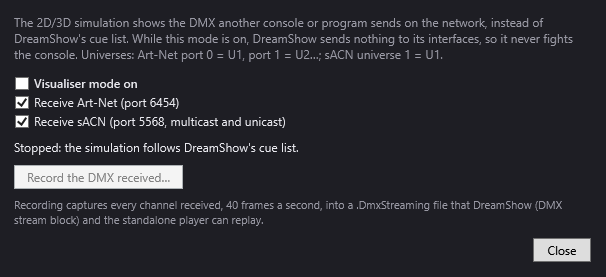
What happens when the mode is active
- The 2D/3D simulation and the DMX values window display the received DMX.
- DreamShow no longer sends anything to its own interfaces (Art-Net, USB, uDMX), so as never to fight with the console driving the venue. This is also true in show mode: visualiser mode takes precedence.
- DreamShow's title bar shows it with “[visualiser — output off]”.
- The log notes “Visualiser mode: the simulation shows the DMX received from the network, DreamShow's output is off”, then “Visualiser mode stopped: DreamShow drives its output again” when it stops.
The window
- Visualiser mode on: tick box that starts or stops the mode. If reception is impossible (port already taken by another program, for example), a message explains why and the box unticks itself.
- Receive Art-Net (port 6454): listens for Art-Net. Ticked by default.
- Receive sACN (port 5568, multicast and unicast): listens for sACN, whether it is sent by multicast or directly to this PC's address. Ticked by default.
At least one of the two protocols is needed; otherwise the message “Tick Art-Net, sACN or both.” is displayed. Changing a protocol while the mode is active restarts reception at once. These two choices are remembered.
Universe correspondence
The window's help text reminds you: Art-Net port 0 = U1, port 1 = U2…; sACN universe 1 = U1. In other words, Art-Net counts from 0 and DreamShow from 1, whereas sACN and DreamShow both count from 1.
Only the current venue's universes are displayed. Packets for other universes are counted as ignored.
The status line
It updates twice a second:
- “Stopped: the simulation follows DreamShow's cue list.”: the mode is stopped.
- “Waiting for DMX… Check that the console sends to this PC (or by broadcast / multicast).”: the mode is active, but nothing is received.
- “Received: U1, U2 · from 192.168.1.20 · 44 packets/s”: the universes that received data in the last 3 seconds, the address of the devices sending them, and the number of packets per second. If packets target universes absent from the venue, the line adds “ · N packets outside the venue's universes ignored”.
Recording
- Record the DMX received…: active only when the mode is active. It asks where to save the file; the suggested folder is the show's media folder, and the suggested name is of the type
capture-20261005-2130.DmxStreaming. - During recording, the button becomes ■ Stop recording (mm:ss) with the length recorded. Click it to finish: a message gives the file's path.
The recording captures all the channels received, 40 frames per second, in a .DmxStreaming file. It records the universes from U1 up to the highest universe receiving data at the moment you start recording.
- Close: closes the window. Visualiser mode (and a recording in progress) carries on; reopen the window to stop it.
Step by step
Seeing another console's show in 3D
- Connect the PC to the same network as the console (or the lighting software).
- In the console, set the Art-Net or sACN output to this PC's address, or to broadcast / multicast.
- Check that DreamShow's venue declares the same fixtures, at the same universes and addresses (Venue > Fixtures, addresses, positions…).
- Open DMX > Visualiser mode (Art-Net / sACN in)… and tick Visualiser mode on.
- The status line should show “Received: …”. Switch the simulation to 3D to see the beams.
Recording a show to replay it in DreamShow
- Enable visualiser mode as above and check that all the expected universes appear in “Received: …”.
- Click Record the DMX received… and keep the show's media folder.
- Play the show on the console.
- Click ■ Stop recording.
- Untick Visualiser mode on: DreamShow drives its output again.
- Saved in the show's media folder, the file appears in the Media list: drag it into a scene's timeline to create a DMX recording block (see The scene timeline). It can also be used by the standalone player.
Good to know
- Visualiser mode is never reactivated at the next launch: a show cannot start with its output cut by a forgotten setting. Only the Art-Net / sACN choices are remembered.
- As long as the mode is active, nothing goes out of DreamShow, even in show mode and even with the LIVE button on. Remember to deactivate it before taking control of the venue again.
- If a console runs on the same PC, it keeps its own Art-Net port: DreamShow opens reception in shared mode.
- When the console stops transmitting, the simulation keeps the last values received.
- On first use, the Windows firewall may ask to allow DreamShow on the network: accept, otherwise nothing will be received.
- A universe that starts transmitting after the recording has begun, and whose number is higher than all the universes already active, is not recorded. Wait until the whole console is transmitting before starting the recording.