Manual contents
Pixel mapping
Pixel mapping treats the cells of your LED bars, matrices and LED fixtures as the pixels of a screen, seen from the hall, and plays an animated picture on it: scrolling gradient, rainbow, wave, plasma, chase, sparkle, fire, or a picture of your choice. It is a timeline block, synchronised with the cue list.
To open it: drag Pixel mapping… from the Others list (Libraries panel) onto a track of the Scene timeline panel. The Pixel mapping window opens; double-clicking the block reopens it.
What a pixel is here
Each coloured cell of a fixture becomes a pixel: an LED bar with 8 cells gives 8 pixels, a 5 × 5 matrix gives 25, an ordinary LED fixture (a single colour for the whole fixture) gives 1. DreamShow finds the cells from the fixture definition (the red, green, blue and white channels of each cell). See The fixture library.
The “Pixel mapping” window
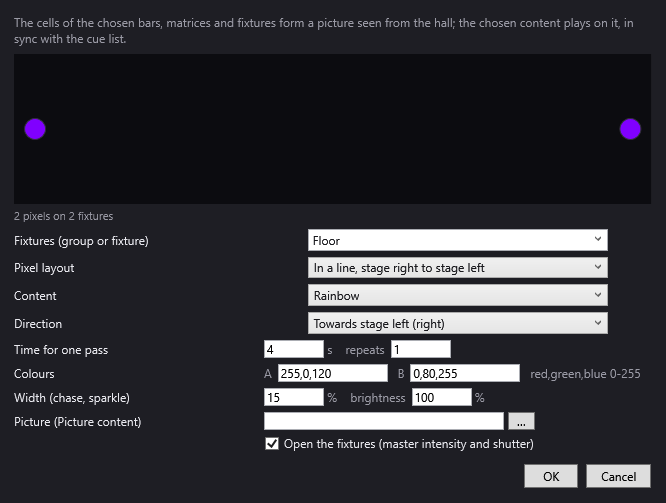
At the top, a reminder: “The cells of the chosen bars, matrices and fixtures form a picture seen from the hall; the chosen content plays on it, in sync with the cue list.”
The preview
Under the reminder, a black frame shows each pixel as a dot, in its place, and plays the content live: every setting you change is visible at once. Below it, a counter: “48 pixels on 6 fixtures”, or “No colour cell in this target.” if the target contains no usable fixture.
Fixtures (group or fixture)
The group or fixture that receives the picture (list of groups, then of fixtures; you can type the name). Required (“Choose a group or a fixture.”).
Pixel layout
How the pixels are arranged in the picture:
- In a line, stage right to stage left (default): all the pixels on a single line, fixture after fixture, from left to right as seen from the hall (order of the positions in the venue), cell after cell.
- One row per fixture (matrices unfolded): each fixture forms a row, the highest at the top; a square matrix (4 cells or more: 2 × 2, 5 × 5, 8 × 8…) is unfolded into a square.
- By where the fixtures hang (seen from the hall): each pixel in its real place, seen from the front: from left to right according to the position in the venue, from top to bottom according to the height. The cells of a bar are spread along the bar (10 cm between two cells, taking its orientation into account).
Positions and heights come from Venue > Fixtures, addresses, positions….
Content
The picture played on the pixels:
- Scrolling gradient A → B: a soft gradient from colour A to colour B and back, moving along.
- Rainbow (default): all the hues, scrolling. Colours A and B are not used.
- Wave of colour A: colour A fading in and out in a wave, with black between two waves.
- Plasma A / B: a moving, undulating blend of colours A and B (the Direction has no effect here).
- Chase of colour A: a band of colour A running on a black background; its width is set by Width.
- Sparkle A over B: pixels that light up at random in colour A over a background of colour B; the proportion of lit pixels is set by Width, the rhythm by Time for one pass (a new draw every twentieth of a pass).
- Fire: orange flames, hotter at the bottom, flickering (about 12 times per second). The colours, the direction and the time for one pass are not used.
- Image: the picture chosen in Picture (Picture content), scrolling in the chosen direction.
Direction
The direction in which the content moves:
- Towards stage left (right) (default);
- Towards stage right (left);
- Upwards;
- Downwards.
Upwards and Downwards only make sense with a layout on several rows (One row per fixture or By where the fixtures hang): in a line, all the pixels would take the same colour.
Time for one pass
- s: the time, in seconds, for the content to cross the picture once (4 by default; minimum 0.05). Smaller = faster.
- repeats: how many times the pattern repeats across the width of the picture (1 by default). With 2, you see two rainbows side by side. For Plasma, this setting changes the fineness of the undulations.
Colours
A and B, each as “red,green,blue 0-255” (by default A = 255,0,120, a pink, and B = 0,80,255, a blue). A badly written value is ignored (the previous one is kept).
Width (chase, sparkle)
- %: for Chase, the width of the band (in % of the picture, 15 by default); for Sparkle, the proportion of pixels lit in A.
- brightness: the overall intensity of the content, in % (100 by default).
Picture (Picture content)
The picture file to play (.png, .jpg, .jpeg, .bmp, .gif). The … button opens the file chooser (in the show's media folder) and automatically switches the Content to Image. A picture from the media folder is saved by its name only (the show stays movable together with its folder); a picture taken from elsewhere is saved with its full path. The picture is reduced to 256 pixels wide at most. With the Image content, a file is required (“Choose the picture to play.”).
The picture is read as a strip: with Towards stage left or Towards stage right, it scrolls horizontally across the full width of the pixels; with Upwards or Downwards, vertically.
Open the fixtures (master intensity and shutter)
Ticked (default): the block also sets the fixtures' master dimmer to 100 % and opens their shutter, so that the picture is visible even if nothing else lights them. Unticked: only the cell colours are set; the master intensity must come from the final state or from another block.
OK / Cancel
OK checks the settings and creates (or updates) the block. Cancel at creation: no block is created.
The block on the timeline
- Teal colour, text “⣿ Rainbow · Bars · 4 s” (content, target, time for one pass).
- Starting length: 10 s; resizable (20 minutes at most).
- Right-click > Properties…: Start (s), Length (s), Fade in (s), Fade out (s). The fades bring the picture up and down.
- The picture is calculated in advance, at 25 frames per second: it follows the red line and is shown in the simulation. If you replace the picture file, DreamShow takes it into account at the next recalculation of the show (at the next change to the timeline or the settings).
- The block lies on top of the light blocks and the final state, on the channels it sets. A Blackout turns it off. During a wait block, the picture freezes.
Step by step
A rainbow running across the LED bars at the back
- Create a group “Bars” with your LED bars (see Libraries).
- Drag Pixel mapping… onto a track at 0 s.
- Fixtures: “Bars”; Layout: In a line, stage right to stage left; Content: Rainbow; Direction: Towards stage left (right); Time for one pass: 6 s, repeats 1. Watch the preview, then OK.
- Stretch the block over the length of the piece; Properties…: Fade in (s) 2, Fade out (s) 4.
A logo scrolling across a matrix
- Put “logo.png” in the show's media folder.
- Pixel mapping…: Fixtures: the matrix; Layout: One row per fixture (matrices unfolded); … to choose “logo.png” (the content switches to Image); Direction: Towards stage right (left); Time for one pass: 8.
A fireplace fire on a wall of LED PARs
- Place the PARs at their real height in the venue.
- Layout: By where the fixtures hang (seen from the hall); Content: Fire; brightness 80.
- The fixtures at the bottom burn brighter than those at the top, and flicker.
Good to know
- A fixture without a colour channel (dimmer only) counts as one pixel but shows nothing: pixel mapping sets colours. With a white channel only, the pixel receives the average of the three colours.
- On a red, green, blue and white cell, the white receives the smallest of the three colours.
- The preview in the window runs continuously; on stage, the picture starts at the beginning of the block.
- The pixels of the In a line layout are ordered according to the left-right position of the fixtures: set the positions in the venue so that the order is right.