Manual contents
The remote (GO keys)
This window chooses the keys that drive the cue window (Show mode): GO, Previous step and Blackout. It is mainly used to connect a wireless presentation remote (the small box with a 2.4 GHz USB dongle used to step through slides): such a box behaves like a keyboard and sends keys (Page Down, arrows…). You just have to teach DreamShow which key each button sends.
To open it: menu File > Remote (GO keys)… (tooltip: “Assign the keys of a 2.4 GHz remote to the GO / Previous step / Blackout actions of the cue window.”).
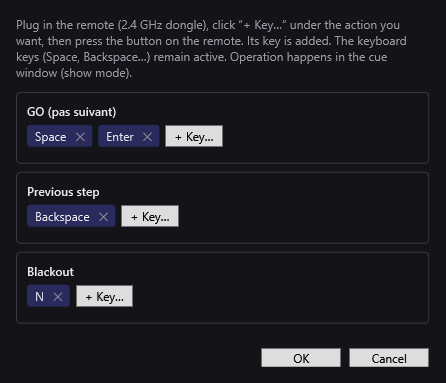
The window
The text at the top summarises what to do: plug in the remote, click “+ Key…” under the action you want, then press the remote's button; its key is added. The keyboard keys stay valid. Operation happens in the cue window (Show mode).
Three frames, one per action:
- GO (pas suivant) (GO, next step): starts the next scene (GO).
- Previous step: goes back to the previous scene.
- Blackout: toggles the general blackout.
In each frame:
- The keys already assigned, as pills. Each pill carries the key's name and a ✕ (Remove) to take it off.
- + Key…: click, the button becomes “Press a key…”; then press the keyboard key or the remote's button. The key is added to the list. Esc cancels the capture without adding anything. A key already in the list is not added twice.
An action can have several keys: they all work.
At the bottom:
- OK: saves the keys. If the GO (pas suivant) list is empty, the Space key is put back in it automatically: GO is never left without a key.
- Cancel: closes without changing anything.
The default keys
| Action | Default keys |
|---|---|
| GO (next step) | Space, Enter |
| Previous step | Backspace (the back-erase key) |
| Blackout | N |
The names displayed
Some keys have a plain name: Space, Enter, Esc, Backspace, Page ↓, Page ↑, ← Left, Right →. The others appear under their technical name (for example B, F5, Down). Presentation remotes often send Page ↓ for “next” and Page ↑ for “previous”.
In the cue window
- The big buttons of the cue window remind you of the first key of each action: “GO (Space)”, “◀ Previous (Backspace)”, “BLACKOUT (N)”. These labels update the next time Show mode is opened; the keys themselves work at once.
- The keys only work when the cue window has focus (it is the active Windows window). Click once on its title bar if another window has taken over.
- GO only acts if GO is possible (see Show mode and the cue window).
- If a Wait for a key block is waiting, the key it expects is first used to release it, before any other action. See Waits.
Step by step
Connecting a presentation remote
- Plug in the remote's USB dongle and switch it on.
- Open File > Remote (GO keys)….
- Under GO (pas suivant), click + Key…, then press the remote's “next” button. A pill appears (often Page ↓).
- Under Previous step, click + Key… and press the “previous” button (often Page ↑).
- If the remote has a “black screen” button, assign it in the same way to Blackout.
- Click OK.
- Open Show mode, click on the cue window, and test each button.
Preventing a keyboard slip
If the Enter or Backspace key risks being pressed by mistake during the show, remove it with its ✕, then OK.
Good to know
- These keys only apply in the cue window. In the editor, only the Space bar fires GO, whatever the list.
- In the cue window, F9 (compact) and F11 (full screen) are read before the keys in the list: a remote that sends F9 or F11 cannot be used for GO.
- If the same key is assigned to two actions, GO wins, then Previous step, then Blackout.
- The keys are saved in DreamShow's settings, not in the show: they apply to all shows.
- To drive the show from a phone, a MIDI controller or an OSC app, see The web remote, MIDI controllers and The OSC remote.