Manual contents
DMX values and DMX faders
Two windows in the DMX menu for seeing and forcing what DreamShow sends to the fixtures. DMX values… shows live the 512 channels of a universe, as they go out. DMX faders… lets you take a channel by hand, over the cue list, to test a fixture or troubleshoot during a rehearsal.
To open it: menu DMX > DMX values… or DMX > DMX faders…. The faders also open from the DMX values window (Faders… button or double-click on a channel).
Reminder: a DMX universe has 512 channels. Each fixture occupies one or more consecutive channels starting at its address. A DMX value goes from 0 to 255.
The DMX values window
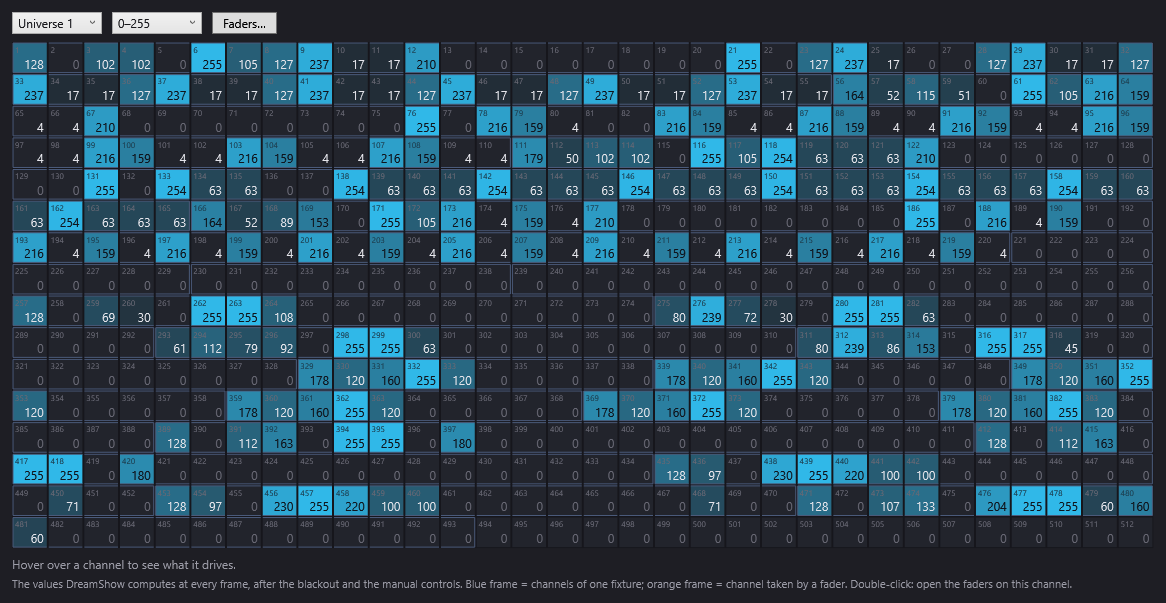
The window shows the values calculated by DreamShow at every frame, that is after the general blackout, the manual controls and the faders: these are exactly the values that go out to the interfaces. It updates ten times a second.
The top bar
- Universe 1, Universe 2…: chooses the universe displayed. The list contains all the universes used by the venue and its connections.
- 0–255 / %: unit of the values displayed in the grid. 0–255 (default) shows the raw DMX value; % shows it as a percentage (255 = 100 %). This choice only changes the display.
- Faders…: opens the DMX faders window on the universe displayed, from channel 1. To open it directly on a specific channel, double-click that channel in the grid instead.
The grid
The 512 channels are laid out in 16 rows of 32 cells. In each cell:
- the small number at the top left is the channel's address (1 to 512);
- the large number at the bottom right is its value (0–255 or %);
- the cell fills with a colour that goes from dark grey (0) to bright cyan (255), to spot lit channels at a glance.
The frames:
- Blue frame: surrounds the channels of one fixture, according to the address and DMX mode declared in the venue. A channel with no frame is used by no fixture (“free channel”).
- Orange frame: the channel is taken by a fader (see below). Its value no longer comes from the cue list.
- White frame: the cell under the mouse pointer.
Hovering and double-clicking
- Hovering over a cell displays at the bottom of the window what that channel drives, for example: “U1 · channel 12 = 255 (100 %) — Lyre 1 · Dimmer”. The name is that of the fixture in the venue, followed by the channel's name in its definition. If the channel is taken by a fader, the line ends with “· taken by a fader”. With no hover, the line says “Hover over a channel to see what it drives.”
- Double-clicking a cell opens the DMX faders window on the page that contains that channel (for example channels 33 to 48 for channel 37).
The DMX faders window
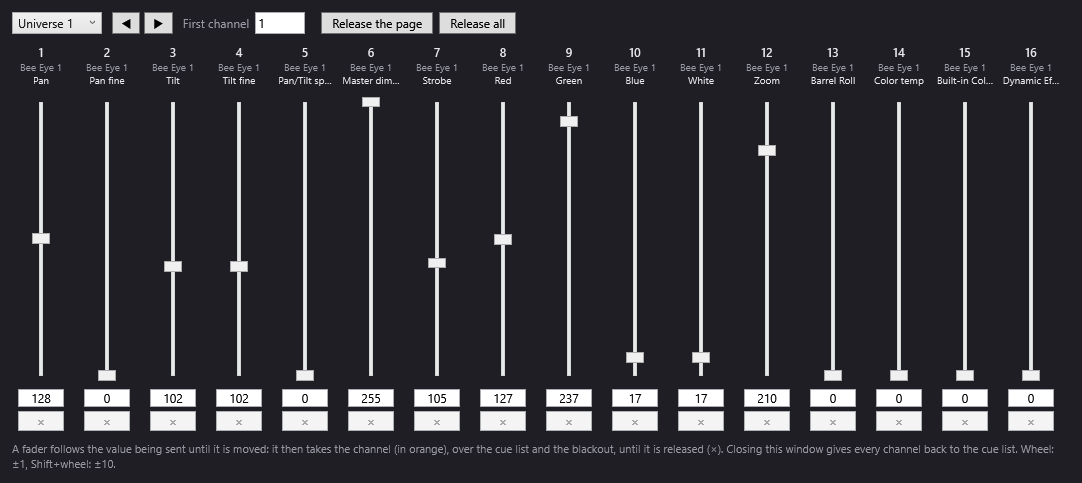
The window presents a page of 16 faders, one per consecutive channel.
The principle: follow, then take
- A fader follows the value sent as long as you do not touch it: it rises and falls with the cue list.
- As soon as you move it (or type a value), it takes the channel: its frame and its number turn orange, and the chosen value is imposed at every frame, over everything else: the cue list, the general blackout, the manual controls and the follow spot on a tablet.
- The channel stays taken until you release it. It then goes back to the cue list.
The top bar
- Universe 1, Universe 2…: the universe whose channels are displayed. Changing universe releases nothing: channels already taken on the other universe stay taken.
- ◀ (previous page) and ▶ (next page): goes back or forward by 16 channels.
- First channel: type the number of the first channel displayed (1 to 497), then Enter or click elsewhere. The page then starts exactly at that channel.
- Release the page: gives the 16 channels displayed back to the cue list.
- Release all: gives all the channels taken back to the cue list, on all universes.
Each fader
From top to bottom:
- the channel number (orange when taken);
- the name of the fixture that uses this channel, or “—” for a free channel;
- the name of the channel in the fixture's definition (Dimmer, Pan, Red…). A tooltip reminds you “Channel N — fixture · channel”;
- the vertical slider, from 0 (bottom) to 255 (top). A click on the track places the slider directly at that spot;
- the value box: type a value from 0 to 255 then Enter (or leave the box) to take the channel at that value. Any % sign is ignored: “50%” gives DMX value 50, not 50 %.
- × (Release: the channel goes back to the cue list): active only when the channel is taken.
The mouse wheel over a slider changes the value by 1; Shift + wheel changes it by 10. Like any movement of the slider, the wheel takes the channel.
Closing the window
Closing the DMX faders window gives all the channels back to the cue list, on all universes. This way, no forgotten setting stays imposed during a performance. The log then notes “Faders: every channel given back to the cue list”.
Exception: when you double-click another channel in the DMX values window while the faders are already open, the window is rebuilt on that channel keeping the channels already taken.
Step by step
Checking that a fixture is receiving its values
- Open DMX > DMX values….
- Choose the fixture's universe.
- Find its blue frame and hover over its cells: the bottom line gives the name of each channel.
- Start the scene you want (or click GO): the values should move in the grid.
- If the values move but the fixture does not react, the problem is between the PC and the fixture: connections, the fixture's address or mode, cable. See DMX connections and Troubleshooting.
Testing a fixture channel by channel
- In DMX values…, double-click the fixture's first channel. The faders open on its page.
- Raise the intensity channel's fader (Dimmer): the fixture should light up. If the fixture has a shutter, it may need opening too.
- Move the other channels one by one (colour, Pan, Tilt…) and watch the fixture.
- Click Release the page, or close the window, to give everything back to the cue list.
Holding a channel at a fixed value during a rehearsal
- Open DMX > DMX faders…, choose the universe, type the channel in First channel.
- Type the value in the box under the fader, then Enter.
- Leave the window open as long as the value must be held. Click × to release it.
Good to know
- The DMX values window shows the calculated values even when nothing goes out: LIVE button off in the editor, or interface unplugged. Values that move only prove that DreamShow is calculating the cue list.
- In Visualiser mode, the DMX values window shows the DMX received from the network, not DreamShow's. The faders also follow these received values, but taking a channel then has no effect on the venue, since DreamShow's output is cut.
- Turning off the simulation rendering (the ⏻ button of the simulation panel) stops neither the DMX output nor the DMX values window. See 2D and 3D simulation.
- The faders override the general blackout: a channel taken stays lit even during a BLACKOUT. Remember to release everything before a show.
- The same channels can also be taken from a MIDI controller, the web remote or OSC. These takes show in orange in both windows, and closing the DMX faders window releases them too.
- Channels taken are not saved: they disappear when DreamShow is closed.
- For devices that must stay set by hand permanently (winch, power, relays), use the manual controls instead, which are saved with the venue.