Manual contents
First steps
The first time you start it, DreamShow does not leave you facing empty panels: it offers three ways to begin, then a short list of six things to do once to learn the essentials. None of this is compulsory.
To open it: the welcome screen opens by itself after a fresh installation. After that: menu ? > Welcome and first steps… for the welcome screen, ? > First steps checklist… for the list of six things to do.
The “Welcome to DreamShow” screen
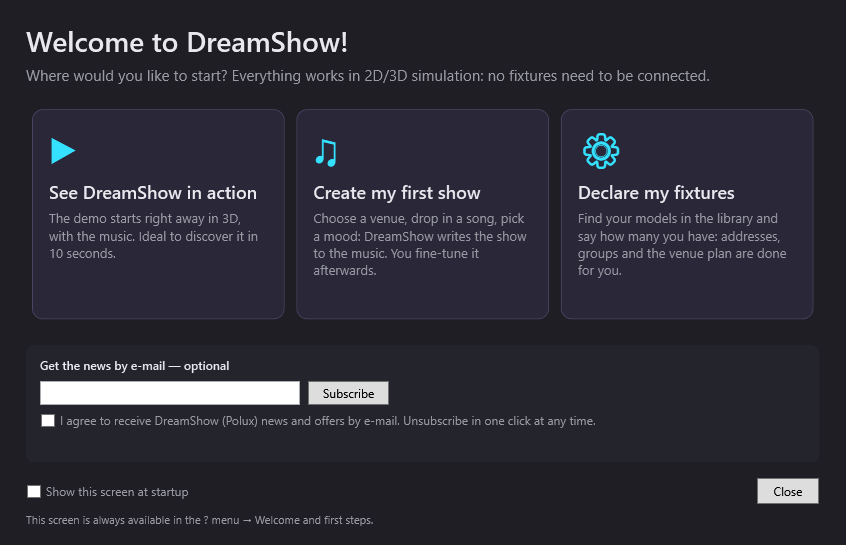
At the top, the title Welcome to DreamShow! and the sentence: “Where would you like to start? Everything works in 2D/3D simulation: no fixtures need to be connected.”
The three choices
Three large tiles. Clicking a tile closes the screen and starts that choice.
- ▶ See DreamShow in action: the demonstration starts straight away in 3D, with its music. DreamShow opens the demonstration show in the interface language (in English: “DreamShow demonstration”, on the venue “DreamShow — Demo venue”), switches the simulation to 3D, selects the first scene and plays it from the start. If the current show has unsaved changes, DreamShow first asks you Save the changes to the show?.
- ♫ Create my first show: opens the Create my first show wizard. You choose the type of performance, a venue, one or more songs and a mood (or, for theatre, a list of moments); DreamShow writes the show. Everything is described in Creating your first show (music or theatre).
- ⚙ Declare my fixtures: opens the Declare my fixtures wizard. You look up your models in the library and say how many you have; DreamShow creates the venue with the addresses, the groups and the plan. See Declaring your fixtures (venue wizard).
Receiving news by e-mail — optional
A frame offers to send you DreamShow news by e-mail. It is entirely optional and has no effect at all on the software.
- Address field: type your e-mail address.
- I agree to receive DreamShow (Polux) news and offers by e-mail. Unsubscribe in one click at any time.: check box, required to subscribe.
- Subscribe: sends the subscription. A message appears below the frame:
- “Please enter a valid e-mail address.” if the address is not in the form name@domain.ext;
- “Tick the box to give your consent.” if the box is not ticked;
- “Sending…” while sending, then the service's reply;
- “Service unavailable: please try again later.” if the PC has no Internet access or the service does not respond.
The bottom of the screen
- Show this screen at startup: when ticked, the welcome screen opens every time DreamShow starts. When unticked, it no longer opens by itself. After a fresh installation (no show opened yet on this PC), the box is ticked; as long as you have never changed it, an update does not bring the screen back on a PC that is already in use. The choice is saved when you close the screen.
- Close: closes the screen without starting anything.
- The last line reminds you that “This screen is always available in the ? menu → Welcome and first steps.”
The first steps checklist
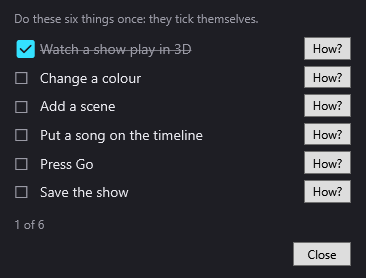
A small window titled First steps, which stays open next to the main screen (at the bottom right) while you work. It says: “Do these six things once: they tick themselves.”
The six things to do
Each line has a box (☐, then ☑ when done, and the text is then struck through) and a How? button.
| Thing to do | What ticks it |
|---|---|
| Watch a show play in 3D | the simulation is in 3D, playback is running and the scene being played has gone past 2 seconds |
| Change a colour | a click in the colour palette, or a movement of the R, G or B sliders, while fixtures are selected |
| Add a scene | the + button above the scene list (duplicating a scene also counts) |
| Put a song on the timeline | a media file (sound or video) added to the timeline, with the Add to the timeline button or by dragging the file |
| Press Go | the GO (Space) button or the space bar in the main screen |
| Save the show | File > Save |
A ticked item stays ticked: the list is saved in DreamShow's settings.
The How? button
It opens a yellow bubble attached to the control concerned, with the explanation:
- Watch a show play in 3D: choose “3D” in the list at the top of the venue view, then press Go (space bar). The menu ? > Welcome and first steps…, tile See DreamShow in action, does it for you.
- Change a colour: click a scene on the left, tick a group in the selection (at the bottom), then click in the colour palette or move R, G, B.
- Add a scene: the + button above the scene list, on the left. Each scene is a moment of the show, triggered by Go.
- Put a song on the timeline: in Media (on the right), Import media… then Add to the timeline; or drag the file straight onto the timeline.
- Press Go: the big Go button at the bottom left, or the space bar: you move on to the next scene, just as during the show.
- Save the show: File > Save, or Ctrl+S.
The bubble disappears after 12 seconds, or as soon as you click elsewhere. If the target control is not visible (hidden panel), the bubble appears to the left of the First steps window.
The bottom of the list
- A counter shows how far you have got, for example “4 of 6”.
- When all six things are done, it is replaced by: “Well done! You know the essentials. The rest (effects, trajectories, video, robots…) is shown in the videos and the brochure on the DreamShow website.”
- Close: closes the list. It can be reopened with ? > First steps checklist….
After a fresh installation, the list opens by itself after the welcome screen, as long as the six things have not all been done.
Empty panels guide you
Two hints appear on their own when there is nothing to see yet:
- In the timeline, when the selected scene is empty (no block, no setting in its final state) and Show mode is not open: “Empty scene. To light it: tick fixtures in “Selection” (at the bottom) and set intensity and colour. To animate it: drag a song, an effect or a trajectory from the library (on the right) onto the timeline.”
- In the simulation, when the active venue has no fixture: “This venue has no fixture yet.”, with a Declare my fixtures… button that opens the venue wizard.
These hints disappear as soon as the scene or the venue is no longer empty.
Step by step
Discovering DreamShow in one minute
- Open ? > Welcome and first steps… (or wait for the welcome screen the first time you start it).
- Click ▶ See DreamShow in action.
- The demonstration plays in 3D with its music. The item Watch a show play in 3D ticks itself after two seconds.
- Press the space bar to move on to the next scene (item Press Go).
Doing the six things
- Open ? > First steps checklist….
- For each unticked line, click How? and follow the bubble.
- Finish with File > Save.
No longer showing the welcome screen at startup
- Open ? > Welcome and first steps….
- Untick Show this screen at startup.
- Click Close.
Good to know
- After a crash, the recovery offer comes before the welcome screen. See Recovering after a crash or power cut.
- The item Save the show is only ticked through the File > Save menu: the Ctrl+S shortcut does save the show, but does not tick the line.
- The How? bubble for the item Save the show mentions an “automatic backup”: DreamShow keeps a copy of the previous version each time you save (
autosavefolder), but does not save the show by itself. See Shows, files and projects.