Manual contents
Selecting fixtures and adjusting the light
To light a scene, you first tick the fixtures (or groups) to adjust, then set their intensity, colour, position and special channels. These settings make up the scene's final state: the stable lighting it takes on when you arrive on it. Everything is done in the lower part of the Scene settings panel.
To open it: select a scene in the Scenes panel; the selection and the light settings are below the scene settings line, in the Scene settings panel.
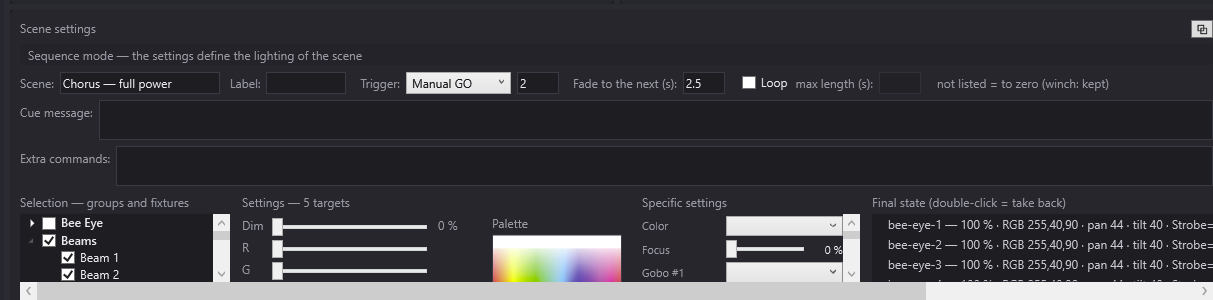
How a scene's light is defined
A scene's light comes from two sources:
- The final state: the list of settings (intensity, colour, position, special channels) of each group or fixture for this scene. It is the stable state the fade glides towards when you arrive on the scene, and the one it keeps once its timeline has finished. Jumping straight to the scene always gives this same state.
- The timeline blocks: temporary variations laid over the final state while the timeline plays (light blocks, effects, trajectories, dynamic effects, blackout…). See Light and effect blocks.
A fixture that does not appear in the final state is set to zero in this scene, unless it is set to “hold” in the venue (a winch, for example), in which case it keeps the value of the previous scene. This is the “not listed = to zero (winch: kept)” reminder shown at the top of the panel.
The settings described here write into the final state of the selected scene. Exception: in effect mode or trajectory mode (orange banner at the top of the panel), they write into the effect or the keyframe being edited.
Each setting is applied almost at once (less than a tenth of a second): the simulation shows it, and if LIVE is on, so do the real fixtures.
Selection — groups and fixtures
The left-hand column, Selection — groups and fixtures, is a tree with check boxes:
- each group of the venue, in bold, with the fixtures that make it up below it (click the arrow to expand);
- then, also in bold, each fixture that does not belong to any group.
The ticking rules:
- Ticking a group ticks all its fixtures; unticking it unticks them all.
- Unticking a single fixture of a ticked group unticks the group's box, without touching the other fixtures.
- A fixture that belongs to several groups appears several times in the tree: its boxes are linked, ticking one ticks the others.
- Ticking a group never ticks another group that shares the same fixtures.
When a group and its fixtures are ticked, the setting is written only once, under the group's name.
The right-click menu
A right-click in the tree (or on the 2D plan of the simulation) opens a menu:
- Select all: ticks all groups and all fixtures outside groups;
- Select nothing: unticks everything;
- for each group, + select group and - deselect group: adds this group to or removes it from the selection, without touching the rest;
- Import the ppshow calibration (lyrescal.ini)…: see Moving-head calibration.
Selecting in the simulation
You can also select from the venue view:
- a click on a fixture on the 2D plan, or on a fixture in the 3D view, ticks or unticks that fixture;
- in 2D, drawing a rectangle with the mouse ticks all the fixtures inside it (and unticks the others); with the Ctrl key, the rectangle adds to the selection;
- the simulation's All and None buttons do the same as Select all and Select nothing.
When all the fixtures of a group are selected this way, the group's box gets ticked, and the tree opens on the selection. See 2D and 3D simulation.
Settings
Above the sliders, a line reminds you of the target: “Settings — no selection”, “Settings —” followed by the target's name when only one is ticked, or “Settings — 4 targets”.
The sliders offered depend on the selected fixtures:
- Dim: the intensity, from 0 to 100 % (the value is shown on the right). Present if a selected fixture has an intensity channel.
- R, G, B: the colour, in red, green and blue, from 0 to 255 each. The small rectangle to the right of B shows the resulting colour. Present if a selected fixture can do colour: RGB or CMY LEDs, or a colour wheel (DreamShow then picks the closest colour on the wheel).
- Pan and Tilt: the horizontal and vertical orientation of a moving head (motorised head), from 0 to 100 (50 = middle of the travel). Present if a selected fixture is a moving head.
The white channel of an RGB+white fixture has no slider: DreamShow sets it by itself to the minimum of R, G and B.
How the sliders write
- When only one target is ticked and it already has a setting in the final state, the sliders move to its values: you start again from where it is.
- With several targets ticked, the sliders do not move: the value you set is given to all the targets.
- First setting of a target: if the target has no entry in the final state yet, touching one of the Dim, R, G, B, Pan, Tilt sliders (or clicking in the Palette) gives it all the displayed values (Dim, R, G, B, and Pan/Tilt for a moving head). So check the sliders before touching a fresh target.
- After that, each slider only writes its own value: moving the colour does not touch the position, and vice versa.
- A moving head that is set also gets its shutter open, and its pan/tilt speed at the fastest if it has one, so that its beam is visible where you send it.
- When you set the intensity or colour of a group, the fixtures of the group that had their own setting (created for example with Aim) get the same intensity or the same colour; their position, however, is not changed.
- Moving the colour by hand detaches the target from its colour palette; moving Pan or Tilt detaches it from its position palette (see Palettes).
Removing from the final state
- Remove from the final state: deletes the settings of the ticked targets from the final state. These fixtures go back to zero in the scene (or to hold for a winch).
- Remove the absent ones: deletes from the final state the settings of fixtures or groups that do not exist in the current venue (leftovers from another venue). If there are none, the status line at the top of the screen briefly shows “Final state: no absent fixture”.
Palette
To the right of the sliders, the Palette is a colour picture (visible when the selection can do colour):
- click a colour, or drag the mouse while holding the button down: the R, G, B sliders take the colour under the pointer, and the selection changes live;
- if Cell or Ring boxes are ticked in Specific settings, the palette colours only those cells (see below);
- with no box ticked, the palette colours the whole fixture and clears the individual colours of the cells.
The Palettes… button below opens the named palettes (colours, positions, beams): see Palettes.
The palette picture is the colorpalette.png file in the data folder. If it is missing, the area stays empty.
Specific settings
The Specific settings column lists the other channels of the selected fixtures: shutter, colour wheel, gobo, prism, zoom, macros, speed, position of a winch… The heading only appears if there are such channels. “Fine” channels (second byte of a 16-bit channel) and reserved channels are not listed.
Each channel takes a suitable form:
- Channel with named ranges (at least two ranges in the fixture definition): a drop-down list that offers the ranges by their name (“Ouvert”, “Strobe lent à rapide”, “Rouge”…). The tooltip of each range gives its DMX values. Choosing a range sets the channel to the middle of the range.
- If the chosen range is a real span (a strobe speed, a continuous rotation…), an extra line appears below it with a slider running from the start to the end of the range, and the DMX value on the right: set the exact value there. This slider does not appear for a “None” range or for an open shutter.
- Continuous channel (no ranges): a slider from 0 to 255. The value shown on the right is a percentage, or an angle in degrees for the zoom when the fixture definition gives the aperture of its optics. The slider's tooltip gives the DMX value and the name of the matching range.
- Multi-cell fixture (several colour modules, whose channels are named for example Red 1, Green 1, Blue 1, Red 2…): one Cell N line per module, with a check box and a rectangle showing the cell's current colour (tooltip “Tick, then click the palette to colour this cell”).
- Light ring (accent ring on some moving heads): a Ring line, with a box and a colour rectangle (tooltip “Tick, then click the palette to colour the ring”). A possible second intensity channel specific to the ring appears as a separate line.
Like the sliders, each specific setting is written for all the ticked targets, and a group passes the value on to those fixtures of the group that already have their own special channels in the final state. Changing a beam channel (zoom, focus, gobo…) detaches the target from its beam palette if that palette sets this channel.
Final state (double-click = take back)
The right-hand column, Final state (double-click = take back), lists the scene's settings, one line per group or fixture:
► Lyres — 80 % · RVB 255,120,0 · pan 50 · tilt 35 · Shutter=255 Zoom=128 · [Ambre, Face]
- ► at the start of the line: this target is currently ticked.
- The name of the group or fixture.
- The intensity in %, the colour (“RGB r,g,b”), pan and tilt (from 0 to 100), then the special channels in the form
nom=valeur. - In square brackets, the palettes used (colour, position, beam).
A double-click on a line takes that setting back: the line's target becomes the only one ticked, and the sliders move to its values.
If the final state contains settings for fixtures absent from the current venue (a show that came from another venue), a last line counts them: “(N setting(s) for fixtures absent from this venue — kept in the show, not played)”. They stay in the show file and will come back if you reopen the show in its original venue; Remove the absent ones deletes them permanently.
In effect mode, the heading becomes “Contents of effect “…””; in trajectory mode, “Key frame of “…””.
Creating a group from the selection
The + group (selection) button is in the Libraries panel, below the Groups list:
- Tick the fixtures of the future group (in the tree or in the simulation).
- Click + group (selection).
- Give a name (“Group name (N fixtures):”) and confirm with OK.
- The group is added to the venue and saved at once in the venue file. It appears in the Selection — groups and fixtures tree and in the Groups list.
The name must be neither that of an existing group nor the identifier of a fixture (“That name already exists.”). With no fixture ticked, DreamShow replies “Select the fixtures of the future group first.”.
Step by step
Setting a front light to amber at 70 %
- Select the scene in Scenes.
- Tick the front light group in Selection — groups and fixtures.
- Set Dim to 70 %.
- Click a soft orange in the Palette, or set R 255, G 150, B 40.
- The group's line appears in Final state; the simulation shows the front light on.
Putting a moving head on an actor
- Tick the moving head.
- Set Pan and Tilt, or more simply use Aim in the simulation (see Aiming and covering a zone with moving heads).
- In Specific settings, choose a gobo from its list and set the zoom in degrees.
Taking back and correcting an existing setting
- Double-click the line you want in Final state.
- Only that target is ticked and the sliders show its values.
- Make your corrections; the line updates.
Colouring each cell of an LED bar differently
- Tick the bar.
- In Specific settings, tick only Cell 1, then click the red in the Palette.
- Untick Cell 1, tick Cell 2, click the blue, and so on.
- To go back to a single colour, untick all the cells and click in the Palette: all the cells take that colour.
Good to know
- The selection is shared by the whole screen: the simulation, Aim, Zone, Calibrate…, + effect (selection), + trajectory (selection) and the palettes act on the ticked targets.
- A fixture marked “out of order” or “invisible” in the venue does not appear in the simulation, but stays in the selection tree.
- A scene's settings are only saved to disk with File > Save (Ctrl+S). Groups, on the other hand, are saved straight away in the venue.
- For a moving head, the simulation's zoom on aim box decides whether Aim also changes the zoom.