Manual contents
Declaring your fixtures (venue wizard)
The Declare my fixtures wizard creates a venue with your real equipment in a minute: you look up each fixture model you own, and give its DMX mode and how many you have. DreamShow assigns the DMX addresses, creates one group per model and places the fixtures on a venue plan that you will fine-tune afterwards.
To open it:
- menu ? > Welcome and first steps…, tile ⚙ Declare my fixtures;
- or the Declare my fixtures… button that appears in the middle of the simulation when the active venue has no fixture.
If the open show has unsaved changes, DreamShow first asks Save the changes to the show?.
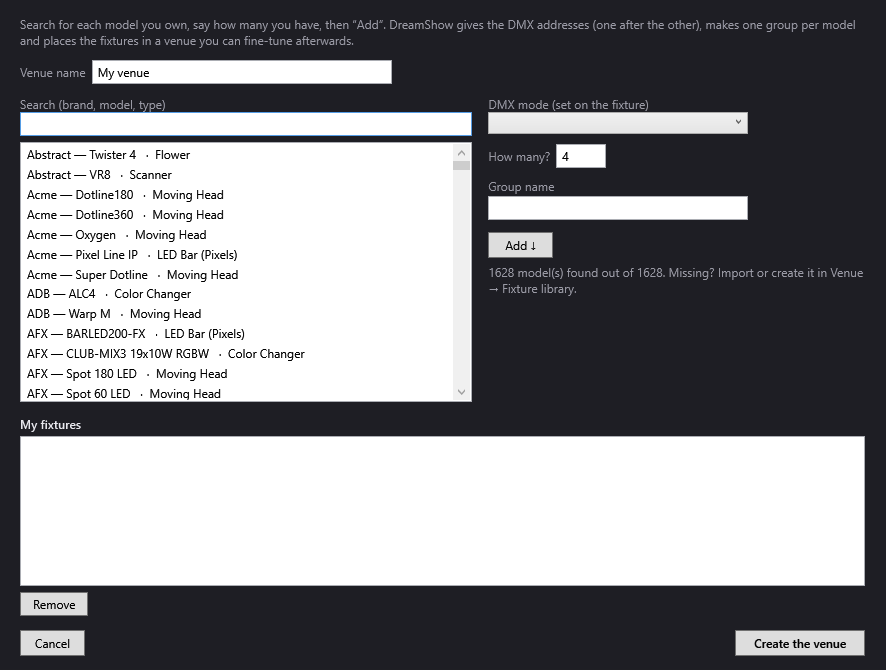
The window
At the top, a reminder: “Search for each model you own, say how many you have, then “Add”. DreamShow gives the DMX addresses (one after the other), makes one group per model and places the fixtures in a venue you can fine-tune afterwards.”
- Venue name: the name of the venue to create. By default “My venue”. If left empty, it is also “My venue”. It must be different from the venues that already exist.
On the left: finding a model
- Search (brand, model, type): type one or more words. The list only keeps the models that contain all the words, in the brand, the model or the type (for example
par rgbw,moving head,beam 230). Upper and lower case make no difference. - The results list: each line reads “Brand — Model · Type”. At most 300 results are shown: narrow down the search if your model does not appear. Double-clicking a line does the same as Add ↓.
- Below the Add ↓ button, a line gives the number of models found: “12 model(s) found out of … . Missing? Import or create it in Venue → Fixture library.”
The list comes from the fixture library of the active venue. See The fixture library.
On the right: setting up the chosen model
- DMX mode (set on the fixture): the list of modes of the selected model, with their number of channels, for example “10 Channel (10 channels)”. Choose the mode set on your fixtures (in the fixture's own menu): the addresses depend on it. By default, the first mode in the list.
- How many?: the number of fixtures of this model, from 1 to 200. 4 by default.
- Group name: the name of the group that will gather these fixtures. It is filled in with the model name when you select one; you can change it (for example “Front”, “Backlights”, “Heads stage right”). If left empty, the model name is used.
- Add ↓: adds the line to My fixtures.
Possible messages:
- “First choose a model in the list.”: no model (or no mode) selected.
- “Invalid number (1 to 200).”: the How many? field is not a number between 1 and 200.
- After each addition: the total, for example “10 fixture(s), 136 DMX channels in total.”
At the bottom: My fixtures
- My fixtures: one line per addition, for example “4 × Brand Model (10 Channel) → group « Front »”. You can add the same model several times (in another mode or another group).
- Remove: removes the selected line.
- Cancel: closes the wizard without creating anything.
- Create the venue: creates the venue. If the list is empty: “Add at least one fixture.” If a venue already has that name: “A venue “…” already exists: choose another name.”
What DreamShow creates
DMX addresses
The fixtures are addressed one after the other, in the order of the My fixtures list, starting from address 1 of universe 1. Each fixture takes up the number of channels of its mode. A fixture is never split across two universes: if it no longer fits within the 512 channels, it starts at address 1 of the next universe. The number of universes of the venue is set accordingly.
Example: 4 fixtures in 10 channels, then 2 moving heads in 18 channels → addresses 1, 11, 21, 31, then 41 and 59, all in universe 1.
Groups and names
- One group per line of My fixtures, with the chosen name. If two lines have the same group name, the second one becomes “Name 2”.
- Each fixture is named after its group: “Front 1”, “Front 2”…
The venue plan
DreamShow draws a venue sized to your rig:
- width: 4 m plus 0.9 m per fixture, between 8 and 24 m; length: 1.3 times the width; height: 6.5 m; stage depth: 0.4 times the width;
- each line of My fixtures forms an evenly spaced row across 80 % of the width, 5.5 m high;
- the first moving-head model goes on an upstage bar; the following moving-head models and the strobes on a mid-stage bar;
- all other fixtures (PARs, washes, profiles, dimmers…) go on a front-of-house bar, 1.5 m in front of the edge of the stage.
After “Create the venue”
- The venue is saved in the data folder (
<nom de la salle>.venue.json) and becomes the active venue. - An empty show is created for it, with the venue's name and a single scene “Scene 1”, and it is opened: no show refers to the old venue any more.
- The simulation switches to 3D.
- A message sums up: “Your venue “…” is ready: … fixtures, grouped by model.” It reminds you to set up the interface in Venue > DMX connections… and the positions in Venue > Fixtures, addresses, positions…, then asks: “Create a first show on a song now, with these fixtures?”
- Yes: the Create my first show wizard opens, with My current venue already chosen. See Creating your first show (music or theatre).
- No: you stay on the empty show.
The creation is recorded in the Log, with the number of fixtures and universes.
Step by step
Declaring a small rig
- Open ? > Welcome and first steps… and click ⚙ Declare my fixtures.
- In Venue name, type the name of your venue.
- In Search (brand, model, type), type the brand or model of your PARs.
- Click the right model in the list.
- In DMX mode (set on the fixture), choose the mode shown on your fixtures.
- In How many?, type how many there are; change Group name if you wish (for example “Front”).
- Click Add ↓.
- Repeat steps 3 to 7 for your moving heads, then for each other model.
- Check My fixtures and the channel total, then click Create the venue.
- Note the addresses assigned (in Venue > Fixtures, addresses, positions…) and set each fixture to its address.
Next, to drive the real fixtures
- Connect your DMX interface (USB or network node).
- Set it up in Venue > DMX connections…: see DMX connections.
- Adjust the real positions and the orientation of the fixtures in Venue > Fixtures, addresses, positions…: see Fixtures, addresses, positions.
Good to know
- The order of My fixtures determines the addresses: declare the models in the order of your DMX cabling if you want addresses that follow on along the line.
- If your fixtures are already addressed differently, keep their addresses: change them afterwards in Venue > Fixtures, addresses, positions… rather than re-addressing the whole rig.
- The plan is a starting point: heights, positions and angles must be corrected so that the simulation and moving-head aiming match reality.
- A model missing from the list can be created or imported (GDTF, QLC+, DJworld) in Venue > Fixture library…; then run the wizard again.
- The wizard always creates a new venue; it never modifies an existing venue.