Manual contents
The standalone player
The standalone player replays a DreamShow show without a PC: a façade, a shop window, a lobby, an illuminated garden, a carousel… DreamShow calculates the show in advance, scene after scene, into a DMX stream (a .DmxStreaming file), which you send to a small box: an ESP32 module, a Raspberry Pi or a Windows mini-PC. The player replays it on its own, following its own timetable, including at sunset.
To open it: menu File > Export for a standalone player… (tooltip: “DMX stream (.DmxStreaming) replayed without a PC by an ESP32, a Raspberry Pi or a mini-PC”).
Conditions: a venue loaded and a show containing at least one scene (otherwise “The show contains no scene.”).
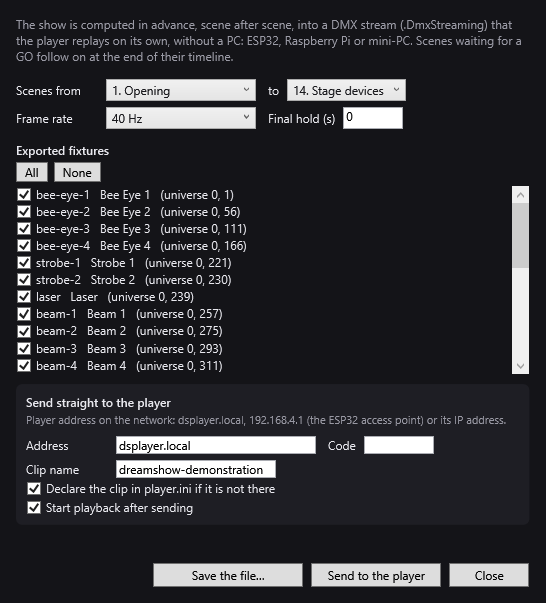
How the show is calculated
As the top of the window explains: “The show is computed in advance, scene after scene, into a DMX stream (.DmxStreaming) that the player replays on its own, without a PC: ESP32, Raspberry Pi or mini-PC. Scenes waiting for a GO follow on at the end of their timeline.”
More precisely, DreamShow replays the show with its own engine, as fast as the processor allows:
- scenes set to Auto or Chained move on to the next one as they would in performance;
- a scene set to Manual GO receives its GO automatically when its timeline is finished (plus the hold you set, see below);
- a scene whose timeline is empty lasts at least 2 seconds;
- the fades between scenes, effects, trajectories, dynamic effects, pixel mapping and DMX streams are calculated as in DreamShow;
- only the light is exported: sound, video, robots, masks, displays and the other devices are not in the stream;
- waits for a time, a date or the sun are skipped (the player has its own schedule, see below);
- a scene set to Loop with a max length is exported up to that length; without a max length, a single turn is exported, and it is the player that replays the clip in a loop;
- a Go to scene jump to a scene that has already been played ends the export: a single cycle is calculated, which the player replays in a loop from the start of the clip;
- as a safety measure, the calculation stops after one hour of show.
The settings
- Scenes from … to …: the first and last scenes exported (by default: the whole show). Scenes are listed in the form “3. Scene name”.
- Frame rate: number of frames per second of the stream: 25 Hz, 30 Hz or 40 Hz (40 Hz by default, the frame rate of the DreamShow engine). A lower frame rate gives a smaller file, useful on an ESP32.
- Final hold (s): number of seconds added at the end of the timeline of a Manual GO scene before its automatic GO (0 by default). It applies to every exported Manual GO scene, the last one included: this is how you keep a scene's final state displayed for a while.
Exported fixtures
The list shows all the fixtures of the venue, in the form identifier name (universe U, address), all ticked at the start.
- All / None: ticks or unticks everything.
The stream contains all the channels of the ticked fixtures, and only those. Untick the ones the player must not drive. If none is ticked: “No fixture selected.”.
Saving the file
- Save the file…: suggests a name (
<clip name>.DmxStreaming), calculates the stream (“Computing the stream…”) and saves it. The summary is displayed: “Saved: …” then “… s, … scenes, … fixtures, … channels on … universes, … KB.”.
You can then copy this file to the SD card of a Raspberry Pi, to the disk of a mini-PC, or upload it from the player's web page.
If the file exceeds about 2.4 MB, the summary adds in orange: “Too large for the memory of a 4 MB ESP32: use an SD card, a 16 MB module or a Raspberry Pi.”
Send straight to the player
The Send straight to the player frame sends the stream over the network, without going through a file.
- Address: the address of the player. As the window says: “dsplayer.local, 192.168.4.1 (the ESP32 access point) or its IP address.” Default value:
dsplayer.local. DreamShow remembers the last address used. - Code: the player's code, if it has one (the player's
pinsetting). Leave empty otherwise. - Clip name: the name under which the player will know this show. Suggested from the show's name (lower case, no accents, hyphens, 40 characters at most); the file sent is called
<clip name>.DmxStreaming. - Declare the clip in player.ini if it is not there (ticked by default): adds the line
<clip name> = <file>to the[clips]section of the player's configuration, if no clip of that name appears there. The player then reloads its configuration. - Start playback after sending (ticked by default; DreamShow remembers your choice): asks the player to play at once the clip that reads this file. This option requires the clip to be declared in
player.ini; otherwise: “No clip in player.ini plays …: tick the clip declaration.”. - Send to the player: calculates the stream, sends it (“Sending … KB to …”), then displays “Sent to player …: ….”, possibly “Clip "…" added to player.ini.” and “Playback of "…" started.”, followed by the summary.
In case of failure: “Sending failed: …”, with the reason, for example “no answer from the player”, “The player refused the file (…).” (the number 403 in brackets means that the code is missing or wrong), “The player refused player.ini (…).” or “The player refused to play (…).”.
A clip sent again while it is playing carries on with the new version.
- Close: closes the window.
The player itself
The player is a program supplied with DreamShow for three kinds of boxes:
| Box | DMX outputs | Buttons / relays | Clip storage |
|---|---|---|---|
| ESP32 (ESP32, ESP32-S3, ESP32-C3) | serial port + RS-485 module, Art-Net over Wi-Fi | GPIO pins | internal memory (about 2.4 MB on a 4 MB module, 14 MB on a 16 MB module) or SD card |
| Raspberry Pi | serial port + RS-485, “Open DMX” FTDI cable, Enttec USB PRO type interface, Art-Net | GPIO pins | the Pi's SD card |
| Windows PC (mini-PC) | Enttec USB PRO type interface, Art-Net | keyboard keys | disk |
What it can do:
- several clips (a clip = a
.DmxStreamingfile); - a weekly schedule: time slots by day of the week, at a fixed time or at sunrise / sunset with an offset in minutes, including slots that run past midnight;
- playback in a loop or just once, crossfade between clips, and, outside the slots, blackout or holding the last frame;
- buttons (GO, next, previous, blackout, back to the schedule) and relays driven according to the state (playing, stopped, a given clip);
- several universes: each universe of the stream goes to a DMX port or an Art-Net universe;
- a web page for control.
The player's web page
Open the player's address in a browser (for example http://dsplayer.local/). The page is in French if the browser is, in English otherwise. It shows:
- the player's name, the time, the sunrise and sunset times and the version;
- the mode (Schedule or Manual), the current slot, the clip playing, a progress bar and the position;
- the buttons GO, ◀ Previous, Next ▶, BLACKOUT, Stop and Schedule (back to the timetable);
- the list of Clips, with a ▶ button to play one, and the mention “missing” if the file is absent; a file field and the Upload button to send a clip;
- the editable Configuration (player.ini), with Save and reload, and a code: field for the player's code.
Without Internet, the player takes the time from the browser when the page is opened; with Internet, it takes it from the network.
The player.ini file
The player's configuration is held in a text file, editable from the web page. Example:
[player]
name      = Facade Paradise
latitude  = 44.126
longitude = 4.082
idle      = black          ; hors planning : black (noir) ou hold (maintien)
fade      = 2.0            ; fondu entre clips, en secondes
; pin     = 1234           ; code demandé pour modifier (page web, envoi)

[clips]
soir = soir.DmxStreaming
nuit = nuit.DmxStreaming

[schedule]
; nom = jours(lundi..dimanche) début fin clip [loop|once]
soiree = 1111111 sunset-15 23:30 soir loop
nuit   = 0000011 23:30 01:00 nuit loop
- The days are written with seven digits, from Monday to Sunday (1 = active).
- The start and end are written
HH:MM,sunriseorsunset, with an optional offset in minutes (sunset-15= a quarter of an hour before sunset). - The first active slot wins.
- Latitude and longitude are used to calculate the sun.
The [wifi] (ESP32), [output] (DMX and Art-Net ports), [buttons] and [relays] sections set up the hardware; their detail is given in the player's documentation.
First start of an ESP32
With no Wi-Fi network configured, the ESP32 opens its own access point DreamShow-Player (password dreamshow); its page is then at http://192.168.4.1/. Fill in the [wifi] section there and save: the player joins your network and then answers at http://dsplayer.local/.
Step by step
Lighting a façade every evening without a PC
- Prepare the show in DreamShow: one or more scenes set to Loop or chained, checked in the simulation.
- Open File > Export for a standalone player….
- Choose the scenes and leave the frame rate at 40 Hz (25 Hz if the file is too large for an ESP32).
- Untick the devices the player does not drive.
- In Send straight to the player, enter the player's address, its code if it has one, and a clip name, for example
soir. - Leave both boxes ticked, then click Send to the player. The player plays the clip at once.
- Open the player's web page, and in Configuration (player.ini), add the slot you want in
[schedule], for examplesoiree = 1111111 sunset-15 23:30 soir loop, then Save and reload. - Click Schedule: the player now follows its timetable.
Preparing a clip for an SD card
- Open the window, set the scenes and the fixtures.
- Click Save the file… and choose the SD card or a USB stick.
- Declare the file in the
[clips]section of the box'splayer.ini.
Good to know
- The timeline's waits for a time, a date or the sun do not go into the stream: on the player, it is its schedule that decides when to play each clip. Make one clip per moment of the day.
- Sound and video are not played by the player.
- Calculation and sending are done in the background; the window stays usable, but the buttons are greyed out while it works.
- The exported stream has the same format as the one in DMX stream by an AI.