Manual contents
LED masks
DreamShow drives Bluetooth LED masks of the Shining Mask family, worn by an actor or placed on a robot's face. From the timeline, a Mask… block changes the face displayed, shows a picture or an animation, scrolls a text, or makes the mask speak: its mouth moves in rhythm with a sound file.
The masks are driven by MaskCtl, a small program installed with DreamShow (in the software's tools folder), which connects to the masks over Bluetooth. DreamShow starts it by itself when the venue declares masks.
To open it: menu Venue > LED masks… (tooltip: “LED masks (Shining Mask) driven over Bluetooth by MaskCtl. The “Mask…” blocks of the timeline drive them.”).
Before you start
As the bottom of the window reminds you:
- the mask must be switched on and not paired in Windows (do not add it in Windows' Bluetooth settings);
- MaskCtl connects to it over Bluetooth, one link at a time: close the mask's mobile app;
- the catalogue faces take the 20 stored slots of the mask (“faces upload” in MaskCtl);
- a “Speak” block needs a WAV file: the mouth is computed by MaskCtl when the show opens.
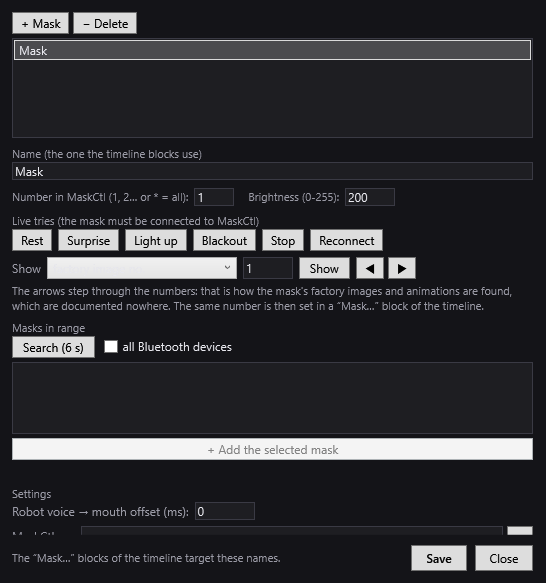
The LED masks window
The title recalls the venue: “LED masks: <venue>”. An asterisk * flags unsaved changes.
The list of masks
- + Mask: adds a mask named “Mask” (then “Mask 2”…), with the next number in MaskCtl.
- − Delete: removes the selected mask.
- Name (the one the timeline blocks use): the name that the Mask… blocks use.
- Number in MaskCtl (1, 2… or = all): the mask's number in MaskCtl's list (
masks.txtfile next toMaskCtl.exe);targets all the masks at once. - Brightness (0-255): the brightness used by the Light up test button (200 by default).
DreamShow passes the Mask… blocks' orders to MaskCtl by itself: there is nothing to declare other than the masks themselves.
Live tests (the mask must be connected to MaskCtl)
Buttons to test the selected mask right away:
- Rest: shows the rest face.
- Surprise: shows the Surprise face.
- Light up: switches the mask back on at the set brightness.
- Blackout: switches the display off (brightness 0).
- Stop: “Stops a running sequence or speech”.
- Reconnect: “MaskCtl: reconnects the missing masks”.
The Show line is used to explore the mask's content:
- choose factory image no., factory animation no. or stored image no.;
- type a number (0 to 255) and click Show;
- ◀ and ▶ go to the previous or next number and show it at once.
As the window explains: “The arrows step through the numbers: that is how the mask's factory images and animations are found, which are documented nowhere. The same number is then set in a “Mask…” block of the timeline.”
Masks in range
- Search (6 s): starts MaskCtl's Bluetooth search (“Bluetooth search running…”). Tooltip: “A mask ALREADY connected does not appear: it has stopped announcing itself.”
- all Bluetooth devices: widens the search to all devices, because “A brand-new mask does not necessarily announce itself under a name starting with MASK.”
- The list shows each device found with the signal strength, for example
MASK-BF5F1A -54 dBm(the closer the number is to 0, the stronger the signal). - + Add the selected mask: registers the mask in MaskCtl's list (
masks.txt), which sets its number, and declares it here under its Bluetooth name. Message: ““…” registered as no. …. Save, then “Reconnect” to attach it.” If this number is already declared, the window says so and selects the existing mask.
If nothing is found: “No mask found. Is the mask switched on, and disconnected from the mobile app? A mask already driven by MaskCtl no longer announces itself: it is normal that it does not appear.”
Settings
- Robot voice → mouth offset (ms): used when a robot says a line and a mask moves its mouth on the same file. Tooltip: “Measured once: positive if the robot's voice comes out AFTER the command (the mouth is delayed by as much), negative if the order to the robot must go out earlier.” Default value: 0.
- MaskCtl.exe: the path of the MaskCtl program, with the … button to choose it. Left empty, DreamShow uses the copy installed with it (
tools\MaskCtl.exein the software folder). A relative path starts from the data folder. Tooltip: “Path to MaskCtl.exe (Bluetooth driver for the masks). Started automatically when the venue declares masks.”
At the bottom: “The “Mask…” blocks of the timeline target these names.”
- Save: saves the masks and settings in the venue, then restarts MaskCtl if needed.
- Close: if changes remain, DreamShow asks “Changes not saved. Save?”.
MaskCtl started automatically
When the venue declares at least one mask and no MaskCtl is running, DreamShow starts it, minimised in the taskbar. The log notes “MaskCtl started automatically (pipe maskctl)”. Possible problems, flagged in the log:
- “MaskCtl.exe not found: …” or “MaskCtl.exe is not set (Venue → LED masks…): the masks will not be driven”;
- “Cannot start MaskCtl: …”.
The Mask… blocks
In the Libraries panel, the Others list contains Mask…. Drag it onto a track: the Mask block window opens at once (if you cancel it, no block is created). To edit a block: double-click, or right-click > Properties….
On the timeline, the block shows 🎭, the mask's name and the action, for example “🎭 Mask: Face: Anger”.
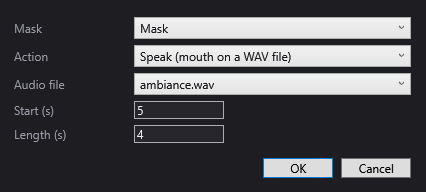
The common settings
- Mask: the targeted mask.
- Action: the action (below).
- Start (s): the moment, counted from the start of the scene, when the order is sent.
- Length (s): the block's length on the timeline; for Speak, it follows the file's length as long as you do not change it.
- OK / Cancel.
The actions
- Catalogue face — Face: one of the 20 faces of MaskCtl's catalogue, shown with their key:
- the mouths (to compose speech by hand): Rest (rest), Closed lips (m/b/p), Clenched teeth (s/z), Lip and teeth (f/v), Tongue on teeth (th), High tongue (n/d/t), short i (ih), r (rr), small circle “oo” (oo), wide flat i/e (ee), open e (eh), oval “uh” (uh), l tongue raised (ll), medium round o (oh), open o (aw), wide a (ah), wide-open a (aa);
- the expressions: Anger (colere), Surprise (surprise), Sadness (triste).
- Stored image (number) — Stored image no.: “0-19 = the faces of the MaskCtl catalogue; beyond that, your own stored images.”
- Factory image (number) — Factory image no.: a picture built into the mask.
- Factory animation (number) — Factory animation no.: an animation built into the mask. For these two actions: “Number in the mask's internal catalogue. Step through them in Venue → LED masks… (arrows ◀ ▶).”
- Sequence of stored images — “Emplacements” (Slots): “Numbers separated by commas (10 at most): the mask chains the images on its own, at the set speed.”
- Speak (mouth on a WAV file) — Audio file: a WAV file from the show's media folder. The list only offers WAV files; if there are none: “No WAV in the show's media folder (the mouth needs a WAV).”. The mouth moves in rhythm with this file; the sound itself is not played by this block (see below).
- Animated face (blinking): a living face that blinks its eyes.
- Stop the animation / the speech: stops the running image sequence, animation or speech.
- Scrolling text — Text: a text that scrolls on the mask.
- Brightness — Level (0-255): 200 by default.
- Scrolling speed — Speed (0-255): speed of the text and of image sequences; 50 by default.
- “Mode d'affichage” (Display mode) — Mode: “Fixe” (Static), “Clignotant” (Blinking), Scroll left, Scroll right, Custom static.
- Blackout (switch off): switches the display off (brightness 0).
Lip sync
The mouth “speaks” from a sequence computed by MaskCtl on a WAV file:
- When the show is opened, and after each change, DreamShow spots the Speak blocks and the robot lines that animate a mask's mouth.
- For each WAV file that does not yet have its sequence, it asks MaskCtl to compute it. The log notes “Mouth analysis by MaskCtl: …”. MaskCtl writes a file of the same name with the
.seqextension next to the WAV. - When the block passes, the mask plays this sequence.
Two ways of making a character speak:
- A masked actor: place the sound file in a sound block (for the PA) and a Mask Speak block with the same file, at the same start.
- A robot with a mask: a single Robot Say (audio file) block, with Mask mouth set to this mask (see Humanoid robots). The Robot voice → mouth offset (ms) then aligns the mouth with the robot's real voice; it only applies to this case.
The voice / mouth offset
A robot's loudspeaker may output the sound a little after the order. To compensate:
- Have the robot say a line with the mask's mouth, and watch.
- If the mouth is ahead of the voice, set a positive offset (in milliseconds): the mouth starts that much later.
- If the mouth is behind, set a negative offset: the order goes out to the robot sooner.
- Save and replay until the two coincide.
Step by step
Declaring a brand-new mask
- Switch the mask on, close its mobile app.
- Open Venue > LED masks…, click Search (6 s) (tick all Bluetooth devices if nothing appears).
- Select the mask found, click + Add the selected mask, then Save.
- Click Reconnect: MaskCtl attaches to the mask.
- Test with Rest, Surprise, Blackout, Light up.
Making a masked actor speak
- Convert the line to WAV and copy it into the show's media folder.
- Place the WAV on a sound track at the moment you want.
- On another track, at the same start, drag Mask…, action Speak (mouth on a WAV file), choose the same file, OK.
- Wait a few seconds for the log to report the mouth analysis, then play the scene.
Good to know
- MaskCtl does not read MP3 files: the mouth needs a WAV. Creating a show with an AI makes this WAV by itself from an m4a or an mp3.
- If you replace a WAV with a new version of the same name, delete its
.seqfile: DreamShow only recomputes the sequence if it does not exist. - A mask already connected to MaskCtl does not appear in the search: this is normal.
- The show can be prepared and simulated without a mask.