Manual contents
The web remote
A phone or tablet connected to the same network as the control PC drives the show from its browser: GO, back, scene list, blackout, pause, reset to “Ready”, tap tempo and a few chosen DMX faders. Nothing to install on the phone. Handy for starting the show from the house, the stage or the wings.
To open it: menu DMX > Web remote….
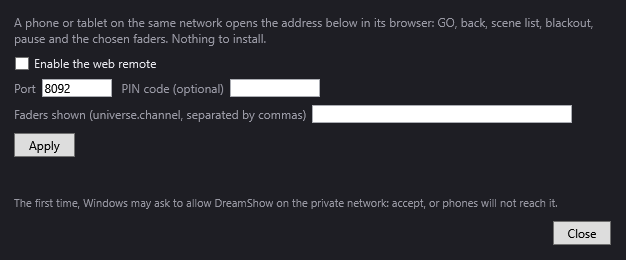
The settings window
- Enable the web remote: puts the remote into service. Off by default, because it opens a network port on the PC.
- Port: the remote's network port, 8092 by default (from 1 to 65535).
- PIN code (optional): if you type a code, the phone will have to give it before it can read the state or send a command. Empty = no code.
- Faders shown (universe.channel, separated by commas): the DMX channels that will appear as faders on the page, for example
1.6, 1.12for channels 6 and 12 of universe 1. The separators,and;are accepted between two channels; up to 16 faders. Empty = no faders. - Apply: saves the settings and (re)starts the remote. Nothing changes until you have clicked Apply.
- The status line: the address to open on the phone, for example “Web remote: http://192.168.1.10:8092/”; or “Web remote off”; or a message if the port is already used by another program.
- Close: closes the window; the remote stays in service.
A note reminds you: “The first time, Windows may ask to allow DreamShow on the private network: accept, or phones will not reach it.”
Once enabled, the remote restarts automatically each time DreamShow is launched.
The page on the phone
From top to bottom:
- The current scene: its number and its name (“Ready” before the first GO).
- Next: …: the name of the next scene.
- GO: a big button, bright green when GO is possible, dark green otherwise. It follows the same rules as DreamShow's GO button: in Show mode, it only goes off if GO is possible; in the editor, it acts like the space bar.
- ◀ Back: goes back to the previous scene.
- Blackout: toggles the general blackout; the button turns red when blackout is active.
- Pause / Play: pauses the cue list or restarts it; the label says what the button will do.
- Ready: goes back to the “Ready” state (blackout, media stopped, the next GO starts scene 1), after the confirmation “Go back to “Ready” (dark stage, media stopped)?”.
- TAP: one tempo tap; when a tempo is known, the button shows it (“TAP · 124 BPM”). See Sound-to-light and tempo.
- Faders (only if channels are chosen): for each channel, its address and what it drives (fixture · channel), a slider from 0 to 255, the value, and a × button to release it. The slider follows the value sent; moving it takes the channel, as in DMX > DMX faders…, and its label turns orange. Give the channels back to the cue list releases all the channels taken.
- Scenes: the list of all the scenes; the current scene is highlighted. Touch a scene to go straight to it.
The page asks DreamShow twice a second. If the PC no longer answers (Wi-Fi dropped, DreamShow closed), it displays “DreamShow is not answering”.
The page's labels are in the language of DreamShow's interface.
The PIN code
When a code is set, the browser asks for it (“Remote PIN code”) as soon as the page is opened, then remembers it. If the code is wrong or has changed, it asks again.
Step by step
Starting the show from a phone
- The phone and the control PC must be on the same network (same Wi-Fi or same router).
- In DreamShow, open DMX > Web remote…, tick Enable the web remote, optionally type a PIN code, then Apply.
- Note the address displayed (for example
http://192.168.1.10:8092/). - On the phone, open the browser and type this address. If Windows asked to allow DreamShow on the network, accept.
- Open Show mode on the PC, then start the show with the phone's GO button.
Adding a fader for the house lights
- Find the universe and channel of the house lights (DMX > DMX values…, by hovering over the cells).
- In Faders shown, type for example
1.120, then Apply. - The fader appears on the phone's page after a moment.
Good to know
- The remote works over plain HTTP, on the local network. The PIN code prevents slips from another phone on the network, but it is not encryption: do not expose it on the Internet.
- If the PC has several network cards, the address displayed is that of one of them; the phone must use the PC's address on its own network.
- Channels taken from the phone override the cue list and the general blackout. They stay taken until Give the channels back to the cue list, the × button, or the closing of the DMX faders window.
- Touching a scene in the Scenes list jumps straight to it, without a fade.
- The commands go through the same path as the OSC remote and the MIDI controllers: they behave the same.