Manual contents
DMX connections
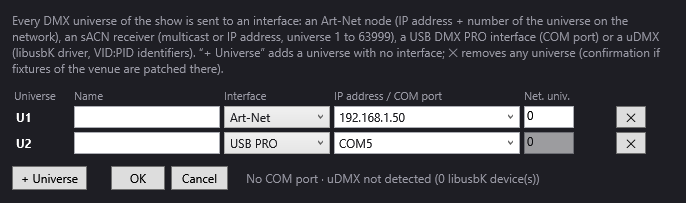
The DMX connections window tells DreamShow where the venue's DMX universes go out: an Art-Net node on the network, an sACN receiver, a USB DMX PRO interface or a uDMX interface. Connections belong to the venue: they are saved in its file, and switching venues also switches the outputs.
To open it:
- menu Venue > DMX connections…;
- the Connections… button at the top right of the main screen;
- the DMX connections… button at the bottom of the Venue > Fixtures, addresses, positions… window.
The window is titled “DMX connections — (venue name)”.
Basics
- A DMX universe carries 512 channels. A small installation fits in one universe; beyond that, you need several.
- Each universe of the venue is sent to one interface. Several universes can share the same Art-Net node or the same sACN receiver (each with its own network universe number). A USB interface has only one cable: one universe per USB interface.
- Universes are numbered U1, U2, U3… in this window. Caution: in the Fixtures, addresses, positions… window, a fixture's Universe field starts at 0. A fixture's universe 0 = U1 here, universe 1 = U2, and so on.
The list of universes
One line per universe, with the columns:
- Universe: U1, U2… The tooltip says “Universe used by the venue patch” or “Extra universe”.
- Name: a free name to help you find your way (for example “Front”, “Ceiling”, “Stage-left node”).
- Interface:
- Art-Net: an Art-Net node on the network (UDP protocol, port 6454);
- sACN (E1.31): an sACN receiver, by multicast or at an IP address (port 5568);
- USB PRO: a USB interface of the Enttec DMX USB PRO type, on a COM port;
- uDMX: a uDMX interface (libusbK driver);
- None: the universe exists in the venue but goes out nowhere (handy for patching before you have the equipment).
- IP address / COM port: editable list (you can type a value or pick one of those offered):
- in Art-Net: the node's IP address. Offered values are 127.0.0.1 (the PC itself, for other software on the same computer), 2.255.255.255, 10.255.255.255 and 255.255.255.255 (broadcast addresses to a whole network);
- in sACN:
multicast(sending to the universe's multicast group, the usual case) or the IP address of a receiver; 127.0.0.1 is offered; - in USB PRO: the interface's COM port; the COM ports present are offered;
- in uDMX: the USB identifiers in the form VID:PID; the standard value
16C0:05DCis offered; - with None: the field is disabled.
- Net. univ.: the universe number on the network, to be matched with the setting of the node or receiver. In Art-Net: 0 to 32767. In sACN: 1 to 63999. Disabled for USB PRO, uDMX and None.
- ✕: removes the universe. If fixtures of the venue are patched on it, a confirmation reminds you: “Fixtures of the venue are patched on U… Remove that universe anyway? They will no longer go out anywhere.”
When you change the interface, DreamShow suggests a suitable address: it keeps an IP address already entered (Art-Net, sACN), otherwise it puts 127.0.0.1 (Art-Net) or multicast (sACN); it suggests the first COM port present (or COM5) for USB PRO, and 16C0:05DC for uDMX. In sACN, if the network universe number is not valid, it suggests the universe number (U3 → 3).
The buttons and the information line
- + Universe: adds a universe at the end, with the interface None. Then choose its interface if needed.
- OK: checks, saves and applies.
- Cancel: closes without changing anything.
- To the right of the buttons: the COM ports present (“Ports COM : COM3, COM5” (COM ports) or “No COM port”), then the uDMX status: “uDMX detected”, “uDMX not detected (N libusbK device(s))” or “libusbK.dll missing (uDMX driver not installed)”. This line is read when the window opens: connect the interface before opening it.
When you click OK, DreamShow refuses (and lets you correct):
- an invalid IP address in Art-Net or sACN (“U…: invalid IP address”);
- a network universe out of range (“invalid network universe number (0 to 32767)” in Art-Net, “invalid sACN universe (1 to 63999)” in sACN);
- a USB interface without a COM port (“give the COM port of the USB interface”).
If several universes are sent to the same USB interface, DreamShow warns that they will write in turn on the same cable and asks whether to continue.
What happens after OK
- From the Venue > DMX connections… menu or the Connections… button: the connections are saved straight away in the venue file, and the DMX output restarts on the new interfaces. The Log records “Connections saved in …”.
- From the Fixtures, addresses, positions… window: the connections are part of the venue changes; they are saved and applied when you click Save the venue.
If an interface does not open (COM port missing, driver missing, impossible address…), a “DMX connections — interfaces that failed” window lists the universes concerned with the reason. The other universes go out normally: the show carries on with the ones that work.
A venue whose connections have never been set uses the settings saved on this PC by older versions; failing that, each patched universe goes out in Art-Net to 127.0.0.1, with network universe 0 for U1, 1 for U2, and so on. Open the window and click OK to fix the connections in the venue.
Output status in the main screen
At the top right of the main screen:
- LIVE (on by default): when on, the selected scene is sent live to the interfaces (Art-Net, USB, uDMX). When off, no frame goes out any more: only the simulation continues. Handy for programming in peace without the stage moving. This button has no effect in show mode (output is always active during the performance). When you switch LIVE back on, DreamShow jumps to the selected scene. The Log records “LIVE off: no frame is sent to the interfaces any more” or “LIVE: frames sent to the interfaces again”. During Visualiser mode, DreamShow stays silent, whatever the state of LIVE.
- Connections…: opens this window.
- The grey text to the right of Connections… sums up the outputs in service, universe by universe, for example
U1→Art-Net 192.168.1.50/0 · U2→USB COM5. The tooltip repeats this text with any errors. Possible signs:U2→—: universe without an interface (None);U1→ÉCHEC(shown asU1→FAILEDin English): the interface could not be opened;U3→(retiré)(U3→(removed)): universe used by fixtures but removed from the connections;- “no DMX output”.

Step by step
Output to an Art-Net node
- Put the PC and the node on the same network (for example PC at 192.168.1.10, node at 192.168.1.50, mask 255.255.255.0).
- Note the universe number set in the node (often 0 for its first port).
- Venue > DMX connections…. On the U1 line: Interface = Art-Net, IP address / COM port = 192.168.1.50, Net. univ. = the number you noted.
- OK. Check the summary at the top right:
U1→Art-Net 192.168.1.50/0. - If Windows asks you to allow DreamShow on the network, accept.
Output to a USB DMX PRO interface
- Connect the interface before starting DreamShow, and check that its driver (FTDI for Enttec-type interfaces) is installed.
- Venue > DMX connections…: the bottom line must list its COM port.
- On the U1 line: Interface = USB PRO, IP address / COM port = the interface's COM port.
- OK.
Adding a second universe
- In Fixtures, addresses, positions…, put the fixtures concerned on Universe 1 (which will be U2).
- Venue > DMX connections…: if U2 does not appear, + Universe.
- Choose its interface (for example Art-Net, same node as U1 with Net. univ. 1, or the node's second port).
- OK.
Troubleshooting: nothing comes out
- LIVE must be on (outside show mode).
- What DreamShow is sending: open DMX > DMX values…. If the values move, DreamShow is sending; the problem lies between the PC and the fixtures. See DMX values and DMX faders.
- The output summary: a
ÉCHEC, a—or a(retiré)on the universe concerned explains the silence. Read the tooltip and the Log. - In Art-Net: same network for the PC and the node, correct network universe number, Windows firewall allowing DreamShow.
- In sACN: correct universe number (1 to 63999); if the network does not let multicast through, enter the receiver's IP address.
- In USB: interface connected before starting, driver installed, correct COM port, only one universe per interface.
- In uDMX: the bottom line must say “uDMX detected”; otherwise, install the libusbK driver.
- The right universe: remember that a fixture's universe 0 goes out on U1.
- On the fixture side: DMX address and mode (number of channels) identical to those in the venue, DMX cable in good condition, terminator at the end of the line.
- To test a single fixture: DMX > DMX faders… forces channels by hand.
Good to know
- Connections follow the venue: when you switch venues, DreamShow restarts on the outputs of the new venue.
- A universe can exist without an interface (None): useful for preparing a patch before you have the equipment.
- It is possible to remove a universe on which fixtures are patched: they no longer go out anywhere, and the summary shows this with
(retiré). - The Fixtures, addresses, positions… window works on a copy of the venue: if you change the connections through the menu while it is open, then save the venue from it, it is that window's own connections that are saved.