Manual contents
Sound-to-light and tempo
DreamShow can listen to music live (a microphone, a line input, or what the PC is playing, for example DJ software) and use it in two ways: vary the intensities of a group of fixtures to the rhythm of the sound, and provide a tempo (in BPM, beats per minute) that can fire a GO every N beats. The tempo can also be tapped by hand (TAP) or come from the MIDI clock of a desk or a program.
Useful for a dance party, a concert without a written cue list, or to keep a cue list locked to the rhythm.
To open it: menu DMX > Sound-to-light and tempo….
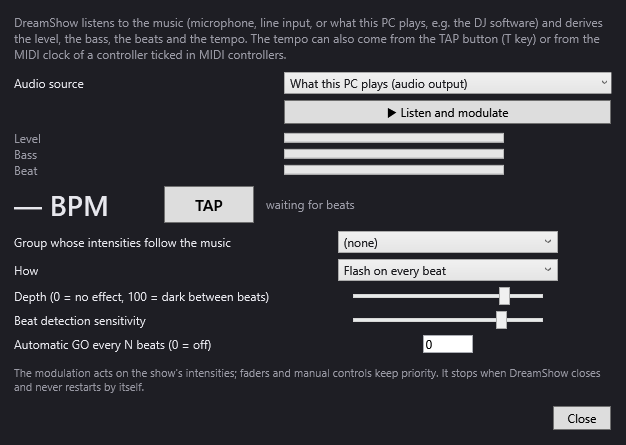
The audio source and listening
- Audio source: what DreamShow listens to.
- What this PC plays (audio output) (default): the sound coming out of the PC, whatever program is playing it.
- The other lines are Windows' sound inputs (microphone, a sound card's line input…), with their Windows name. Changing the source while listening immediately restarts listening on the new source.
- ▶ Listen and modulate: starts listening and modulating the lights. The button becomes ■ Stop listening. If the source cannot be opened, a message “Audio input unavailable: …” explains why.
While listening, DreamShow's title bar displays “[sound-to-light]”.
The indicators
- Level: the overall volume, relative to the loudest passage heard recently (the gauge adapts to the volume of the music).
- Bass: the energy of the low frequencies (below about 150 Hz), also relative.
- Beat: a flash on each beat, which falls back at once.
- The tempo, in large type: “124 BPM”, or “— BPM” as long as no tempo is known.
- TAP: tap this button to the rhythm of the music to give the tempo. The T key does the same when the window has focus (unless the cursor is in a text box).
- On the right, the origin of the tempo: tapped tempo, MIDI clock, detected in the music or waiting for beats.
Where the tempo comes from
- Detection in the music: DreamShow picks out the strong hits in the bass (kick drum, bass) and deduces the tempo. The result is brought back between 70 and 180 BPM: a tempo detected at half or double is corrected. A few hits are needed to get a tempo.
- TAP: the tempo is the average of the intervals between the last taps (up to 8). A pause of more than 2.5 seconds restarts the count.
- MIDI clock: a mixing desk, DJ software or a sequencer sends 24 pulses per beat. The device must be ticked and applied in DMX > MIDI controllers… (see MIDI controllers). A MIDI “Start” message resets the beat count to zero. As long as the MIDI clock is running, it takes priority over detection.
The most recent source wins. Between two real beats, DreamShow keeps beating time at the last known tempo.
TAP and the MIDI clock work even without starting listening: the tempo is then displayed in the window and on the web remote.
What the music does to the lights
- Group whose intensities follow the music: the group of fixtures that is modulated (the venue's groups). (none): no light is modulated, only the tempo is used.
- How:
- None (tempo only): no modulation; the tempo and the automatic GO work.
- Follow the level: the intensities follow the overall volume.
- Follow the bass: the intensities follow the low frequencies.
- Flash on every beat (default): the intensities are full on each beat and fall back just after.
- Depth (0 = no effect, 100 = dark between beats): the strength of the modulation, from 0 to 100 (80 by default). At 0, nothing changes; at 100, the fixtures drop down to blackout when the music (or the flash) is at its lowest. In between, they only drop by part of the way.
- Beat detection sensitivity: towards the right, DreamShow detects beats more easily (lower threshold); towards the left, it only keeps very pronounced hits. If detection misses beats, push towards the right; if it invents some, push towards the left.
The modulation only reduces the intensities the cue list already gives the group: a fixture that is off in the scene stays off. It acts on the group's intensity channels only (not on colours or positions). The DMX faders and the manual controls keep priority, and so does the general blackout.
The automatic GO
- Automatic GO every N beats (0 = off): type a number of beats (for example 32) for a GO to go off every N beats. 0 (default) turns it off.
This automatic GO only works while listening (▶ Listen and modulate started), but the beats counted can come from any source (detection, TAP, MIDI clock). It follows the same rules as a GO given by hand: in Show mode, it only goes through if the GO is possible (scene looping, or scene timeline finished), and it does nothing on the last scene. A “Start” from the MIDI clock resets the beat count to zero.
- Close: closes the window. Listening and modulation carry on.
Step by step
Making PARs pulse to the DJ's music
- The DJ software plays on this PC: choose What this PC plays (audio output) in Audio source.
- In Group whose intensities follow the music, choose the PAR group.
- In How, choose Flash on every beat.
- Set Depth to about 80.
- Click ▶ Listen and modulate. The Beat gauge should blink with the music and the tempo be displayed.
- Make sure the current scene does light this group: the modulation only lowers what the scene gives.
Changing scene every 8 bars
- Prepare looping scenes (a looping scene accepts GO at any time).
- In Automatic GO every N beats (0 = off), type 32 (8 bars of 4 beats).
- Start listening, or give the tempo with TAP then start listening.
- Open Show mode: the cue list advances every 32 beats.
Good to know
- Listening never restarts by itself the next time DreamShow is launched: a show cannot begin dimmed by a forgotten setting. The settings (source, group, mode, depth, sensitivity, automatic GO) are, however, remembered.
- With a microphone, place it near the bass source and away from the audience; a noisy room distorts detection.
- Detection does not accept more than one beat every 0.28 seconds or so.
- TAP also exists on a MIDI controller (Tap tempo action), on the web remote (TAP button) and in OSC (
/dreamshow/tap).