Manual contents
Creating your first show (music or theatre)
The Create my first show wizard writes a complete show for you that works straight away: on one or more songs for a musical show, or from a list of cues for a play. You start from something that works, then you fine-tune it in the timeline.
To open it: menu ? > Welcome and first steps…, tile ♫ Create my first show. It is also offered at the end of the Declare my fixtures wizard (see Declaring your fixtures (venue wizard)).
If the open show has unsaved changes, DreamShow first asks Save the changes to the show?.
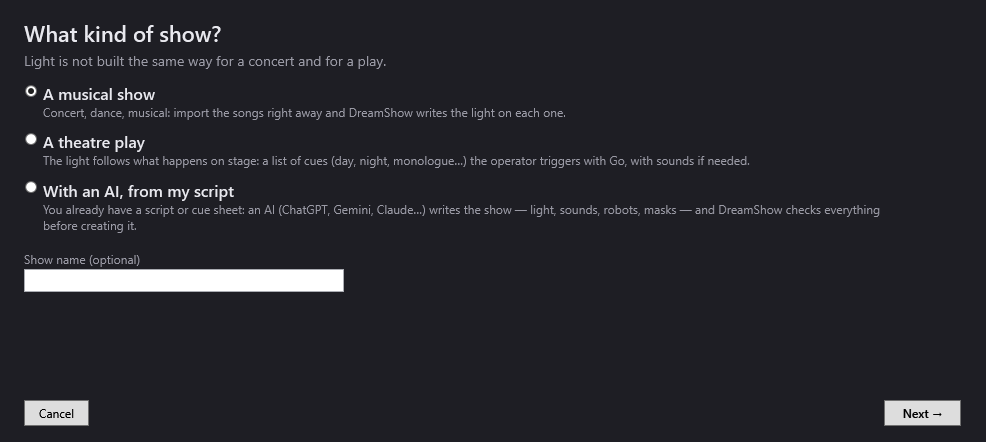
Moving through the wizard
- Next →: goes to the next page. On the last settings page, it becomes Create the show ✨.
- ← Back: returns to the previous page (not shown on the first page or on the creation page).
- Cancel: closes the wizard without creating anything. The window cannot be closed while the show is being created.
- Each page title is preceded by its number, for example “2/5 · Where does the show take place?”. The musical show has 5 pages, the play 4.
Page 1: What kind of show?
“Light is not built the same way for a concert and for a play.” Choose one of the three options:
- A musical show: concert, dance, musical. You import the songs straight away and DreamShow writes the light on each one. This is the default choice.
- A theatre play: the light follows what happens on stage. You start from a list of cues (day, night, monologue…) that the operator triggers with Go, with sounds if needed.
- With an AI, from my script: you already have a script or a cue sheet. A conversational AI writes the show (light, sounds, robots, masks) and DreamShow checks everything before creating it. With this choice, Next → closes the wizard and opens the Create a show with an AI window: see Creating a show with an AI.
- Show name (optional): the name of the show. If left empty, DreamShow uses:
- for a play: “My play”;
- for a musical show with a single song: the song's file name (without its extension);
- for several songs: “My show”.
Page 2: Where does the show take place?
“Take a ready-made venue to try: you can declare your real fixtures later.” Choose a venue:
- Small stage: 4 LED PARs in front, 2 moving heads upstage, 2 floor lights on the back wall. A 10 × 14 m room, with a stage 4 m deep. Groups: Front, Moving heads, Back wall.
- Bar, club or party hall: 6 LED PARs, 4 moving heads, 4 cell washes and 2 strobes. A 14 × 18 m room, with a 5 m stage. Groups: Front, Moving heads, Cells, Strobes.
- Small theatre (no moving heads): the most common theatre rig: 6 conventional fixtures (PCs on dimmers) in front, 4 LED PARs as backlight, 3 LED floods on the cyclorama. No moving heads. A 10 × 14 m room, with a 5 m stage. Groups: Front, Backlight, Cyclorama.
- My current venue: … (followed by the name of the active venue): the fixtures already declared in DreamShow. This option only exists if a venue is loaded.
The choice selected in advance depends on the type: Small stage for a musical show, Small theatre (no moving heads) for a play, My current venue when you come from the venue wizard. A different choice that you made yourself is kept.
A ready-made venue is created only once in your data folder: if it already exists (same name), DreamShow reuses it as it is, without duplicating or overwriting it. Its fixtures are given consecutive DMX addresses, starting from address 1 of universe 1.
Musical show
Page 3: Which songs?
“Add one or more songs from your computer (mp3, wav, m4a, wma…), in show order. You can also drag them onto this window.”
- Add songs…: opens the file picker (several files at once). Accepted formats: mp3, wav, m4a, aac, wma, flac. You can also drag files onto the window; files in any other format are ignored.
- The list: the songs numbered in show order (“1. ♫ file name”).
- Remove: removes the selected song from the list (the file itself is not touched).
- ↑ and ↓: move the selected song up or down one place.
- Play the songs one after the other by themselves (otherwise Go between songs): only appears from two songs upwards. When ticked, each song starts as soon as the previous one ends. When unticked (the default), a Go is needed between songs.
If you click Next → without any song, the message “Add at least one song.” is displayed.
Page 4: Which mood?
“DreamShow follows the music: quiet passages stay soft, choruses build up.”
- Calm: soft colours, slow fades, wide movements. Colour changes take 2 seconds, effects run half as fast.
- Energetic (the default): bold colours, sharp changes, pulses on every beat. Changes take 0.4 seconds, effects run twice as fast.
- Party: rainbow, rotating colours, party mood. Changes take 1 second.
Click Create the show ✨.
What DreamShow writes for a musical show
DreamShow listens to each song (“Listening to the song: tempo, beats, verses and choruses…”): it extracts the tempo, the beats, the downbeats of the bars and the main sections. It then cuts each section into musical phrases of 8 bars, and gives each phrase an energy level (calm, medium, strong) by comparing it with the other phrases of the same song: so every song has its soft passages and its strong passages.
One scene per song, named after the song, triggered by Go, with the cue note “Go starts the music and the light.” Its timeline contains up to four tracks:
- Sound: the song, from start to finish.
- Light: one light block per phrase, which fades into the next one. Two colours from the mood are chosen for each phrase: every other colour group takes the first, the others the second; moving-head groups take the colours in the reverse order. The intensity depends on the energy of the phrase: 55 % (calm), 80 % (medium), 100 % (strong), a little more for moving heads. The moving-head position changes slightly from one phrase to the next, and also with the energy (strong phrases have their own tilt). The first phrase fades in (over 1 to 3 seconds, up to the first beat) and the last one fades out over 3 seconds at the end of the music.
- Movement (if there are moving heads): one dynamic effect per phrase, locked to the tempo and started on a beat: a small vertical swing on calm phrases, circles on medium phrases, figures of eight on strong phrases.
- Pulse (if there are colour fixtures): one intensity dynamic effect per phrase: slow breathing on calm phrases (except with the Energetic mood, where they stay still), breathing over two beats on medium phrases, and on strong phrases sharp pulses on every beat (Energetic) or every two beats (Calm), or a rotating rainbow (Party).
The colours: deep blue, amber orange, violet, sky blue and peach with the Calm mood; red, cyan, magenta, white, orange and blue with Energetic; every hue of the rainbow with Party. Each song starts at a different place in the palette, so that no two songs look alike.
A last “Bows” scene, triggered by Go, for the applause: colour fixtures in warm white at full intensity, moving heads in white at 80 % towards the centre of the stage.
Running order: without the Play the songs one after the other by themselves box, each song waits for a Go. With the box ticked, the songs follow one another by themselves; after the last song, a Go leads to Bows.
The fixtures used: DreamShow looks at each group in the venue (based on its first fixture). Moving-head groups receive the movements; groups of colour fixtures and those that only have an intensity (a PC on a dimmer, for example) receive the colours and the pulses. If the venue has no usable group, it works fixture by fixture.
Never switched on by the wizard:
- strobes: a flash is always the operator's decision;
- machines and devices marked no direction, invisible or manual in the venue (smoke, fans, UV, relays…), as well as lasers and smoke machines recognised by their type.
Theatre play
Page 3: The cues of the play
“A typical cue list is already filled in: rename, reorder, delete, add. Each cue becomes a scene triggered by Go; moving heads, if any, aim at the chosen zone and preset in the dark.”
Each line is a cue. The columns:
- Cue: the name of the scene that will be created.
- Mood: the light for the cue (see the table below): Full light, Day, Evening, Night, Warm interior, Cold exterior, Mystery, Audience in, Blackout.
- Zone: the part of the stage that is lit: Whole stage, Stage right, Centre, Stage left, Downstage, Upstage.
- Fade (s): the duration, in seconds, of the fade that brings in this cue (from 0 to 600; both comma and point are accepted as the decimal separator).
- Note for the operator: free text shown in the cue window during the performance (for example the line that triggers the Go).
- Sound: a sound played at the start of the cue. The Add… button opens the file picker (mp3, wav, m4a, aac, wma, flac); it then shows “♪” and the file name. Right-clicking the button removes the sound (tooltip: “A sound played at the start of this cue (right-click: remove)”).
- ↑ and ↓: move the cue up or down one place. ✕: deletes the cue.
- + Cue (below the list): adds a cue at the end, named “Scene” followed by its number, with the Day mood, on the Whole stage, with a 3-second fade.
The typical cue list offered:
| Cue | Mood | Zone | Fade (s) | Note for the operator |
|---|---|---|---|---|
| Audience in | Audience in | Whole stage | 3 | Audience coming in. Go when the house is full and the announcement made. |
| House to black | Blackout | Whole stage | 4 | Go: blackout, the actors take their places. |
| Scene 1 — day | Day | Whole stage | 3 | Go as soon as the actors are in place. |
| Scene 2 — interior | Warm interior | Centre | 3 | Go on the line where the place changes. |
| Scene 3 — evening | Evening | Whole stage | 8 | Slow: daylight fades during the scene. |
| Monologue | Mystery | Downstage | 2 | Go when the actor steps forward. |
| Scene 4 — night | Night | Whole stage | 5 | |
| Final blackout | Blackout | Whole stage | 3 | Go on the last line. |
| Bows | Full light | Whole stage | 2 | Go at the first applause. |
| Audience out | Audience in | Whole stage | 4 |
If no cue is left, Create the show ✨ does nothing.
What DreamShow writes for a play
One scene per cue, in order, each triggered by Go, with its cue note. The light is set in the final state of each scene, fixture by fixture. If a sound has been chosen, the scene gets a Sound track with the file at the start of the timeline; the file is copied into the show's media folder.
For each mood, DreamShow distinguishes three families of fixtures: those that light the stage, those at the back (placed in the rear half of the stage, or less than 1.5 m above the floor: floor lights, back wall, cyclorama) and the moving heads.
| Mood | Stage | Back | Moving heads |
|---|---|---|---|
| Full light | warm white, 100 % | warm white, 90 % | white, 90 % |
| Day | warm white, 85 % | sky blue, 70 % | warm white, 70 % |
| Evening | orange, 65 % | violet, 55 % | amber orange, 60 % |
| Night | night blue, 30 % | deep blue, 35 % | light blue, 45 % |
| Warm interior | warm orange, 75 % | orange, 40 % | warm white, 60 % |
| Cold exterior | bluish white, 75 % | blue, 60 % | bluish white, 60 % |
| Mystery | violet, 30 % | dark violet, 40 % | white, 90 % |
| Audience in | warm white, 45 % | off | off |
| Blackout | off | off | off |
White-only fixtures (a PC on a dimmer, for example) cannot turn blue: for Night, Mystery and Evening, DreamShow lowers their intensity instead (60 %, 50 % and 85 % of the value in the table).
The zone: DreamShow calculates where the beam of each colour fixture lands, just like the simulation. Fixtures whose beam lands in the zone take the intensity from the table; the others drop to 12 % of that intensity. A front light hung in the house whose orientation has not been declared is considered to cover the full width for Stage right, Centre and Stage left. With Whole stage, all fixtures take the intensity from the table.
Moving heads genuinely aim at the centre of the zone (using their calibration if there is one, otherwise from their position, like the aiming tool). With Whole stage, they spread across the width of the stage. During a Blackout or Audience in cue, they stay off but already turn towards the zone of the next lit cue: they preset in the dark.
The fade: in DreamShow, the fade belongs to the scene you are leaving. The fade you entered for a cue is therefore stored in the scene before it. The fade of the very first cue is not used: on the first Go of the performance, the light of the first cue comes up without a fade.
Fixtures marked Out of order in the venue are ignored, as are strobes and devices marked no direction, invisible or manual.
The last page: Creating the show
DreamShow shows its progress (“Listening to song 2 of 3: …”, then “Writing the light…”), then Your show is ready! followed by a summary:
- one song: the tempo (BPM), the number of sections, the duration, and a reminder that at the end Go moves on to the “Bows” scene;
- several songs: the number of songs, the total duration and, depending on your choice, “The songs follow each other by themselves.” or “Go (space bar) moves on to the next song.”;
- a play: the number of cues, each triggered by Go, and a reminder that each cue's note is shown in the cue window.
The Watch and listen to the show ▶ button (musical show) or See the show ▶ (play) closes the wizard, opens the show, switches the simulation to 3D, selects the first scene and plays it from the start.
If something goes wrong, the message “Creation failed:” followed by the reason is displayed, and the error is recorded in the Log.
Where the created files are stored
- The show:
<nom du spectacle>.show.jsonin the DreamShow data folder. If that name already exists, DreamShow adds “(2)”, “(3)”…: an existing show is never overwritten. - The songs and sounds: copied into
medias\<nom du show>\; your original files are not touched. - The ready-made venue:
<nom de la salle>.venue.json, created only once.
See Shows, files and projects.
Step by step
A first show on a song
- Menu ? > Welcome and first steps…, tile ♫ Create my first show.
- Leave A musical show selected, click Next →.
- Leave Small stage selected, Next →.
- Add songs…, choose your song, Next →.
- Choose Energetic, then Create the show ✨.
- Wait for Your show is ready!, then click Watch and listen to the show ▶.
- At the end of the song, press the space bar: the Bows scene lights up.
A concert of several songs played back to back, on your own fixtures
- First declare your fixtures: see Declaring your fixtures (venue wizard).
- Open the wizard, choose A musical show, type the name of the concert in Show name (optional).
- Choose My current venue: ….
- Add the songs, put them back in order with ↑ and ↓, tick Play the songs one after the other by themselves (otherwise Go between songs).
- Choose the mood, Create the show ✨, then Watch and listen to the show ▶.
A theatre play
- Open the wizard, choose A theatre play, name the play.
- Leave Small theatre (no moving heads) selected or choose your venue.
- In The cues of the play, rename the cues to match your cue sheet, change the moods and zones, set the fades, write the Go notes, add the sounds (Add…).
- Delete the cues you do not need (✕), add more with + Cue, reorder with ↑ ↓.
- Create the show ✨, then See the show ▶.
- To run the play, open Show mode: see Show mode and the cue window.
Good to know
- Everything the wizard writes can then be edited like any ordinary show: click a block in the timeline to change a colour, an effect or a fade; select a scene to set its final state, its fade or its note. See The scene timeline and Scene settings.
- If you close the wizard on the last page without clicking the final button, the show is saved anyway: open it with File > Open a show….
- Analysing a long song can take a few seconds; the window cannot be closed during that time.
- A ready-made venue uses specific fixture models from the library. To drive your real fixtures, declare them with the venue wizard, then run the first show wizard again on My current venue.