Manual contents
Main screen overview
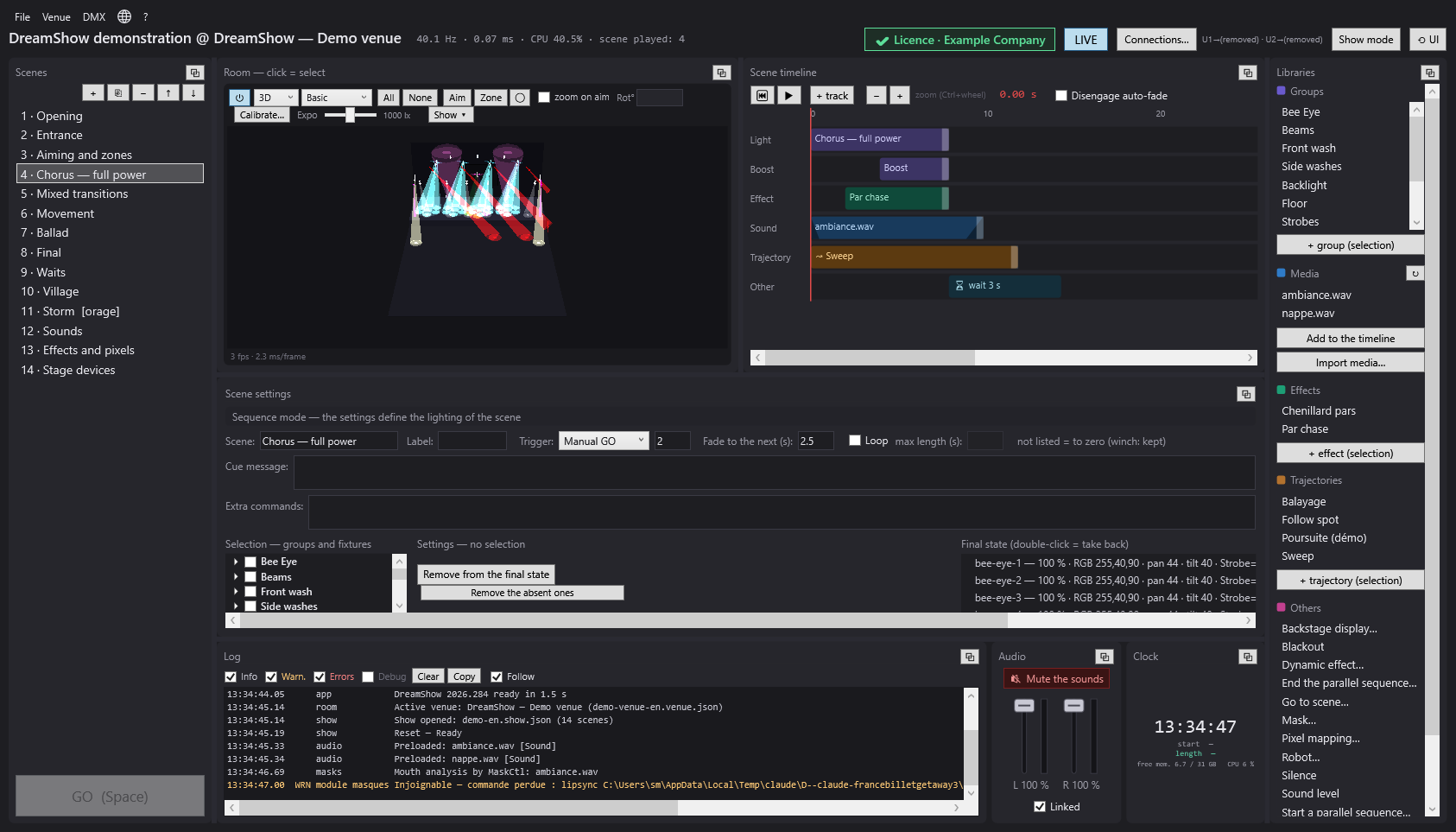
DreamShow's main screen is the editor: this is where you write the show, scene by scene, adjust the light, place sound and video on the timeline and see the result in the simulation. This page presents each area of the screen and points to the detailed pages.
To open it: it is the window that opens when DreamShow starts.
The Windows title bar
At the very top, the window's title bar always shows:
- the DreamShow version (for example “DreamShow 2026.282”);
- the file name of the open show (for example
Mon spectacle.show.json), or “new show”; - the name of the active venue;
- possibly some notes in square brackets: “[visualiser — output off]” when Visualiser mode is active, “[sound-to-light]” when sound-to-light is running, “[timecode]” when the show follows a timecode.
The menu bar
Below the title bar, five menus:
- File: create, open and save shows (New show…, Open a show…, Recent shows, Save (Ctrl+S), Save as…), Remote (GO keys)…, Open the show's media folder, Export the whole project (zip)…, Import a project (zip)…, Create a show with an AI…, DMX stream by an AI…, Export for a standalone player…, Import a ppshow show…. See Shows, files and projects, The remote (GO keys), Creating a show with an AI, DMX stream by an AI and The standalone player.
- Venue: everything that describes the place. DMX connections… (DMX connections), Manual controls… (Manual controls), Follow spot (tablets)… (Follow spot on a tablet), Fixtures, addresses, positions… (Fixtures, addresses, positions), Fixture library… (The fixture library), Screens… (Video screens), Robots… (Humanoid robots), LED masks… (LED masks), Backstage displays… (Backstage displays), Import the calibrations (lyrescal.ini)… and Export the calibrations… (Moving-head calibration), then Change venue, Rename the venue…, Duplicate the venue… and Delete the venue… (Switching, renaming, duplicating a venue).
- DMX: DMX values… and DMX faders… (DMX values and DMX faders), Visualiser mode (Art-Net / sACN in)… (Visualiser mode), Sound-to-light and tempo… (Sound-to-light and tempo), Timecode (LTC / MTC)… (Timecode), MIDI controllers… (MIDI controllers), Web remote… (The web remote), OSC remote… (The OSC remote).
- Language: this menu shows no word but a small globe icon (tooltip “Langue / Language”), so that you can find it even when facing an interface in a language you cannot read. It lists the languages, each written in its own language, with the current language ticked. See Installation, languages and updates.
- ?: Welcome and first steps… and First steps checklist… (First steps), Check for updates… (Installation, languages and updates), About DreamShow… (version and third-party component notices).
The top bar
Below the menus, a bar brings together the show status on the left and the general commands on the right.

On the left: the show and the statistics
- Show name @ venue: in large type, the name of the show followed by “@” and the name of the venue (for example “Concert du 14 @ Petite scène”).
- Asterisk: an orange “*” appears after the name as soon as the show contains unsaved changes. It disappears when you save.
- Save confirmation: after saving, the green text “✓ show saved (hh:mm:ss)” is displayed for about two and a half seconds.
- Statistics (status line): a line in small type, updated twice a second:
- the actual rate of the DMX engine in Hz (the number of DMX frames computed per second);
- the average time to compute one frame, in milliseconds;
- “CPU … %”: the share of the processor used by DreamShow;
- “scene played: …”: the number of the scene the engine is playing (“—” when no scene is running, for example in the “Ready” state before the first Go);
- “· BLACKOUT” when the general blackout is active;
- “· ⇉ in parallel: …” with the list of the parallel sequences running.
This same line also displays, very briefly, some messages (for example “Aim: select one or more moving heads first”, “Calibrate: select a moving head”, “3 media imported into medias\…”) or a show compilation error (“compilation error: …”).
On the right: the general commands
From left to right:
- Simple mode: a two-state button, for beginners. When on, the screen shrinks to the essentials: the scenes, the venue, the timeline and the scene settings. The DMX menu and the advanced functions (remote control, prompter, project export, robots, screens, masks, sockets, displays, calibrations, venue management) are hidden, as are the venue's Aim, Zone, Calibrate… and Expo tools, the Libraries and the bottom strip (log, audio, clock). Switch it off and everything comes back. Nothing is deleted or converted: the show is the same in both modes. Simple mode is offered on a first installation; an existing installation stays in full mode. Your choice is remembered.
- LIVE: a two-state button, on at startup.
- On: the scene selected in the Scenes list is sent live to the DMX interfaces (Art-Net, sACN, USB, uDMX). Selecting another scene makes the engine jump to it, and every adjustment you make goes straight out to the fixtures.
- Off: no more frames go out to the interfaces. The simulation carries on. Selecting a scene no longer moves the engine: the simulation then shows the final state of the selected scene, computed separately.
- In Show mode (cue window open), LIVE has no effect: the output is always active, so that an unlucky click cannot plunge a performance into darkness.
- In Visualiser mode, DreamShow sends nothing, whatever the state of LIVE.
- 🤖 disarmed / 🤖 ARMED: only appears if the venue declares at least one robot. Disarmed, the Robot blocks of the timeline are ignored (you rehearse light and sound without the robot moving); armed (red background), they are executed. The state of the first robot follows the label (“· hors ligne” (offline), “· not found”…). See Humanoid robots.
- Connections…: opens the same window as Venue > DMX connections… (universes and interfaces of the current venue). When you confirm, the connections are saved in the venue file and the engine restarts on the new outputs. See DMX connections.
- Outputs in service: just to the right of the button, a small grey text sums up the open outputs, universe by universe, for example “U1→Art-Net to 192.168.1.50”; several universes are separated by “·”. “U3→(removed)” flags a universe used by the venue but with no output. The tooltip repeats the full text and the errors from opening the interfaces.
- Show mode: opens the cue window, which you can place on a second screen. See Show mode and the cue window.
- ⟲ UI: restores the default panel layout (see below).
The panels
The rest of the window is divided into eight panels. Each one has a title in small grey type at the top left, and a ⧉ button at the top right.
| Panel (exact title) | Default position | Role | Detailed page |
|---|---|---|---|
| Scenes | left column | the list of the show's scenes, the buttons to add, duplicate, delete and move them, and the big GO button | The Scenes panel |
| Room — click = select | top centre, left | the 2D or 3D simulation of the venue, fixture selection, the Aim and Zone tools | 2D and 3D simulation |
| Scene timeline | top centre, right | the tracks and blocks of the selected scene, the red playback line | The scene timeline |
| Scene settings | middle | the scene's name, label, trigger, fade, loop, message and commands, then fixture selection, the sliders, the colour palette, the specific settings and the final state | Scene settings and Selecting fixtures and adjusting the light |
| Libraries | right column | the groups, media, effects, trajectories and other events to drag onto the timeline | Libraries |
| Log | bottom, left | DreamShow's messages | Log, Audio and Clock |
| Audio | bottom, middle | mute all sounds, left and right volumes, level meters | Log, Audio and Clock |
| Clock | bottom, right | the time, the start and duration of the show, memory and processor | Log, Audio and Clock |
Arranging the panels
Resizing
Between the panels, thin grey strips act as splitters: drag them to enlarge a panel at the expense of its neighbour. Each panel has a minimum size.
The simulation / timeline split
The simulation (Room — click = select) and the Scene timeline share the top row, half each by default. The vertical splitter between the two sets the proportion, which is remembered. When one of the two panels is detached into a floating window, the other takes the full width of the row.
Swapping two panels
Click a panel's title (the cursor turns into a four-arrow cross), hold the button down and release over another panel: the two panels swap places. For example, you can put the Scene timeline in the large middle area and the Scene settings at the top.
Detaching a panel into a floating window
- The ⧉ button (tooltip “Detach into a floating window”) takes the panel out into a separate window, titled “DreamShow —” followed by the panel title. The space it took up is given back to the other panels.
- You can move this window to another screen and resize it. It stays on top of the main screen.
- To put the panel back in its place, simply close its floating window.
Remembered layout
The layout is saved automatically in the dreamshow.ui.json file in the data folder: window size (and whether it was maximised), position of each panel, splitter sizes, floating windows (position and size). The next time DreamShow starts, everything is put back as you left it, floating windows included. The same file also keeps some simulation settings: categories displayed, background plan, exposure, 3D quality and the zoom on aim box.
Going back to the default layout: ⟲ UI
The ⟲ UI button (tooltip “Restore the default layout”):
- closes all the floating windows and puts their panels back in the main window;
- puts each panel back in its original position (see the table above) and at its original size;
- deletes the layout file.
It does not change the simulation settings (categories displayed, exposure, 3D quality, zoom on aim): they are saved again the next time the layout is saved, for example when DreamShow closes.
The editor's GO button
At the bottom of the Scenes panel, the big GO (Space) button moves on to the next scene, just as during the performance. The space bar does the same, except when the cursor is in a text box, a check box or a drop-down list.
- The button is greyed out as long as a Go is not possible: on the last scene, or as long as the timeline of the current scene has not played to the end (the red line must have reached the end of the last block, and no fade must be in progress). It is always active on a scene set to Loop (Go leaves the loop) and before the first scene (“Ready” state).
- Go applies the fade of the scene you are leaving (Fade to the next (s)), then plays the timeline of the scene you arrive at.
- If the timeline's Disengage auto-fade box is ticked, Go arrives on the next scene without playing its timeline: the scene is shown frozen on its final state, with no sound and no blocks. This lets you step through the show by hand.
The details are in The Scenes panel.
Main screen shortcuts
| Key | Effect |
|---|---|
| Space | Go (same rule as the GO button) |
| Ctrl+S | save the show |
| Ctrl+wheel (on the timeline) | timeline zoom |
| Delete (in the Trajectories list) | delete the selected trajectory |
When a “Wait for a key…” block is waiting for a key in the editor, that key takes priority to release the wait. See Waits and Keyboard shortcuts.
Step by step
Making the timeline large and putting the simulation on a second screen
- Click ⧉ at the top right of the Room — click = select panel.
- The simulation opens in its own window; the timeline now takes up the whole top row.
- Drag the simulation window onto the second screen and maximise it.
- The next time DreamShow starts, the simulation window will reopen in the same place.
- To put it back in the main screen, close its window.
Swapping the timeline and the scene settings
- Click the Scene timeline title and hold the button down.
- Drag it onto the Scene settings panel and release.
- The two panels have swapped places.
Getting back to a clean layout
- Click ⟲ UI at the top right.
- All the panels go back to their original position and size.
Good to know
- Closing DreamShow always asks for confirmation (“Quit DreamShow?”). If the cue window is open, the question becomes “A show is RUNNING. Quit DreamShow anyway?”. If the show has unsaved changes, DreamShow then offers to save them.
- Panels keep working when they are detached: the simulation, the timeline and the log follow the show as they do in the main window.
- If the simulation slows the PC down, turn off its rendering with the ⏻ button of the Venue panel: the DMX output is not affected. See 2D and 3D simulation.
- The engine keeps playing the show even when a settings window is open.