Manual contents
Light and effect blocks
Light blocks make the lighting change during the scene: a group that rises then falls, a colour that passes through, a profile spot that comes on for the length of a line. They are placed on the timeline, over the scene's final state, and last as long as you give them. This page also describes the Blackout block and the block colours.
To open it: drag a group from the Groups list, or an effect from the Effects list (Libraries panel), onto a track of the Scene timeline panel. The Blackout block is in the Others list.
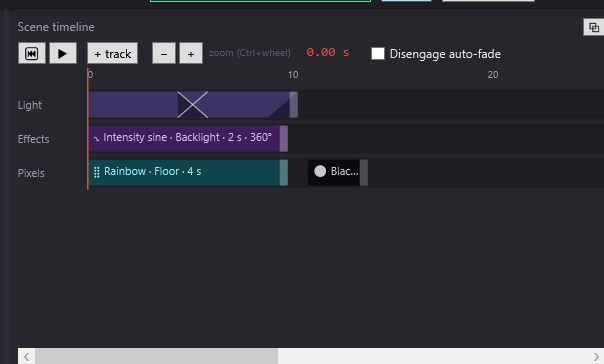
The two kinds of light block
The group block
This is a block that contains its own setting, for one or more groups or fixtures.
- Creation: drag a group from the Groups list onto a track. The block lasts 10 s, with no fade, and bears the group's name.
- Its initial content: the setting of this group in the final state of the displayed scene (intensity, colour, position, special channels such as the colour wheel or the zoom). If the group is not in this scene's final state, DreamShow takes its setting from another scene of the show; if it finds none, the block sets the group to 100 % white (and opens the moving heads' shutters).
- The block keeps a copy of these values: changing the final state afterwards does not change the block.
- Palettes follow: if the group used colour, position or beam palettes, the block keeps them. Changing a palette therefore updates the block too, and with a position palette each moving head keeps its own position.
The effect block
An effect is a named setting (one or more groups with their settings) stored in the Effects list and reusable in every show.
- Creating an effect: tick the groups or fixtures in Selection — groups and fixtures, set them, then click + effect (selection) in the Effects list; give a name (New effect window, “Effect name:”). Two effects cannot have the same name (“An effect already has that name.”).
- Creating the block: drag the effect from the Effects list onto a track. The block lasts 10 s and bears the effect's name.
- The block follows the effect: it contains no copy, it refers to the effect by its name. Changing the effect changes every block that uses it, in every show.
- If the effect is deleted from the library, the block turns red with ⚠ (“EFFECT NOT FOUND in the library”) and no longer lights anything.
Changing a block's content
Effect block: effect mode
Double-click the block (or right-click > Edit the effect…). An orange banner appears at the top of Scene settings: “EFFECT MODE — “name”: the settings change the effect, not the sequence”. The effect's groups are ticked, and the right-hand list becomes “Contents of effect “name””.
- Set the sliders (Dim, R, G, B, Pan, Tilt, specific settings), as for a final state. The simulation shows the effect over the scene.
- Click ✔ Finish editing the effect: the effect is saved and you go back to sequence mode.
See Selecting fixtures and adjusting the light for the sliders and Libraries for the Effects list (double-click = edit, right-click > Delete the effect).
Group block: Replace with the current selection + settings
A group block does not open for editing. To change its content, right-click > Replace with the current selection + settings: for each ticked group or fixture, the block receives its setting from the final state, with the intensity, colour (R, G, B) and position (Pan, Tilt, for moving heads) of the current sliders. The block's text becomes the list of targets (“Front + Backlights”). With nothing ticked, DreamShow replies “Tick some targets and set the panel first.”.
Caution: in sequence mode, the sliders change the scene's final state. If the block must differ from the final state, remember to put the final state back as it was after the replacement, or use an effect instead (see the step by step).
A block's settings (Properties…)
Right-click > Properties… (or double-click on a group block) opens Block properties:
- Start (s): the moment the block starts.
- Length (s): length of the block. It can also be set with the mouse using the handle on the right edge.
- Fade in (s): rise time. 0 = the block takes over at once.
- Fade out (s): fall time, which ends at the end of the block. 0 = the block disappears at once.
The fades are drawn as dark triangles in the corners of the block. The two fades together cannot exceed the duration: DreamShow corrects this if needed.
How a block and the final state combine
The frame sent to the fixtures is built at every moment (40 times a second), in layers:
- The scene's final state, reached through the scene's incoming fade.
- Light and effect blocks, track after track from top to bottom, and on each track in order of start time. Each block is laid over what is below it.
- Trajectories, dynamic effects and pixel mappings, over all the light blocks.
- Blackout blocks.
- DMX recordings (▦ blocks).
- Parallel sequences, mixed with the cue list (see Parallel sequences).
- The general blackout and the manual controls override everything.
For each channel a block sets:
- Intensity channels (dimmer, red, green, blue, white colour mixing…): the value moves gradually from what is below to the block's value during the fade in, stays at the block's value, then returns to what is below during the fade out.
- Other channels (pan, tilt, zoom, colour and gobo wheels, shutter…): they take the block's value from the very first moment of the block, without waiting for the end of the fade, and keep it until the end of the block. A moving head therefore gets into position before the light comes up.
- Channels the block does not set stay as they are below.
At the end of the block, what is below takes over again:
- intensity returns to the final state (after the fade out);
- a position set by the final state returns at once to the final state's value; a position the final state does not set stays where the block left it (a moving head does not swing back to its end stop);
- a fixture absent from the final state drops back to zero (“not listed = to zero”, except devices set to keep their value, such as a winch).
Examples:
- Final state: Front at 30 %. Block: Front at 100 %, fade in 2 s, fade out 3 s. → Front rises from 30 to 100 % in 2 s, stays there, then falls back to 30 % in 3 s.
- Final state: Front at 80 %. Block: Front at 0 %, 1 s fades. → a dip: Front goes down to 0 then back up to 80 %.
- Empty final state. Block: blue Backlights at 100 %. → the backlights come on during the block, then go out.
When two blocks set the same fixture
- On the same track and overlapping: this is a mix, one blends into the other (colour and position included). See Fades and mixes.
- On two different tracks: they are layered; at full intensity, the block on the lowest track wins. During its fade in, it blends with the one above. Use Move the track up / Move the track down to choose which comes in front.
The Blackout block
The Blackout block (text “⚫ Blackout”, black block) turns the light off for its whole duration, without touching positions, colours, wheels or shutters: moving heads keep their aim, only the intensity drops to 0.
- Creation: drag Blackout from the Others list onto a track. It lasts 10 s and can be resized like a light block.
- What it turns off:
- placed on a track that also carries light blocks or trajectories, it turns off only the fixtures that this track lights;
- placed on a track with no light, it turns off all the fixtures (general blackout for its duration).
- It also turns off the final state of these fixtures, and whatever trajectories and dynamic effects are doing.
- Its fades: you can set Fade in (s) and Fade out (s) in Properties…. In addition, on its own track, DreamShow adds automatic fades:
- if a light on the track is on when the Blackout starts, the light goes down to black during the overlap, instead of cutting;
- if a light on the track continues after the end of the Blackout, it comes back up during the overlap.
- Parallel sequences, mixed in afterwards, are not turned off by a Blackout in the cue list.
Block colours
| Block colour | Type |
|---|---|
| Purple | light block (group) |
| Green | effect block |
| Orange-brown (↝) | trajectory |
| Deep purple (∿) | dynamic effect |
| Blue-green (⣿) | pixel mapping |
| Blue | sound or video |
| Plum (▦) | DMX recording |
| Black (⚫) | Blackout |
| Burgundy | Stop sound, Sound level, Silence |
| Dark blue-green (→) | Go to scene |
| Blue (⇉, ⇥) | parallel sequences |
| Dark green (⌨) | Wait for a key |
| Blue-grey (⏳) | Wait for a time, a date, the sun |
| Blue-violet (🖵) | Backstage display |
| Brick red (🤖) | Robot |
| Mauve (🎭) | Mask |
| Bright red with ⚠ | block in error (file, effect or scene not found) |
In the Libraries panel, a small coloured square in front of Groups, Media, Effects, Trajectories and Others recalls the family of blocks of each list.
Step by step
Bringing up a profile spot for the length of a line
- In the scene's final state, leave the “Special” profile off (or remove it with Remove from the final state).
- Create a “Warm special” effect: tick “Special”, set Dim 90 %, a warm colour, then + effect (selection), name “Warm special”.
- Drag “Warm special” from the Effects list onto a track, at 12 s.
- Right-click > Properties…: Length (s) 20, Fade in (s) 3, Fade out (s) 4. OK.
- ⏮ then ▶: the special rises at 12 s, holds, and goes out over 4 s at 32 s.
Adding a splash of colour on a background that is already lit
- Final state: “Cyc” in blue at 60 %.
- Drag “Cyc” from the Groups list onto a track: the block takes the blue at 60 %.
- Tick “Cyc”, set the sliders to a red at 100 %, then right-click the block > Replace with the current selection + settings.
- Set the sliders of “Cyc” back to blue at 60 % (this is the final state you have just changed).
- Set 1 s fades: the cyc turns red during the block, then returns to blue.
Making a blackout in the middle of a scene
- Drag Blackout from the Others list onto a track with no light block, at the moment you want.
- Set its duration to the length of the blackout.
- In Properties…, give a Fade in (s) (going down) and a Fade out (s) (light coming back).
Good to know
- A Blackout placed on the same track as a longer light block, and entirely inside it, gets automatic fade in and fade out as long as itself: the light then only goes down halfway in the middle of the Blackout. For a clean blackout, put the Blackout on another track and set its fades yourself.
- Blocks have no “keep the setting after the end” button. For a setting to stay, put it in the scene's final state. In a show imported from ppshow, however, the last block of a series of steps keeps its setting after it ends.
- For a moving head to give light, its shutter must be open: blocks created from a group of moving heads open it by default.
- The light blocks of a track only mix with each other: a sound or a video placed between two light blocks does not get in the way of the mix.