Manual contents
The Scenes panel
A DreamShow show is a sequence of scenes, played one after the other on Go, automatically or chained. The Scenes panel lists them: this is where you add, copy, delete and arrange scenes, choose the one to edit, and test the move from one scene to the next with the GO button.
To open it: the panel is in the left column of the main screen (default layout).
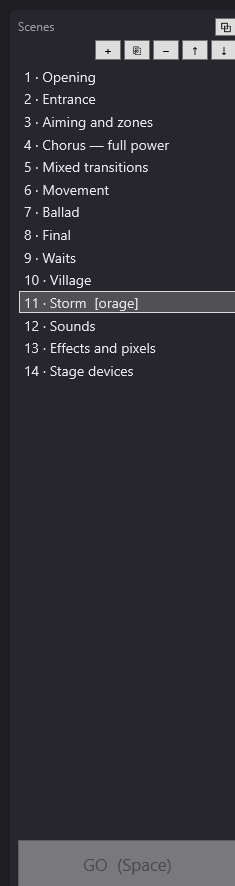
The scene list
Each line shows:
- the number of the scene in the show (1, 2, 3…);
- a dot “·” then the name of the scene;
- if the scene has a label, that label in square brackets, for example
4 · Orage [pluie]. The label is a short, stable name used by jumps and parallel sequences (see Scene settings and Jumps and scene labels).
The name and the label are edited in the Scene settings panel; the list updates with every keystroke.
The buttons at the top
| Button | Tooltip | What it does |
|---|---|---|
| + | Add a scene | inserts an empty scene just after the selected scene (or at the end if none is selected), named “Scene N” where N is the number of scenes plus one, and selects it |
| ⎘ | Duplicate the scene (inserted just after, named #2, #3…) | full copy of the selected scene (settings, final state, tracks and blocks), inserted just after it |
| − | Delete | deletes the selected scene, after confirmation |
| ↑ | — | moves the selected scene up one place |
| ↓ | — | moves the selected scene down one place |
Details of each button
- +: the new scene has no tracks and no light settings. Its trigger is Manual GO, with no fade.
- ⎘: the copy has the name of the original followed by “#2”. If copies already exist (“Final #2”, “Final #3”), the new one takes the next number (“Final #4”). Duplicating “Final #3” also gives “Final #4”: the number carries on from the highest copy of the same name.
- −: DreamShow asks “Delete scene “…”?”. If “Go to scene…” jumps pointed to this scene, a message warns that they need fixing: they are shown in red with ⚠ on the timeline. The following scene takes the selection (the previous one if you deleted the last one).
- ↑ and ↓: swap the selected scene with its neighbour. Nothing happens on the first scene (↑) or the last one (↓).
When you insert or delete a scene with +, ⎘ or −, DreamShow renumbers the jumps (“Go to scene…”) and parallel sequences that target a scene by its number, so that they keep targeting the right scene.
Selecting a scene
A click on a scene (or the keyboard arrows in the list) selects it. The whole screen then switches to it:
- the Scene settings panel shows its settings (name, label, trigger, fade, loop, message, extra commands);
- the Final state list shows its light settings, and the sliders move to the selected target if it already has a setting;
- the Scene timeline shows its tracks and blocks, and goes back to the start;
- the simulation shows this scene.
If LIVE is on (top right), the engine jumps to this scene at once, with no fade, and the DMX output shows it live. The timeline stays paused (unless playback ▶ is running): the venue shows the final state of the scene and the blocks under the red line.
If LIVE is off, the engine does not move: the simulation shows the final state of the selected scene, computed separately, and nothing goes out to the fixtures.
The GO button
At the bottom of the panel, the big GO (Space) button moves on to the next scene, exactly as during a performance. The space bar does the same, except when the cursor is in a text box, a check box or a drop-down list.
When GO is possible
The button is greyed out (and the space bar has no effect) when:
- the engine is already playing the last scene;
- the timeline of the current scene has not finished: the red line must have reached the end of the last block, and no fade must be in progress.
It is always active:
- before the first scene, in the “Ready” state (Go starts scene 1);
- on a scene set to Loop (Go leaves the loop).
A scene with no blocks at all is “finished” straight away: Go is therefore possible immediately.
What GO does in the editor
- The engine moves to the scene that follows the one it is playing (not necessarily the one you have selected, if LIVE is off).
- The fade of the scene being left (Fade to the next (s)) is applied: the light glides towards the final state of the new scene.
- When the fade ends, the timeline of the new scene starts: sounds, videos, blocks, extra commands.
- If LIVE is on, the Scenes list follows: the new scene is selected.
If the Disengage auto-fade box (timeline toolbar) is ticked, Go arrives on the next scene without playing its timeline: the scene stays paused on its final state, with no sound and no blocks, and no scene follows on by itself. This is useful for stepping through a show scene by scene while you write it.
What happens during playback
Playback of a scene in the editor is started with the timeline's ▶ button (or by a Go). During playback:
- the red line moves along the timeline; sounds, videos and blocks are triggered when it reaches them;
- the simulation follows the red line: it reads the real DMX output, fades included;
- a Manual GO scene, without a loop, stops by itself at the end of its last block: the red line parks there and playback pauses, like a media player at the end of a track;
- an Auto or Chained scene moves on by itself to the next one at the planned moment (unless Disengage auto-fade is ticked or it is the last scene); the Scenes list follows if LIVE is on;
- a Loop scene restarts its timeline at the end, until Go or until its maximum duration.
In Show mode (cue window open), the cue list is in charge: the Scenes list follows the scene being played, and arriving on a scene always plays it. See Show mode and the cue window.
Step by step
Creating three scenes and testing them
- Click +: “Scene 2” appears below the selected scene. Click + again for “Scene 3”.
- Select each scene and set its light (see Selecting fixtures and adjusting the light).
- Select scene 1, then in Scene settings set Fade to the next (s) to 3.
- Press the space bar: the light glides to scene 2 in 3 seconds, and the list selects scene 2.
Making a variant of a scene
- Select the scene to copy.
- Click ⎘: the copy, named for example “Salut #2”, is inserted just after it.
- Change the copy as you wish; the original is not touched.
- If the original had a label, give the copy a different label (see Good to know).
Reordering scenes
- Select the scene to move.
- Click ↑ or ↓ as many times as needed.
Good to know
- ⎘ also copies the scene's Label. With two scenes sharing the same label, jumps and parallel sequences target the first one, and the log reports it (“Label “…” used by several scenes: the first one (…) is kept.”). Change the label of the copy.
- ↑ and ↓ do not renumber jumps: a “Go to scene…” jump saved by number (scene with no label) keeps targeting the same position in the list, and therefore a different scene after a move. Give a Label to scenes targeted by jumps: the jump then follows them wherever they are.
- A jump from the editor (click in the list) is instantaneous: no fade is applied. The fade only plays on Go or during an automatic follow-on.
- A greyed-out GO is normal as long as the timeline has not played to the end: start playback with ▶, or go back to a scene with no blocks.
- Any change marks the show as modified (“*” after its name). Save with Ctrl+S or File > Save.