Manual contents
MIDI controllers
A MIDI controller (a surface with pads, buttons or faders, plugged in by USB) can drive DreamShow: Go, previous scene, jump to a scene, blackout, pause, DMX faders… You learn each button or fader by touching it. When the controller allows it, its LEDs light up according to the state of the show (current scene, blackout, Go possible).
The controllers ticked here also serve as the input for the MIDI clock (Sound-to-light and tempo) and for MTC (Timecode).
To open it: menu DMX > MIDI controllers….
No special driver is needed: USB controllers recognised by Windows as MIDI devices appear directly.
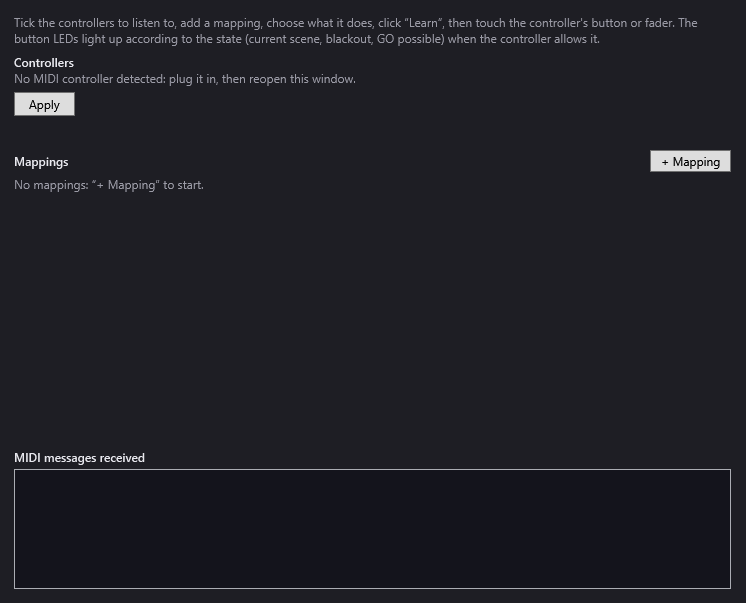
The controllers
- Controllers: the list of detected MIDI inputs, each with a tick box. Tick those that DreamShow must listen to. A controller ticked in a previous session but absent today appears with the note “(unplugged)”.
- If nothing is detected: “No MIDI controller detected: plug it in, then reopen this window.”
- Apply: opens the ticked controllers and saves this choice. The boxes only take effect after Apply.
- The status line under the button says “MIDI: name1, name2” for the open controllers, or “No MIDI controller open”.
The ticked controllers are reopened automatically when DreamShow starts. A controller that is ticked but absent is flagged in the messages by “Controller missing: name”.
Mappings
A mapping links a button or a fader of the controller to an action in DreamShow.
- + Mapping: adds a line (GO action by default). With no line at all: “No mappings: “+ Mapping” to start.”
Each line contains, from left to right:
- The action (list): see the table below.
- The argument: a small box, active only for actions that need one. Tooltip: “Scene: its number. Fader: universe.channel, for example 1.25.” For a universe and a channel, you can also write
1/25. - The learned control: “—” as long as nothing is learned; then for example “Note 36 · ch 1 · controller name” for a pad or a button that sends notes, or “CC 7 · ch 1 · controller name” for a fader or a button that sends “Control Change” messages.
- Learn: puts the line on standby; the text becomes “touch the control…” in orange and the button becomes Cancel. Then touch the controller's button or fader: it is associated with the line at once and saved.
- ✕ (Delete this mapping).
A mapping only responds to the controller, MIDI channel and note (or CC number) learned.
The actions
| Action | Argument | What it does |
|---|---|---|
| GO | — | Go, with the same rules as the GO button (see below). |
| Previous scene | — | Goes back to the previous scene, with no fade. |
| Go to scene no. | scene number | Jumps to that scene (1 = first). |
| Blackout | — | General blackout. A button that sends notes toggles the blackout at each press; a CC control turns it on from the middle of its travel (64) and off below that. |
| Pause | — | Pauses the cue list. |
| Play | — | Restarts the cue list. |
| Ready (reset) | — | Goes back to the “Ready” state: blackout, media stopped, the next Go starts scene 1. |
| LIVE output | — | Turns the editor's LIVE button on or off (same behaviour as Blackout between note and CC). |
| DMX fader (universe.channel) | universe.channel | Takes this DMX channel, like a fader of DMX > DMX faders…. A fader (CC from 0 to 127) gives a value from 0 to 255; a pad (note) gives its velocity converted the same way, and 0 on release. |
| Give the channels back to the cue list | universe.channel, or empty | Releases this channel; with no argument, releases all the channels taken. |
| Tap tempo | — | One tempo tap, like the TAP button of Sound-to-light and tempo. |
For button-type actions (GO, Previous scene, Go to scene, Pause, Play, Ready, Give the channels back, Tap tempo), only the press counts: a note pressed down, or a CC at 64 or more. The release does nothing.
The rules are those of all DreamShow's remote controls:
- GO in show mode only goes if Go is possible (it is greyed out on the cue window otherwise); in the editor, it acts like the space bar.
- Previous scene and Go to scene no. play the scene reached in show mode; in the editor, they jump to it without changing the play or pause state.
Feedback on the LEDs
If the controller has a MIDI output with the same name as its input (the most common case), DreamShow turns on or off the LEDs of buttons learned on a note. It sends a note with velocity 127 to turn on, 0 to turn off, on the same channel and the same note number, and only when the state changes (checked four times a second).
| Button action | LED lit when… |
|---|---|
| GO | Go is possible |
| Go to scene no. | this scene is the current scene |
| Blackout | the blackout is active |
| LIVE output | the LIVE button is on |
| Pause | the cue list is paused |
| Play | the cue list is playing a scene |
The other actions never light an LED, and controls learned on CC receive no feedback. Depending on the controller, the LEDs may not react to these messages; it depends on the device.
MIDI messages received
At the bottom of the window, MIDI messages received lists the latest messages (the 60 most recent, newest at the top), with the time, the controller name and the message (“Note 36 on 100 · ch 1”, “CC 7 = 64 · ch 1”…). Handy for checking that a controller is sending something, and what.
Step by step
Making pad 1 the GO button
- Plug in the controller, then open DMX > MIDI controllers….
- Tick the controller in Controllers, then click Apply. The status line should show its name.
- Click + Mapping: a GO line appears.
- Click Learn, then hit pad 1. The line shows “Note … · ch …”.
- Test: in show mode, the pad triggers Go; its LED, if it has one, lights up when Go is possible.
A fader for a fixture's intensity
- Find the fixture's universe and intensity channel, for example in DMX > DMX values… (universe 1, channel 25).
- Add a mapping, choose DMX fader (universe.channel) and type
1.25in the argument box. - Learn, then move the controller's fader.
- Add a second mapping Give the channels back to the cue list (empty argument) on a button, to release everything in one gesture.
Good to know
- To learn a control, the controller must be ticked and applied: DreamShow only hears open controllers.
- Mappings are saved in DreamShow's settings (not in the show): they apply to all shows.
- A channel taken by a MIDI fader stays taken until it is released: by a Give the channels back to the cue list mapping, by Release all or by closing the DMX faders window. It goes in front of the general blackout.
- The MIDI commands are the same as those of the OSC remote and the web remote.