Manual contents
The OSC remote
OSC (Open Sound Control) is a network command language widely used in show control: tablet apps, programmable button boxes, cue-playback or video software can send OSC messages. DreamShow receives them to fire GO, change scene, go to blackout, force DMX channels… and sends its state (current scene, blackout, GO possible) back to the devices that write to it, so they can display it.
To open it: menu DMX > OSC remote….
An OSC message is made up of an address that looks like a path (/dreamshow/go) and, sometimes, arguments (numbers or text). It travels over UDP to an IP address and a port.
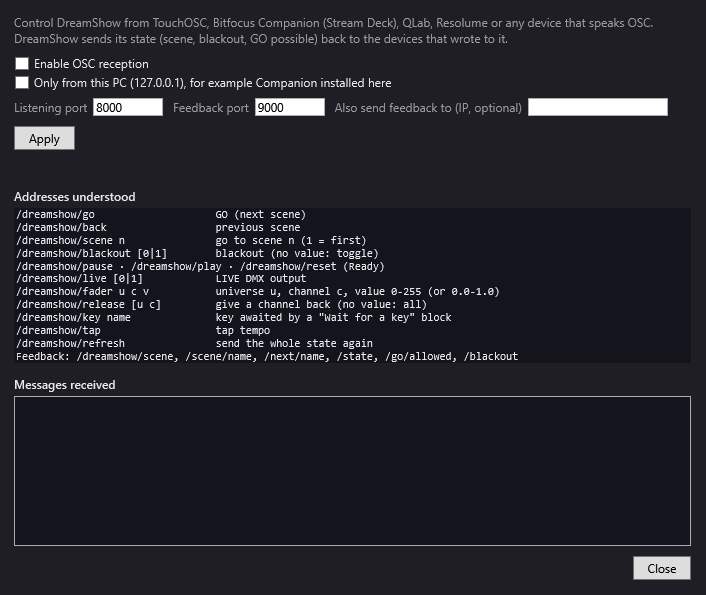
The window
- Enable OSC reception: puts DreamShow in listening mode. Off by default, because it opens a network port.
- Only from this PC (127.0.0.1), for example Companion installed here: only accepts messages coming from a program installed on this same PC. Devices on the network can no longer reach DreamShow, and Windows asks no firewall question.
- Listening port: the port on which DreamShow receives, 8000 by default.
- Feedback port: the port on which DreamShow sends its state back to the devices, 9000 by default.
- Also send feedback to (IP, optional): an IP address to which the state is sent permanently, even if that device has not sent anything yet. Empty = only the devices that have written.
- Apply: checks the values (ports from 1 to 65535, valid IP address), saves them and restarts listening. Nothing changes before Apply.
- The status line: “OSC off”, or “OSC: listening on port 8000 — this PC's address to enter in the device: 192.168.1.10”, or “OSC: port 8000 is already in use or refused (…)” if another program occupies that port.
- Addresses understood: the reminder of the commands (detailed below).
- Messages received: the last messages that arrived (the 60 most recent, the newest at the top), with the time and the IP address of the sender. An unknown
/dreamshow/…address is flagged there by “unknown address: …”. - Close: closes the window; listening carries on.
Once enabled, OSC listening restarts automatically each time DreamShow is launched.
The commands received
All addresses start with /dreamshow/. Upper and lower case do not matter, and a final slash / is tolerated. Grouped messages (OSC “bundles”) are accepted; their timestamp is ignored, everything is executed at once.
| Address | Arguments | Effect |
|---|---|---|
/dreamshow/go | none, or 1 / 0 | GO (next scene). |
/dreamshow/back | none, or 1 / 0 | Previous scene. |
/dreamshow/prev | none, or 1 / 0 | Same as /dreamshow/back. |
/dreamshow/scene | n | Go to scene n (1 = first). |
/dreamshow/blackout | none, or 0 / 1 | General blackout. With no argument: toggles. With 1: blackout; with 0: end of blackout. |
/dreamshow/pause | none, or 1 / 0 | Pauses the cue list. |
/dreamshow/play | none, or 1 / 0 | Restarts the cue list. |
/dreamshow/reset | none, or 1 / 0 | Reset: “Ready” state. |
/dreamshow/live | none, or 0 / 1 | The editor's LIVE button. With no argument: toggles; 1: on; 0: off. |
/dreamshow/fader | u c v | Sets channel c of universe u to value v. |
/dreamshow/release | u c, or none | Gives channel c of universe u back to the cue list; with no argument: gives back all channels. |
/dreamshow/key | name | Releases a “Wait for a key” block that is waiting for this key. |
/dreamshow/tap | none, or 1 / 0 | One tap-tempo tap. |
/dreamshow/refresh | none | Sends the whole state back at once. |
Details:
- Buttons (
go,back,prev,pause,play,reset,tap): many devices send 1 on press and 0 on release. DreamShow only acts on the press: with no argument, or with a value of 0.5 or more. A value below 0.5 is ignored. - Values accepted: integers, decimal numbers, numbers written as text, and true / false (true = 1).
/dreamshow/scene n: the number is rounded; a scene that does not exist is ignored./dreamshow/fader u c v: universe and channel counted from 1. The value v goes from 0 to 255; if it is sent as a decimal number between 0.0 and 1.0 (as with a tablet fader), it is converted to 0 to 255. The channel is taken as with DMX > DMX faders…: it overrides the cue list and the blackout until it is released./dreamshow/releasewith no universe or channel (or with a single number, for example1sent by a button) gives back all channels./dreamshow/key name: the name is text, the key the block is waiting for, for exampleSpace,AorF1. See Waits.
Behaviour depending on the mode:
- In Show mode (cue window open):
goonly goes off if GO is possible (same rule as the greyed-out GO button);back,prevandscenejump to the scene without a fade and make it play. - In the editor:
goacts like the space bar (including the effect of the Disengage auto-fade box);back,prevandscenejump to the scene without changing the play or pause state. pause,playandresetact in both cases, even during a performance.livechanges nothing to the output in Show mode: the output is always active there.
State feedback
DreamShow sends its state back:
- to each device that has sent it a message in the last ten minutes, at that device's IP address and on the Feedback port (9000 by default, not the port the message came from);
- and, if it is filled in, to the Also send feedback to address.
It sends it after each command received, and as soon as the state changes (checked four times a second). /dreamshow/refresh forces a complete send.
| Address sent | Value |
|---|---|
/dreamshow/scene | number of the current scene (integer); 0 = “Ready” |
/dreamshow/scene/name | name of the current scene (text); “Ready” before the first GO |
/dreamshow/next/name | name of the next scene (text); empty on the last scene |
/dreamshow/state | ready (Ready), paused (paused) or playing (playing) |
/dreamshow/go/allowed | 1 if GO is possible, otherwise 0 |
/dreamshow/blackout | 1 if blackout is active, otherwise 0 |
The text “Ready” follows the language of the interface.
Examples
The steps below describe what DreamShow expects. How to create a button or a message in each application depends on that application: refer to its documentation.
A tablet with TouchOSC
- In DreamShow, tick Enable OSC reception, leave the port at 8000, Apply. Note the PC's address displayed.
- In the tablet's app, set the OSC connection: host = the PC's address, send port = 8000, receive port = 9000.
- Create a button that sends
/dreamshow/go, another/dreamshow/back, a third/dreamshow/blackout. - For an intensity fader, make it send
/dreamshow/faderwith the arguments universe, channel, then the fader's value (0.0 to 1.0). - To display the scene name, bind a label to the address
/dreamshow/scene/name; to light the GO button when GO is possible, bind it to/dreamshow/go/allowed.
A button box with Companion on the same PC
- In DreamShow, tick Enable OSC reception and Only from this PC (127.0.0.1), for example Companion installed here, then Apply.
- In Companion, set up OSC sending to host 127.0.0.1, port 8000.
- Assign each key a message:
/dreamshow/go,/dreamshow/back,/dreamshow/blackout,/dreamshow/scenewith the scene number… - For Companion to receive the state, make it listen on the feedback port (9000); DreamShow replies to it as soon as it has sent a first message.
Firing GO from a QLab cue list
- In DreamShow, enable OSC reception on port 8000 (without ticking “Only from this PC” if QLab runs on another computer).
- In QLab, create a network cue that sends the OSC message
/dreamshow/goto the DreamShow PC's address, port 8000. - Place this cue in QLab's cue list: each time it goes off, DreamShow does a GO (if GO is possible in Show mode).
- To go to a specific scene:
/dreamshow/scene 5.The names of menus and settings change from one version of TouchOSC, Companion or QLab to another: refer to their documentation to find where to enter the address, the port and the OSC message. On the DreamShow side, only the PC's address, the port (8000 by default) and the messages listed above matter.
Good to know
- On first use, the Windows firewall may ask you to allow DreamShow on the network: accept, unless you only use Only from this PC.
- The Messages received list lets you check that a device is sending, and what: if nothing appears, the problem is on the network side (IP address, port, firewall).
- The same commands are used by MIDI controllers and the web remote.
- Sound-to-light also sends its automatic GOs by this same path: they obey the same rules.