Manual contents
Installation, languages and updates
This page explains how to install DreamShow, what is installed and where, how to choose the interface language, how to find out that a newer version exists and how to install it without losing your work.
To open it: the Language menu (the globe icon), ? > Check for updates…, ? > About DreamShow….
System requirements
- Windows 10 or 11, 64-bit.
- A recent graphics card improves the 3D simulation.
- No administrator rights are needed to install DreamShow.
- No Internet connection is needed to work. The Internet is only used to check for updates, for the optional news subscription and to update the fixture library online.
Installing DreamShow
- Run the installer
DreamShow-Setup-<version>.exe. - Select Setup Language: choose the installation language (French, English, German, Spanish, Italian or Chinese).
- Select Destination Location: “Where should DreamShow be installed?”. The folder offered is in your Windows profile (
%LOCALAPPDATA%\Programs\DreamShow), which avoids asking for administrator rights. Click Next. - Select Additional Tasks: the Create a desktop shortcut box is unticked by default.
- Ready to Install: click Install. If Microsoft's Visual C++ component is missing from the PC, the installer installs it too; Windows may then ask for permission.
- Completing the DreamShow Setup Wizard: leave the Launch DreamShow box ticked to start it straight away, then click Finish.
Where DreamShow is installed
The installation is for the current Windows user, in their personal programs folder (usually C:\Users\<vous>\AppData\Local\Programs\DreamShow). This folder is writable: DreamShow also keeps your shows and settings there, in the data subfolder.
| Folder or file | Contents |
|---|---|
DreamShow.exe | the software (it contains everything it needs, nothing else to install) |
data\ | your data folder: venues, shows, media, effects, trajectories, settings (see Shows, files and projects) |
data\fixtures\ | the library of fixture definitions |
data\lang\ | the interface translation catalogues |
tools\ | the companion tools: the ppvideoplayer video player (with the VLC playback modules; VLC does not need to be installed) and MaskCtl, the Bluetooth driver for LED masks |
tools\dsplayer\ | the standalone player for Windows, Raspberry Pi and ESP32 (see The standalone player) |
licenses\ and THIRD-PARTY-NOTICES.md | the licences of third-party components |
DreamShow-Manuel.docx | the manual in Word format |
The installer also adds the demonstration (in French and in English) to data: the demo venue and its show “DreamShow demonstration”, a large venue with 120 fixtures and its show, and the show “Showtime opening” written by an AI, with their sounds and trajectories.
In the Start menu, the DreamShow folder contains: DreamShow, the manual, and the uninstaller.
On a PC with two graphics cards (integrated and dedicated), the installer tells Windows to run DreamShow on the more powerful card. DreamShow also checks this setting each time it starts; if it has just written it, it restarts once by itself, before showing its window (the first start then takes a little longer).
The first start
- A small start-up window shows the steps: “Loading the venue and the show…”, “Preparing the interface…”, “Starting the DMX engine…”.
- The language: the first time it starts, DreamShow uses the Windows display language if it is one of its six languages (French, English, German, Spanish, Italian, Chinese); otherwise, it starts in English.
- The show that opens: the demonstration in the interface language (in French or in English; for the other languages, the English demonstration).
- The welcome screen Welcome to DreamShow opens, then the first steps checklist. See First steps.
On later starts, DreamShow reopens the last show you worked on, with its venue.
The Windows firewall
DreamShow uses the network for Art-Net and sACN output, Visualiser mode, the web remote, the OSC remote, the follow-spot tablets, the backstage displays and the IP video players. The first time DreamShow opens one of these functions, Windows may ask you to allow DreamShow on the network. Accept, at least for private networks, otherwise devices on the network will not be able to reach DreamShow.
If you refused by mistake, allow DreamShow in the Windows firewall settings.
The Language menu
The language menu has no written name: it is a globe, so that everyone can find it even in an interface in a language they cannot read. Its tooltip reads Langue / Language.
It lists the six languages, each written in its own language: English, Deutsch, Español, Français, Italiano, 中文. The current language is ticked.
When you choose another language, DreamShow saves the choice and asks: “Language: … The change takes effect when DreamShow restarts. Restart now?”
- Yes: DreamShow closes cleanly (it offers to save the show if it has been changed) and restarts in the new language.
- No: you carry on in the current language; the new language will apply the next time it starts.
DreamShow never changes language on the fly: there is never a forced restart, so that the show control software is never closed in the middle of a performance.
Checking for updates
? > Check for updates… compares your version with the latest published version. Nothing is ever downloaded or installed without your consent.
- If you already have the latest version: “You have the latest version (…).”
- If a newer version exists: a message says “DreamShow … is available (you have …).”, followed by what has changed in that version, then asks Open the download page?. Yes opens the page in your browser.
The automatic check
At startup, DreamShow checks by itself, at most about once a day (not until 20 hours after the previous check), whether a newer version exists. It only reads the number of the latest version. If a more recent version exists:
- the menu item becomes New version … available…;
- a line is added to the Log;
- a brief message appears for a few seconds next to the show title: “DreamShow … is available: menu ?”.
Without the Internet (an offline show control PC), the check fails silently.
Anonymous usage statistics
DreamShow is free; to know how many people use it, it sends a small anonymous message at start-up, then at most once a day: a number drawn at random on this PC (renewed every year), the version, the language, the Windows version, and counters (time of use, number of GOs, of AI assistant requests and of actions by a connected AI, number of DMX universes set up). No show, venue or file name, nothing that identifies you, and no advertising.
To stop it: menu ? → untick Anonymous usage statistics. Nothing is sent any more.
Installing an update
- Save your show (File > Save) and, to be on the safe side, export your project: File > Export the whole project (zip)… (see Shows, files and projects).
- Close DreamShow.
- Download the new version from the download page and run the installer.
- Install over the old version, in the same place.
- Restart DreamShow and check the version number in the title bar.
Your shows, venues, media, palettes, trajectories and settings are kept.
About DreamShow
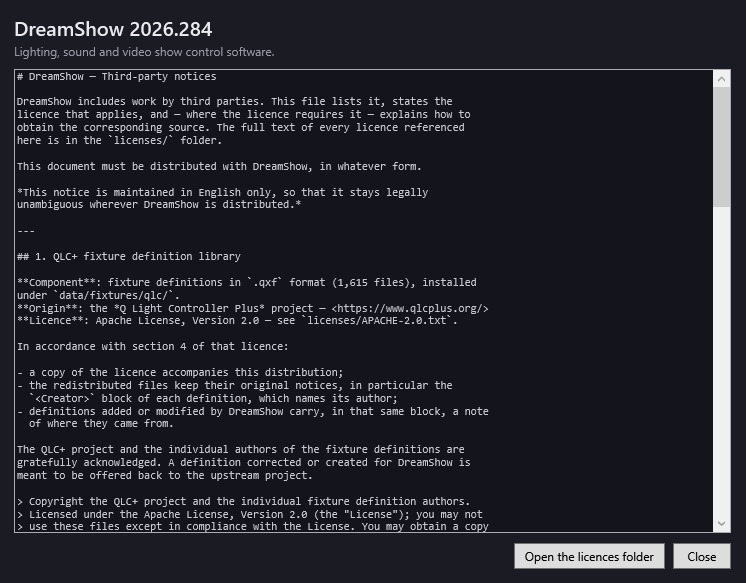
? > About DreamShow… opens the About DreamShow window:
- at the top, “DreamShow” and the version number, then “Lighting, sound and video show control software.”;
- in the centre, the notices for third-party components and their licences (file
THIRD-PARTY-NOTICES.md); if this file cannot be found: “THIRD-PARTY-NOTICES.md not found beside the application.”; - Open the licences folder: opens the
licensesfolder in File Explorer; - Close.
Step by step
Switching the interface to English
- Click the globe in the menu bar.
- Click English.
- Answer Yes to the restart question.
Checking you have the latest version before a performance
- Connect the PC to the Internet.
- Menu ? > Check for updates….
- If a version is offered, read what has changed before deciding. Do not update just before a performance.
Good to know
- An update does not touch your work. The demonstration files (demo shows, venues, trajectories and effects) are only installed if they do not exist yet: if you have modified them, your changes are kept. Your own shows, venues, media and effects are never replaced.
- Fixture definitions you have modified (folder
data\fixtures\custom) and those updated online (data\fixtures\online) are not touched by an update. - DreamShow is free: a licence installed by an earlier version is no longer needed. See DreamShow is free.
- The automatic update check can be turned off by putting
"checkUpdates": falsein the filedata\dreamshow.settings.json(with DreamShow closed). The ? > Check for updates… menu remains available. - If the manual check cannot reach the Internet, DreamShow also displays “You have the latest version (…).”: check the connection before relying on it.