Manual contents
DMX stream by an AI
This function has an AI write the complete lighting of a piece of music, frame by frame, as a DMX stream (a .DmxStreaming file). DreamShow prepares a request that describes the venue, the chosen fixtures channel by channel, and the analysis of the music (tempo, beats, bars, sections, accents). You paste it into an AI chat able to run Python; the AI gives you a file back, which DreamShow checks, corrects if necessary, then places in a scene with the music.
Unlike Creating a show with an AI, which produces scenes you can edit block by block, the result here is a DMX recording: very rich, perfectly locked to the music, but replayed as it is.
To open it: menu File > DMX stream by an AI…
The show must have been saved at least once: the stream and the music go into its media folder. Otherwise DreamShow displays “Save the show first: the stream and the music go into its media folder.”. A venue must also be loaded.
The window stays open while you work in the AI chat.
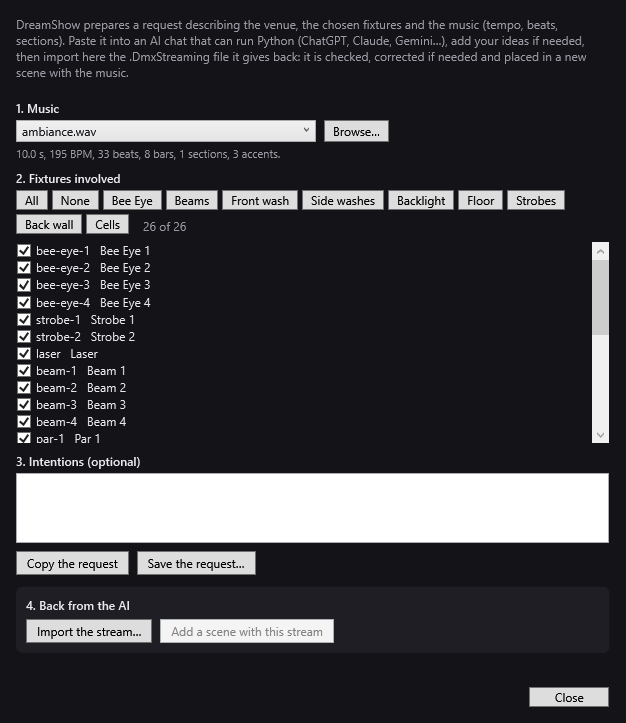
1. Music
- The drop-down list offers the sound files already in the show's media folder (wav, mp3, m4a, aac, wma, flac). The first is chosen by default.
- Browse…: chooses a sound file elsewhere on the disk; it is added to the list and becomes the chosen music.
As soon as a music file is chosen, DreamShow analyses it (“Analysing the music…”) then displays the result, for example: “214.3 s, 124 BPM, 442 beats, 110 bars, 7 sections, 26 accents.”. During the analysis, the request buttons are greyed out. If the file cannot be read: “Cannot read: …”.
2. Fixtures involved
The list shows all the fixtures of the venue, except those marked “invisible”, in the form identifier name. All are ticked at the start.
- All / None: ticks or unticks the whole list.
- One button per group of the venue (tooltip “Add or remove this group”): ticks all the fixtures of the group; if they are already all ticked, unticks them.
- The counter “… of …” shows how many are ticked.
Only the ticked fixtures are described to the AI, and only their channels will be accepted on the way back. Untick the devices the music must not drive (smoke, house lighting…).
A fixture whose definition cannot be found, or whose channels go past address 512 of its universe, is set aside; the status line flags it: “Skipped (definition not found or address outside the universe): ….”.
3. Intentions (optional)
Free text area: describe what you want (“cold blue mood at the start, an explosion of colours at the chorus, moving heads fanning out on the bridge…”). The text is inserted as it is into the request. Left empty, the request asks the AI for a lighting design that follows the structure of the song, with varied looks and original moving-head movements.
- Copy the request: builds the request and copies it to the clipboard. The status line shows its size (“Request: … characters, … fixtures, … channels.”) then “Copied: paste it into the AI chat. If it refuses such a long message, save it and attach the file.”
- Save the request…: saves the same request to a Markdown (
.md) or text (.txt) file. Suggested name:<music name>-ia-consigne.md. Handy when the chat refuses a message that is too long: attach the file instead.
If no music has been analysed: “Choose the music first.”. If no fixture is ticked: “No fixture selected.”.
What the request contains
- The request itself: create the lighting of the piece in the form of a
.DmxStreamingfile, with a required method: the AI must not write the file by hand, but save the Python module supplied (dreamshow_stream.py, without modifying it), write a script that describes the lighting frame by frame, run it, and give you the file to download with its summary. If it cannot run code, it must give you the complete script. - The name of the file expected:
<music name>-ia.DmxStreaming(simplified name: lower case, no accents, hyphens). - Your intentions.
- The music: name, length, tempo, number of beats and bars, end of the audible part, accents, and a table of the sections detected with their level and register.
- The venue: its dimensions, the reference frame in metres (x from stage right towards stage left, y from the upstage wall towards the audience, z from the floor) and the position of the stage.
- The fixtures: for each type, the model, the mode, the number, the moving heads' pan/tilt range, the cells, and a table of all the channels: role, neutral value, possible values, locked channels and forbidden ranges.
- The rules: cover the whole piece starting and ending in blackout; never touch locked channels or write forbidden ranges; limited strobe; limited movements; be inventive.
- The file format and the complete Python module, with an example script.
Locked channels and forbidden ranges. In each fixture's definition, DreamShow finds whatever could make it drop out of the stream or upset it: reset, automatic or sound-driven programs, master/slave modes, lamp, inversion, calibration, display, fan settings… A whole maintenance channel is locked (it always stays at its neutral value); elsewhere, only the dangerous ranges are forbidden. The neutral value leaves the channel harmless: shutter open, pan and tilt centred, movement speed at maximum, no effect, colour wheel on white.
4. The AI's answer
- Import the stream…: choose the
.DmxStreamingfile the AI gave you. DreamShow checks it (“Checking the stream…”) and writes a corrected copy in the show's media folder, under the name of the imported file (with “-2”, “-3”… if that name already exists). Your original file is not modified. - Add a scene with this stream: active after a successful import. Adds to the show a scene named “AI: <music name>”, placed just after the scene selected in the Scenes panel (or at the end if none is selected). It contains:
- a track “DMX IA” (AI DMX) with a DMX stream block (▦ followed by the file name), of the length of the stream;
- a Sound track with the music, of the length of the piece. If the music came from elsewhere (Browse… button), it is copied into the show's media folder. The status line confirms: “Scene "…" added to the show.”. The button is then greyed out (one import = one scene).
- Close: closes the window.
The fixtures ticked at the time of the import are the ones that count: keep the same selection as when you made the request.
Checks and corrections
The report is displayed under the buttons. Each line starts with a symbol: ✖ error, ⚠ warning, • remark, ✔ “No problem found.”. One line summarises the file: “… frames, … s at … frames/s, … channels.”.
Errors (nothing is imported):
- “Unreadable file: …”: it is not a valid
.DmxStreamingfile. - “The file contains no frame.”
- “No channel of the file belongs to the chosen fixtures (wrong venue or wrong patch?).”
Corrections made in the copy:
- Foreign channels: “… channels outside the selection were removed: they would have driven other devices.”
- Forgotten channels: “… channels missing from the file were added at their neutral value.”
- Forbidden values: any value written on a locked channel, or in a forbidden range, is set back to neutral: “… forbidden or locked-channel values set back to neutral (…).”, with the five channels most affected.
- Moving-head speed: a real moving head does not follow more than about 180° per second on each axis. If the stream goes faster, DreamShow flags it (“Fastest movement: … °/s (…), beyond what a moving head can follow (~180 °/s): the copy slows it down as the fixture would.”) and limits each axis to that speed: the simulation thus shows what the moving head will really do.
Flags (the copy is not modified):
- “Continuous strobe for … s (advised: 4 s at most).”
- “Strobe during … % of the song (advised: 10 % at most).”
- “Flashing at … flashes per second (…), above 8.” (flashing done with the intensity).
- “Length … s for music lasting … s.” when the stream and the music differ by more than half a second.
Remarks:
- “… chosen fixtures are not in the file: the scene keeps driving them.” (they are not forced to neutral, which would turn them off).
- “File frame rate: … frames per second.” when the stream is not at 40 frames per second.
The strobe flags are comfort and audience-safety alerts: if one of them appears, ask the AI to reduce it, or correct the scene.
How the stream plays
- While the red line crosses the stream block, each frame of the file is applied at the exact moment. The stream only drives its own channels, on all the universes concerned; the rest of the scene carries on normally.
- Pause freezes the frame; a click on the timeline ruler repositions the stream. The block has no fade: only Start (s) and Length (s) can be set in its properties (double-click the block).
- The music on the Sound track starts at the same moment: the stream stays in sync.
Step by step
- Save the show (Ctrl+S) if it is new, and copy the music into its media folder (Import media… button of the Libraries panel), or keep it to hand.
- Open File > DMX stream by an AI….
- Choose the music and wait for the analysis line.
- Tick the fixtures involved (the group buttons are quick).
- Write your intentions, if you have any.
- Click Copy the request (or Save the request… if the message is too long for the chat).
- In an AI chat able to run Python, paste the request (or attach the file) and send. Let the AI write and run its script.
- Download the
.DmxStreamingfile it produces. - In DreamShow, click Import the stream… and choose that file. Read the report.
- In the Scenes panel, select the scene after which the new one should come, then click Add a scene with this stream.
- Close the window, select the “AI: …” scene and start playback to see it in the simulation.
If the AI chat cannot run code, it gives you a Python script: run it on your PC with Python 3, in the same folder as the dreamshow_stream.py module it contains, to get the file.
Good to know
- The stream is tied to the venue and to the DMX addresses of the moment: if you re-patch the fixtures, make a new request and a new stream.
- The moving-head movements are calculated for the real position and hanging of each moving head as declared in the venue: place them correctly in Venue > Fixtures, addresses, positions… before making the request.
- The request can be long (several tens of thousands of characters with many fixtures): this is normal.
- A
.DmxStreamingstream is also used by the standalone player.