Manual contents
Sound and video on the timeline
The sounds and videos of your show are placed on the scenes' timelines, like light blocks: they start when the red line reaches them, with their fades, and follow the red line when you move around the timeline. This page also describes the Stop sound, Silence and Sound level blocks of the Others list, and DMX recordings.
To open it: drag a file from the Media list (Libraries panel) onto a track of the Scene timeline panel, or select it and click Add to the timeline. Stop sound, Silence and Sound level are dragged from the Others list.
Media files
A show's media are stored in its media folder (File > Open the show's media folder). The Media list shows this folder.
- Import media…: copies one or several files into the show's media folder.
- ↻: “Refresh the media list”.
- Add to the timeline: drops the selected medium at 0 s on the current track (or on a “Media” track, created if needed). If nothing is selected, a file-choice window opens; the chosen file is copied into the show's media folder, then placed on the timeline.
- Right-click on a medium: ▶ Play (listens to or displays the file as a test), ■ Stop, Edit with GoldWave, Open the media folder, Delete the media. See Libraries.
DreamShow recognises the type from the extension:
- Sound: .mp3, .wav, .flac, .ogg, .m4a, .aac, .wma. Played by DreamShow itself, on the Windows sound output.
- DMX recording: .DmxStreaming, .bin, .dmx (see below).
- Video: all the other files (.mp4, .avi, .mov, .mkv…). Played by DreamShow's video player (ppvideoplayer) on a screen of the venue, or by an IP video player.
The media block
A media block is blue and bears the file name. Its initial length is the real length of the file (30 s if unknown; it corrects itself as soon as the file has been read once). If the file is missing from the media folder, the block is red with ⚠ (“MEDIA NOT FOUND in the show's media folder”).
The settings (Properties…)
Right-click > Properties… or double-click:
- Start (s): the moment the medium starts.
- Length (s): playing time. At the end of the block, the medium stops, even if the file is longer. A block longer than the file does not extend the file.
- Fade in (s): the sound rising from silence, or the video appearing from black.
- Fade out (s): the sound dropping to silence, or the video fading to black; it ends at the end of the block. For a video, 0 lets the video player apply its default setting.
- Play from (s): starting position in the file (for example 12 to skip the first 12 seconds). 0 = from the beginning.
- “Chargement” (Loading): when the file is opened in advance, so that the start is immediate:
- When the scene loads (default): opened when the scene becomes the current scene, or the one before it; released when it is left;
- When the project loads: opened when the show is opened and kept;
- Without preloading: opened only at the moment it is played (a slight delay is possible).
- Screen (videos only): the screen of the venue where the video is played. (file tag / default) lets the video player choose from the file name, otherwise its default screen; the other choices are the screens declared in Venue > Screens…. See Video screens.
Hints in a video file's name
The video player reads hints written in brackets in the file name, for example generique (M=2) (FI=1500) (LOOP).mp4. They apply when the block leaves (file tag / default).
| Hint | Effect |
|---|---|
(M=2) | plays the video on Windows monitor 2 |
(LOOP) | plays the video in a loop |
(FI=1500) | fade in of 1,500 milliseconds (1,000 by default) |
(FO=800) | fade out of 800 milliseconds (500 by default) |
(PI=500) | when paused, the video gradually slows down for 500 milliseconds before stopping |
(PO=500) | when resumed, the video gradually speeds up for 500 milliseconds |
(AMBI) | enables ambilight: see AMBILIGHT= in Scene settings |
The fade in and fade out set on a timeline block replace those in the file name.
There is no volume or loop setting per block:
- the volume is global (sliders of the Audio panel and Sound level blocks);
- to repeat a sound or a video, tick Loop in the scene settings: on each pass, the timeline restarts from 0 and the media restart (see Jumps and scene labels).
Sounds
- They follow the red line: clicking in the ruler in the middle of a sound makes it play from that point; pausing pauses it.
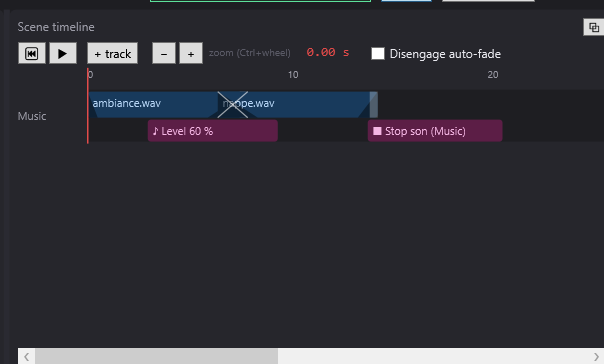
- Two sounds that overlap on the same track make a crossfade: the first goes down and the second comes up during the overlap (a longer fade that you have set is kept). A cross appears on the overlap.
- On two different tracks, two sounds play together. The same file can even play twice at the same time from two tracks.
- A sound carries on after a scene change: a GO does not cut it. If it is still playing when you move on to the next scene, it continues to the end of the file (if it has a fade out, it fades out where its block ended). To stop it, drop a Stop sound or a Silence in the next scene.
- The 🔇 Mute the sounds button of the Audio panel (and of the cue window) stops all sounds immediately. See Log, Audio and Clock.
Videos
- A video stops when its scene is left (the player fades to black).
- On a Windows screen, the video follows the red line: clicking in the ruler in the middle of the block restarts it at the right frame; when paused, the picture stays frozen at the position of the red line.
- On an IP video player, the video starts from the file attached to a player slot: the block then shows “· slot A” next to the name. The file must be associated with a slot in Venue > Screens…. An IP player does not follow the red line's movements.
- Two videos that overlap do not make an automatic crossfade: each keeps its own fades.
- With a screen placed in the venue, the video also appears in the 2D/3D simulation, locked to the red line. See 2D and 3D simulation.
Stop sound
Cuts sounds at a precise moment.
- Creation: drag Stop sound from the Others list onto a track. It is an instantaneous event.
- Settings (Stop sound — tracks to stop window):
- Start (s): the moment of the cut.
- Length (s): the block's width on screen only; the cut is immediate.
- All tracks (ticked by default): cuts all sounds.
- one box per track of the scene (active when All tracks is unticked): cuts only the sounds started from the ticked tracks. If none is ticked, all sounds are cut.
- The block shows “■ Stop sound (all)” or the list of targeted tracks.
- Tracks are recognised by their name: a sound started in a previous scene from a track of the same name is cut too. This is how to stop, in scene 3, the music started by the “Music” track of scene 2.
- A Stop sound and a new sound placed at the same moment: the old sound is cut first, then the new one starts.
Silence
Silences all sounds, with a fade if a sound of the scene is playing.
- Creation: drag Silence from the Others list onto a track. The block lasts 3 s and can be resized.
- What it does: at its start, it stops all sounds. If a sound of the scene is playing at that moment, all sounds fade down over the length of the block (or until the end of that sound if it ends sooner). Otherwise, the cut is immediate.
- The block shows “🔇 Silence — fade 3 s”.
- Its Properties… window offers Fade in (s) and Fade out (s), but only the Length (s) counts.
Sound level
Changes the overall volume of DreamShow's sounds, as if you moved the L and R sliders of the Audio panel (they do move on screen, too).
- Creation: drag Sound level from the Others list onto a track. The block takes the current levels of the Audio panel and lasts 5 s.
- Settings (Sound level window):
- Start (s): the moment of the change.
- “Volume gauche (%)” (Left volume) and “Volume droit (%)” (Right volume): from 0 to 100.
- Length (s): used for transitions (see below).
- Behaviour: the level changes at once at the start of the block. When two Sound level blocks overlap on the same track, the level glides from the first to the second during the overlap (tooltip “overlap = crossfade”).
- The level is a state: it stays in force, even in the following scenes, until the next Sound level or until you move the sliders. When you move the red line, DreamShow reapplies the last level placed before it.
- The block shows “♪ Level 80 %”, or “♪ Level L 80 % R 60 %” if the two sides differ. In a show imported from ppshow, “· master fade” indicates a level that follows the scene's incoming fade.
- On a track that also carries other blocks, Stop sound and Sound level are displayed on a lower level.
Stop sound, Silence and Sound level act on the sounds played by DreamShow (sound files). They do not adjust the sound of videos.
DMX recordings
A .DmxStreaming file (DMX stream, for example produced by an AI or by visualiser mode) or a .bin / .dmx recording dropped from the Media list becomes a plum-coloured “▦ file name” block.
- Its initial length is the real length of the recording.
- Properties…: only Start (s) and Length (s) (no fade).
- As long as the red line is inside the block, the recording is replayed at the right position: a .DmxStreaming drives only its own channels, on any universe; a .bin or .dmx entirely replaces the first universe. Pause freezes the picture, a click in the ruler repositions it.
See DMX stream by an AI and Visualiser mode.
Step by step
An entrance music that crossfades into a second one
- Import “entree.mp3” and “valse.mp3” (Import media…).
- Create a “Music” track (+ track, then right-click > Rename the track…).
- Drag “entree.mp3” onto “Music” at 0 s; give it a Fade in (s) of 3.
- Drag “valse.mp3” onto the same track, so that it overlaps the last 4 seconds of “entree.mp3”: a cross appears, and the two pieces of music blend into each other.
- ⏮ then ▶ to listen.
Cutting the previous scene's music
- In scene 2, the “Music” track starts a piece of music that lasts longer than the scene.
- In scene 3, add a track, drag Stop sound to 0 s.
- Double-click it, untick All tracks, tick “Music” if a track of that name exists in scene 3 (otherwise, name a track “Music” first). OK.
- On the GO to scene 3, the music stops; the other sounds carry on.
For a gentle ending, use Silence instead: placed while a sound of the scene is still playing, it fades all sounds down over its length.
Lowering the music under a line
- On a single track, drop a Sound level at 10 s (100 %, length 2 s), then a second one at 11 s set to 40 %: they overlap by 1 s, and the level goes from 100 to 40 % in 1 s.
- Further along the same track, at 30 s, drop a Sound level at 40 % (length 3 s), then another at 31 s at 100 %: the level comes back up in 2 s.
Projecting a video on the back screen
- Declare the screen in Venue > Screens… (for example “Back”).
- Drag the video onto a “Video” track.
- Properties…: Screen = “Back”, Fade in (s) 2, Fade out (s) 2.
- The video fades in at the start of the block and goes to black at its end.
Good to know
- A sound started in a scene is not cut by the GO: provide a Stop sound or a Silence where it must stop, or adjust the length of its block.
- During a wait block, the scene's sounds and videos pause with the timeline (see Waits).
- The 🔇 Mute the sounds button stops everything, editor and performance alike.
- A robot can speak a recorded text and have it heard on the PA as well: see Humanoid robots.