Manual contents
Libraries
The Libraries panel brings together everything you place on a scene's timeline: fixture groups, media (sounds, videos, pictures, DMX streams), effects, trajectories and the other events (jumps, waits, blackout, volume…). You drag them onto a timeline track; some can also be created directly here, from the selection.
To open it: the panel is in the right-hand column of the main screen (default layout).
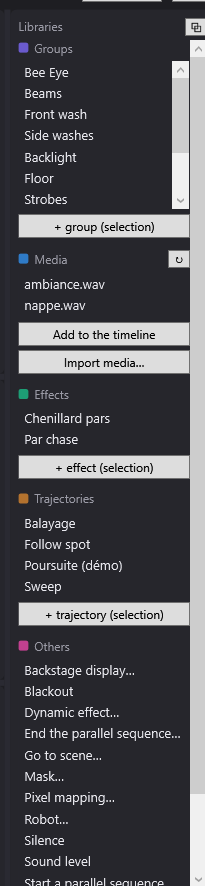
The panel has five sections. In front of each heading, a small coloured square recalls the colour of the matching blocks on the timeline (the square's tooltip says so).
| Section | Block colour | Square's tooltip |
|---|---|---|
| Groups | purple | Colour of light blocks on the timeline |
| Media | blue | Colour of media blocks on the timeline |
| Effects | green | Colour of effect blocks on the timeline |
| Trajectories | orange | Colour of trajectory blocks on the timeline |
| Others | pink | Colour of “Other” events on the timeline |
Dragging an item onto the timeline
The gesture is the same for all the lists:
- Click an item in the list and, without releasing, move the mouse a few pixels.
- Bring it onto a track of the Scene timeline, at the place (time) you want.
- Release: the block is created there.
The details of the blocks (duration, fades, properties) are in The scene timeline and the pages that follow.
Groups
The list of the venue's groups.
- Dragging a group onto a track creates a 10-second light block for that group. The block takes the group's setting from the final state of the selected scene; failing that, its setting in another scene of the show; failing that, white at 100 %. See Light and effect blocks.
- + group (selection) (tooltip “Creates a group with the selected fixtures”): creates a group with the ticked fixtures. DreamShow asks for its name (“Group name (N fixtures):”). The group is saved at once in the venue and appears in the selection tree. A name already used by a group or by a fixture is refused. See Selecting fixtures and adjusting the light.
- Right-click > Delete the group: removes the group from the venue, after confirmation. The fixtures stay; only the show settings that targeted this group no longer target anything.
Groups can also be managed in Venue > Fixtures, addresses, positions… (see Fixtures, addresses, positions).
Media
The list of the files in the show's media folder: medias\<nom du show> in the data folder (the folder opens with File > Open the show's media folder). Each show has its own media folder. All the files in the folder are listed, in alphabetical order.
The list updates by itself when a file is added, deleted or renamed in the folder (for example from Windows Explorer).
- ↻ (tooltip “Refresh the media list”): rereads the folder by hand. Timeline blocks whose file is missing are flagged again, and the video player rereads its folder.
- Add to the timeline: adds the selected media to the scene, at time 0.
- The block goes on the track chosen in the timeline; failing that, on a track named “Media” (created if needed).
- Its duration is the real duration of the file (rounded up to the next tenth of a second), or 30 seconds if it is unknown; DreamShow refines it as soon as it has been able to open the file.
- A DMX stream file (
.DmxStreaming,.bin,.dmx) becomes a DMX block, on the chosen track or on a “DMX” track, with the real duration of the recording. - If no media is selected, a file-open window appears; the chosen file is copied into the show's media folder (if it is not already there), then added.
- Import media… (tooltip “Copies one or more files into the show's media folder”): choose one or more files; they are copied into the show's media folder. A file with the same name already there is replaced. The status line at the top of the screen confirms “N media imported into medias\…”.
- The types offered: “Media” (
.mp4,.avi,.mov,.mkv,.mp3,.wav,.flac), “DMX streaming” (.DmxStreaming,.bin,.dmx) and “All”.
- The types offered: “Media” (
- Dragging a media file onto a track: creates a media block (or a DMX block for a DMX stream) at the time where you drop it.
The right-click menu on a media file
Right-clicking selects the media under the pointer and opens:
- ▶ Play: listen to or watch the media straight away, to try it out. A sound is played by DreamShow; a video is sent to the ppvideoplayer video player (started if needed).
- ■ Stop: stops all sounds, and the selected video.
- Edit with GoldWave: opens the file in the GoldWave audio editor, if it is installed. DreamShow looks for it in the usual installation folders; if it cannot find it, it asks where
GoldWave.exeis and remembers it. - Open the media folder: opens Windows Explorer on the media folder, with the file selected.
- Delete the media: erases the file from the media folder, after confirmation. If the media is used on a timeline, the confirmation warns: “WARNING: this media is used on the timeline — the blocks will turn into errors.”
See Sound and video on the timeline.
Effects
An effect is a named light setting (groups or fixtures and their values), reusable in every scene and every show. Effects are saved in the effects.json file in the data folder.
- Dragging an effect onto a track creates a 10-second effect block. The block refers to the effect by its name: changing the effect changes every block that uses it.
- + effect (selection) (tooltip “Saves the selection and its settings as a named effect (double-click = edit an effect)”):
- Tick groups or fixtures and make your settings.
- Click + effect (selection) and give a name (“Effect name:”).
- The effect saves, for each ticked target, the values of the Dim, R, G, B sliders (and Pan, Tilt for moving heads), plus the special channels the target has in the scene's final state.
With no target ticked: “Tick groups/fixtures and make your settings, then create the effect.” A name already in use is refused.
- Double-click an effect, or right-click > Edit the effect: switches to effect mode. The banner of the Scene settings panel turns orange (“EFFECT MODE — “…”: the settings change the effect, not the sequence”), the effect's targets are ticked, and all the settings (sliders, palette, specific settings, Aim…) change the effect. The simulation shows the effect over the selected scene. The right-hand list is headed “Contents of effect “…””.
- ✔ Finish editing the effect (on the right of the banner): saves the effects and goes back to sequence mode.
- Right-click > Delete the effect: deletes the effect, after confirmation.
Trajectories
A trajectory is a moving-head movement described by keyframes (positions, colours, zones) over time. Each trajectory is a file in the trajectoires folder of the data folder.
- Tooltip of the list: “Double-click = open the key-frame editor; drag onto a track = insert; Del = delete”.
- Dragging a trajectory onto a track creates a trajectory block as long as the trajectory.
- Double-click: opens the keyframe editor and switches to trajectory mode.
- Delete (key): deletes the selected trajectory, after confirmation.
- The right-click offers:
- Open the editor;
- Duplicate…: saves a copy under another name (suggested: the name followed by “(copy)”); the original and its blocks are not touched;
- Delete…: erases the file permanently, after confirmation. Blocks already placed on a timeline remain, but no longer play anything.
- + trajectory (selection) (tooltip “Creates a trajectory for the ticked heads: their current state becomes the first key frame, then the editor opens”): first tick and position the moving heads, click, give a name; the editor opens.
All the details are in Trajectories.
Others
Events to drag onto a track (tooltip of the list: “Drag onto a track: instant events”). The list, sorted in alphabetical order (of the French names), contains:
| Item | In brief | Detailed page |
|---|---|---|
| Backstage display… | sends a message to the backstage monitors | Backstage displays |
| Go to scene… | jumps to another scene (DreamShow asks which one when you drop it) | Jumps and scene labels |
| Wait for a time, a date, the sun… | stops the show until a duration, a time, a date or sunrise/sunset | Waits |
| Wait for a key… | stops the show until a key is pressed | Waits |
| Start a parallel sequence… | starts a second playback from a scene | Parallel sequences |
| Dynamic effect… | a waveform applied to an attribute of a group of fixtures (wave, chase, fan of circles…) | Dynamic effects |
| Mask… | controls an LED mask | LED masks |
| Sound level | changes the left/right volume | Sound and video on the timeline |
| Blackout | forces all intensities to zero for the length of the block (positions unchanged) | Light and effect blocks |
| Pixel mapping… | plays content (pattern or picture) on the cells of bars, matrices and fixtures seen as a picture | Pixel mapping |
| Robot… | controls a humanoid robot | Humanoid robots |
| Silence | fades out all sounds, over the length of the block (a zero-width block cuts dead) | Sound and video on the timeline |
| Stop sound | stops the sounds playing (all of them, or those of certain tracks) | Sound and video on the timeline |
| End the parallel sequence… | stops a parallel sequence with a fade | Parallel sequences |
For most items, a settings window opens when you drop them, because the block makes no sense without it: Backstage display…, Go to scene…, the two waits, the two parallel sequences, Dynamic effect…, Pixel mapping…, Robot… and Mask…. Cancelling this window adds nothing. Sound level, Blackout, Silence and Stop sound are placed directly; you then set them on the timeline.
Step by step
Putting music on a scene
- Click Import media… and choose the
.mp3or.wavfile. - The file appears in Media.
- Select the scene, then drag the file onto a track at time 0 (or select it and click Add to the timeline).
- The blue block takes the length of the track.
Creating and reusing a “Blue mood” effect
- Tick the groups concerned, set Dim and the colour.
- Click + effect (selection), name it “Blue mood”.
- Drag “Blue mood” onto the timeline of any scene, of any show.
- To retouch it everywhere: double-click it, adjust, then ✔ Finish editing the effect.
Good to know
- Media are referenced by their file name only, in the show's media folder: copying the project to another PC (File > Export the whole project (zip)…) keeps everything in place.
- Import media… replaces without warning a file that already has the same name in the folder.
- Effects and trajectories are shared by all the shows in the data folder; media belong to a show.
- Changes to an effect are saved in
effects.jsonwhen you click ✔ Finish editing the effect. - Delete the media and Delete… (trajectory) really erase the files from the disk.