Manual contents
Timecode (LTC / MTC)
Timecode is a time (hours:minutes:seconds:frames) sent continuously by another device: an audio track, a mixing desk, a multitrack recorder, video or music software. DreamShow can follow it: each scene that has a start time starts when the timecode reaches it, and DreamShow stays locked to it. It is the solution when the light must land exactly with a soundtrack or a video played by another system.
Two forms of timecode are recognised:
- LTC (linear timecode): an audio signal, carried on an audio track or an audio cable, arriving at a sound input of the PC.
- MTC (MIDI timecode): the same time carried as MIDI messages, arriving through a controller or a MIDI interface.
To open it: menu DMX > Timecode (LTC / MTC)….
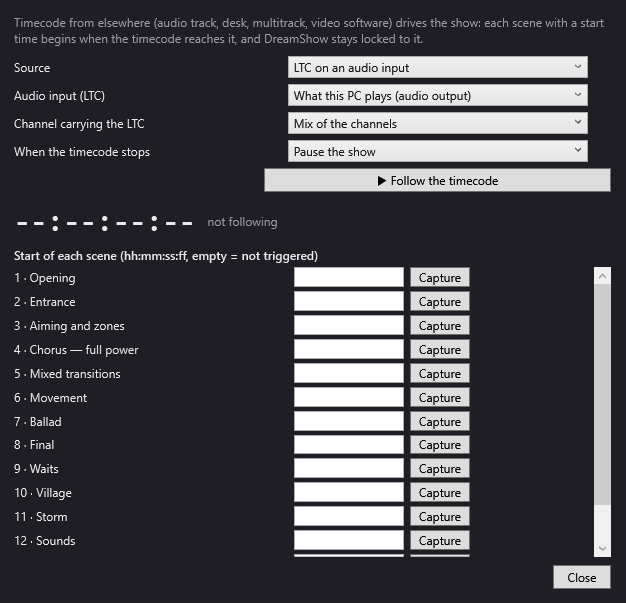
The source
- Source:
- LTC on an audio input (default).
- MTC from the MIDI controllers: the MTC arrives through the MIDI devices ticked and applied in DMX > MIDI controllers… (see MIDI controllers).
- Audio input (LTC): the sound input that receives the LTC. The first line, What this PC plays (audio output), listens to the sound coming out of the PC; the following ones are Windows' inputs (line input, microphone…). Setting active only for LTC.
- Channel carrying the LTC: Mix of the channels (default), Left channel or Right channel. Choose the channel that carries the LTC when the other carries music, for example a stereo track with the music on the left and the timecode on the right. Active only for LTC.
- When the timecode stops:
- Pause the show (default): when the timecode stops arriving, the cue list freezes where it is.
- Let the show carry on: the cue list keeps playing by itself. The timecode is considered stopped when no frame has arrived for half a second.
Any change of source, input or channel immediately restarts reception if following is running. These settings are remembered.
Following the timecode
- ▶ Follow the timecode: starts following. The button becomes ■ Stop following the timecode. If the sound input cannot be opened, a message “Audio input unavailable: …” explains why.
- The large display: the timecode received, in the format hh:mm:ss:ff (ff = frames). “--:--:--:--” as long as nothing has been received; when the timecode stops, the last value received stays displayed.
- The status line next to it:
- not following;
- no timecode received followed by the source, when following is running but nothing arrives;
- during reception: the frame rate detected (for example “25 fps”), the source, and the scene the timecode points to (“scene 3”).
While following, DreamShow's title bar displays “[timecode]”.
What DreamShow does while following
About 25 times a second, DreamShow looks for the last scene whose start time has been reached by the timecode, and calculates where we are in that scene. Then:
- if the cue list is not on that scene, it jumps to it, at the right position in its timeline, and makes it play;
- if it is on the right scene but out by more than a quarter of a second, or paused, it resets it and restarts it;
- once the end of a scene's timeline is reached (a scene that does not loop), it lets it rest on its end without restarting it.
Practical consequences:
- before the start time of the first scene, nothing happens;
- if the timecode goes backwards (rewind), DreamShow goes back to the corresponding scene;
- a scene without a start time is never chosen by the timecode;
- while the timecode is running, a GO or a click on another scene is corrected at once: the timecode decides.
Jumps are made without a fade, straight to the right position.
The start of each scene
Under the heading Start of each scene (hh:mm:ss:ff, empty = not triggered), each scene of the show has a line: its number and name, a start-time box, and a Capture button.
- The box: type the start time, for example
00:01:30:00, then leave the box. The separators:,;and.are accepted; four numbers are required (minutes and seconds up to 59, frames up to 29). An invalid entry is cancelled and the old value comes back. An empty box = the scene is not triggered by the timecode. - Capture (Take the timecode being received now as this scene's start): copies the timecode that is arriving, or failing that the last one received, into the box.
The start times are part of the show: they mark the show as modified, and it has to be saved (File > Save, Ctrl+S).
- Close: closes the window. Following carries on.
Step by step
Locking a show to a soundtrack that carries LTC
- Connect the output that carries the LTC to a line input of the PC.
- Open DMX > Timecode (LTC / MTC)…, choose LTC on an audio input, the line input, and the channel that carries the LTC.
- Click ▶ Follow the timecode and start the tape: the display should scroll and the frame rate be shown.
- For each scene, at the right moment of the tape, click Capture; or type the start times noted from the cue sheet.
- Save the show (Ctrl+S).
- Rewind and restart the tape: the scenes all start by themselves at their time.
Following music software over MTC
- In DMX > MIDI controllers…, tick the MIDI interface that receives the MTC, then Apply.
- In DMX > Timecode (LTC / MTC)…, choose MTC from the MIDI controllers.
- Click ▶ Follow the timecode, then start playback in the software.
- Fill in the scenes' start times as above.
Good to know
- Following never restarts by itself when DreamShow is launched. Remember to click ▶ Follow the timecode before the show. The source settings, however, are remembered.
- The frame rate (24, 25, 29.97 or 30 frames per second) is detected automatically.
- Frames typed by hand in a start box are counted at 25 frames per second, whatever the frame rate received. With a 30 fps timecode, prefer Capture, or times without frames (
…:00). - Following works in the editor as in Show mode. In the editor, nothing goes out to the fixtures if the LIVE button is off.
- For LTC, set a sufficient input level: a signal that is too weak is not decoded.