Program DMX moving heads for free
Do you want to program DMX moving heads for free, before you have the interface, or even before you have the moving heads? DreamShow, lighting, sound and video control software for Windows 10 and 11, lets you do everything in a 2D and 3D simulation, with no time limit: choose your models, address them, aim them with the mouse, save palettes, animate them and build the show's timeline.
What you need
- A PC running Windows 10 or 11 (64-bit). A recent graphics card makes the 3D smoother.
- The exact name of your moving heads (brand and model) and the DMX mode set on them (the number of channels, read in the device's menu).
- No DMX interface, no fixture plugged in.
Step by step
1. Declare your moving heads
- Install DreamShow. On first launch, the Welcome to DreamShow! screen opens (otherwise: menu ? > Welcome and first steps…).
- Click ⚙ Declare my fixtures.
- In Search (brand, model, type), type the brand, the model, or simply
moving head. - Choose your model, then the DMX mode (set on the fixture).
- Enter the number in How many?, name the group (for example “Moving heads”) and click Add ↓. Do the same for your other fixtures.
- Click Create the venue. DreamShow assigns consecutive addresses, creates one group per model and places the fixtures on a venue plan (the first model of moving heads on a bar at the back of the stage), which you will then adjust.
The detail is in the manual: Declaring your fixtures.
2. If your moving head is not in the list
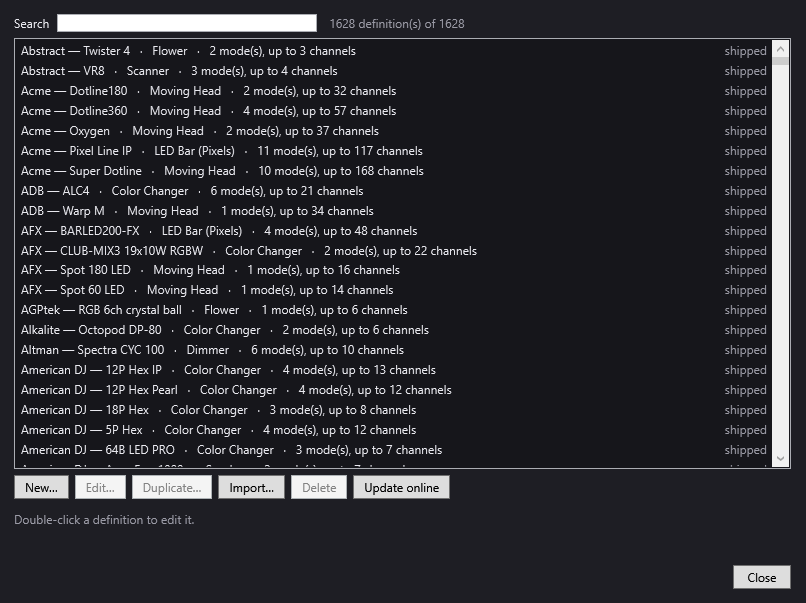
DreamShow ships with more than 1,600 fixture definitions in QLC+ format. If your model is missing, open Venue > Fixture library…:
- Import… reads a GDTF (.gdtf), QLC+ (.qxf) or DJworld (.fxt) profile;
- New… creates the definition from the DMX table in the moving head's manual.
For a moving head, fill in Max pan (°) and Max tilt (°): that is what lets DreamShow aim it. The shutter channel must be called “Shutter”. See The fixture library.
3. Check the addresses and place the moving heads
Open Venue > Fixtures, addresses, positions…. For each moving head, check:
- Mode: identical to the device's, otherwise everything is shifted;
- Universe (counted from 0) and DMX address (from 1 to 512);
- X (m), Y (m), Z (m): its real place in the venue;
- Head up (standing on the floor) if it stands on the stage.
A ⚠ flags overlapping addresses. Click Save the venue. See Fixtures, addresses, positions.
4. Set a first scene
- Select a scene in the Scenes panel.
- Tick the “Moving heads” group in Selection — groups and fixtures.
- Set Dim, the colour (R, G, B or a click in the Palette), then Pan and Tilt.
- In Specific settings, choose a gobo, a prism or the zoom.
These settings make up the scene's final state. The simulation shows them at once.
5. Aim with the mouse and cover a zone
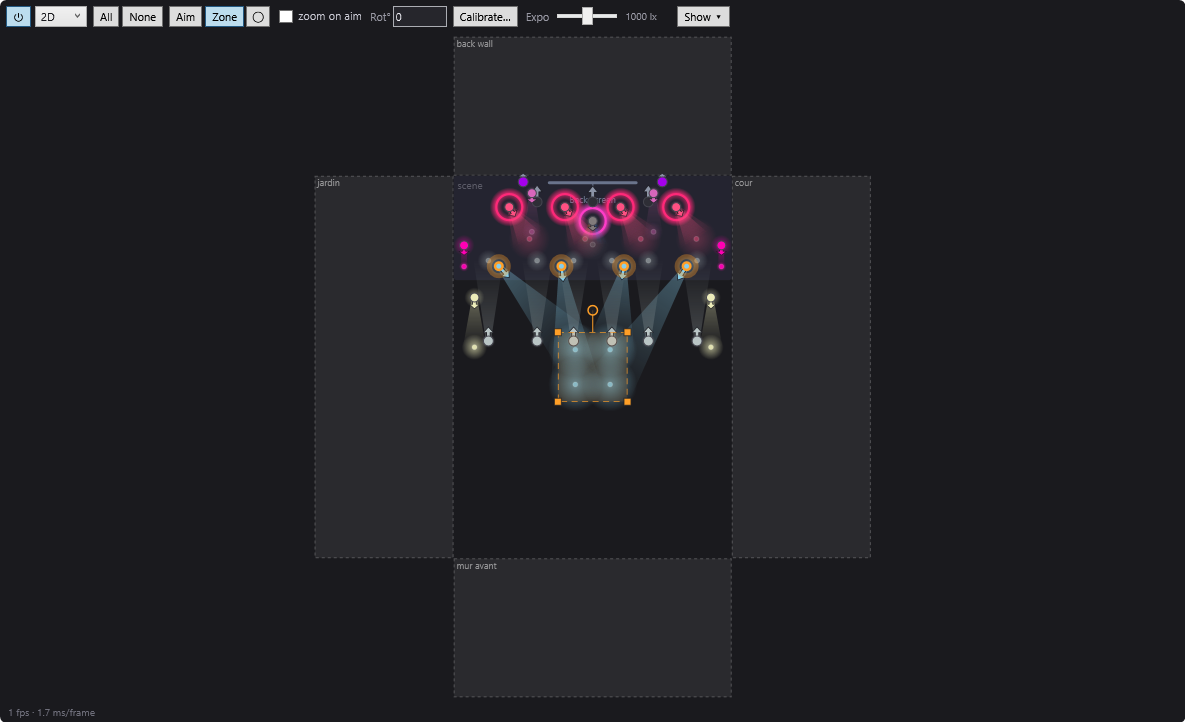
In the toolbar of the Venue panel (the simulation):
- Aim: one click on the stage, and all the selected moving heads converge on that point. In 3D, you can also aim at a wall.
- Zone: draw a rectangle (or an ellipse with ◯), and the moving heads spread over it. The corner handles enlarge it, the circle above it rotates it.
See Aiming and covering a zone with moving heads.
6. Save palettes
The Palettes… button, below the colour palette, opens the Colours, Positions and Beam palettes. Click + Save selection to keep a position (“Singer”, “Downstage”), then click the palette to link the scene to it. If the mic stand moves, right-click the palette, Update from selection, and all the linked scenes follow.
This button only appears if the selection contains a fixture that can do colour.
7. Animate the moving heads
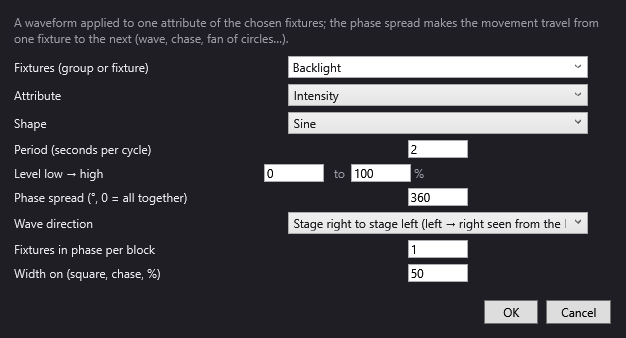
- Dynamic effects: drag Dynamic effect… from the Others list onto the timeline. Choose the Attribute Circle (pan + tilt), Figure eight (pan + tilt), Pan or Tilt, and a Phase spread so that the movement travels from one moving head to the next. The effect only sets the movement: switch the moving heads on in the final state. See Dynamic effects.
- Trajectories: tick the moving heads, click + trajectory (selection), set keyframes (with Aim or Zone), then Insert into the timeline.
8. Replay the show in 3D
Choose 3D at the top of the simulation, then ⏮ and ▶ in the timeline: the moving heads move at a realistic speed, like the real equipment. To play the show as at the control position, click Show mode: the cue window opens, and the space bar gives the Go.
The day you plug in the real moving heads
- Set up the interface in Venue > DMX connections… (Art-Net, sACN, USB DMX PRO or uDMX): see the guide Art-Net, sACN or USB DMX interface.
- Set each moving head to the address and mode declared in the venue.
- Test with DMX > DMX values… and DMX > DMX faders….
- Calibrate the moving heads that must aim accurately (Calibrate…, four corners of the stage): this is done on the real equipment.
Good to know
- DMX output is free, with no universe limit, like the rest of the software.
- The simulation approaches the real rendering, but does not replace a test on stage.
- Aiming depends on the declared positions: a moving head badly placed in the venue will aim off target.
- The 4-point calibration requires DMX output to the real moving heads.
Frequently asked questions
Can I really program everything without paying?
Yes. DreamShow is free, with no feature or time limit: venues, library, scenes, timelines, effects, palettes, trajectories, 2D and 3D simulation, and driving the real equipment too.
My moving head is not in the library: what can I do?
Look for its GDTF profile on the manufacturer's website or on GDTF Share and import it, or create the definition in Venue > Fixture library… with New…, from its DMX table.
Will the show prepared in simulation work on the real moving heads?
It is the same show. Just check that the mode and address set on each moving head are those of the venue, that the positions are right, and calibrate the moving heads that must aim precisely.
Do I need an Internet connection?
Not to program, nor to drive the moving heads: there is nothing to activate. The Internet is only used to download DreamShow and, if you wish, to update the fixture library (Update online).
Try DreamShow on your own show
DreamShow is free, with no feature or time limit: from 3D preparation to show night.