Prepare your show in 3D before the get-in
Preparing your show in 3D before the get-in means arriving on the day with a cue list already written and rehearsed, and keeping for the stage only the settings that need the real equipment. DreamShow, lighting, sound and video control software for Windows, simulates the venue in 2D and 3D with its fixtures, their beams and the video screens. DreamShow is free, with no feature or time limit, from preparation in 3D to show night with the real fixtures.
The principle
In DreamShow, the venue describes the place: its dimensions, its stage, its fixtures with their addresses and positions, its screens and its DMX connections. The show is the sequence of scenes played in that venue. The more faithful the venue, the more what you see in 3D looks like what you will see on stage.
Step 1: create the venue to scale
- Declare your fixtures with the wizard (? > Welcome and first steps…, ⚙ Declare my fixtures): it creates the venue, the addresses and one group per model. See Declaring your fixtures.
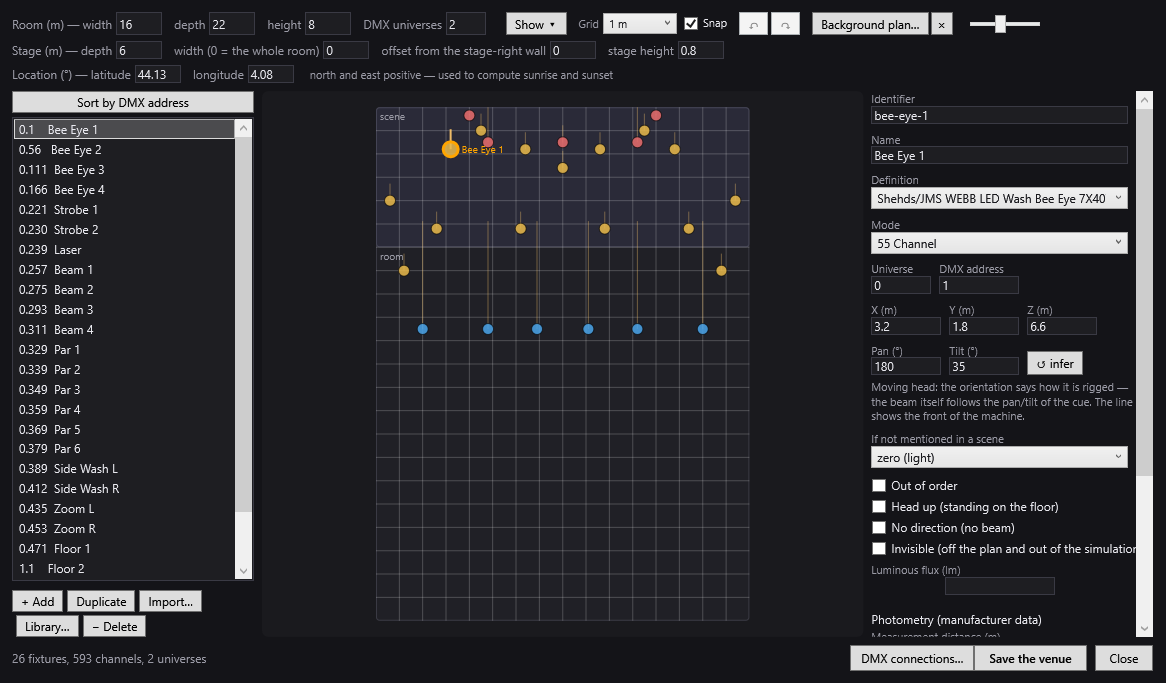
- Open Venue > Fixtures, addresses, positions… and type the inside dimensions: Room (m) — width, depth, height.
- Set up the stage: Stage (m) — depth, width, offset from the stage-right wall, stage height.
- If you have a plan, click Background plan… and choose the image (png, jpg, bmp, gif), cropped to the inside walls. It appears under the fixtures, and in the simulation too.
Step 2: place and aim each fixture
- Drag each point on the plan, then type its height in Z (m). X starts from the stage-right wall, Y from the upstage wall.
- For a row of identical fixtures, Duplicate copies them in series, with a step and consecutive addresses.
- For a fixed fixture, pull the ◇ handle towards the area it must light, or type Pan (°) and Tilt (°).
- For a moving head standing on the floor, tick Head up (standing on the floor).
- A smoke machine or an LED strip: No direction (no beam). A relay or a power supply: Invisible (off the plan and out of the simulation).
Click Save the venue. Then create your groups (“Front”, “Backlights”, “Moving heads”): tick the fixtures and click + group (selection) in the Libraries panel. See Fixtures, addresses, positions.
Step 3: make the light more realistic
In a fixture's sheet, the Photometry section improves the simulation (effect of zoom, distance and angle of incidence) without changing anything in the DMX:
- Luminous flux (lm): the fixture's real flux;
- Photometry (manufacturer data): the measuring distance, and the lux measured at Wide beam (°) and at Narrow beam (°).
A line says what the simulation actually uses for this fixture. In the simulation bar, the Expo slider sets the illuminance level, in lux, that is displayed as “well lit” (from 100 to 10,000 lx).
Step 4: place the video screens
If the show has video, open Venue > Screens…, create the screen, then tick Show this screen in the 3D view and choose its Location (for example Upstage wall (facing the audience)). The 3D simulation then shows the video in its place, locked to the timeline, without the sound. See Video screens.
Step 5: write and rehearse in 3D
- Choose 3D at the top of the simulation, then the quality: Basic, Standard or Maximal.
- Turn around the venue by dragging with the right button; move closer with the wheel.
- Write your scenes: group settings, Aim and Zone for the moving heads, sounds and videos on the timeline.
- Play the cue list with Show mode and the space bar, just like on the night of the performance.
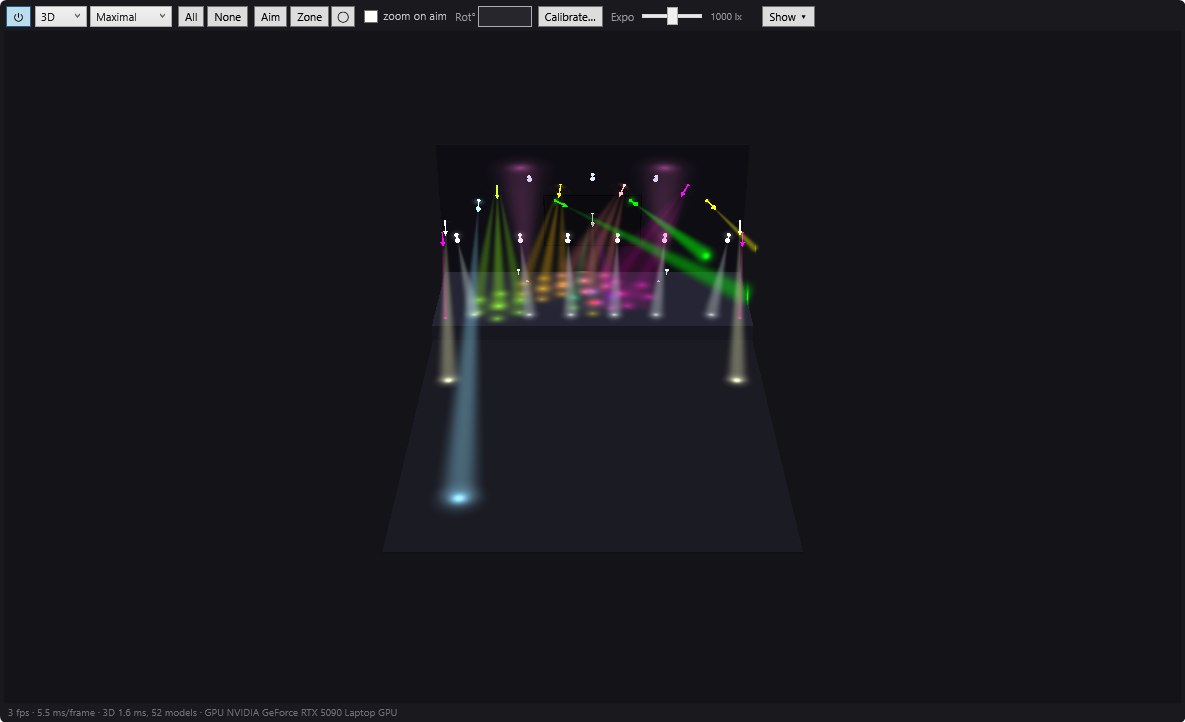
During playback, the moving heads move at a realistic speed, like the real equipment. See 2D and 3D simulation.
Step 6: take the project to the control PC
On the preparation PC: File > Export the whole project (zip)…. The zip contains the venues, fixtures, shows, effects and media. On the control PC: File > Import a project (zip)…. DreamShow is free, so you can install it on every computer you need, for example the control PC and a preparation laptop.
On get-in day: the short list
- Rig according to the plan and set each fixture to the address and mode shown in Venue > Fixtures, addresses, positions… (Sort by DMX address helps you follow the line).
- Set up the interface in Venue > DMX connections…: see the guide Art-Net, sACN or USB DMX interface.
- Test with DMX > DMX values… and DMX > DMX faders….
- Correct the positions if the real rig differs from the plan.
- Calibrate the moving heads that must aim accurately: Calibrate…, one beam on each of the four corners of the stage. See Moving-head calibration.
- Run a technical rehearsal in Show mode.
And if the show is played from a lighting console?
DMX > Visualiser mode (Art-Net / sACN in)… displays in the simulation the DMX that another program or a console sends over the network. Declare the same fixtures in the venue, at the same addresses, and you see its show in 3D. While this mode is on, DreamShow sends nothing.
Good to know
- The simulation approaches the real rendering (colours, zoom, power when it is known), but does not replace a test on stage.
- Moving-head aiming depends on the declared positions: a badly placed head will aim off target. Calibration is done on site, with the DMX output connected to the real fixtures.
- Maximal depends on the graphics card: if it does not allow it, DreamShow falls back to Standard.
- The Fixtures, addresses, positions… window works on a copy: nothing is applied before Save the venue.
Frequently asked questions
Do I have to pay to prepare in 3D?
No. DreamShow is free, with no feature or time limit: venue, fixtures, scenes, timeline, 2D and 3D simulation, and then the DMX output to the real equipment on show night.
Can I use the venue's plan?
Yes, as an image (png, jpg, jpeg, bmp, gif): Background plan… in Venue > Fixtures, addresses, positions…. Type the inside dimensions first: the image is stretched over the whole rectangle of the venue.
How do I transfer the work to the control PC?
File > Export the whole project (zip)… on the preparation PC, then File > Import a project (zip)… on the control PC, for example with a USB stick.
Does the 3D show the real power of the fixtures?
It takes it into account when the fixture's flux or photometry is known: in its definition, or entered in the venue. Otherwise, it relies on an estimate or keeps neutral lighting, and the fixture's sheet tells you so.
Try DreamShow on your own show
DreamShow is free, with no feature or time limit: from 3D preparation to show night.