Theatre lighting software: cue-by-cue playback on GO, from the script to the performance
Are you looking for theatre lighting software that is simple to run during the performance? DreamShow is lighting, sound and video control software for Windows. A play becomes a sequence of scenes, one per moment of your cue sheet, which the operator triggers one after the other with the GO button, the space bar or a remote. Everything is prepared and rehearsed in 2D/3D simulation, even before you have access to the stage, and the software is free from preparation to show night.
What a theatre control position must be able to do
A theatre cue sheet is the audience coming in, the house blackout, a change of place on a line, a day slowly fading, a monologue downstage, the bows. The operator follows the text and presses GO on the right word; they must see at a glance where they are and what comes next. In DreamShow, each scene has its lighting (its final state), its fade, a cue message for the operator, and if needed a timeline with sounds.
1. Writing the cue sheet from your notes
The quickest way is the Create my first show wizard (menu ? > Welcome and first steps…). Choose A theatre play: DreamShow offers a typical cue sheet already filled in, which you rename, reorder and complete. Each line is a moment, with:
- a Mood: Full light, Day, Evening, Night, Warm interior, Cold exterior, Mystery, Audience in or Blackout;
- a Zone of the stage: Whole stage, Stage right, Centre, Stage left, Downstage or Upstage;
- a Fade (s), a Note for the operator (for example the line that triggers the Go) and an optional Sound.
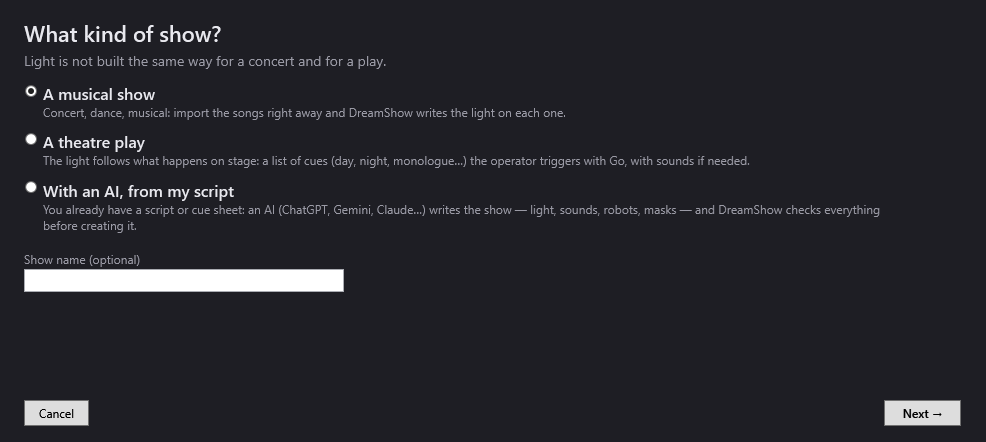
To try it out, the wizard offers a ready-made venue, Small theatre (no moving heads): 6 PCs on dimmers in front, 4 LED PARs as backlight and 3 LED floods on the cyclorama. Since a white fixture cannot turn blue, DreamShow lowers its intensity instead in Night or Mystery. Any moving heads aim at the chosen zone and get into place during the blackout that precedes. The full detail is in Creating your first show.
After that, everything is touched up like an ordinary show: each scene's lighting, its Fade to the next (s), its Cue message. One point to remember: in DreamShow, the fade belongs to the scene you leave. See Scene settings.
2. Declaring your fixtures
The Declare my fixtures wizard looks up your models in the library (more than 1,600 definitions), with their DMX mode and their number. DreamShow assigns the addresses, creates one group per model and draws a plan, to be corrected in Venue > Fixtures, addresses, positions…. Then run the first-show wizard again on My current venue. See Declaring your fixtures.
3. Rehearsing in 3D before the get-in
The Venue panel shows your venue in 2D or 3D, with the beams and their pools of light on the stage. You run through the whole cue sheet at home, without a single fixture plugged in, and arrive at the theatre with a show already written.
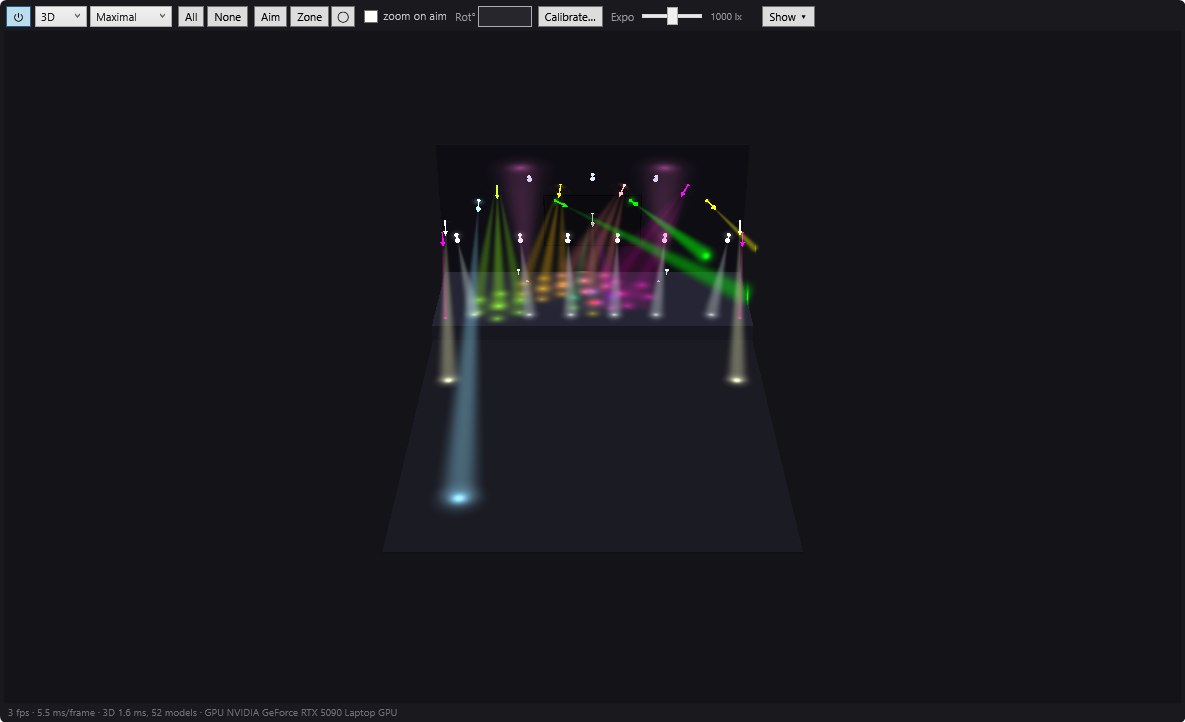
The simulation approaches the real rendering, but does not replace a test on stage: keep some time for fine adjustments. See 2D and 3D simulation.
4. Playing the performance
The Show mode button opens the cue window, readable from a distance: the current scene, its progress, the next one, your message in yellow, and three big buttons GO, ◀ Previous and BLACKOUT. It can go onto a second screen (F11 for full screen) or shrink into a strip (F9).
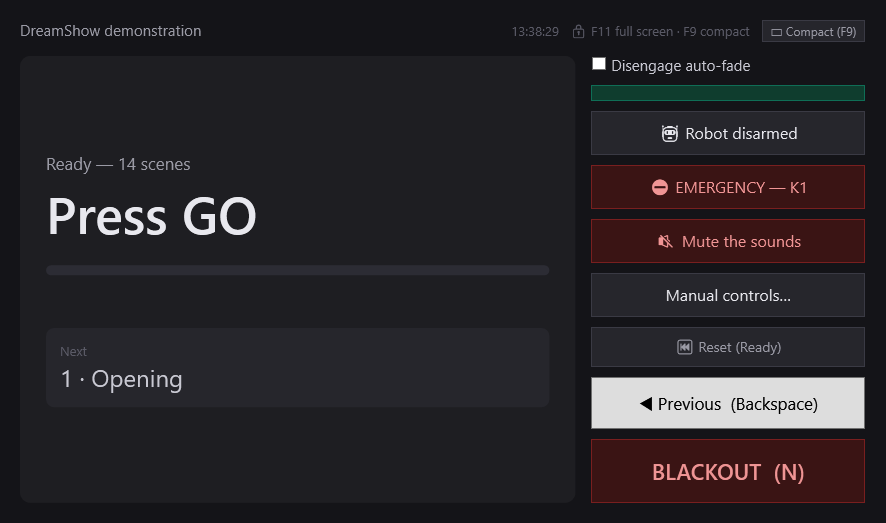
A few details that matter at the control position:
- GO stays greyed out until the current scene has finished its timeline: no accidental double Go.
- A presentation remote (the small 2.4 GHz box for slides) can serve as a GO: teach it its buttons in File > Remote (GO keys)….
- Wait for a key… stops a scene in mid-course, for example until the applause is over, with a message shown to the operator. See Waits.
- Sound goes on the timeline: entrance music, sound effects, and the Sound level, Stop sound and Silence blocks to lower a piece of music under a line or cut it.
The complete step-by-step is in Show mode and the cue window.
Extra tools for companies
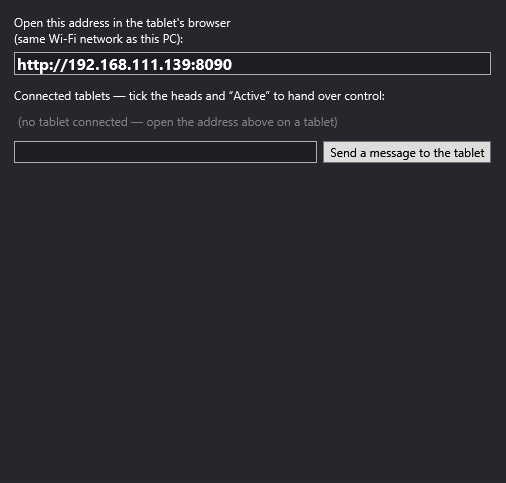
- The follow spot on a tablet: a tablet on the same Wi-Fi shows the venue plan; you put your finger on the actor and the chosen moving heads follow them. Nothing to install: the tablet uses its browser.
- Backstage displays: a screen in the dressing room shows the messages sent by the timeline (“Curtain up in 5 minutes”, the current scene).
- A show written by an AI from your text, which DreamShow checks before creating it: see the guide.
DreamShow is developed by Polux (Le Paradise, Alès) and is used every night in its own venues.
Good to know
- DreamShow runs on Windows 10 and 11 (64-bit) only: no Mac or Linux version.
- DreamShow is free, with no feature or time limit: DMX output, follow-spot tablets and backstage displays are included. No licence, no subscription, nothing to activate.
- Between the PC and the fixtures, you need a DMX interface: USB (Enttec DMX USB PRO type, or uDMX) or an Art-Net / sACN node. See Art-Net, sACN or USB DMX interface.
- The timeline has no undo (Ctrl+Z): save often.
Frequently asked questions
My fixtures are PCs on dimmers: can DreamShow drive them?
Yes, as soon as they go through a DMX dimmer: DreamShow sets their intensity as for any fixture. The Small theatre (no moving heads) venue is in fact built on PCs on dimmers, and the wizard knows that a white fixture does not change colour.
Do I need moving heads to use DreamShow in the theatre?
No. A cue sheet made only of fixed fixtures works very well. Moving heads are a plus: they can aim at an area of the stage, get into place in the dark, or follow an actor from a tablet.
Can I trigger the GO with a wireless remote?
Yes. A presentation remote behaves like a keyboard: in File > Remote (GO keys)…, you teach it its buttons for the GO, the previous step and the blackout. A phone can also be used, through the web remote.
What happens if the computer crashes during the performance?
On restart, DreamShow offers to resume exactly where it stopped: same show, same scene, same second. Answer Yes, resume, and the cue list restarts. Settings made by hand live (faders, general blackout) are not resumed.
Try DreamShow on your own show
DreamShow is free, with no feature or time limit: from 3D preparation to show night.