Lighting software for community halls, associations and amateur theatre groups
Are you looking for lighting software for a community hall, a small association venue or an amateur theatre group? DreamShow is lighting, sound and video control software for Windows. It is free, with no feature or time limit. You learn it in 3D simulation, without plugging in a single fixture; you write a first show in a few minutes thanks to its wizards; and on the day, a simple USB DMX interface is enough to drive the hall.
The evenings of a small venue
The association's annual gala, the group's play, a dance night, the concert of a local band: in a small venue, the lighting is often run by a volunteer, who is not a technician and who does not have the hall available to rehearse. They need a tool they can discover at home, that does not ask them to program everything by hand, and that does not cost a subscription every year.
1. Starting without equipment and without paying
On first launch, the Welcome to DreamShow screen offers three doors: See DreamShow in action (the demonstration plays in 3D with its music), Create my first show and Declare my fixtures. A short list of six things to do (change a colour, add a scene, add music, press Go…) ticks itself off as you go, with a How? button for each. See First steps.
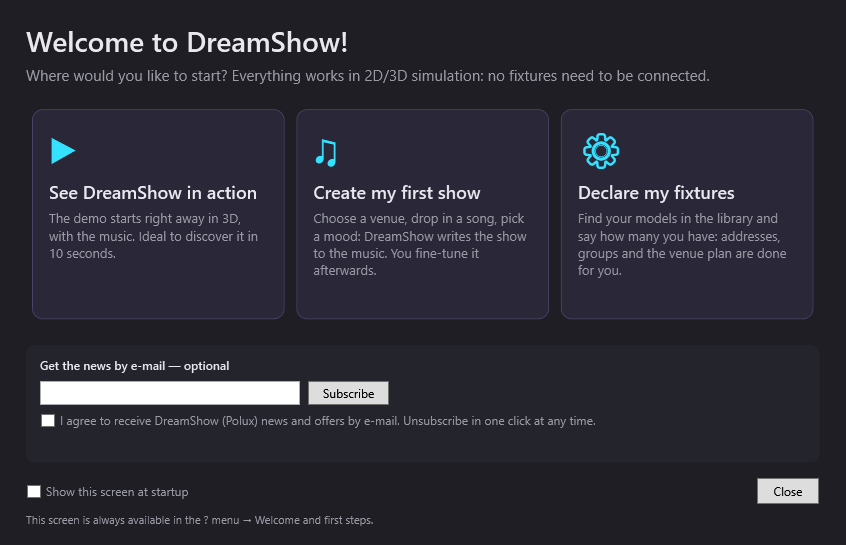
Everything is done in 2D/3D simulation, without any fixture connected. So you can prepare your evening weeks in advance, on your own computer.
2. Describing the hall's equipment
Two ways to do it:
- A ready-made venue, to try things out: Bar, club or party hall (6 LED PARs, 4 moving heads, 4 cell washes and 2 strobes), Small stage or Small theatre (no moving heads).
- Your real fixtures, with the Declare my fixtures wizard: you type the brand or model, you choose the DMX mode set on the device and the number. DreamShow assigns consecutive DMX addresses, creates one group per model and places the fixtures on a plan. See Declaring your fixtures.
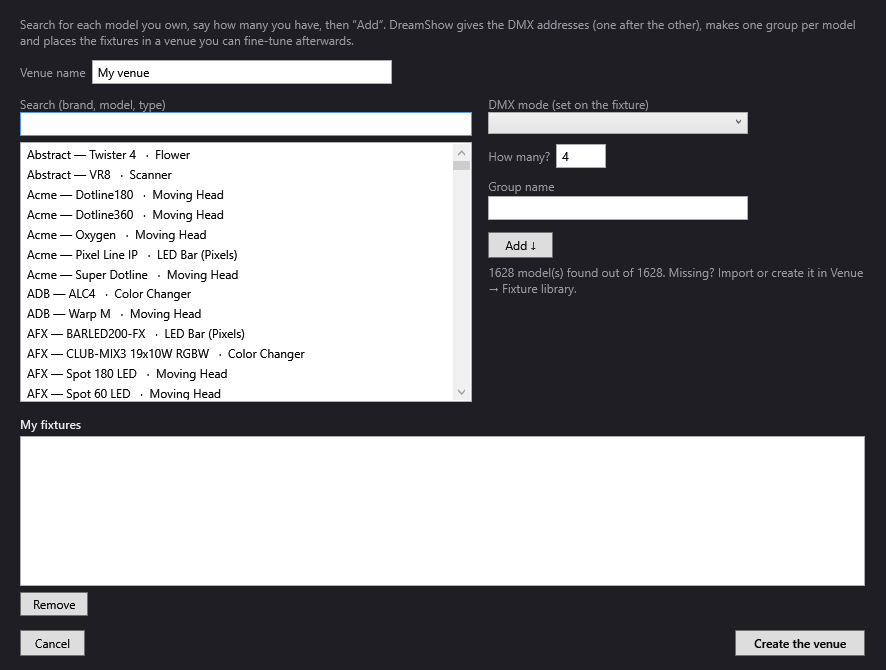
The library has more than 1,600 fixture definitions. A missing model can be created from the DMX table in its manual, or imported (GDTF, QLC+, DJworld).
3. Writing the show in a few minutes
The Create my first show wizard first asks for the type of performance:
- A musical show: you add your songs and choose a mood (Calm, Energetic or Party). DreamShow listens to each song and writes one scene per song, then a Bows scene for the applause.
- A theatre play: you start from a typical cue sheet (audience entry, house blackout, day, evening, night, bows…) that you adapt to your play.
You get a show that works straight away, which you then touch up in the timeline. See Creating your first show.
4. Plugging in the lights: a USB interface is enough
Between the PC and the fixtures, you need a DMX interface. For a small venue, a USB interface is often the simplest: DreamShow accepts Enttec DMX USB PRO and uDMX type interfaces, as well as Art-Net and sACN network nodes. A DMX universe carries 512 channels: a small installation generally fits in it.
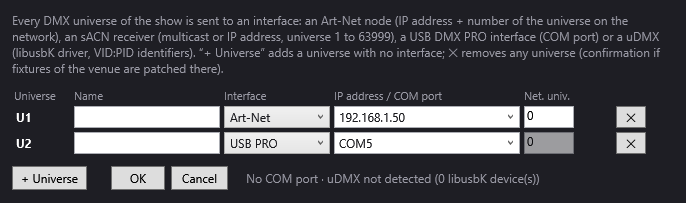
The setting is made in Venue > DMX connections…. Plug the interface in before starting DreamShow. See DMX connections and the guide Art-Net, sACN or USB DMX interface.
5. On the night
Click Show mode: the cue window shows the current scene, the next one and big GO, ◀ Previous and BLACKOUT buttons. The GO is given with the space bar, with a presentation remote, or from a phone with the web remote (menu DMX > Web remote…, on the same network, with a PIN code if you wish). For the dancing part of the evening, the Sound-to-light and tempo window can make a group of PARs pulse to the music. See Show mode and the cue window.
A clear budget
- DreamShow is free, with no feature or time limit, from preparation to show night: output to real equipment is included.
- No licence, no purchase, no subscription.
- You can install it on as many computers as you need, for example the control PC and a preparation laptop.
- It works without the Internet: the hall does not need a connection.
- What you do pay for is the equipment: the DMX interface and the cables.
Good to know
- DreamShow runs on Windows 10 and 11 (64-bit) only: no Mac or Linux.
- The DMX interface and the cables are to be provided separately. Each fixture must be set to the DMX address and mode declared in the venue.
- Strobes are never switched on by the wizards: a flash is for you to decide.
- To hand over to next year's volunteer, File > Export the whole project (zip)… gathers the venue, shows, effects and media in a single file.
Frequently asked questions
Do I need to be a technician to use it?
No. The wizards write a first show for you, and the first steps checklist shows the essentials in six things to do. The built-in manual (F1 key) opens the page for the current window.
Which DMX interface should I choose?
DreamShow accepts USB interfaces of the Enttec DMX USB PRO type (FTDI driver), uDMX interfaces, and Art-Net or sACN nodes on the network. A USB interface has only one output, so one universe; a network node can carry several.
Our fixtures are not in the library: what can I do?
First search by brand or by type (par rgbw, moving head…). If it is missing, import its GDTF profile from the manufacturer's website, or create it in Venue > Fixture library… from the DMX table in its manual.
Can I use a phone to start the scenes?
Yes. The web remote turns a phone or tablet on the same network into a remote: GO, back, list of scenes, blackout. Nothing to install on the phone, its browser is enough.
Try DreamShow on your own show
DreamShow is free, with no feature or time limit: from 3D preparation to show night.