Architectural lighting software: facade, shop window and building lit at sunset
Are you looking for architectural lighting software to light up a facade, a shop window, an old building or a garden? DreamShow, lighting control software for Windows, can run a programme with nobody at the control position: switching on at sunset, animations, moving to fixed lighting, switching off at a set time, and everything starts again the next day. And to do without a computer altogether, the show can be handed to a small box, the standalone player.
What an installation without a stage manager needs
The facade of a theatre or town hall, a shop window, a monument, a reception hall, a garden: the lighting must switch on by itself every evening, at a time that changes with the seasons, perhaps only on weekdays, and switch off at a set time. Sometimes a special illumination comes back every year on the same date. And you need to be able to prepare and check everything without waiting for nightfall.
1. The principle: a show that goes round in circles
In DreamShow, an architectural installation is an ordinary show, made of four scenes:
- Evening wait: everything is off; a wait block holds until sunset (for example a quarter of an hour before), then the scene moves on to the next one with a fade.
- Animation: colours that turn, a wave, a pixel mapping, on Loop for a chosen length of time.
- Fixed lighting: calm lighting, held until the switch-off time (for example 23:30).
- Night: blackout, then a Go to scene… jump to scene 1, which waits for the next day's sunset.
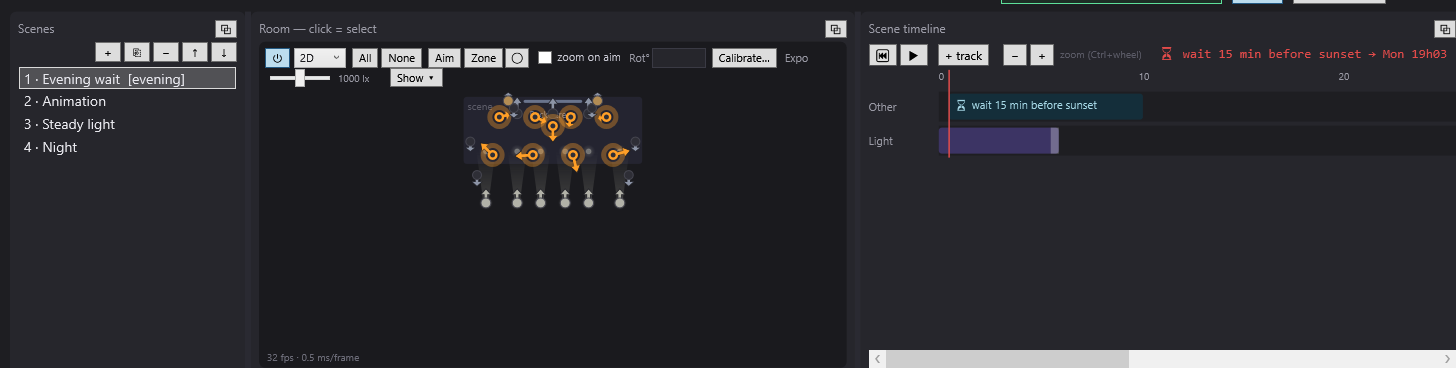
The complete recipe, step by step, is in Architectural lighting.
2. Waits: time, date, sun
The Wait for a time, a date, the sun… block (Others list of the timeline) stops the scene until a given moment, then restarts by itself, with no GO. It can wait for:
- a length of time (“20 min”, “1h30”);
- a time of day (“18:30”);
- a date (every year) (“24/12 18:00”);
- sunrise or sunset, with an offset in minutes (negative = before).
For a time of day and for the sun, the day boxes L M M J V S D (Monday to Sunday, French initials) limit the rule to certain days: untick S and D (Saturday and Sunday) for “weekdays only”. A preview at the bottom of the window always shows the next occurrence: it is the surest way to check a rule.
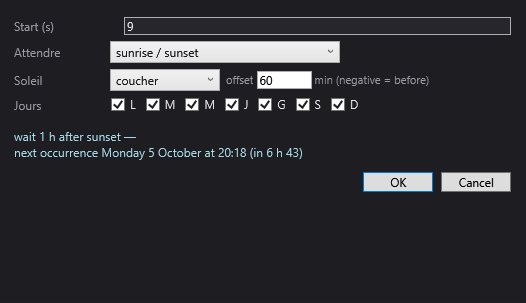
Sunrise and sunset are calculated for the venue's location, every day, without the Internet: set the latitude and longitude in Venue > Fixtures, addresses, positions…. Daylight saving time is handled by the Windows clock. A wait always aims at the next occurrence, never at a time that has already passed: that is what makes the cycle predictable. See Waits.
3. Animating the facade
During a wait, the picture is frozen: that is why animations live in a scene on Loop, with a max length. To build them:
- lighting blocks that overlap on a track make a mix, to turn the colours;
- a dynamic effect sends a slow wave across the fixtures of a cornice;
- a pixel mapping plays a rainbow, a gradient or an image on LED bars.
Choose the max length so that the animation ends before the switch-off time, even on the longest day of the year.
4. Testing without waiting for the evening
For the duration of the tests, replace the wait rule with a short length of time (“30 s”) and watch the whole cycle run in Show mode, in the 3D simulation. Then put the real rule back. In the editor, a click on ▶ also moves past a wait without waiting for the deadline.
5. Without a computer: the standalone player
File > Export for a standalone player… computes the show in advance as a DMX stream, which a small box replays on its own: an ESP32 module, a Raspberry Pi or a Windows mini-PC. The player's program comes with DreamShow. You send the clip over the network, or you save it on an SD card.
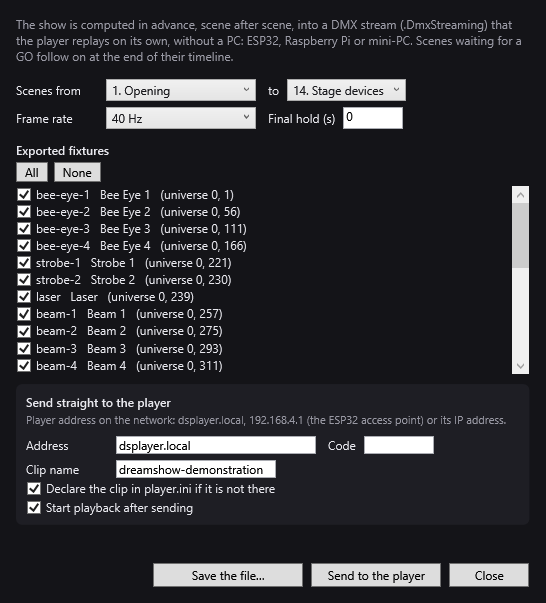
The player has its own weekly programme: slots for each day of the week, at a fixed time or at sunrise / sunset with an offset, including slots that run past midnight. It is set in its player.ini file, from its web page. Example, every evening from sunset minus 15 minutes until 23:30, the “soir” clip in a loop:
soiree = 1111111 sunset-15 23:30 soir loop
Outside the slots, it blacks out or keeps the last picture. It can also read buttons and control relays. See The standalone player.
Good to know
- With a PC, it must stay on, with no sleep mode, and DreamShow open on the show in Show mode. After a power cut, DreamShow offers on restart to resume at the same scene: someone has to answer.
- The standalone player only plays lighting: no sound and no video. The timeline's waits are not exported: the player's schedule decides when to play each clip. Make one clip for each moment of the day.
- A 4 MB ESP32 holds about 2.4 MB of clips in memory; beyond that, use an SD card, a 16 MB module or a Raspberry Pi.
- The DreamShow editor runs on Windows 10 and 11 only.
- DreamShow is free, with no feature or time limit: DMX output and export for a standalone player are included, as are preparation and simulation.
Frequently asked questions
Do I need the Internet to know the time of sunset?
No. DreamShow calculates it for the venue's latitude and longitude, every day, with no connection. The standalone player calculates it too, with the coordinates in its player.ini file.
Can I switch on on weekdays only?
Yes. In the wait block, untick S and D: on Friday evening, after switch-off, the waiting scene aims at Monday's sunset. The standalone player has the same flexibility, day by day.
Can I plan a special illumination on a specific date?
Yes, with the wait a date (every year), for example “24/12 17:00”. The rule comes back every year.
What happens if the PC restarts during the night?
DreamShow offers to resume where it was. If a wait's time went by during the cut, the show carries straight on. Someone does, however, have to answer the question on restart. Also remember to check that Windows does not put the computer to sleep.
Try DreamShow on your own show
DreamShow is free, with no feature or time limit: from 3D preparation to show night.